Who is this choice relevant to?

Photo keeper with a small desk

You want an external backup drive without a separate power adapter or bulky device on your desk, so you pay attention to its size, cable and capacity. The product specifications from Western Digital, Seagate and Toshiba show why it’s worth comparing the exact model.

Photographer with a growing archive

You want to back up both your originals and catalogue files, while allowing room for future files and a second copy. Adobe states that Lightroom Classic’s built-in catalogue backup contains only the catalogue file.

Photo user with multiple computers

You want to use the drive with different computers, so you check ports, cables, file system and backup settings. Information from Crucial, Samsung and Western Digital shows that connections and included cables vary by model.

What should you look for in a photo backup?

Compact external HDD

A good fit if: you mainly make regular copies of a growing photo collection and want a drive you can use on your desk without a separate power adapter.

Bear in mind: size, cable and formatting vary by model; it’s best not to move an HDD while it’s in use.

Compact external SSD

A good fit if: you move the drive around often, have little desk space or want to complete large transfers faster.

Bear in mind: stated peak speeds aren’t guaranteed with your setup; your computer and cable must support the relevant interface. Crucial and Samsung explain these requirements in their product specifications.

What to consider What to look for when buying Who is this important for?
Complete, restorable backup Include photos and catalogue files; after the first backup, check that you can restore files. I don’t want to discover during a restore that only my catalogue was copied. Around 28% of consumers put completeness first.
Room for your collection Measure all the folders you want to include and decide how much room for growth and how many backup versions you want to keep. As my photo archive grows, I want to allow room for all my files and the versions I want to keep. Around 22% of consumers put room for growth first.
Limited space and fewer cables Compare the dimensions of the exact model and check whether USB power is sufficient. On a small desk, I don’t want an unnecessarily bulky device or a separate power adapter. Around 22% of consumers put compactness first.
Connection and backup software Check USB-A or USB-C, the included cable, the file system and your backup software settings. If I use the drive with different computers, the connection and backup settings need to work with my devices. Around 17% of consumers put compatibility first.
Transfer speed Compare the interfaces of the drive, computer and cable; treat stated speeds as maximums under certain conditions. For frequent, large transfers, I want to keep waiting time to a minimum. Around 11% of consumers put transfer speed first.

Common photo backup mistakes

  • Copying only the photo catalogue

    If you use Lightroom Classic, Adobe says its built-in catalogue backup contains only the catalogue file. Your original photos and any exported files aren’t automatically included.

    Check which folders your backup software actually copies, and try restoring a file.

  • Relying on a single external drive as your entire backup plan

    If your only backup drive is lost or fails, you won’t have a separate copy. Seagate describes an approach that uses multiple copies and storage locations.

    Keep your originals and consider making a separate copy too, for example in another location.

  • Relying on an SSD’s peak speed

    Manufacturers’ maximum speeds apply under specific conditions and don’t directly indicate how quickly your computer will make a backup. Crucial and Samsung specify that their stated speeds require compatible connections and cables.

    Before making speed your deciding factor, compare your computer’s port and cable with the drive’s interface.

  • Formatting a drive without securing your files

    Reformatting can erase existing data. For example, Toshiba says Canvio Basics needs to be reformatted for use with macOS.

    Check the file system and first make a copy elsewhere of any files already on the drive.

Brands to compare

Western Digital

Elements Portable is an HDD range for anyone looking for capacity and a simple desk setup.

  • For the 2TB model, Western Digital lists dimensions of 110,5 × 82,0 × 15,0 mm and an included USB-A cable.
  • Check the port and specifications of the exact model; this is an HDD range, not an SSD.

Seagate

Expansion Portable is a USB-powered HDD range for local photo copies without a separate power adapter.

  • Seagate’s data sheet lists a depth of 12,6 mm and a USB 3.0 cable for models up to and including 2 TB.
  • According to Seagate, the Rescue service mentioned isn’t available in every country; check the terms for your model.

Toshiba

Canvio Basics is a USB-powered HDD range for a straightforward Windows setup.

  • For the 2TB model, Toshiba lists dimensions of 78 × 109 × 14 mm and a USB-A to Micro-B cable.
  • The drive is formatted as NTFS; Toshiba says it needs to be reformatted for use with macOS.

Samsung

Portable SSD T7 is a compact SSD option for anyone who values portability and transfer speed.

  • For the Dutch 2TB model, Samsung lists USB 3.2 Gen 2, USB-C to C and USB-C to A cables, and maximum sequential speeds of 1.050 MB/s read and 1.000 MB/s write.
  • These are manufacturer maximums, not a guarantee of your backup speed; your computer and cable also make a difference.

Crucial

X9 Portable SSD is a small USB-C option for a limited desk space.

  • Crucial lists dimensions of 65 × 50 mm and read speeds of up to 1.050 MB/s for the X9.
  • According to Crucial, the best speeds require a compatible USB 3.2 Gen 2 host and cable; formatting and host capabilities also affect compatibility.

External drives on Joybuy

This selection includes compact external HDDs and SSDs for storing and backing up photos, catalogue files and other files.

SanDisk Portable SSD 1TB

SanDisk Portable SSD 1TB

A portable SSD for a copy of your photos and videos.

Capacity: 1 TB. The product description mentions drop protection from heights of up to 2 m.

View at Joybuy

My Passport for Mac 2TB Blue portable hard drive

My Passport for Mac 2TB Blue

A portable hard drive for a Mac backup with Time Machine; check that the connection is compatible with your computer.

Capacity: 2 TB. The product information lists USB 3.0 and a USB-A cable with a USB-C adapter.

View at Joybuy

WD Elements Portable 2TB USB-C Graphite Black Worldwide

WD Elements Portable 2TB USB-C Graphite Black Worldwide

A portable HDD for a larger photo library; check in advance that USB-C is compatible with your computer.

Capacity: 2 TB. The product information lists USB-C and plug-and-play.

View at Joybuy

My Passport 2TB Red portable hard drive

My Passport 2TB Red

A portable drive for photos and other files, powered via USB.

Capacity: 2 TB. The product information lists USB 3.0 and password protection with 256-bit AES hardware encryption.

View at Joybuy
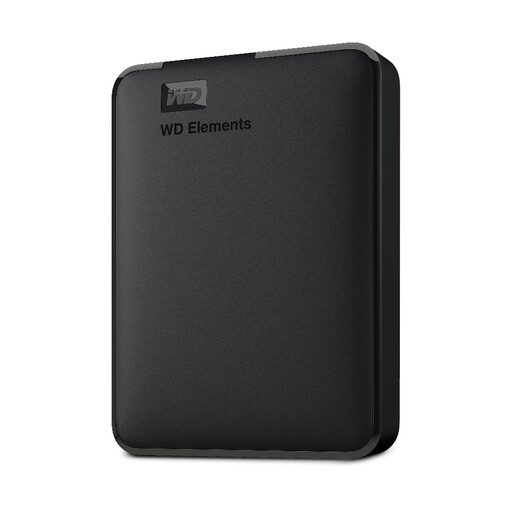
WD 2TB Elements Portable external hard drive USB 3.0

WD 2TB Elements Portable, USB 3.0

A portable HDD for photos and documents; check that the stated formatting is compatible with your computer.

Capacity: 2 TB. The product title lists USB 3.0 and formatting for PC and Mac.

View at Joybuy

Frequently asked questions

Does backing up your Lightroom Classic catalogue also back up your photos?

No. According to Adobe, the built-in catalogue backup contains only the catalogue file. Include your original photos and any exported files separately, and check that you can restore them.

Can you use an external drive with Time Machine?

Yes, if you can connect the drive to your Mac using a compatible port. Apple Support recommends a drive with at least twice the storage capacity of your Mac for a full Mac backup. This is advice for that use, not a general capacity requirement for every photo backup.

How do you set up a backup of your photo folders on Windows?

Microsoft says File History can copy files to an external drive. Check that your photo folders are included; you can add folders in other locations to a library.

What can you do in the Netherlands if your new drive isn’t working properly?

For a consumer purchase, contact the seller if the product doesn’t meet the terms of the agreement. The Dutch government states that there’s no fixed two-year statutory guarantee period in the Netherlands; a manufacturer’s warranty is separate from your statutory rights.

What can you do with your old external drive?

For household electrical appliances, the Dutch government says you can use the free one-for-one take-back scheme when buying a similar new appliance, including online. Collection points and your local recycling centre are other options. Erase your personal data before handing over a storage device.
