Who is this choice relevant to?

Photographers who don’t want to lose their edits

After editing, you want a restorable backup of your photos and project files, not just another place to store them. Check that your backup includes the right folders too. Microsoft Support and Apple Support explain how to restore files or previous versions.

Photographers managing a growing archive

You store lots of images and previous versions, and are mainly looking for the right capacity without immediately deleting the copy on your computer. The Consumentenbond discusses the choice between SSDs and HDDs; Toshiba lists Canvio Basics models with capacities of up to 4 TB.

Photographers who often take files with them

You regularly transfer large photo folders or work in different locations. In that case, transfer speed and portability matter, alongside having a backup. Samsung and Crucial publish maximum speeds for specific SSD models, but the connection and conditions of use are still important.

What should you look for when choosing?

External HDD

A good fit if: you mainly need space for a growing photo archive and don’t transfer large files all the time.

The trade-off: according to the Consumentenbond, an HDD is more susceptible to knocks than an SSD. Handle it with care, especially while it’s in use.

Portable SSD

A good fit if: you often copy large files or take your storage with you, and have a USB connection that’s compatible with your computer.

The trade-off: the Consumentenbond notes that SSD storage is generally more expensive than HDD storage at higher capacities. Maximum quoted speeds don’t guarantee how long your backup will take.

What to consider What should you check? Who is this important for?
Restorable backup Check that your photo and project folders are included and that you can restore a file or previous version. Keep another copy elsewhere too. If I want to be able to restore an edit, I look beyond simply having extra storage. Around 36% of consumers prioritise being able to restore files.
Space for your archive Compare the capacity of the specific model with the size of your photo and project folders, and the versions you want to keep. If my archive keeps growing, I want enough space for photos and previous versions. Around 29% of consumers prioritise archive space.
Transferring and taking it with you Check the quoted read and write speeds, as well as the requirements, such as the port and cable. A maximum speed isn’t a measure of how long your full backup will take. If I copy large folders after editing or take the drive with me, transfer speed and portability matter. Around 21% of consumers prioritise fast, mobile transfers.
Connection and format Check that the cable is compatible with your computer and that the file system works with your chosen backup software. Make a copy elsewhere before reformatting. If I want to use the drive straight away with my computer and backup software, I want to avoid connection or formatting problems. Around 14% of consumers prioritise system compatibility.

Common pitfalls

  • Using the external drive as your only copy

    Files on an external drive can be lost if the drive is damaged, warns VeiligInternetten.

    Keep a separate copy as well, and check from time to time that you can restore a file.

  • Assuming the quoted speed is the speed of every backup

    Manufacturers’ speed figures apply under specific conditions. For example, Crucial quotes the X9’s highest speeds when used with a suitable USB-C cable and a USB 3.2 Gen 2 host.

    Check your computer’s port and cable before choosing a model based on its quoted speed.

  • Setting up an existing drive for Time Machine without checking it first

    Apple warns that setting up a drive with a Windows format for Time Machine may require reformatting. This can erase existing data.

    Check the format and move your files somewhere else before reformatting the drive.

  • Confusing the manufacturer’s warranty with all your warranty rights

    According to the Dutch government, there is no fixed statutory warranty period in the Netherlands. So a stated manufacturer’s warranty doesn’t, by itself, tell you what rights you have in your particular circumstances.

    Keep your proof of purchase and contact the seller if you think a product may be faulty.

Brands to consider

Samsung

Samsung’s portable SSD range includes the T5 EVO, which focuses on capacity; the T7, designed for transfers; and the T7 Shield, a more robust model. These are differences between product ranges, not a judgement on every Samsung drive.

  • Samsung quotes maximum read and write speeds of 1.050/1.000 MB/s for the T7.
  • These are quoted maximums. Check the port, cable, capacity and exact model.

Toshiba

Canvio Basics is a USB-powered HDD range for anyone looking to keep a local photo archive. Toshiba lists EMEA models with capacities of up to 4 TB.

  • Capacities vary by model, so check the version you’re choosing.
  • Toshiba says the Canvio Basics models it tested are formatted as NTFS for Windows and need to be reformatted for macOS. The supplied cable has USB-A and Micro-B connectors.

Crucial

Crucial describes its portable X9 as suitable for use with Windows File History and Apple Time Machine, and offers a 2 TB model.

  • Crucial quotes a maximum read speed of 1.050 MB/s for the X9.
  • According to Crucial, performance and compatibility may vary. The drive is supplied in exFAT format; reformatting it will erase existing data.

SanDisk

SanDisk identifies a 1 TB version of the Extreme Portable SSD by model number SDSSDE61-1T00-G25. Check the model number to distinguish this version from other Extreme or Extreme Pro models.

  • SanDisk quotes a sequential read speed of 1.050 MB/s for this model.
  • This is a quoted product specification, not a measurement of how long a full photo backup will take.

Joybuy products

This selection includes external HDDs for archive storage and portable SSDs for photo storage and file transfers.

My Passport 2 TB portable external hard drive

My Passport 2 TB external hard drive

A portable HDD with 2 TB of storage for anyone wanting to keep a separate copy of their photo and project files.

The product information lists USB 3.2 Gen 1, 256-bit AES hardware encryption and password protection.

The description lists Windows 10 and Windows 8.1 as supported operating systems.

View at Joybuy

1 TB portable external SSD

1 TB portable SSD

This 1 TB portable SSD is a good fit if you want to take external storage with you for photo and project files.

The product information lists USB-C and a maximum read speed of 1.000 MB/s. Actual speed depends on the supported host and USB conditions.

The description lists compatibility with Windows, macOS, iPadOS and Android.

View at Joybuy

Toshiba Canvio Basics 4 TB external hard drive

Toshiba Canvio Basics 4 TB

An external HDD with 4 TB of storage for anyone looking for space for a growing photo archive.

The description lists USB 3.2 Gen 1 and a supplied cable with USB-A and Micro-USB-B connectors.

According to the product description, the drive needs to be reformatted for macOS. Don’t move or shake the drive while it’s in use.

View at Joybuy
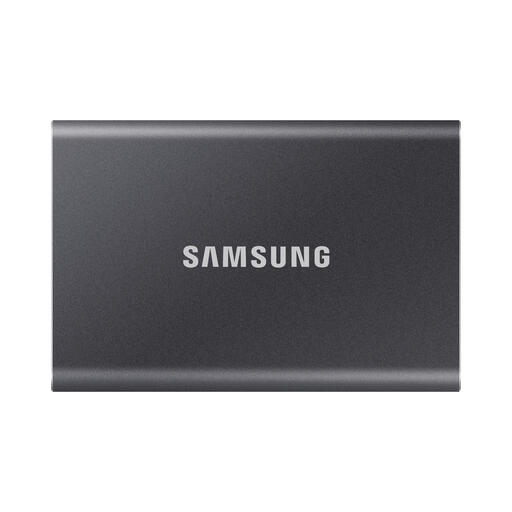
Samsung Portable SSD T7 2 TB

Samsung Portable SSD T7 2 TB

This portable SSD offers 2 TB of storage for anyone who regularly copies large files and wants a drive they can take with them.

Samsung quotes maximum read and write speeds of 1.050/1.000 MB/s. The product description lists USB 3.2 Gen 2 for optimal performance.

The description lists USB-C-to-C and USB-C-to-A cables, and support for Windows and macOS, among others.

View at Joybuy

Samsung MU-PE2T0R 2 TB portable SSD

Samsung MU-PE2T0R 2 TB

A portable SSD with 2 TB of storage for anyone wanting to keep photos and take files with them on the go.

The product description lists USB-C and maximum read and write speeds of 1.050/1.000 MB/s.

The description lists IP65 protection against dust and water jets; avoid submerging the drive in water.

View at Joybuy

Frequently asked questions

How can you check that you really have a backup after editing?

Check that your photo and project folders are included in the backup you’ve set up, then try restoring a file or previous version. Microsoft Support explains how to restore versions with File History; Apple Support explains how to restore files with Time Machine.

Can you use a drive set up for Windows with Time Machine straight away?

Check the format first. Apple warns that reformatting a drive for Time Machine can erase existing data. Move those files somewhere else before you begin.

Is syncing the same as having a separate backup?

Not necessarily. The Consumentenbond warns that changes and deletions made through OneDrive syncing may also be applied online. Check how your chosen service handles versions and deleted files, and use a separate backup feature as well if needed.

Is there a fixed statutory warranty period in the Netherlands for a faulty external drive?

According to the Dutch government, there is no fixed statutory warranty period in the Netherlands. Keep your proof of purchase and contact the seller if you think the product may be faulty. Also check exactly what any manufacturer’s warranty covers.

What should you consider if identifiable people appear in your historical photos?

The Dutch Data Protection Authority considers images in which people are identifiable to be personal data. Think about who can access the photos and check which rules apply before sharing them.
