What should you look for when choosing?
Portable HDD
Best for: a large or growing archive that you don’t move around all the time.
Trade-off: a high-capacity drive stores your files, but it isn’t a separate backup.
Portable SSD
Best for: scans you regularly move between devices or use directly from the drive.
Trade-off: stated transfer speeds are manufacturer figures; the connection and file sizes affect the speeds you get in practice.
| What to consider |
What should you check? |
Who should consider this most? |
| Preserving and finding files |
Can you keep the original files and folders, make a separate backup and open the files after copying them? |
I want to be able to find my irreplaceable scans later and not rely on a single copy; around 36% of consumers put preservation and retrievability first. |
| Space for scans |
Check the total size of your current folders and allow for planned new scans and the capacity of the exact version you’re considering. |
If my scan collection is growing, I want to avoid running out of space straight away; around 29% of consumers give storage capacity top priority. |
| Access on Mac and Windows |
Check the file system and whether your software can open the scan formats. A format for sharing files isn’t automatically suitable for Time Machine. |
I want to be able to open and update the same scans on different computers; around 21% of consumers prioritise access across systems. |
| Regular transfers |
Compare the USB connections on your computer, drive and cable; bear in mind that transferring lots of small files can differ from transferring a few large ones. |
If I often take scans with me or move them around, ease of connection and copying matters more; around 14% of consumers give transfer convenience top priority. |
Apple says ExFAT is compatible with Windows, but a Windows file system isn’t necessarily suitable for Time Machine. Check what you want to use the drive for before formatting it: reformatting can erase existing data.
Joybuy products
These product picks include portable external SSDs and HDDs for storing and moving family scans.
 No image available
SanDisk Portable SSD 1 TB
A portable SSD option for a scan archive you take with you regularly.
The stated capacity is 1 TB. The product description lists USB-C, USB 3.2 Gen 2 and read speeds of up to 800 MB/s, as well as compatibility with Windows and macOS.
View product
 No image available
SanDisk Extreme Pro Portable SSD 1 TB
A portable SSD option if you often move large files and your computer supports the stated connection.
The product description lists 1 TB, USB-C and USB 3.2 Gen 2x2, with read speeds of up to 2.000 MB/s when the host supports USB 3.2 Gen 2x2. A USB-C cable and USB-A adapter are included; the stated write speed is lower than the read speed.
View product
 No image available
My Passport portable hard drive 4 TB, black
A portable HDD option for an archive where you’re looking for more storage space.
The product description lists 4 TB, USB 3.0, 256-bit AES hardware encryption and backup software.
View product
 No image available
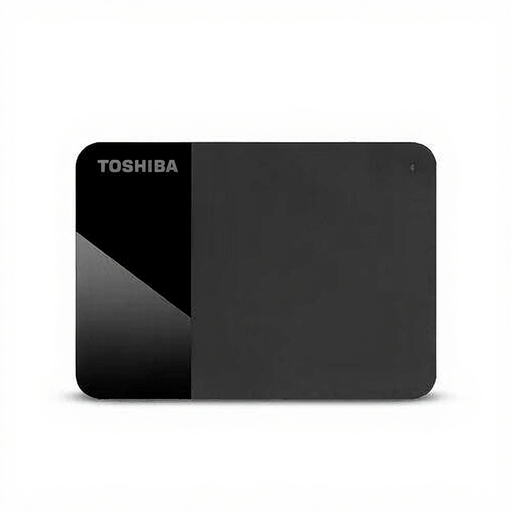
Toshiba Canvio Ready external hard drive 4 TB
A portable HDD option for a large or growing scan archive.
The product description lists 4 TB, a 2.5-inch design and USB 2.0/3.2 Gen 1. The drive is powered via USB; Windows and Mac are listed as compatible systems.
View product
 No image available
Samsung Portable SSD T7 2 TB, blue
A portable SSD option for scans you regularly move between devices.
The product description lists 2 TB, USB 3.2 Gen 2 and read speeds of up to 1.050 MB/s and write speeds of up to 1.000 MB/s. USB-C to USB-C and USB-C to USB-A cables are listed, as is compatibility with Windows and macOS. The stated speeds aren’t guaranteed on every computer or with every collection of files.
View product
Frequently asked questions
Can you use one drive to share photos between Mac and Windows and also for Time Machine?
Not necessarily: a file system for sharing files isn’t automatically suitable for Time Machine. Apple says ExFAT is compatible with Windows and recommends APFS or APFS Encrypted for Time Machine. Decide what you want to use the drive for first; reformatting can erase existing data.
What should you do after copying all your scans?
Organise the files, check that you can open the copy and keep a separate, up-to-date backup. The National Archives also describes digital archiving as organising information and making it accessible; simply making a copy won’t do that by itself.
Can an external drive automatically open any scan file later?
No. A drive stores files, but it doesn’t provide the software you need to open them. According to the National Archives, opening files also depends on having suitable software for the file format. Keep the original files clearly organised and check which applications can open your formats.
What warranty applies when buying in the Netherlands?
When you buy as a consumer, you’re entitled to a product that meets the terms of your purchase, and the seller is your point of contact if it’s faulty. According to the Government of the Netherlands, there’s no fixed statutory warranty period in the Netherlands. A manufacturer’s warranty may offer additional cover, but it doesn’t replace your statutory rights.


