For regular family backups, a portable HDD could be a good fit if capacity and the file versions you want to keep are your priorities. An external SSD is worth considering if you often carry large files and transfer them between work locations. Don’t rely on a single drive as your only copy, and check the capacity, computer ports and file format for Windows or Mac before you buy.
Who is this choice for?
Family archive manager
You want to keep photos, videos and documents, and be able to retrieve earlier versions of files. Capacity and a manageable backup routine matter more than maximum transfer speeds. Microsoft describes File History as a way to back up files to an external drive.
Mobile file worker
You carry large files between work locations and need a suitable connection and fast transfers. Taking a work drive with you doesn’t automatically make it a separate backup as well.
Family with Windows and Mac computers
You want to decide which computer will use the drive for backups before formatting it. A drive set up for Windows isn’t automatically ready for Time Machine; Toshiba, for example, says Canvio Basics needs to be reformatted for use with a Mac.
What should you look for when buying?
Portable HDD for family backups
A good fit if: you mainly want to save photos, videos and documents regularly, and usually use the drive in one place.
Keep in mind: check how much space you need for your files and the versions you want to keep; reformatting may be necessary for Time Machine.
External SSD for working on the go
A good fit if: you often take your drive with you or regularly transfer large work files.
Keep in mind: stated speeds are manufacturer maximums and also depend on the connection. You should still keep a separate backup.
A work drive alongside a backup drive
A good fit if: you need to keep files on a drive you take with you, as well as a separate copy at home.
Keep in mind: two drives require more management and storage space. Also check that you can actually restore your files.
| Buying concern |
What should you check? |
Who should prioritise this? |
| Space for files and versions |
Add up the files you want to keep and work out how much space you need for earlier versions. Compare this with the capacity of the exact model. |
I want to keep photos, videos and documents from the family computer without losing track of the file versions I want to retain. Around 29% of consumers put capacity first. |
| Taking the drive with you and transferring files |
Check your computer’s ports, the cables included and whether the stated speeds are manufacturer maximums. |
When I take large files between work locations, I look for a suitable connection and fast transfers. Around 29% of consumers prioritise mobile use. |
| Backup method and file format |
First decide which system will make the backup, then check the format of the exact drive. Copy any existing files elsewhere before reformatting, if needed. |
I want to know in advance whether the drive suits my Windows or Mac backup method, so I can set it up accordingly. Around 21% of consumers prioritise system compatibility. |
| Being able to restore a copy |
Plan when backups will be made, occasionally test restoring a file and keep a separate copy as well. |
What matters most to me is having a separate copy alongside my work drive that I can restore. Around 21% of consumers put the ability to restore files first. |
Common pitfalls
-
Mistaking an external work drive for a backup
If files are only stored on the drive you take with you, that drive is their only copy. The Dutch Data Protection Authority warns that ransomware can also affect files on connected external drives.
Keep at least one separate copy and periodically check that you can restore a file.
-
Assuming USB speed is the speed of every backup
A stated interface or transfer speed isn’t the same as the time your entire family backup will take. Samsung, for example, lists maximum sequential speeds for the T7; these aren’t real-world tests of your backup.
Check that your computer supports the stated connection, and don’t base your decision on a single speed figure.
-
Formatting a Windows drive without checking the files
A drive may physically connect to a Mac, even if it needs a different setup for Time Machine. Reformatting can erase files already on it.
Decide what you’ll use the drive for before making your first backup, and copy any existing files somewhere else first.
Relevant brands for external storage
Seagate
Expansion Portable is a range of portable, USB-powered HDDs. Seagate lists 2 TB and 5 TB models.
- According to Seagate’s data sheet, a single USB cable is all you need.
- Reformatting is required for Time Machine. The stated Rescue service isn’t available in every country; check the terms for the exact model.
Samsung
The 2 TB Portable SSD T7 is a compact mobile work drive worth considering if you take files between work locations.
- Samsung lists two included cable types, optional password protection and maximum sequential speeds of 1.050 MB/s read and 1.000 MB/s write.
- These are Samsung’s specifications and claims, not independent real-world test results, and they don’t show that the SSD alone provides a complete backup strategy.
Toshiba
Canvio Basics is a straightforward range of portable, USB-powered HDDs. Toshiba lists, among others, a black 2 TB HDTB520EK3AA model.
- According to Toshiba, the stated range is set up for Windows in NTFS, with no software installation required.
- Toshiba says the drive needs reformatting for use with a Mac. Check the exact model: the stated format doesn’t necessarily apply to every Canvio model.
SanDisk
The Dutch product page describes a black 2 TB Extreme Portable SSD, model number SDSSDE61-2T00-G25.
- SanDisk lists USB 3.2 Gen 2 and a maximum sequential read speed of 1.050 MB/s.
- The read speed is a stated maximum. Check that your computer supports the interface, and keep a separate backup of files on a mobile SSD too.
Western Digital
My Passport is a range of portable HDDs to consider when weighing up capacity and security features.
- Western Digital lists NTFS as the factory format for the models described.
- Reformatting is required for macOS. Check the full generation and model, as this information doesn’t necessarily apply to every My Passport drive.
Portable drives for backups and working on the go
This selection includes portable HDDs for family files and an external SSD for work files on the go. For each model, check that the capacity, connection and file format suit your computer and backup method.
 No image available
WD Elements Portable 5TB USB-C, Graphite Black
A 5 TB portable HDD for storing family files. Check that it also has enough capacity for the backup versions you want to keep.
The product description lists a 2.5-inch model, USB-C and USB 3.2 Gen 1.
Don’t use this connected drive as your only copy. Keep a separate backup as well, and test that you can restore files.
View at Joybuy
 No image available
WD My Passport 6TB White
The stated capacity could suit a large family archive. Match the space you need to the files and backup versions you want to keep.
The product information lists a 2.5-inch drive, USB 3.0, 256-bit AES hardware encryption and scheduled automatic backups.
A connected drive shouldn’t be your only copy: keep a separate backup as well, and test that you can restore files.
View at Joybuy
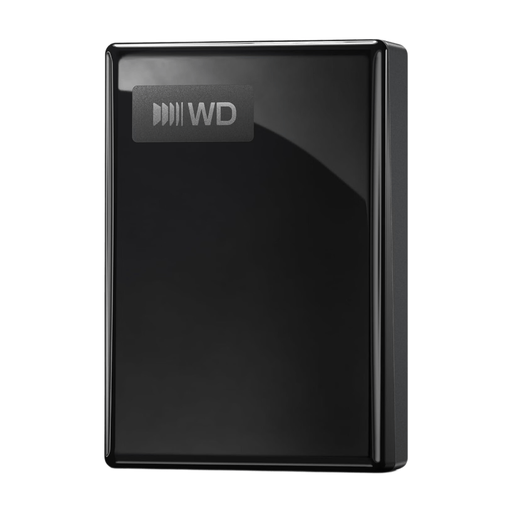 No image available
WD My Passport USB-C 5TB, Black
A 5 TB portable HDD for large files. Check that it offers enough space for your backup needs.
The product description lists a 2.5-inch model, USB-C, exFAT, hardware encryption and backup software.
Keep a separate backup alongside this connected drive, and test that you can restore files.
View at Joybuy
 No image available
Toshiba Canvio Basics 4TB, Black
This 4 TB portable HDD can be used to store family files. Compare its capacity with the files and versions you want to back up.
The product information lists a 2.5-inch model with USB Type-A and Micro-USB B, USB 2.0 and USB 3.2 Gen 1.
According to the product description, reformatting is required for macOS. Copy any existing files elsewhere first.
Don’t use the connected drive as your only copy; keep a separate backup as well.
View at Joybuy
 No image available
Samsung Portable SSD T7 2TB USB Type-C 3.2 Gen 2, Blue
A 2 TB external SSD for work files on the go. Check that it also leaves enough space for the backup you need.
The product description lists USB 3.2 Gen 2, a USB-C-to-C cable and a USB-C-to-A cable.
The stated maximum sequential speeds are 1.050 MB/s read and 1.000 MB/s write. The description links optimal performance to USB 3.2 Gen 2; these are manufacturer maximums, not guaranteed backup speeds.
Keep a separate backup as well, and test that you can restore files.
View at Joybuy
Frequently asked questions
Can I back up automatically to an external drive with Windows?
Microsoft describes File History as the Windows feature that backs up selected files and earlier versions to an external drive or network location. Connect the drive, select it as the destination and test that you can restore a file.
Can I use a new drive with Time Machine straight away?
Time Machine can use an external storage device, but the drive’s file format matters. Toshiba, for example, says Canvio Basics is set up as an NTFS drive for Windows and needs to be reformatted for use with a Mac. First copy any files you want to keep somewhere else.
Does a backup drive need to stay connected all the time?
No, not just to keep the backup safe. The Dutch Data Protection Authority warns that ransomware can also affect connected drives. Connect a drive when you make a backup, and keep a separate copy as well. Check occasionally that you can restore your files.
What warranty applies in the Netherlands if an external drive turns out to be faulty?
According to the Dutch Government, there is no fixed statutory warranty period in the Netherlands: you’re entitled to a product that works as it should, and you can contact the seller if there’s a problem. A manufacturer’s warranty is extra; a warranty on the drive doesn’t mean lost data can be recovered.


