
Photographer with a growing archive
You want to store your catalogue and increasingly large project folders. First, work out how much space your current files take up and how much room you want for future growth.


For a large backup that will mainly stay in one place, a high-capacity desktop HDD could be a good fit. If you often take files with you or want to copy them quickly, a portable SSD may suit you better. Add up the space needed for your catalogue, original photos, exports and future growth, and check your computer’s port and backup settings. Adobe notes that a Lightroom Classic catalogue backup does not automatically include your photos and exports.
You want to store your catalogue and increasingly large project folders. First, work out how much space your current files take up and how much room you want for future growth.
You take projects with you and weigh up portability and the transfer speed you need against the space required for a complete backup.
You want to store not only your catalogue but also be able to restore the photos and exports that go with it. Adobe notes that these files are not included in a Lightroom Classic catalogue backup.
| What to consider | What should you check? | Who is this important for? |
|---|---|---|
| Space for a growing archive | Add up the space taken by your catalogue, photos, exports and project folders, and allow for future additions. Compare the total with the capacity of the exact model you’re considering. | If I want to keep my growing archive on one drive, I first look at the total space I need. Around 36% of consumers prioritise capacity. |
| Being able to restore a complete backup | Check which files your backup software includes. Adobe notes that a backup from Lightroom Classic contains only the catalogue file; copy your photos and exports separately too. | If I want to restore both my catalogue and its associated photos and exports after a problem, I check that all those files are included. Around 29% of consumers prioritise completeness and recoverability. |
| Copying time for large folders | Compare the drive’s connection with your computer’s. Treat quoted sequential speeds as manufacturer figures, not as a prediction of how quickly your full backup will run. | If I often copy large project folders, I consider the connection and how long my own workflow takes. Around 21% of consumers prioritise transfer speed. |
| Portability and connection | Consider whether the drive will stay in one place or travel between workstations. Also check which cable and port you need, and whether you’ll need to reformat the drive for use with a Mac. | If I want to take my backup between workstations, I factor portability and ease of connection into my choice. Around 14% of consumers prioritise portability. |
According to Adobe, a Lightroom Classic catalogue backup does not automatically include your original photos or exports. These could therefore be missing from your recovery copy.
Include your catalogue, photos and exports separately in your backup plan, and check that you can open files from the copy.
A speed quoted by the manufacturer is not the same as the speed of your complete backup. Your computer’s connection also makes a difference.
Check your computer’s port, and don’t compare manufacturer figures directly with measured backup times.
Apple warns that reformatting erases existing data on the drive.
Before formatting, check which format you need and save any files you want to keep somewhere else first.
The Expansion desktop range is an option to compare for a large backup that will stay in one place.
My Passport is a portable HDD option; check the connection, format and capacity for each model.
The T7 Shield is a portable SSD worth comparing if you often take your drive with you and want to copy files quickly.
Canvio Basics is a portable HDD range worth comparing if you’re looking for a drive that doesn’t need a separate power supply.
The Extreme PRO with USB4 is an SSD option to compare if your computer has a compatible connection.
This selection includes a desktop HDD and portable HDDs and SSDs for storing photo catalogues and project folders.
 No image available
A portable SSD to consider if you take backup folders between workstations.
1 TB storage; quoted read speed of up to 800 MB/s.
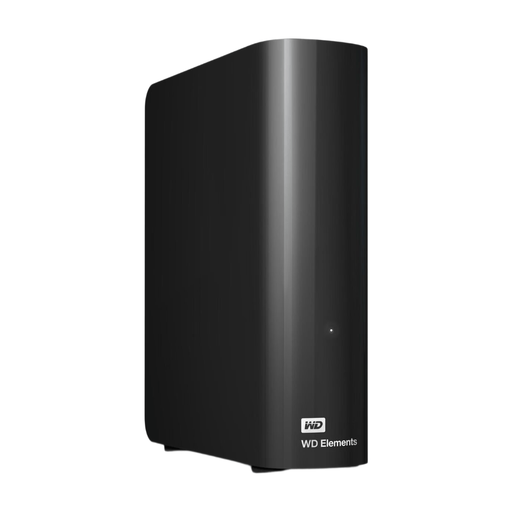 No image available
A desktop HDD to consider for a backup that will mainly stay in one place.
6 TB storage; USB 3.0; preformatted as NTFS for Windows; power adapter included. Reformatting may be necessary for use with a Mac, which will erase data.
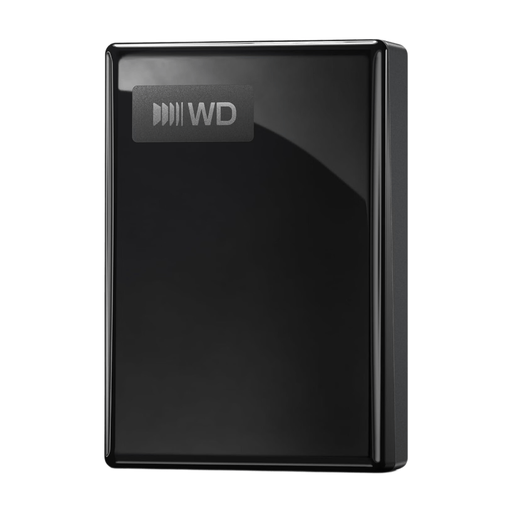 No image available
A portable HDD to consider if you want to take a backup between workstations.
5 TB storage; USB 3.0/USB 3.2 Gen 1; exFAT format; USB bus-powered.
 No image available
A portable HDD to consider if you want to use project folders across different computers.
4 TB storage; USB Type-C 3.2 Gen 1; exFAT; AES 256-bit hardware encryption; compatible with Windows and Mac.
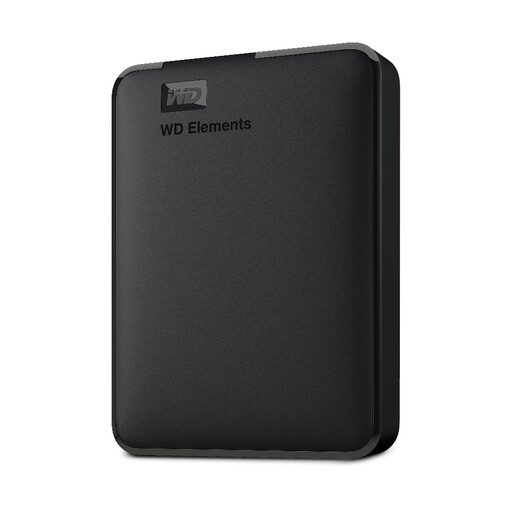 No image available
A portable HDD to consider for selected photo folders you want to take with you.
2 TB storage; USB 3.2 Gen 1; formatted for PC and Mac according to the product information.
No. According to Adobe, a backup from Lightroom Classic contains only the catalogue file; back up your photos and exports separately too.
Add up the catalogue, original photos, exports and project folders you want to keep, and allow for future growth. Compare the total with the capacity of the exact drive model you’re considering.
Not based on a quoted maximum speed alone. Manufacturer figures are not measured backup times; also check your computer’s connection and what your own copying process includes.
Check the drive format first. Apple recommends APFS or APFS Encrypted for Time Machine and warns that reformatting erases existing data on the drive.