
Manager of a growing photo archive
You want to keep the original photos and associated files, and need a separate copy with room to grow. Consumentenbond and VeiligInternetten describe keeping a separate copy as part of backing up.


Leave the original files on your computer and create a separate copy on an external drive. Check it occasionally by restoring a file. An HDD suits a storage-focused back-up; an SSD is an option if you often transfer large photo files or take the copy with you. Choose based on the size of your archive and your computer’s connection and back-up method: neither drive replaces a back-up strategy on its own.
You want to keep the original photos and associated files, and need a separate copy with room to grow. Consumentenbond and VeiligInternetten describe keeping a separate copy as part of backing up.
You regularly move large photo files between locations or computers. The connection, cable and portability all affect your choice; an SSD’s stated speed also depends on the host device and cable.
You want to open files on different computers or use a built-in back-up feature. Apple Support and Microsoft Support describe different ways of using Time Machine and File History; check beforehand that the formatting and file system suit your needs.
A good fit if: you mainly use the drive as a storage-focused back-up and capacity comes first.
Keep in mind: an HDD has moving parts and, according to Consumentenbond (Digitaalgids, July 2022), is more vulnerable to knocks than an SSD.
A good fit if: you often transfer large photo files or regularly take your copy with you.
Keep in mind: the stated top speed isn’t guaranteed on your computer; check that the port and cable are compatible.
| What to consider | What should you check? | Who is this important for? |
|---|---|---|
| Capacity | Check the size of the source folder and allow for the growth you expect. Check how much space is available after formatting. | If I want to keep my growing photo archive in one copy, I first check how much space the source folder needs. Around 27% of consumers say capacity is their top priority. |
| Restoring files | Choose a method you’ll keep using and test it with a sample file. Leave the original files on your computer. | I don’t just want to store files; I want to be able to recover them if needed. Around 27% of consumers prioritise recoverability. |
| Transferring and carrying files | Check your computer’s connection and cable. Don’t assume the maximum SSD speed is the speed you’ll get when copying files. | If I often move large photos between locations, portability and transfer speed matter to me. Around 20% of consumers put mobile file transfers first. |
| Back-up software | Decide whether you’ll copy regular files, use File History or set up Time Machine. Before formatting, check that any existing content has been copied elsewhere. | I want to use the drive with my computer and back-up method without losing existing files. Around 13% of consumers start with system compatibility. |
| Access to photos | Consider encryption if you want to limit unauthorised access, and keep your recovery password somewhere safe. | If my photos show identifiable people, I want to consider who could access the copy. Around 13% of consumers give confidentiality top priority. |
If you move your files to the external drive and delete the originals, you won’t have a separate copy.
Keep the original files, make a copy and try restoring a file from time to time.
Apple Support says Time Machine doesn’t save back-ups to a drive with a Windows file system. Preparing the drive may require erasing and reformatting it.
Decide in advance whether you’ll copy regular files or use Time Machine. Copy any existing files to another location before reformatting the drive.
Formatting may delete files already stored on the drive.
Crucial says the host device, cable and formatting can affect performance or speed. So the highest stated speed won’t necessarily apply to every computer.
Check your computer’s port and the cable you’ll be using before choosing a drive based on speed.
A warranty covering a faulty drive isn’t a copy of files you haven’t saved. ACM ConsuWijzer also distinguishes between the manufacturer’s warranty and your statutory rights against the seller.
Check how you’ll restore your files and keep important ones in more than one place.
The Expansion portable HDD is a storage-focused option. Seagate documents, among other models, the 2 TB STKM2000400 variant.
The Portable SSD T7 Shield is a portable SSD for anyone who regularly transfers or carries files.
The X9 is a portable USB-C SSD you could consider for photo files and compatible back-up methods.
According to Toshiba, the Canvio Basics is a portable HDD formatted for Windows.
This Joybuy selection includes portable HDDs for a storage-focused copy and portable SSDs for anyone who regularly takes photo files with them.
 No image available
A portable SSD for a separate copy of your photos that you can take with you.
Capacity: 1 TB. The product description lists read speeds of up to 800 MB/s, drop protection from heights of up to 2 metres and a fastening loop.
 No image available
A portable HDD for a copy of your photos if you want to use the Mac and Time Machine setup described.
Capacity: 2 TB. The product description says the drive is pre-formatted for Mac and can be used with Time Machine. To protect it with a password, you’ll need to install WD Discovery and enable the feature.
 No image available
A portable HDD for a separate copy of your photos, with a security feature listed in the product description.
Capacity: 2 TB. The description lists USB 3.0, bus power and 256-bit AES hardware encryption with password protection. To use the security feature, you’ll need to install WD Discovery and activate it.
 No image available
A portable SSD for a separate copy of your photos that you can take with you regularly.
Capacity: 1 TB. The product description lists USB-C, USB 3.2 Gen 2, read speeds of up to 1,000 MB/s and drop protection from heights of up to 2 metres. You may need to format it the first time you use it with Windows.
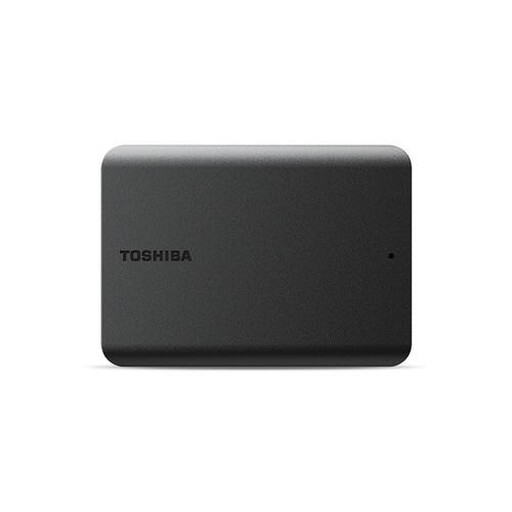 No image available
A portable HDD for a local copy of your photo files.
Capacity: 1 TB. The product description lists USB 3.2 Gen 1, compatibility with USB 2.0 and plug-and-play use with Windows. To use it with a Mac, you’ll need to reformat the drive, which comes formatted for Windows.
No, not if the external drive is meant to be your back-up: leave the original files where they are and make a separate copy. Then try restoring a file to check that your method works.
On Windows, you can choose an external drive for File History; check that the folders containing your original photos are included in the libraries being backed up. On a Mac, you can set up an external drive for Time Machine and check the date of the last completed back-up.
Not always. Apple Support says Time Machine doesn’t save back-ups to a drive with a Windows file system; setting it up may require erasing and reformatting the drive. First, copy any files already on it to another location.
A stated manufacturer’s warranty is not the same as your statutory rights against the seller. According to ACM ConsuWijzer, the Netherlands has no fixed term for the statutory guarantee: with normal use, what matters is what you could reasonably expect from the product.
Identifiable people in photos are personal data. According to the Dutch Data Protection Authority, an exception for personal or household use applies to photos that someone keeps strictly for private use or shares within a very limited circle. This exception doesn’t necessarily apply to wider publication or processing on behalf of an organisation; the situation depends on who manages the collection and how the photos are used.