What should you consider when choosing?
First decide which files you want to keep and how you’ll restore them. Then choose a capacity and connection that suit your computer and any file transfers.
| What to consider |
What to look for |
Who is this important for? |
| Capacity |
Check the size of the folders you want to keep, and allow for future files and any versions. For Time Machine, Apple Support recommends at least twice the storage capacity of your Mac. |
If I want to keep a growing collection of photos, videos and documents, I start by considering the space needed for my files and future backups. Around 29% of consumers make capacity their top purchasing priority. |
| Backup and restore |
Check which folders your chosen method includes and try restoring a file. Also keep a separate copy of irreplaceable files. |
I don’t just want to copy files; I also want to be able to restore them later, so I consider the backup method and which folders it includes. Around 24% of consumers prioritise restore options and repeatable backups. |
| Connection and software |
Check the USB port, supplied cable and formatting required by your backup method. Apple Support warns that formatting can erase existing data. |
If I want to use the drive with my family computer, I want to know in advance that the connection and backup software are compatible. Around 18% of consumers put compatibility at the top of their list. |
| Taking it with you and transferring files |
Compare the dimensions and cables, and check the USB connections on both the source and destination computers. Don’t treat stated maximum speeds as a guaranteed transfer time. |
If I regularly move selected archive files between locations, portability and suitable connections matter. Around 18% of consumers consider portability and file transfers their main priority. |
| Privacy and sharing |
Keep the full private backup separate from the selection for the archive; consider encryption and keep the recovery password safe. Before sharing identifiable images more widely, check whether a GDPR legal basis is required. |
I want to avoid accidentally sharing my full family backup or identifiable images, so I make a separate selection for the archive. Around 11% of consumers put privacy first. |
Joybuy products for family backups and file transfers
This selection includes external HDDs and SSDs for local family backups; portable models may also suit taking a separate selection of archive files with you.
 Image unavailable
SanDisk Portable SSD 1TB
A portable SSD for storing and taking selected family files with you.
Capacity: 1 TB. The product description lists read speeds of up to 800 MB/s, drop protection from a height of up to 2 metres and an integrated rubber hook.
View at Joybuy
 Image unavailable
My Passport for Mac 2TB Blue
A portable HDD for backing up a Mac, if the capacity and stated security features suit your needs.
Capacity: 2 TB. The product description lists support for Time Machine, password protection, hardware encryption and a USB-A cable with a USB-C adapter.
View at Joybuy
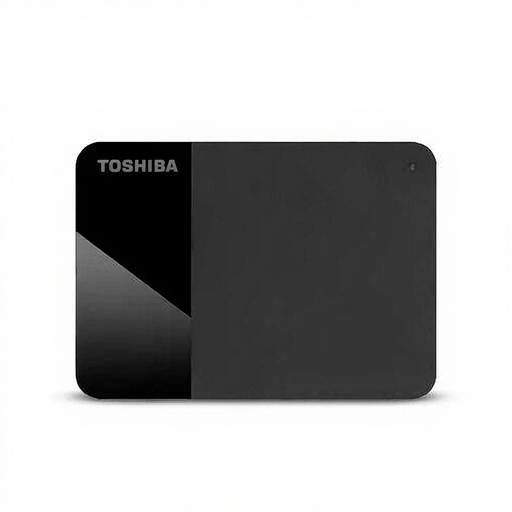 Image unavailable
Toshiba Canvio Ready 1TB
A portable HDD for storing files and media on a computer.
Capacity: 1 TB. The product information lists a 2.5-inch design, a Micro-USB-B connection, a USB 3.2 Gen 1 cable and support for Windows and Mac.
View at Joybuy
 Image unavailable
Toshiba Canvio Ready 2TB
A portable HDD for storing a growing collection of photos, videos, music and documents.
Capacity: 2 TB. The product information lists a 2.5-inch design, a Micro-USB-B connection, USB 3.2 Gen 1 and USB-powered operation.
View at Joybuy
 Image unavailable
Samsung Portable SSD T7 2TB Blue
A portable SSD for larger selected archive files that you want to take between devices.
Capacity: 2 TB. The product description lists USB-C-to-C and USB-C-to-A cables, password protection and AES 256-bit encryption.
View at Joybuy
Frequently asked questions
Can I use an external drive for Time Machine straight away?
Not always: Apple Support recommends using a suitable external storage device with at least twice the storage capacity of your Mac for Time Machine. A drive with a different format may need to be erased and reformatted first, so check whether it already contains files before setting it up.
Does Windows automatically back up every archive folder?
No, it doesn’t automatically back up every folder: Microsoft Support explains which libraries File History includes and how to add other folders. Check which folders are selected and try restoring a file.
What can I do if my external drive breaks?
Keep a separate copy of irreplaceable files too, so they aren’t stored only on the external drive. In the Netherlands, statutory guarantee rights also apply: according to ACM ConsuWijzer, the seller must offer an appropriate solution if a product doesn’t meet what you could reasonably expect from it. This guarantee does not replace a data backup.
Can I give the full family backup to the community archive?
Buying a drive doesn’t determine which files you can share. According to the Dutch Data Protection Authority, the GDPR exception for personal or household use does not necessarily apply when identifiable photos or videos are shared more widely. Review your selection and the applicable legal basis before transferring or publishing anything.


