First decide whether you’ll be editing a sequence of photos or video clips, which output format you need and which software you’ll use. Then compare the exact desktop configurations. A compact Mac may suit a compatible macOS workflow and a small workspace, while a Windows tower gives you more choice of configurations. In either case, factor in working storage, a separate backup and the display you’ll need for the workshop.
Who is this desktop choice for?
High-resolution footage editor
You want to know whether the photo sequence or video clips, editing software and intended output are a good fit for the computer. For Premiere, Adobe gives different memory recommendations for HD and 4K, depending on the software and workflow.
Harbour footage archivist
You store source files, project versions and exports, and want to keep working storage separate from a dedicated backup. Adobe recommends fast external drives for media and cache; Safe Internet describes a backup as a copy of files.
Organiser with a shared workspace
You want to connect the desktop to your editing display and, if needed, a workshop screen. Check the ports on the exact model and whether you have the peripherals you need, rather than assuming they’re included.
What should you look for?
Start with your source files, software and output. Then choose a computer and check that the storage and display setup suit the project. A compact Mac and a configurable Windows tower could both be suitable, but only if the exact model fits your workflow.
| What to consider |
What should you check? |
Who is this most relevant to? |
| Source material and editing |
Note whether you’ll use photos or video clips, the codec and resolution of the files, and the software version and output you need. Then compare the recommendations for that exact workflow. For Premiere 26.x on Windows, Adobe recommends 16 GB RAM for HD and 32 GB or more for 4K and above. |
If I’m editing a sequence of photos or clips, I want to check first that the files, software and output are suited to the configuration. Around 36% of consumers prioritise editing suitability. |
| Working storage and backup |
Check the SSD capacity and the connections available for fast external storage. Keep working files and cache separate from a recent backup. |
I want enough room for harbour footage and project versions, as well as a recoverable copy. Around 29% of consumers prioritise storage and file retention. |
| Display and connections |
Compare the video outputs on the exact desktop with the inputs and resolution of your editing and workshop displays. Also check what equipment and cables you still need. |
As an organiser, I want to connect the computer to the available screens without having to search for missing equipment during the workshop. Around 21% of consumers prioritise a shared workshop setup. |
| Complete workspace |
Compare the full configuration and note which items you’ll need to arrange yourself, such as a display, external working storage and backup solution. |
I want to know in advance what I need to use the editing space, not just which components are inside the computer. Around 14% of consumers prioritise a complete workspace. |
Pitfalls to avoid when buying an editing desktop
-
Treating a 4K recommendation as a requirement for every time-lapse
Adobe’s memory recommendations for Premiere vary by resolution and platform. They aren’t a universal minimum for every desktop or project.
First, establish your source files, output and software version. Then compare the recommendations that apply to your workflow.
-
Looking only at the internal SSD
Source footage, cache, project versions and exports all take up storage space. A copy on the same working drive also doesn’t count as a separate backup.
Plan your working files, cache and backup separately, and check which connections you’ll need.
If you later need a different configuration, you may need to reassess your choice or replace components.
-
Assuming a workshop screening counts as private use
The Dutch Data Protection Authority considers identifiable people to be personal data. If you share footage beyond a very limited private setting, the household exemption doesn’t apply and you need a lawful basis under the GDPR. According to Auteursrecht.nl, you may also need permission from the rights holders to use copyright-protected music outside a strictly domestic setting.
Consider identifiable people, how you’ll share the film and the rights to any added music separately from your desktop choice.
Brands to consider
Apple
The Mac mini and Mac Studio are worth comparing if your editing software and files work on macOS.
- Apple lists support for H.264, HEVC and ProRes media across the ranges mentioned.
- According to Apple, the standard Mac mini M6 has 16 GB of unified memory and a 256 GB SSD; the standard Mac Studio M5 Max has 36 GB of unified memory and a 512 GB SSD.
- These factory specifications don’t show measured editing speeds for your time-lapse. Also check that the storage and model you choose suit your files.
HP
HP Z workstations are worth considering if you want to compare Windows configurations for creative work.
- HP lists HD and 4K video editing among the uses for the Z2 Tower G1i.
- This is HP’s positioning and doesn’t prove how it will perform with your time-lapse. Check the processor, graphics, RAM and storage on the specific model.
Lenovo
The ThinkStation P3 Tower Gen 2 is a range of Windows towers with a variety of configurations.
- Lenovo lists several configurations in the range, including a base model with 8 GB RAM and integrated graphics, and model 30HT00CWEZ with 64 GB RAM, a 1 TB SSD and a separate NVIDIA card.
- The specifications of one model don’t apply to the entire range. Check the exact model number and the components you’re considering.
Dell
The Pro Max Tower T2 is a configurable Windows tower to include when comparing complete workspaces.
- On the product page, Dell offers choices including the processor, operating system and power supply.
- Dell warns that changing the configuration can also change other specifications. Dell’s performance description isn’t a video-editing benchmark.
Joybuy product picks for this editing setup
This selection includes desktops and gaming PCs with configurations featuring a discrete graphics card. Check each model’s software compatibility, storage capacity and connections for your displays.
 No image available
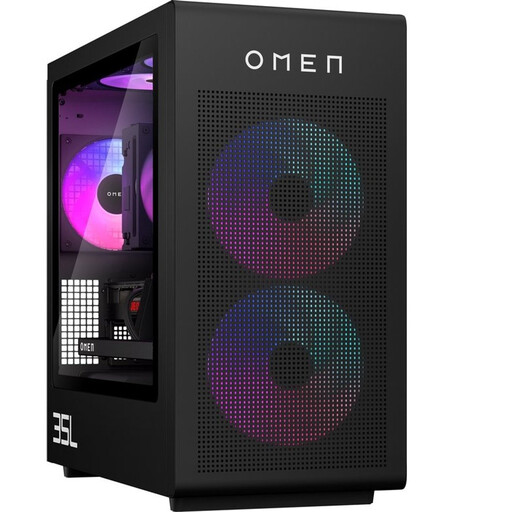
OMEN 35L GT16-0162nd D49NFEA#ABH
An option to compare if you’re looking for a desktop with discrete graphics and a connection for a workshop display.
The listed configuration includes an Intel Core i7-14700F, 16 GB DDR5, an RTX 5060 with 8 GB of graphics memory and a 1 TB NVMe SSD. The user guide lists DisplayPort and HDMI connections for a monitor.
View at Joybuy
 No image available
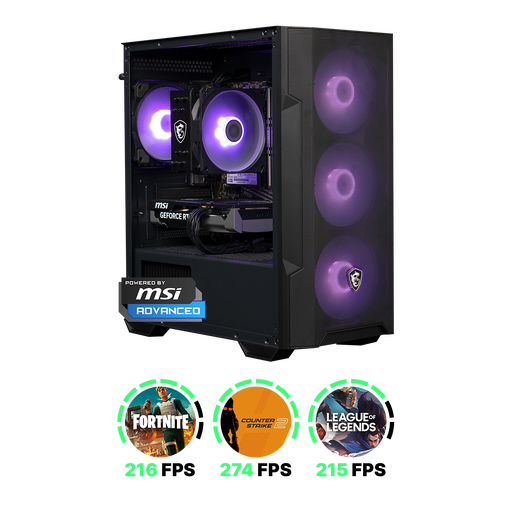
Shark Max Bite R500 Gaming PC
The product description lists video and photo editing as suitable uses. Compare the model with the files and software you use.
The stated configuration includes 16 GB DDR4, an RTX 5060 with 8 GB of graphics memory and a 500 GB NVMe SSD. Adobe recommends fast external drives for media and cache; remember to plan for a separate backup too.
View at Joybuy
 No image available
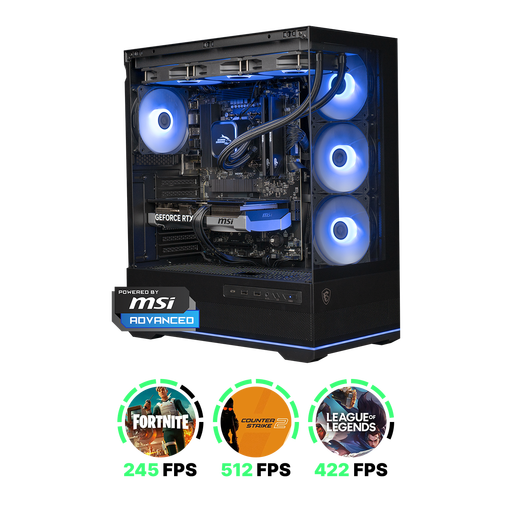
Shark Ultimator R700 Gaming PC
The product description lists video and photo editing as suitable uses. Check that the full configuration works with your editing software and project.
The listed configuration includes 16 GB DDR5, an RTX 5070 with 12 GB of graphics memory and a 1 TB NVMe SSD. Adobe recommends fast external drives for media and cache.
View at Joybuy
 No image available
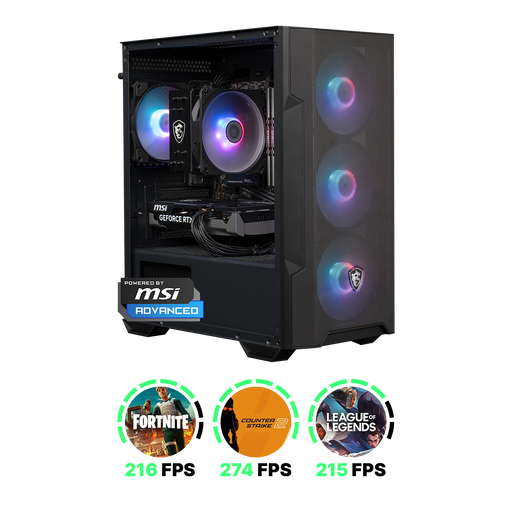
Shark Max Bite R501 Gaming PC
An option to compare if you’re considering a desktop with discrete graphics. Assess the configuration against your own source files and software.
The description lists 16 GB DDR4, an RTX 5060 with 8 GB of graphics memory and a 1 TB NVMe SSD. Adobe recommends fast external drives for media and cache.
View at Joybuy
 No image available
RGB Gaming PC RTX 5060 Ryzen 5 16 GB 480 GB SSD Windows 11 (not activated)
An option to compare if you want to use a desktop with a discrete graphics card and an external monitor.
The listed configuration includes a Ryzen 5 5500, 16 GB DDR4, an RTX 5060 with 8 GB of graphics memory and a 480 GB PCIe 4.0 SSD. The product name states that Windows 11 is not activated; check this condition before choosing this model. Adobe recommends fast external drives for media and cache.
View at Joybuy
Frequently asked questions
How do you get started with a time-lapse made from individual photos?
In Premiere, you can import numbered photos as a single image sequence. Adobe also explains how to set the frame rate; check beforehand that your chosen editing software supports the source files.
Can proxy files help with a demanding edit?
Premiere can create lower-resolution copies of compatible video clips for you to use while editing. Adobe excludes certain other file types from this particular proxy feature, so don’t assume the same process will work for individual time-lapse photos.
How can you protect your harbour footage and project files?
Keep a recent backup alongside your working files, for example on an external drive or in the cloud. Safe Internet describes a backup as a copy of your files; also check that you can restore that copy.
Can you share a harbour film that shows identifiable passers-by?
It depends on the footage and how you share it. The Dutch Data Protection Authority considers identifiable people to be personal data; outside a very limited private setting, the household exemption doesn’t apply and you need a lawful basis under the GDPR. Consider the specific footage and intended use before sharing the film.
Can you use copyright-protected music at a neighbourhood screening?
According to Auteursrecht.nl, you may need permission from the rights holders to play copyright-protected music outside a strictly domestic setting. Check the rights to the music and the terms for your intended screening. This doesn’t apply to music you own or that is royalty-free.


