What should you look for when buying?
Compare the connection next to the router with the one at the end of the hallway before choosing a device. The Dutch Consumers’ Association notes that a Wi-Fi standard or advertised speed alone won’t tell you how well the connection performs in that spot.
| What to consider |
What should you look for? |
Who is this important for? |
| Reception in the lesson area |
Check the connection by the router and at the end of the hallway. Before buying extra equipment, see whether moving the router makes a difference. |
I want my lesson to play smoothly at the end of the hallway; around 36% of consumers prioritise a stable connection in that spot. |
| Extending Wi-Fi without a cable |
Find a spot between the router and the lesson area where the extra access point can still receive Wi-Fi; also check that it works with your existing system. |
If I can’t run a cable, I want an extra access point that can still get a usable connection from the router; around 29% of consumers prioritise installation without a cable. |
| Wired Wi-Fi access point |
Check whether Ethernet reaches the intended location and what connection and power supply the access point requires. PoE equipment needs a suitable power source. |
If I have an Ethernet cable reaching the hallway, I want to use it and know in advance what power supply the access point needs; around 21% of consumers prioritise a wired connection. |
| Make the most of your existing setup first |
Move the router and check the connection again. If you have your own router, check how it connects to your existing modem or network and whether security updates will continue to be available. |
I want to try moving the router and checking the connection again before buying equipment; around 14% of consumers want to add as few new devices as possible. |
Joybuy products
This Joybuy selection includes a standalone router, mesh systems and wired access points. Choose based on the connection in the lesson area and whether you can use a cable; the type of product alone won’t guarantee coverage in your hallway.
 No image available
ASUS RT-AX52 AX1800
A standalone router for anyone looking to improve their existing setup first; the product information also mentions AiMesh extension with compatible ASUS routers.
Wi-Fi 6, dual-band (2.4 GHz / 5 GHz) and gigabit Ethernet, according to the product name.
View at Joybuy
 No image available
TP-Link Deco X50 (3-pack)
A mesh system for anyone looking to set up several Wi-Fi access points. Place a wireless unit somewhere it can still receive a usable connection from the router.
Wi-Fi 6, dual-band (2.4 GHz / 5 GHz) and three gigabit ports per unit. TP-Link lists optional Ethernet backhaul.
View at Joybuy
 No image available
TP-Link Deco XE75
A mesh system for anyone looking to use several access points. Check the positioning and connection between the units to make sure the lesson area is covered.
Wi-Fi 6E, tri-band (2.4 GHz / 5 GHz / 6 GHz) and three mesh units, according to the product information.
View at Joybuy
 No image available
TP-Link Deco X50-PoE (3-pack)
A mesh system with PoE support for a setup with a suitable cable route and power supply.
Wi-Fi 6 and two Ethernet ports per unit; the product information lists PoE.
View at Joybuy
 No image available
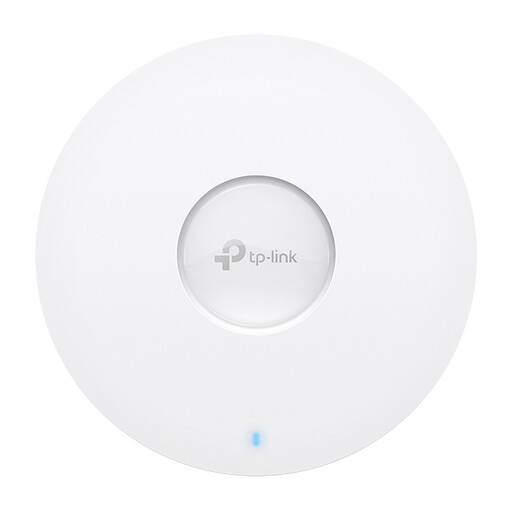
TP-Link Omada EAP613
A wired access point for a location with Ethernet. Check the cable route, power supply and preferred management method in advance.
Wi-Fi 6, gigabit Ethernet and PoE, according to the product information. Wall or ceiling mounting is also listed.
View at Joybuy
Frequently asked questions
Should you buy a faster router straight away if your lesson keeps buffering?
No. First compare the connection next to the router with the one in the lesson area, then try moving the router to a better spot. The Dutch Consumers’ Association points out that distance and obstacles can weaken Wi-Fi in certain areas; your internet connection itself may also be a factor.
Where should you put a wireless Wi-Fi access point?
Choose a spot where the access point can still receive a good signal from your existing Wi-Fi, then check the connection in the lesson area. The Dutch Consumers’ Association explains that Wi-Fi access points in suitable locations can strengthen the signal between them, so a spot with no usable incoming signal isn’t an obvious solution.
What should you check when installing and maintaining your own router?
Check how the router needs to connect to your existing network, and keep the device up to date. ACM ConsuWijzer explains your right to choose a router, but also notes that a provider can refuse an insecure device of your own.
What other practical considerations might come into play?
Depending on your setup, you may need longer Ethernet cables, extra Wi-Fi access points or a suitable power supply. Check whether your provider offers a Wi-Fi service too; terms and any charges vary between providers.
Do you need a licence for ordinary home Wi-Fi in the Netherlands, and what should you look for on the device?
The Dutch Radiocommunications Agency cites Wi-Fi as an example of licence-exempt frequency use, subject to the applicable conditions. Also check that the CE marking is correct: the agency states that it must appear on Wi-Fi equipment, but a mention in an advert alone doesn’t prove that an individual item meets all the requirements.


