What should you look for when choosing?
First, measure your existing photo catalogue and estimate how much it will grow. Then consider whether your group’s needs are mainly about storage capacity, recovery, privacy or portability.
| What to consider |
What should you look for? |
Who is this important for? |
| Capacity |
Measure your current catalogue and allow for new photos and files needed for recovery. |
I want to know whether there will be enough space as new events are added; around 29% of consumers make capacity their top priority. |
| Recoverability |
Agree who will make copies, where another copy will be kept, and how files will be restored and opened periodically. |
If I’m responsible for backups, I want to check that restoration works; around 29% of consumers prioritise confidence in recovery. |
| Privacy and access |
Do the photos show identifiable people? If so, decide who needs access and how any encryption and key management will be handled. |
I want to manage access to photos of identifiable people; around 24% of consumers put privacy protection first. |
| Use at different locations |
Check the USB ports, supplied cable and file format on your group’s computers. The connection and cable you use can also limit transfer speeds. |
If volunteers take the drive between locations and computers, I want to be sure it can be connected and files restored there; around 18% of consumers prioritise mobile and shared use. |
An HDD can suit periodic backups kept in one place, while an SSD may be more convenient if volunteers often take the drive with them or regularly transfer large photo collections. A stated maximum speed does not guarantee the same speed in your group’s working environment. Choose the capacity only after you’ve assessed the catalogue and its expected growth.
Joybuy products for photo backups
This selection includes portable HDDs for periodic backups and a portable SSD for anyone mainly looking for a compact copy. Compare the capacity with the measured size and expected growth of your group’s archive.
 No image available
SanDisk Portable SSD 1TB
A portable SSD for storing a copy of your photos, if 1 TB suits the size and expected growth of your archive.
Capacity: 1 TB. Connection: USB-C. Interface: USB 3.2 Gen 2.
View at Joybuy
 No image available
WD My Passport for Mac 2TB Blue
This portable HDD is an option for a Mac setup if 2 TB suits your archive and planned backups.
Capacity: 2 TB. The product description mentions preformatting for Mac, use with Time Machine, and password and hardware encryption. A USB-A cable and USB-C adapter are listed.
View at Joybuy
 No image available
WD My Passport 6TB White
This portable HDD is worth considering if your measured archive and expected growth mean you need plenty of space.
Capacity: 6 TB. The description mentions USB 3.0, backup software and AES-256 password protection. It says you need to use the accompanying software for password protection and scheduled automatic backups.
View at Joybuy
 No image available
WD My Passport 2TB Red
This portable HDD is an option for photo storage if 2 TB suits the size and growth of your catalogue.
Capacity: 2 TB. The description mentions USB 3.0, USB power and AES-256 hardware encryption with password protection.
View at Joybuy
 No image available
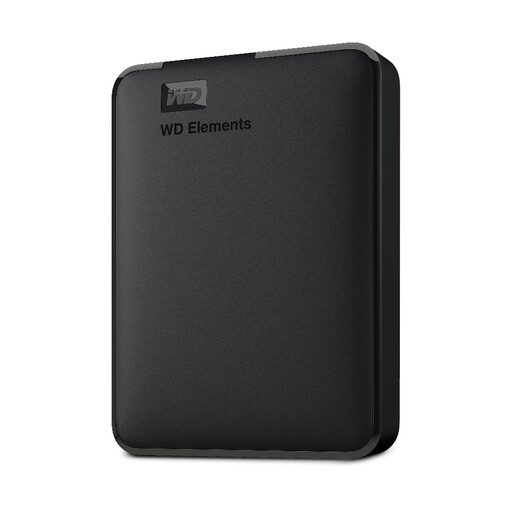
WD Elements Portable 2TB
A portable HDD for periodic photo backups, provided 2 TB suits your current archive and expected growth.
Capacity: 2 TB. Interface: USB 3.2 Gen 1 (5 Gbps). The product description mentions plug-and-play use and formatting for PC and Mac.
View at Joybuy
Frequently asked questions
Is one external drive enough to back up your group archive?
No, not if it becomes your only other copy. The National Cyber Security Centre recommends keeping important data in multiple versions and on different media, with one copy in a different location. Also agree how your group will regularly test whether files can be restored.
Do you need to format a new drive for use with a Mac?
That depends on the model and the backup setup you want to use. Toshiba says the Canvio Basics needs to be reformatted for use with macOS; Seagate says the same applies to the Expansion Portable when used with Time Machine. Check this before the only copy of your photos is stored on the drive.
How can you check that your photos can be recovered after copying?
Restore some files and open them to check they work. The National Cyber Security Centre recommends including restore tests in your backup plan.
Does the GDPR apply to photos in your group’s archive?
If people are identifiable in photos, those photos contain personal data. According to the Dutch Data Protection Authority, the GDPR applies when an organisation processes this kind of personal data, and the organisation must determine appropriate security measures. The measures needed depend, among other things, on the photos and who has access to them.
How long can you keep photos of identifiable people in a backup?
Do not keep personal data for longer than necessary. The Dutch Data Protection Authority says the GDPR does not set a specific, general retention period. So make sure your group’s retention and deletion policy also covers backup versions.


