
Sketcher with limited desk space
You work on an existing computer and want a drawing surface that’s easy to put away after a session.


If you work on an existing computer and want to clear the shared desk quickly after sketching, choose a compact graphics tablet without a screen. A pen display is a better fit if you prefer to draw directly on the screen, while a standalone tablet is more convenient if you also want to sketch without a computer connected. Whichever option you choose, check the pen, connections and any accessories you may need to buy separately.
You work on an existing computer and want a drawing surface that’s easy to put away after a session.
You discuss shapes and variations while drawing directly on a screen with a pen, and have space for a pen display.
You want to capture an idea without a computer connected and take your device with you when you’re done.
A good fit if: you use your computer monitor and want to put the drawing surface away afterwards.
The trade-off: you look at the monitor rather than your hand while drawing, and the active area needs to be large enough for your sketches.
A good fit if: you want to see the pen on the screen as you draw and can connect another device.
The trade-off: you’ll need a suitable computer connection; some connection setups may require extra cables or a power supply.
A good fit if: you want to sketch ideas without a computer connected and take the device with you.
The trade-off: check that your chosen drawing app works on the operating system and that the version you’re buying includes a compatible pen.
| Consideration | What to look for when buying | Who should consider this? |
|---|---|---|
| Desk space and storage | Compare the overall dimensions with the space available, and check that the active drawing area suits your needs. Wacom lists the Intuos Pro Small as having a body measuring 215 × 163 mm and an active area of 187 × 105 mm. | If I want the shared desk clear again after sketching, easy storage matters more than a large work area. This is a top priority for around 33% of consumers. |
| Seeing exactly where the pen is drawing | Choose between a screenless drawing surface and a pen display. According to Kieskeurig.nl, with a tablet without a screen you look at the monitor; with a pen display, the line appears on screen beneath the pen tip. | When discussing different shapes, I want to see the line directly beneath my pen. This is the main reason for buying for around 27% of consumers. |
| Sketching without a computer | Check that the design app you need works on the tablet, and find out which pen is compatible with the exact version. Apple lists support for Apple Pencil Pro on the iPad Air M4; the Dutch packaging contents don’t include a Pencil. | If I want to sketch in different places without taking my computer, standalone use matters most. This is the case for around 20% of consumers. |
| Connecting to your setup | Check your computer’s ports, whether USB-C supports video output, and which cables or power supply are required for the exact model. Wacom and XPPen specify video output over USB-C as a requirement for their stated single-cable setups; the Huion manual says that cables for the connection method described must be bought separately. | If I want to keep using my current computer and workflow, I check that the connections are compatible first. For around 20% of consumers, compatibility with their existing setup is the top priority. |
The pen displays discussed here are designed to connect to another device. Without the right equipment connected, you can’t use them as standalone graphics tablets.
First decide whether you need to be able to sketch without a computer. Then check the connection instructions for the exact model.
The single-cable setups described for models including the Wacom One 12 and XPPen Artist 12 3rd require video output from the computer port. A compatible connector alone doesn’t mean that the port supports video.
Check your computer port’s specifications and the pen display’s connection method before choosing. The Huion connection setup described may require a cable sold separately and an additional power supply.
Apple’s Dutch specifications don’t list a Pencil in the box contents for the iPad Air M4, although Apple states that it supports Apple Pencil Pro.
Check the exact bundle and pen compatibility, and make sure the drawing app you want to use works on your chosen operating system.
The Intuos Pro Small is a graphics tablet without a screen, while the Wacom One 12 is a pen display. They’re designed for different sketching setups.
The Kamvas 13 (Gen 3) is a pen display for anyone who wants to draw on screen.
The Artist 12 3rd and Artist 12 Pro are different models with smaller pen displays.
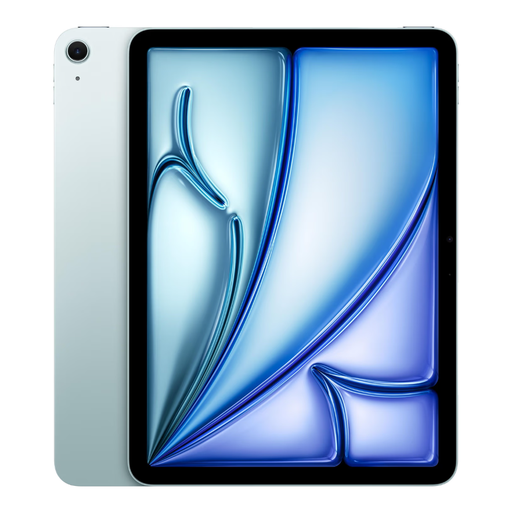
The iPad Air M4 is a standalone tablet option for anyone who wants to sketch away from a fixed computer setup.
The Pen Tablet Small is a screenless drawing surface for anyone looking for a compact, wireless setup.
These products are suited to sketching on a computer without a screen, drawing on a pen display or sketching on a standalone tablet.
 No image available
Suitable if you want to sketch on an existing computer monitor and put the drawing surface away after use.
Active drawing area: 187 × 105 mm. Wacom lists USB and Bluetooth connectivity.
You look at the monitor while drawing, so check that the active area suits your sketching needs.
 No image available
Ideal for sketching without connecting a computer and for use in different places.
Apple lists support for Apple Pencil Pro; the Dutch packaging contents don’t include a Pencil. Check that the pen and drawing app suit your workflow.
 No image available
Suitable if you want to sketch shapes directly on a pen display and connect the device to a computer.
This is a 14.0-inch pen display. The product information lists USB-C for connecting to a computer; check that this connection suits your setup.
 No image available
A screenless graphics tablet for sketching on a computer; you look at the monitor while drawing.
Check that the drawing area and connection suit the space available and your computer.
 No image available
Ideal for sketching on a computer if you’re looking for a screenless drawing surface.
Check that the work area, connection and pen suit your computer and sketching needs.
No, not for every single-cable setup described. The computer port must support video output for the Wacom One 12 and XPPen Artist 12 3rd. Check the connection instructions for the exact model and whether additional power is needed.
First, check the connection method for the exact model and what your computer port can support. Follow the instructions to use the correct cable and install the relevant driver if the manufacturer requires it. The Huion manual says that a full-featured USB-C cable for the connection method described is sold separately.
Apple’s Dutch specifications list an iPad Air and a USB-C charging cable in the box, but no Pencil. Apple lists support for Apple Pencil Pro; check the bundle you’ve chosen and the pen separately.
According to ACM ConsuWijzer, when you make a consumer purchase online you’ll generally have 14 days from delivery to change your mind, with some exceptions. The Dutch government explains that there is no fixed statutory guarantee period in the Netherlands; the seller remains responsible for ensuring the product is fit for purpose. This applies to consumer purchases and doesn’t automatically apply to business purchases.