Who is this guide for?

Computer-based problem solver

You write out your working in a computer programme and can check for yourself whether your existing screen is easy to read next to the window. The active area and connection options will help you decide which graphics tablet is right for you.

Writer who wants to work directly on screen

You want to see equations appear beneath your pen, so you’ll need to assess both screen reflections and how the display connects to your computer.

Independent note-taker

You want to keep handwritten maths notes without connecting a computer, and need to consider export options and the limitations of handwriting conversion.

What should you look for?

Screenless graphics tablet with computer

Choose this option if: you already have a monitor that’s easy to read and suitable writing software, and having plenty of room to work matters more to you than writing directly on the screen.

Trade-off: your hand moves across the tablet while you look at a separate screen; the tablet won’t reduce glare on your monitor.

Pen display with computer

Choose this option if: you want to see the equation directly beneath your pen and the screen is clear enough to read by your window.

Trade-off: an anti-glare claim doesn’t guarantee that the screen will be easy to read in every lighting condition; check the video, data and power connections too.

Standalone digital paper

Choose this option if: you want to keep handwritten working without a computer and can assess the screen in daylight at your workspace.

Trade-off: reMarkable states that its handwriting-to-text feature doesn’t convert mathematical symbols and diagrams into typed text.

What to consider What should you check? Who should pay particular attention?
Readability by the window Assess a screen in the spot where you plan to use it; with a screenless tablet, check the position and readability of your monitor. If I want to see fine lines and small subscripts clearly next to the window, I’ll assess the screen at my own workspace. Around 33% of consumers focus mainly on readability by the window.
Writing style and workspace Compare the active area and decide whether you want to write on a separate screen or directly on the tablet. If you write out long solutions or want to follow your pen strokes directly, compare both the available space and the writing method. Around 27% of consumers prioritise this consideration.
Connections and standalone use Check the device ports, required cables and writing software; find out whether your chosen model works on its own. If I need a usable connection as well as a tablet, I’ll check my device and software in advance. Around 20% of consumers focus mainly on compatibility and connections.
Saving and reusing equations Decide whether exporting as an image or PDF is enough, or whether you’ll need equations as editable text later. If you want to share or edit equations later, look beyond export options and check whether the device recognises formulas. Around 20% of consumers prioritise saving and reusing their work.

Common pitfalls

  • Assuming anti-glare means every screen will be easy to read next to a window

    For the Kamvas 13, Huion specifies a matte anti-glare film and a stated brightness of 220 cd/m². These product specifications don’t show how fine lines and small subscripts will look in your workspace.

    Assess your chosen screen in the spot where you plan to use it by the window. If necessary, compare a different screen setup or a screenless option.

  • Mistaking a graphics tablet or pen display for a standalone note-taking device

    GAOMON says the S620 is an input device that requires a connected device; the Kamvas 13 has specific connection requirements.

    Before buying, check that your computer, ports, required cables and writing software are suitable.

    Depending on what you already own, you may need a compatible computer, cable or separate writing programme.

  • Assuming an exported equation is automatically an editable formula

    reMarkable supports file exports, but states that its described handwriting-to-text feature doesn’t convert mathematical symbols and diagrams.

    Decide whether an image or PDF is enough, and treat editing formulas as a separate software requirement.

    If you need formulas as editable text, transcribing them manually may take extra time.

Relevant brands to consider

Wacom

The Intuos S is an entry-level screenless option for taking notes on a connected computer; Wacom identifies the European model as CTL-4100K-S.

  • Wacom lists a battery-free pen and shortcut keys for the Intuos Small.
  • The Intuos S has no screen of its own and a compact active area, so consider whether it suits the length of your solutions.

XPPen

The screenless Deco 01 V2 and the Artist 12 3rd with a screen offer different ways to write.

  • XPPen lists a 10 × 6,25 inch active area for the Deco 01 V2.
  • XPPen describes etched anti-glare glass on the Artist 12 3rd; assess readability at your own workspace and check the required computer connection.

Huion

The Kamvas 13 is a pen display for writing on a computer screen.

  • Huion specifies a matte anti-glare film and a stated brightness of 220 cd/m² for the Kamvas 13.
  • This stated figure isn’t a measurement taken next to your window. The connection method requires suitable video, data and power ports.

GAOMON

The S620 is a compact screenless pen input option for use with a connected device.

  • GAOMON lists an active area of 165,1 × 101,6 mm for PC use.
  • GAOMON describes its tablets as input devices, not standalone devices with writing software included; check the software and operating system requirements.

reMarkable

Paper Pro is digital paper for standalone handwritten notes, offering an alternative to a computer-connected graphics tablet.

  • According to reMarkable, Paper Pro has a low-glare screen and an adjustable reading light; these are manufacturer claims.
  • reMarkable states that mathematical symbols and diagrams aren’t converted by its described handwriting conversion feature. Exporting is therefore not the same as formula recognition.

Joybuy product picks

This selection includes screenless graphics tablets for use with a computer and tablets with their own screen for handwritten notes. Check that each model suits your writing style, connections and workspace by the window.

Wacom Intuos Medium Wired Pen Tablet

Wacom Intuos Medium Wired Pen Tablet

A screenless graphics tablet for writing on a connected computer; you’ll look at a separate screen as you write.

Active area: 216 × 135 mm. The product information lists a battery-free pen, 4,096 pressure levels and four customisable ExpressKeys.

View at Joybuy

Wacom Intuos Pro Large Pen Tablet

Wacom Intuos Pro Large Pen Tablet

A screenless graphics tablet for writing on a separate monitor, with a generous active area.

Active area: 349 × 195 mm. The product information lists Pro Pen 3, 8,192 pressure levels and connection via Bluetooth or USB-C.

View at Joybuy
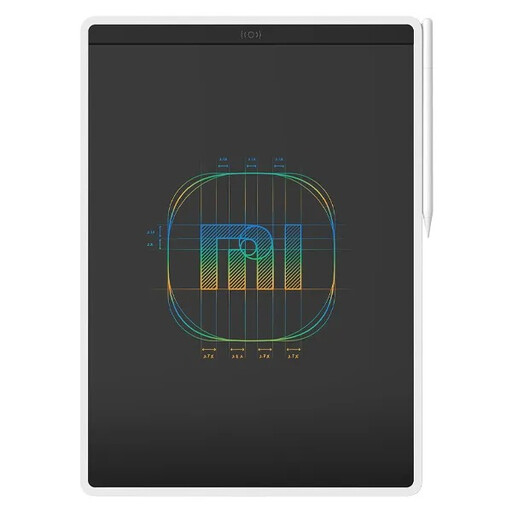
Xiaomi LCD Writing Tablet 13.5-inch Color Edition

Xiaomi LCD Writing Tablet 13.5-inch Color Edition

The product name describes a reusable LCD writing surface with a stylus for handwritten notes.

Screen size according to the product name: 13.5 inch. Check whether its writing and storage features suit the way you work with equations.

View at Joybuy

TECLAST ArtPad Pro Tablet with stylus

TECLAST ArtPad Pro Tablet

A tablet with a stylus for writing on its own screen; check that your preferred writing software works on the device.

The product name lists a 12.7-inch 2K display, 256 GB of storage and 20 GB of RAM (8 GB + 12 GB virtual).

View at Joybuy

iFLYTEK AINOTE 2 10.65-inch E-Ink Tablet

iFLYTEK AINOTE 2 10.65-inch E-Ink Tablet

An E-Ink note-taking tablet for handwritten notes without a computer; the product information mentions local storage and syncing.

The product information warns against prolonged exposure to sunlight. Bear this in mind if you plan to use it next to a bright window.

View at Joybuy

Frequently asked questions

Can I connect a Kamvas 13 to my laptop with a single USB-C cable?

Only if your laptop’s port supports USB 3.1 Gen 1 and DisplayPort 1.2, as required by Huion. The 3-in-1 connection requires HDMI for video and USB connections for data and power; check the ports and cables supplied with your chosen model.

Are handwritten equations on a reMarkable automatically converted into editable formulas?

No, not with the handwriting-to-text feature described by reMarkable: the company states that mathematical notation and diagrams aren’t converted. Handwritten pages can still be exported in supported file formats.

Do I need a Connect subscription to convert handwriting to text on reMarkable?

According to reMarkable, handwriting conversion is included on the device without Connect, provided it’s connected to Wi-Fi and you’re signed in to a reMarkable account. The limitation on mathematical symbols still applies.

What are my rights in the Netherlands if I change my mind or an online purchase is faulty?

ACM ConsuWijzer states that online purchases generally come with a statutory cooling-off period of up to 14 days after delivery, subject to exceptions. You’re also entitled to a legal guarantee if, under normal use, a product doesn’t meet what you could reasonably expect; in that case, contact the seller.
