What should you look for when choosing?
First decide whether you’re happy to look at your existing monitor as you draw or would rather draw directly beneath the pen tip. Then check that the available space and connections suit your workspace.
| What to consider |
What should you check? |
Who will find this especially important? |
| Space on a shared desk |
Compare the overall dimensions with the active work area and decide where your monitor and teaching materials will go. Wacom describes Small and Medium as different options for workspace. |
If I also need papers and a keyboard on the desk during lessons, I want a tablet that takes up little space. Around 36% of consumers say desk space is their top priority. |
| Drawing diagrams and annotating explanations |
Try both pen annotations and the construction tools you need in your teaching software. GeoGebra describes geometry constructions and a separate note-taking environment with pen input. |
What matters to me is being able to add to diagrams live without interrupting my explanation. Around 29% of consumers say annotation is their top priority. |
| Compatibility with your computer and teaching setup |
Check the exact model, your computer’s ports, any drivers and the teaching app you use. For the Kamvas 13 (Gen 3), Huion specifies data and DisplayPort support, and notes that an additional power supply may be needed. |
If I want to keep using my existing computer and teaching software, I want to know in advance which connections and settings I’ll need. Around 21% of consumers say compatibility with their existing equipment is their top priority. |
| Whether or not you draw directly on a screen |
With a graphics tablet without a screen, you look at your monitor; a pen display shows the line beneath the pen tip. Huion lists a 13.3-inch screen for the Kamvas 13 (Gen 3). |
I want to see the line directly beneath my pen, even if that means needing more space and connections. Around 14% of consumers say seeing their work directly on the screen is their top priority. |
Joybuy products
These product options are for anyone who wants to draw directly on a screen at a shared desk, or use a graphics tablet with an existing computer. Check that each model works with your teaching app and fits the connections available in your setup.
 No image available
Wacom MovinkPad 11 Standalone Drawing Tablet
Could be a good fit if you want to draw directly on the device and use apps on the tablet; check that your teaching app is available.
The product information lists an 11.45-inch touchscreen, Android 14, 8 GB RAM, 128 GB storage and a Wacom Pro Pen 3.
View at Joybuy
 No image available
Wacom Intuos Pro Pen Tablet Small
Suited to anyone who wants to use pen input with an existing computer without adding a drawing screen to the desk.
The product information lists an active work area of 187 × 105 mm, a battery-free pen, four ExpressKeys and USB-C or Bluetooth connectivity.
View at Joybuy
 No image available
Wacom One Small (S) graphics tablet
Could be a good fit if you want to draw on a compact graphics tablet while using your existing computer and monitor.
The product information lists A6 size, an active work area of around 148 × 105 mm, a battery-free pen and USB-C or Bluetooth connectivity. Windows and macOS are listed as compatible systems.
View at Joybuy
 No image available
TECLAST ArtPad Pro with T-Pen
Could be a good fit if you want to draw or take notes directly on a tablet; check that your teaching software works on the device.
The product information lists a 12.7-inch screen, Android 15 and a pressure-sensitive T-Pen.
View at Joybuy
 No image available
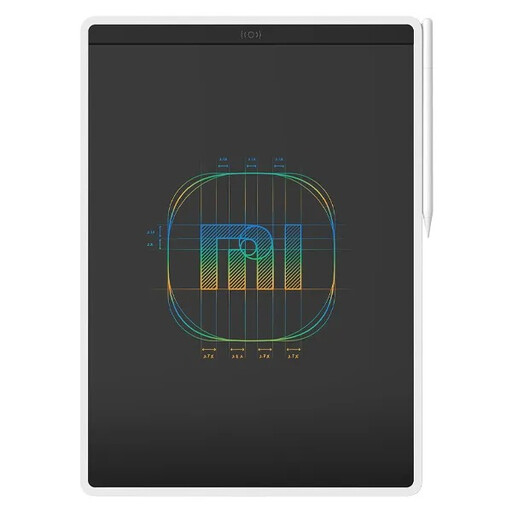
Xiaomi LCD Writing Tablet 13.5" (Color Edition)
Could be a good fit for writing and freehand drawing directly on the tablet; check that this way of working suits the type of lesson you want to deliver.
The product information describes a 13.5-inch LCD writing tablet in the Color Edition, designed for writing, drawing and educational use.
View at Joybuy
Frequently asked questions
Do I need a graphics tablet with a screen to teach geometry?
No, not if you’re comfortable drawing while looking at your existing monitor. A pen display is an alternative if you want to see the line directly beneath the pen tip; weigh this against the desk space and connections required.
Can I make precise geometry constructions with a graphics tablet?
The pen provides the input; the software also determines what precise constructions you can make. GeoGebra Geometry describes tools for triangles, circles and angles, among other things, while GeoGebra Notes supports pen input. Try the combination with your tablet and teaching setup.
What should I check before connecting a pen display?
For the exact model, check that your computer supports the required data, video and power connections. Huion specifies particular USB-C requirements for the Kamvas 13 (Gen 3), including DisplayPort and data support; also check which cables are included.
Which cables or other parts might be missing?
Check what’s included with the exact model. Huion says the compatible USB-C to USB-C cable for the Kamvas 13 (Gen 3) is not included and must be bought separately. Also check whether your setup needs an additional power supply.
Which privacy rules are relevant when using these devices with pupils?
If a school processes personal data through an app or digital learning tool, the Dutch Data Protection Authority says the school remains responsible for that processing. If the school engages a processor, a data processing agreement is required. This applies to the processing of data, not automatically to owning a graphics tablet.


