What should you look for in a NAS backup?
First, check whether you already have a compatible NAS. Then choose a drive and backup routine that suit your files and the way you work.
Internal drive in an existing NAS
Best for: you already have a suitable NAS and want files to be copied automatically once it’s connected to your network.
Consider: an internal drive isn’t a portable USB drive, and a copy on the NAS doesn’t replace a separate backup.
Complete NAS setup
Best for: regular backups and access from multiple devices make a network storage device worthwhile for you.
Consider: you’ll need a suitable enclosure, one or more drives and a configured backup task; support varies by NAS model and software version.
External drive
Best for: you want to make a copy directly from your laptop without a NAS enclosure.
Consider: you’ll need to connect the drive or stick to your manual routine; keep important work in a separate location too.
The Synology Knowledge Centre explains scheduled computer backups and version recovery with Synology Drive. For Time Machine, your specific Synology setup must support the feature.
| What to consider |
What should you check? |
Who should pay extra attention? |
| Recoverable backups |
Which software works with your computer and NAS, how versions are stored and how to restore a file. |
I want to be able to restore an earlier version if my work is deleted or damaged; extra storage space alone won’t do that. Around 28% of consumers prioritise the ability to recover files. |
| A routine for working away from home |
Where you usually work and whether the chosen backup task resumes after an interruption. |
If I work in different places, my routine needs to fit the times when my computer reconnects to the NAS. Around 22% of consumers put this routine first. |
| NAS compatibility |
The exact NAS and drive models, the connection and the manufacturer’s latest compatibility information. |
I want to know in advance whether an internal drive will fit my existing NAS. Around 22% of consumers prioritise finding a drive that fits their enclosure. |
| Space for files and versions |
The size of your current files, how much they’re likely to grow and how many versions you want to keep. |
For large or growing projects, I want to plan space for both files and recoverable versions. Around 17% of consumers prioritise this storage requirement. |
| Components you’ll need |
Whether you already have a NAS enclosure and how you plan to keep a separate copy. |
I want to work out in advance which components I need for a working backup setup and whether an external drive would suit the way I work better. Around 11% of consumers want to pin down the complete setup first. |
Products for backing up from a laptop
This selection includes internal drives for a suitable NAS and a portable external drive for a direct backup option. An internal NAS drive isn’t a complete backup solution on its own.
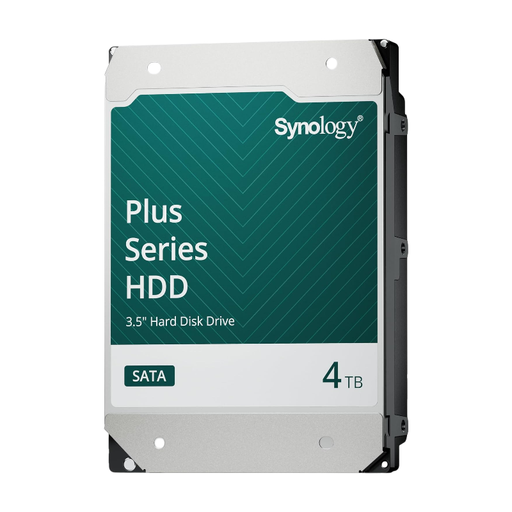 Image unavailable
Synology SATA HDD 4 TB
An internal drive for a suitable Synology NAS if your existing setup needs 4 TB of storage.
4 TB; SATA 6 Gb/s; CMR; 3.5 inches.
Check that the exact model fits your NAS; this isn’t a portable USB drive for direct connection.
View at Joybuy
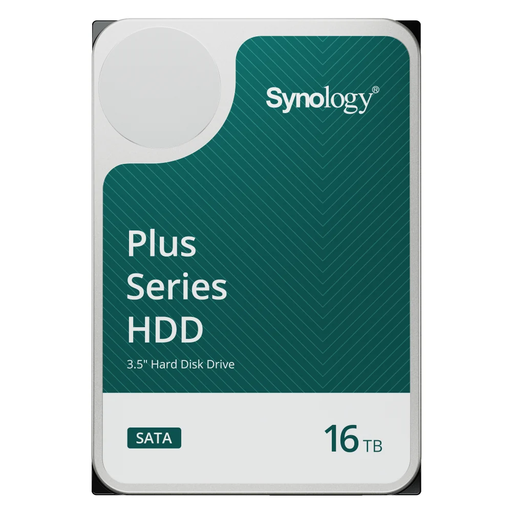 Image unavailable
Synology SATA HDD 16 TB, 7,200 rpm
An internal NAS drive for a suitable Synology setup if you want to store project files and versions at this capacity.
16 TB; SATA 6 Gb/s; CMR; 3.5 inches; 7,200 rpm.
Check compatibility with your NAS model; this drive isn’t designed as portable USB storage.
View at Joybuy
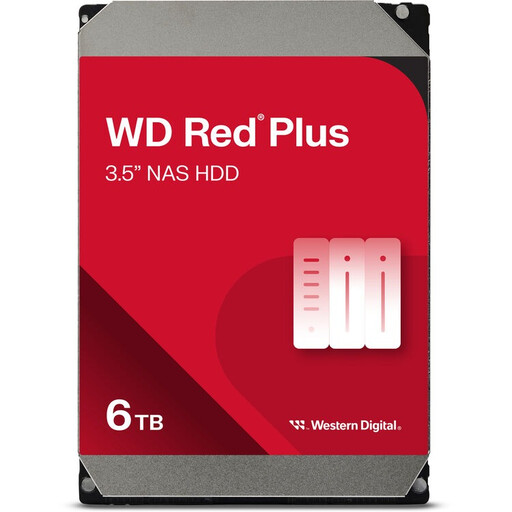 Image unavailable
WD Red Plus 6 TB, 256 MB cache
An internal NAS drive to consider if you have a suitable 3.5-inch bay and need 6 TB of storage.
6 TB; SATA III; 3.5 inches; 256 MB cache.
Check that the exact model is compatible with your NAS; this isn’t a portable USB drive for direct connection.
View at Joybuy
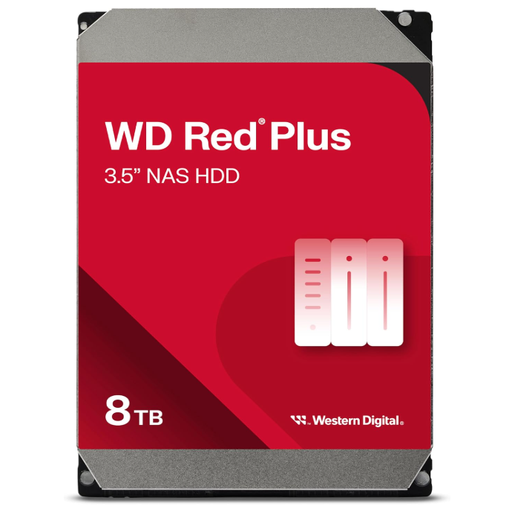 Image unavailable
WD Red Plus 8 TB
An internal NAS drive for a compatible 3.5-inch bay if your portfolio and versions need more storage space.
8 TB; SATA 6 Gb/s; CMR; 3.5 inches; 256 MB cache; supports up to 8 bays according to the product description.
Check that this version is compatible with your NAS model.
View at Joybuy
 Image unavailable
My Passport 4 TB Black portable hard drive
An external option if you want to back up directly from a laptop without a NAS enclosure.
4 TB; USB 3.0; the product description lists 256-bit hardware encryption and WD Backup software for scheduled backups.
You’ll need a separate copy if you also want to keep your work somewhere other than this drive.
View at Joybuy
Frequently asked questions
Can I connect an internal NAS drive directly to my laptop as a portable backup drive?
No. An internal 3.5-inch SATA NAS drive is designed to be installed in a suitable enclosure. Choose an external drive if you’re looking for a storage device that connects directly to your laptop.
How do I set up regular NAS backups on a Mac or another computer?
With a suitable Synology setup, a Mac can use Time Machine with a network folder configured for the purpose. Synology Drive Client supports scheduled computer backups and version recovery; check that your NAS, software and settings support these features.
What maintenance does a NAS backup involve?
Check that backup tasks are completing successfully, test restoring a file and keep your NAS software up to date. VeiligInternetten also recommends changing default login details when you start using a new device.
Do NAS drives automatically come with a two-year statutory warranty in the Netherlands?
No. According to the Dutch government, there is no fixed statutory warranty period in the Netherlands. You’re entitled to a product that meets the required standard; a manufacturer’s warranty is in addition to this. If there’s a problem with a faulty product, contact the seller.
Does the GDPR apply to photos or other personal data in my portfolio?
That depends on how you use the material. The Dutch Data Protection Authority describes an exemption for personal or household use within a limited circle; this doesn’t necessarily apply to wider publication or professional use. So consider the material itself and how you use it.


