Who is this relevant to?

Preparing an archive for long-term preservation

You’re transferring scans, photos and research files that need to be found and understood in the future. The National Archives emphasises that digital archiving also involves organising and describing files, so a drive alone won’t automatically make them easy to navigate.

Transferring sensitive family information

Your archive may contain information about living people, and you’ll want to decide who can access it before and after the transfer. The Dutch Data Protection Authority points out that information about someone who has died may also reveal something about a living person.

Transferring files between different computers

You and your client may use different connections or systems. Check how the chosen drive connects, unlocks and can be read: the right cable and file system depend on the computers being used.

What should you consider when choosing?

Portable HDD

Suitable when: the archive will mostly stay in one place and you’ve matched the required capacity to the actual set of files.

Bear in mind: in 2022, the Consumers’ Association described HDDs as more susceptible to knocks than SSDs. This is a general characteristic, not a guarantee about a particular model.

Portable SSD

Suitable when: you’ll be carrying the drive regularly or transferring large scans and photos, provided the capacity, connection and cable are compatible with both computers.

Bear in mind: manufacturers’ stated speeds apply under specific connection and test conditions; a robust casing is no substitute for a separate copy.

Priority What to look for Who is this most important for?
Keeping files intact and easy to find Measure the size of the selected files, allow space for a separate copy, and agree how folders and descriptions will be transferred. The National Archives notes that checksums can be used to check file integrity. If I want the client to be able to find and check files later, I look beyond the drive itself. Around 29% of consumers give keeping files intact and easy to find their highest priority.
Controlling access to sensitive data First, identify which personal data is in the archive. Check how security is enabled on the exact model and how the client can unlock the drive. If my archive may contain information about living people, I want to know in advance who will have access and how that access will be managed. Around 24% of consumers prioritise access security.
Making sure the client can open the drive Ask which computer and ports the client uses. Test with a copy to make sure the cable, file system and any unlocking software work on their computer. If I’m transferring files to someone who uses a different computer, I want to be sure they can open them. Around 18% of consumers consider readability on the recipient’s device their main concern.
Choosing enough storage space Measure the total size of the folder you’ll be handing over and check the available space on the chosen model. Work out separately how much room you’ll need for a backup. When I’m dealing with a large collection of scans and photos, I first want to know how much space the selection actually takes up. Around 17% of consumers prioritise having enough capacity.
Carrying the drive regularly Check the specifications for the exact model and any conditions of use. Also make sure the cable you’ll be carrying fits the available port. If I’ll be taking the drive to a client regularly, I consider how it will travel and which connection I’ll be able to use there. Around 12% of consumers say portability is their main concern.

Common pitfalls

  • Assuming the transfer drive is a complete archiving and backup plan

    A drive containing a copy won’t organise files for you, and it isn’t automatically a separate backup. The National Archives describes selecting, organising and describing files as part of digital archiving.

    Create a clear folder structure, describe the files and keep a separate copy. Also agree how and when the transferred files will be checked.

    Allow time for organising and checking, as well as enough storage space for a second copy.

  • Assuming password protection will work automatically

    The Seagate One Touch with Password described here requires Toolkit to set up password protection. The cable supplied is Micro-B to USB-A; a Micro-B to USB-C cable is not included.

    Set up your chosen security before the transfer and test with the recipient how to unlock the drive. Also check in advance which cable the client’s computer requires.

    Allow time for setup and access management, and check whether you’ll need a suitable cable.

  • Choosing a drive based on a speed figure alone

    Stated SSD speeds apply under specific conditions, including using a suitable cable and host device. The choice between an HDD and an SSD also depends on storage needs, portability and the computers being used.

    First check the size of the files, the ports on both computers and how often the drive will be carried. Choose a drive that matches what the equipment can actually support.

Brands to consider

Kingston

The IronKey Vault Privacy 80 is an external SSD to consider if unlocking the drive itself is a key selection criterion for your transfer.

  • Kingston specifies hardware encryption, a touchscreen and separate administrator and user passwords for this range.
  • Kingston says that repeated incorrect entries may trigger cryptographic data erasure. Keep a separate copy and agree how passwords will be managed in advance.

Seagate

One Touch with Password is a portable HDD range worth comparing if storage space and configurable access are important to you.

  • Seagate says the range supports password-enabled hardware encryption.
  • For the Toolkit setup described here, security needs to be activated first. The cable supplied is Micro-B to USB-A; a Micro-B to USB-C cable is not included.

Samsung

The T7 Shield range includes portable SSDs. The black 2 TB model reviewed has the model number MU-PE2T0S/EU.

  • For this model, Samsung specifies USB 3.2 Gen 2, maximum sequential read and write speeds of 1.050/1.000 MB/s and IP65.
  • These are manufacturer specifications subject to conditions of use, not a guarantee against losing archive files. Samsung says password protection is set up through software.

Crucial

The X9 Pro is a compact external SSD for which file system and software-based encryption are worth considering.

  • According to Crucial, the 2 TB X9 Pro reviewed is supplied as exFAT and can be used with BitLocker To Go or FileVault.
  • Crucial warns that reformatting erases data on the drive. The stated speed depends on the cable and host device.

Western Digital

My Passport is a portable HDD range worth comparing for capacity and model-specific security features.

  • WD says WD Security can protect supported My Passport drives with a password.
  • WD warns that data may become inaccessible if you forget the password you set. Check before buying whether the feature is available on the exact model.

Joybuy products

Below are portable SSDs and HDDs to compare for storing and transferring a genealogy archive. Check that the capacity, connection and any access security suit the way you work for each model.

SanDisk Portable SSD 1TB

SanDisk Portable SSD 1TB

A portable SSD to consider if you regularly take the archive to a client.

The product information lists USB-C, USB 3.2 Gen 2 and drop protection.

Joybuy

My Passport 6TB White portable hard drive

My Passport 6TB White

A portable HDD to consider if the size of the selected files means you need plenty of storage space.

The name indicates 6 TB. The product information lists password protection and hardware encryption; check how these are set up on the model you choose.

Joybuy

My Passport 2TB Blue portable hard drive

My Passport 2TB Blue

A portable HDD to consider for transferring documents and media.

The name indicates 2 TB. The product information lists password protection and hardware encryption; check how the recipient will unlock the drive.

Joybuy
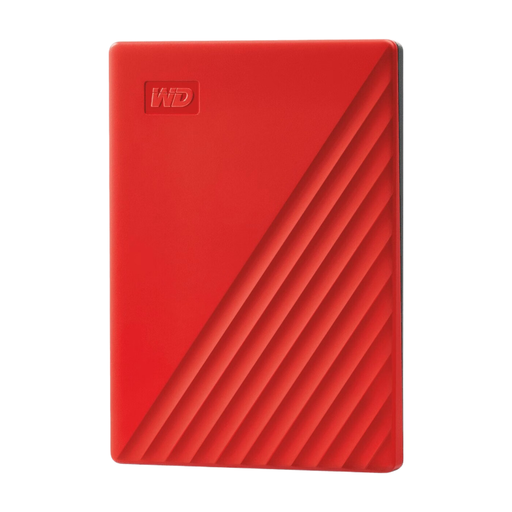
My Passport 4TB Red portable hard drive

My Passport 4TB Red

A portable HDD to consider if your archive needs more space than a smaller model offers.

The name indicates 4 TB. The product information lists password protection and hardware encryption; check how the recipient will unlock the drive.

Joybuy

Samsung Portable SSD T7 2TB USB Type-C Blue

Samsung Portable SSD T7 2TB Blue

A portable SSD to consider for archives you’ll be carrying or for transferring large files.

The product information lists 2 TB, USB 3.2 Gen 2, cables for USB-C and USB-A connections, Windows and macOS compatibility, drop protection and encryption. Check that the security settings suit the arrangements for the transfer.

Joybuy

Frequently asked questions

Is one external drive enough for long-term storage of a client’s archive?

Don’t treat the transferred drive as the only copy. Keep a separate, up-to-date copy and check that the selected files open after copying. The National Archives notes that checksums can be used to check file integrity.

Should you reformat the drive before transferring it?

Only if the existing file system isn’t suitable for the agreed computers and workflow. Crucial, for example, says the 2 TB X9 Pro is supplied as exFAT and that reformatting erases data on the drive. Test access on the client’s computer before deleting the source copy.

What if the password is forgotten after the transfer?

Agree in advance who can unlock the drive and how access details will be handed over. WD warns that data on supported drives protected with WD Security cannot be recovered if the password is forgotten; the consequences vary depending on the system you choose.

Does a client’s genealogy archive fall under the GDPR?

According to the Dutch Data Protection Authority, data relating solely to people who have died is not, in itself, personal data under the GDPR. However, information about someone who has died may also reveal something about a living person; identifiable data about living people is covered by the GDPR and requires appropriate security measures. Whether a data processing agreement is needed depends on the roles of the client and researcher and on whether processing is carried out on the client’s behalf.

How long can you keep a copy containing personal data after the transfer?

The GDPR does not set a specific general retention period for this. According to the Dutch Data Protection Authority, organisations must not keep personal data for longer than necessary; decide on a period based on the purpose and any other applicable retention obligations or agreements.
