Choose an external drive based on the size of your collection, how often files are moved and which computers the archive needs to work with. An HDD is suited to storage that stays in one place, while a portable SSD is an option if volunteers regularly take files with them. The Library of Congress recommends keeping separate copies on different storage media and in separate locations, so one external drive is not a complete archive.
Who is this guide for?
Manager of a growing archive of scans
You keep scans and documents for future use. Work out how much space the collection and separate copies will need, and how files will be organised and found. The National Archives describes digital archiving as selecting, organising and describing material; the Library of Congress recommends keeping multiple copies.
Volunteer who shares files
You take archive files between workstations. Check that the connection and file system are compatible with the computers in use. Toshiba states that the Canvio Basics version reviewed uses NTFS for Windows and needs to be reformatted for certain versions of macOS.
Manager of data about living people
Your archive may contain information that also relates to living family members. The Dutch Data Protection Authority notes that this kind of information may be personal data, so consider what security measures and access arrangements are appropriate for the data and your organisation.
What should you look for?
First decide whether the archive will stay in one place or travel between workstations. Then match the capacity, connection and file system to your collection and the computers you use.
Portable external HDD
Suitable when: the drive travels between workstations and storage capacity matters more than an SSD’s transfer speed.
Trade-off: check the connection and file system. The Toshiba Canvio Basics version reviewed is USB-powered and formatted as NTFS for Windows.
Desktop HDD
Suitable when: the archive copy stays at a fixed workstation and the capacity meets the needs of the collection.
Trade-off: the Seagate Expansion Desktop reviewed has a separate power adapter, making it less practical to take with you.
Portable SSD
Suitable when: volunteers regularly take large files with them and the capacity of the chosen version is sufficient.
Trade-off: Samsung lists maximum sequential speeds of 1.050 MB/s read and 1.000 MB/s write for the Dutch 2 TB T7 Shield. These are manufacturer figures, not speeds measured on your computer.
| What to consider |
What should you check? |
Who is this important for? |
| Separate copies and file integrity |
Decide where the other copy will be kept, how you will check files and how you will test recovery. |
If I want to be able to restore scans and documents after loss or damage, I need to know in advance where a separate copy is kept; around 29% of consumers put preservation and recovery first. |
| Space for the collection |
Measure your existing files and allow for the files and copies that need to fit at each storage location. |
If the collection grows, I want to match the space needed to the files we already have and any additions; around 29% of consumers give suitable capacity top priority. |
| Access and security |
Identify any information that could be linked to living people, who needs access and how passwords will be managed. |
If our archive may also contain information about living family members, I want to make sure our access arrangements suit that data; around 24% of consumers put access security first. |
| Moving and opening files |
Check the USB port, cable, operating system and file system on the computers you will use to access files. |
If I share files between workstations, I want to be able to open them without any surprises; around 18% of consumers give portability and connectivity top priority. |
Common pitfalls
-
Thinking a large external drive is a complete archive
External media can be damaged and, on their own, do not actively manage file integrity. An archive also needs files to be organised and described.
Decide how you will keep separate copies, check files and find documents.
-
Setting a password without a handover procedure
Western Digital warns that data on supported drives will be lost if the password you set is forgotten; technical support cannot recover a forgotten password.
Agree which authorised managers need access and how passwords will be made securely available to their successors.
-
Checking only the connection when using Windows and Mac
A compatible connection does not guarantee that the file system will work on every computer. Toshiba states that the Canvio Basics version reviewed uses NTFS for Windows and needs to be reformatted for the macOS versions specified by the brand.
Test the connection and file system on the computers you plan to use before moving your only available copy.
Brands to consider
Toshiba
The Canvio Basics is a portable HDD option. The EMEA version reviewed, HDTB440EK3CA, has a capacity of 4 TB.
- Toshiba states that it is USB-powered and formatted as NTFS for Windows.
- Reformatting is needed for the macOS versions specified by Toshiba. Check compatibility with the computers used for your archive.
Western Digital
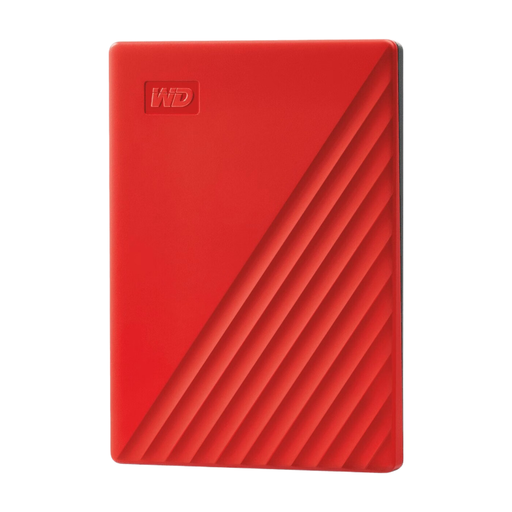
The My Passport HDD range includes portable models with optional access security. The red 4 TB version reviewed is WDBPKJ0040BRD-WESN.
- Western Digital describes My Passport as offering password protection and built-in encryption.
- Western Digital warns that data on a supported drive will be lost if its password is forgotten. Check the software and model requirements, and make sure passwords are managed carefully.
Seagate
The Expansion Desktop is an HDD option for keeping an archive copy at a fixed workstation.
- The Seagate product page reviewed lists a 4 TB version, among others.
- The manufacturer’s page reviewed covers the US range and lists a separate power adapter. Check the exact model and terms for the Netherlands.
Samsung
The Dutch 2 TB T7 Shield, MU-PE2T0S/EU, is a portable SSD option for files that are moved regularly.
- For this model, Samsung lists maximum sequential read and write speeds and an IP65 rating.
- These are manufacturer specifications, not an independent archive or real-world test; protection for the casing is no substitute for a separate copy.
Products at Joybuy
This selection includes portable external HDDs and SSDs for storing or carrying archive files. Compare the capacity, connection and any security features with the way your archive is managed; one drive is no substitute for a separate copy.
 No image available
SanDisk Extreme Pro Portable SSD 1TB
A portable SSD option for carrying archive files between workstations.
1 TB; USB-C and USB 3.2 Gen 2x2. The stated maximum read speed is 2.000 MB/s when used with a compatible device.
View at Joybuy
 No image available
WD My Passport 6TB White
A portable HDD option to compare with the size of your archive collection.
6 TB; USB 3.0; the product description lists password protection and 256-bit AES hardware encryption. If you enable password protection, make sure you carefully manage who can access the unlock details.
View at Joybuy
 No image available
WD My Passport 4TB Red
A portable HDD option for an archive collection that suits a 4 TB model.
4 TB; the product description lists USB, password protection and 256-bit AES hardware encryption. Manage any password you set carefully: Western Digital warns that data will be lost if it is forgotten.
View at Joybuy
 No image available
Toshiba Canvio Basics 4TB
A portable HDD option for scans and documents that are also carried between workstations.
4 TB; USB 3.2 Gen 1 with a Type-A to Micro-USB-B connection and USB power. The product description lists NTFS for Windows and says reformatting is needed for macOS; test the file system on the computers you plan to use.
View at Joybuy
 No image available
Samsung Portable SSD T7 2TB Blue
A portable SSD option for carrying and transferring archive files.
2 TB; USB Type-C and USB 3.2 Gen 2. The product description lists maximum sequential speeds of 1.050 MB/s read and 1.000 MB/s write; speeds on your own computer may differ.
View at Joybuy
Frequently asked questions
Is one external drive enough for long-term storage of a genealogy archive?
No, not as your only archival copy. The Library of Congress recommends keeping copies on at least two different storage media and in separate locations. The National Archives also emphasises that archiving involves selecting, organising and describing material.
How can you check that files have not changed after copying?
Compare previously recorded checksums with values calculated again. A difference can indicate that a file has changed, but it will not restore the file. So keep a separate copy as well, and test that you can recover files from it.
Can you use a drive formatted for Windows on a Mac without preparing it first?
Don’t assume you can. Toshiba states that the Canvio Basics version reviewed uses NTFS for Windows and needs to be reformatted for the macOS versions specified by the brand. Test your chosen file system on your own computers before storing an archive copy on the drive.
What ongoing care do archive files need?
Plan for separate copies, file checks, recovery tests and transferring files to usable storage in the future. The Library of Congress recommends migrating stored copies to up-to-date storage media roughly every five years; this is preservation advice, not a fixed lifespan for a drive.
Does the GDPR apply to a community genealogy archive?
If your organisation processes information that can be linked to living people, it must decide on appropriate security measures. According to the Dutch Data Protection Authority, information about someone who has died may also reveal details about a living family member. The rules for archiving by public-sector organisations do not automatically apply to a community archive.


