
Sketch reviewer who often moves between rooms
You open and discuss drawings in different places. So look for portability, a clear screen and the ability to work when there isn’t a power socket nearby.


For viewing and discussing garden sketches, a laptop that’s easy to read and carry is often a better fit than a heavy setup designed for demanding 3D work. If you want to annotate drawings directly, check that the specific laptop, pen and app are compatible. Compare weight, screen, ports and battery information on a like-for-like basis; SketchUp or AutoCAD requirements only matter if you use that software and workflow.
You open and discuss drawings in different places. So look for portability, a clear screen and the ability to work when there isn’t a power socket nearby.
You want to view plans and details side by side on the built-in screen. Screen space and line visibility may matter more than getting the lightest possible laptop.
You add comments directly to sketches or open original design files. Check that your app and pen are supported, along with any graphics requirements for the software you choose.
First decide whether you’ll mainly view sketches, annotate them with a pen or work on them in design software. That will determine which features and software requirements matter.
A good fit if: you mainly open and discuss existing sketches, and add written comments while often moving between places.
Trade-off: a smaller built-in screen leaves less room to see a full drawing and its details at the same time; touch or pen input isn’t guaranteed.
A good fit if: you regularly show sketches or draw directly on them, provided your annotation app and the specific model support this.
Trade-off: a touchscreen or convertible design doesn’t, by itself, confirm that a compatible pen is supported or included.
A good fit if: you’ll actually edit or present projects in SketchUp or AutoCAD; first check the software version, operating system and project size.
Trade-off: requirements vary. For AutoCAD 2027 on Windows, Autodesk lists 16 GB RAM as the minimum and recommends 32 GB. For certain models with lots of materials, SketchUp recommends a modern GPU with at least 8 GB VRAM. These requirements aren’t automatically necessary just to view a PDF.
| What to consider | What to look for | Who should pay particular attention? |
|---|---|---|
| Carrying it often and working on the go | Compare the weight of the exact model and assess battery information using comparable test conditions. | If I often move between rooms, I don’t want to carry more than I need, and I sometimes need to keep working without a power socket. Around 36% of consumers prioritise portability and mobile use above all else. |
| Overview and readability | Compare screen size and resolution; also consider whether reflections will be an issue where you work. | If I want to review a floor plan and its details at the same time, screen space matters more to me than the smallest possible size. Around 29% of consumers prioritise having a clear overview on screen. |
| Files and software | Check the app and version, operating system, and RAM and GPU requirements for your specific projects. | If I need to open or edit original design files, I want to know in advance that my software and files will work. Around 21% of consumers prioritise software compatibility. |
| Annotating directly | Check the touchscreen, compatible pen, any accessories and app support for the exact model. | If I want to write directly on a sketch during a discussion, I need to know that my pen and app will work together. Around 14% of consumers make direct annotation their top priority. |
Viewing a drawing is different from opening and editing a large CAD or 3D project. Software requirements depend on the application and the type of project.
First check the file format, app and version. Only factor in SketchUp or AutoCAD requirements if they’re relevant to the work you do.
Manufacturers base their stated battery life on specific test conditions. For example, Apple distinguishes between video streaming and wireless internet use.
Only compare battery figures when the test conditions are similar, and bear in mind how you use your screen and apps.
If the battery doesn’t last long enough for your needs, you may have to carry a charger or top it up during the day.
A touchscreen doesn’t mean a pen comes in the box. For the HP OmniBook Ultra 14 model reviewed, the charger is listed separately.
Check which accessories are included with the exact model, and what compatible pen or charger you’ll need.
You may need to buy a compatible pen or charger separately, so check before making your final choice.
According to the Dutch government, there is no fixed statutory warranty period in the Netherlands. If a product is faulty, contact the retailer to resolve the issue.
Before paying for an additional package, compare its specific cover and terms with the rights you already have.
A compact macOS option to compare if your software runs on macOS and the built-in ports suit the way you work.
The ThinkPad X1 Carbon Gen 13 is a Windows option to compare if you often change where you work.
The Zenbook 14 OLED UX3405 is a Windows option for comparing a compact screen with built-in ports.
The Dell 14 Plus is available as both a standard laptop and a 2-in-1, so you can choose the screen design that suits your workflow.
The OmniBook range includes several 14-inch Windows models, including touchscreen and Flip designs.
This selection from Joybuy includes standard laptops and a convertible 2-in-1 for viewing and discussing garden sketches.
 No image available
A convertible model to compare if you want to show sketches in different screen positions.
The USB-C charger and stylus aren’t included; charging requires a compatible USB-C Power Delivery charger.
 No image available
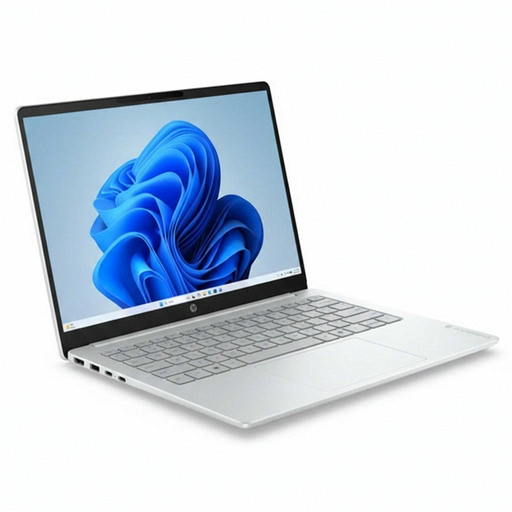
A standard laptop to compare if you want to view digital sketches on a built-in screen.
Intel Core 3 304, 8 GB RAM, 512 GB SSD and Windows 11 Home.
 No image available
A standard laptop to compare if you want to view sketches on an anti-glare screen.
14-inch Full HD IPS-Level screen, Intel Core 7 150U, 16 GB DDR4, 512 GB SSD and Windows 11 Home.
 No image available
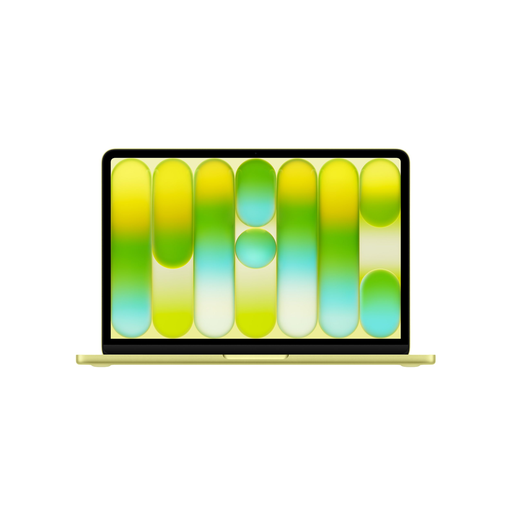
A compact model to compare if you’re looking for a laptop with a 13-inch screen for discussing sketches.
8 GB memory and 256 GB storage. The description doesn’t mention a touchscreen; the USB-C power adapter isn’t included.
 No image available
A standard laptop to compare if you often move between rooms and want a 14-inch screen.
Snapdragon X, 16 GB RAM, 512 GB SSD and WUXGA OLED screen. The screen isn’t touch-sensitive; a compatible 65 W USB-C Power Delivery charger isn’t included.
Not necessarily based on that description alone. There’s a difference between viewing an image or PDF and editing a 3D design project. SketchUp sets higher graphics requirements for certain models with lots of materials; check these if they’re relevant to your software version and workflow.
Check for each model whether a pen is compatible, whether it’s included and whether your app supports the annotation features you need. A touchscreen or convertible screen doesn’t, by itself, confirm that all these requirements are met.
Laptop batteries wear down with use. Consumentenbond explains how to compare the original and current charging capacity to assess battery wear. Also check which charger the model you choose needs and whether it’s included.
When you buy remotely from a business, you generally have 14 days to change your mind, subject to exceptions explained by the Dutch government. The Netherlands has no fixed statutory warranty period; you’re entitled to a product that meets expectations, and the retailer is your point of contact if it’s faulty. This is separate from any manufacturer’s warranty.