First, choose a TV with gaming features that suit your connected console or PC and the seating arrangement for everyone playing. Then check whether the exact TV model supports your storage device, file system, and video and audio codecs: a USB port or high refresh rate doesn’t prove that it does. OLED, LCD, QLED and mini-LED screens each have different characteristics, so compare viewing angles, black levels, brightness and reflections in your own room too.
Who is this TV choice relevant to?
Fast-paced arena game player
If you play fast-paced battles on a connected console or PC, compare the gaming features of the exact TV model with the video signals from your gaming device. Philips describes ALLM as a feature that can detect a game console and switch the TV to game settings.
Gamer with a personal media collection
If you want to play your own files from USB, check the storage requirements and the supported video and audio codecs for your chosen model. LG Netherlands warns that supported file extensions and codecs can vary by model.
Living-room gamer playing with others
If several players are watching from different spots, measure the viewing distance and assess the picture from the furthest seats. The Consumers’ Association recommends considering viewing angle when choosing a TV and measuring the distance between the seat and the screen.
What should you look for when choosing?
For this TV choice, gaming on a connected console or PC, personal media files and watching together all play a part. Philips describes ALLM as a gaming feature, while LG Netherlands stresses that file and codec support can vary by TV model.
| What to consider |
What should you check? |
Who is this important to? |
| Gaming display and controls |
Compare the HDMI signals, VRR, ALLM and game mode supported by the exact TV model with your console or PC. |
If I play fast-paced battles on a console or PC, I want the TV to suit the signals and features of my gaming device. Around 36% of consumers making this choice give gaming responsiveness top priority. |
| Personal media files |
Check the storage device and file system requirements, as well as the video and audio codecs used by your files, in the manual for the exact model. |
I want to watch my own media collection directly from storage, so I want to know in advance which files will play. Around 29% of consumers give local media top priority. |
| Screen size and viewing |
Measure the viewing distance and available space; also assess the picture from the furthest seats. |
When several of us are watching, I want everyone to be able to see the screen from their own seat. Around 21% of consumers prioritise watching together. |
| Lighting and energy use |
Take windows and lamps into account, and compare the EU energy label and product information for specific models. |
For my bright room and electricity use, I want to take brightness and the energy label into account. Around 14% of consumers give lighting conditions and energy use top priority. |
Common buying mistakes
-
Assuming a USB port guarantees that all your videos will play
A TV may recognise a storage device but still fail to play a file if it doesn’t support the codec used.
Before buying, check a representative file against the manual for the exact TV model.
If a codec you need isn’t supported, you may need a separate media player.
-
Assuming an advertised VRR rate means the same gaming performance with every device
How useful gaming features are also depends on the signal and support provided by the connected console or PC. An advertised VRR figure isn’t the same as the native refresh rate.
Compare the TV specifications with those of your gaming device, and check whether a stated rate is native or a VRR claim.
-
Choosing based only on screen technology or diagonal size
According to the Consumers’ Association, screen technologies have different characteristics: OLED generally offers advantages for viewing angles and black levels, while QLED TVs can often produce higher brightness. Viewing distance and the amount of light in the room also matter.
Measure your room and viewing distance, then compare models from the seats you actually use.
Brands to compare
These brands and model ranges give you a starting point for comparing gaming features, screen technology and support for personal media files on a model-by-model basis.
LG
LG offers, among others, OLED C5 and QNED86 mini-LED models. Check the gaming features and media support of the exact model.
- LG Netherlands lists 120 Hz native, VRR up to 144 Hz and ALLM for the OLED55C5ELB.
- LG Netherlands states that USB codecs can vary by model; the features of the OLED55C5ELB don’t automatically apply to other LG TVs.
Samsung
The S90H series includes an OLED model that you can compare for its screen and gaming features.
- Samsung Netherlands lists an OLED screen and Glare Free for the QE55S90HAEXXN.
- This doesn’t confirm support for your own media files; check the manual for the model you’re considering.
Sony
The BRAVIA 7 II is an RGB LED option to compare with OLED and mini-LED models.
- Sony describes the BRAVIA 7 II as an RGB LED TV.
- Sony’s overview of supported USB file systems applies to specific products. Check the model information to see whether it applies to the BRAVIA 7 II.
TCL
The UK C7L series includes, among others, an 85-inch mini-LED model for anyone considering a large screen.
- For the 85C7L, TCL lists Game Master and ‘288 VRR Game Accelerator’.
- These are claims made by TCL; they aren’t independent measurements of the native refresh rate or proof of codec compatibility.
Hisense
The UK 55Q7S PRO is a Hi-QLED model to compare with OLED and mini-LED options.
- Hisense lists 4K resolution, VIDAA and ‘Native 144Hz Game Mode’ for this model.
- Check separately whether the HDMI signals from your gaming device and the media files you want to play are supported.
Philips
The OLED860/12 series offers an OLED option for anyone who wants to include Ambilight in their comparison.
- Philips lists a 4K OLED screen and 144 Hz for the 55OLED860/12.
- Check separately whether the built-in media player supports your own media files.
Joybuy TVs for gaming and OLED viewing
These Joybuy products are OLED TVs for gaming on a connected console or PC. For your own media files, check the storage and codec support for the model you choose separately.
 No image available
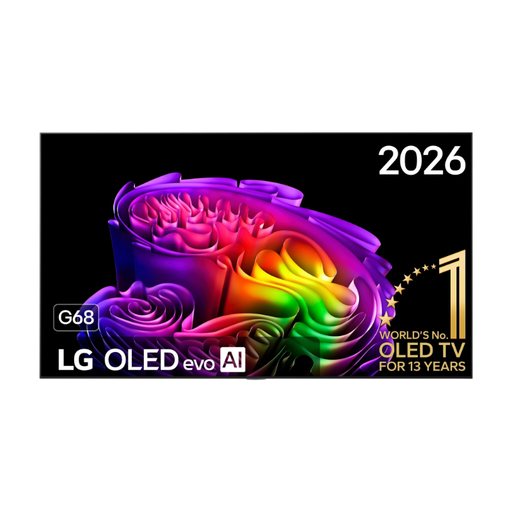
OLED77G68LW 77-inch 4K OLED TV
A 77-inch OLED model to consider if your viewing distance and available space suit a large screen.
The product description lists 4K OLED, 120 Hz native, VRR up to 165 Hz, ALLM, G-SYNC and FreeSync.
View at Joybuy
 No image available
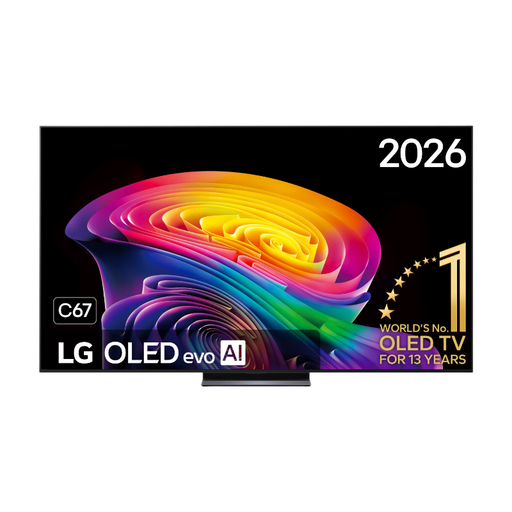
LG OLED83C67LA 83-inch 4K OLED TV
An 83-inch OLED model to compare if your room and viewing distance can accommodate this screen size.
The product description lists 4K, 120 Hz native, VRR up to 165 Hz, ALLM, G-SYNC and FreeSync.
View at Joybuy
 No image available
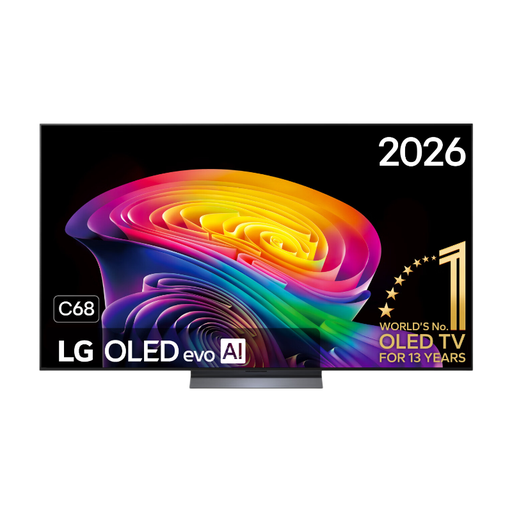
LG OLED65C68LA 65-inch 4K OLED TV
A 65-inch OLED model to compare if this size suits your viewing distance and set-up.
The product description lists 4K, 120 Hz native, VRR up to 165 Hz, four HDMI 2.1 ports, ALLM, G-SYNC and FreeSync.
View at Joybuy
No image available
LG OLED55C68LA 55-inch 4K OLED TV
A 55-inch OLED model to compare if this size suits your room and viewing distance.
The product description lists 4K, 120 Hz native, VRR up to 165 Hz, ALLM, G-SYNC and FreeSync.
View at Joybuy
 No image available
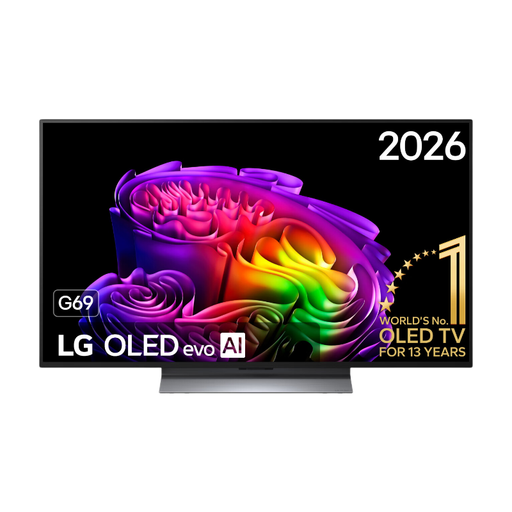
LG OLED48G69LS 48-inch 4K OLED TV
A 48-inch OLED model to compare for a smaller viewing set-up, if it suits your viewing distance.
The product description lists 4K, 120 Hz native, VRR up to 165 Hz, ALLM, G-SYNC and FreeSync.
View at Joybuy
Frequently asked questions
Can you play games directly from the same USB drive as your media files?
Don’t assume you can: LG’s USB instructions cover media playback. Use a suitable connected console or PC for games, and check separately which media files the TV supports.
Why won’t a video file play even though the TV recognises the USB drive?
The file may use a codec that the TV doesn’t support. Check the codec and other file requirements in the manual for the exact model; a recognised file extension alone isn’t enough.
How do you connect USB storage and remove it safely?
In its general USB instructions, LG advises connecting the storage device to the USB port, selecting the USB input and using the eject function before removing it. Check the steps for your own TV model.
How do you compare the energy consumption of TVs?
Compare the EU energy label and model information in EPREL. To calculate your own electricity costs, you’ll also need your usage time and electricity tariff.
Do you have a cooling-off period when buying a TV online in the Netherlands?
According to ACM ConsuWijzer, when you buy a new television online, you generally have a statutory cooling-off period of up to 14 days after delivery. Check the applicable exceptions and returns procedure.


