
Gamer with a small desk
You want to practise playing a support role without the screen and stand dominating your student room setup. You’re comparing compact Full HD models against the desk space you actually have available.


For a small student room, a compact 23.8-inch Full HD monitor is a sensible choice. A 27-inch QHD monitor offers more pixels for studying and viewing in-game information, provided your desk and computer can accommodate it. Also check which resolution and refresh rate your computer actually supports through your chosen connection. Choose OLED only after considering how it displays text, how often fixed interface elements appear on screen, and the care and warranty terms for the specific model.
You want to practise playing a support role without the screen and stand dominating your student room setup. You’re comparing compact Full HD models against the desk space you actually have available.
You want to read in-game information, text and study windows, and weigh up the extra pixels of a 27-inch QHD screen against its size and what your computer can handle.
You care about how motion looks when practising, but also check which resolution and refresh rate your computer can handle through your chosen connection.
A good fit if: your desk has limited space or you want to position the screen close to your keyboard.
Consider: Full HD has fewer pixels than QHD for study and gaming windows; check the stand and your viewing distance too.
A good fit if: you have enough desk space and use lots of text or multiple windows alongside games.
Consider: check that your computer and connection support your preferred combination of QHD resolution and refresh rate.
A good fit if: OLED’s characteristics matter to you and you’re happy to follow the care instructions and warranty terms for the exact model.
Consider: assess how text looks in your study environment and how often fixed interface elements are displayed.
| What to consider | What to check before buying | Who it's for |
|---|---|---|
| Readability of in-game information and study text | Compare 23.8-inch Full HD with 27-inch QHD at your viewing distance; check the text and scaling settings too. | If I use the same screen for support information and study text, I want both to be comfortable to read. Around 31% of consumers say readability is their top priority. |
| Size on a student room desk | Measure the available width and depth, including the stand, and take your viewing position into account. | On a small desk, my monitor needs to fit alongside my keyboard and study materials. Around 25% of consumers prioritise the desk space available. |
| Smooth motion at your chosen resolution | Check the supported resolution and Hz combination for each input; once connected, check which refresh rate has been selected. | During gaming sessions, I want to know if my computer can handle my preferred display mode through the connection I’ve chosen. Around 25% of consumers say smooth motion is their top priority. |
| Connections and everyday use | Compare your computer’s video output with the inputs on the exact model, and check its adjustability and energy label. For OLED, read the care and warranty terms too. | If I use my monitor every day and may connect several devices, I want to know in advance whether the connections and setup will work for me. Around 19% of consumers prioritise practical connectivity and everyday use. |
For the MSI MAG 27CQ6F, MSI specifies a maximum of 180 Hz at 2560 × 1440 via DisplayPort and 144 Hz via HDMI. The maximum can therefore vary by input.
Before choosing, check the resolution, connection and Hz combination supported by both the monitor and your computer.
Also check that you have the connection and cable you need; you may need to buy a suitable cable.
Text clarity, desk space and adjustability can be just as important as the stated refresh rate when you use a monitor for studying every day.
Compare the screen at your own viewing distance and check the adjustability of the exact version.
A listing for the MSI MAG 27CQ6F may show MAG 27C6F in the model field. Those names don’t automatically confirm that the products are identical.
Check the full model number and key specifications on the product page before ordering.
The 24G4X is an example of a compact 23.8-inch Full HD monitor.
The Legion R27qe is an example of a 27-inch QHD LCD for gaming and studying.
The MAG 27CQ6F is an example of a curved 27-inch QHD LCD.
The Nitro VG240Y Gbip is an example of a 23.8-inch Full HD alternative.
The MO27Q2A is a standalone 27-inch QD-OLED option.
These Joybuy products include compact Full HD monitors and 27-inch QHD models for gaming and studying.
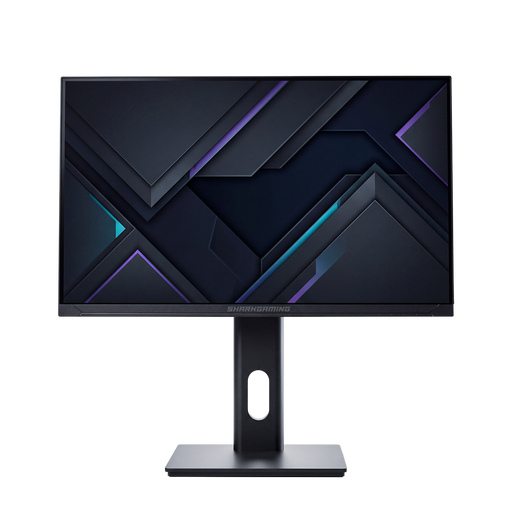 No image available
A compact Full HD option if desk space and a higher stated refresh rate are important to you.
23.8 inches; 1920 × 1080; 200 Hz; 1 ms; IPS; HDMI and DisplayPort. The description lists height, tilt, swivel and pivot adjustment.
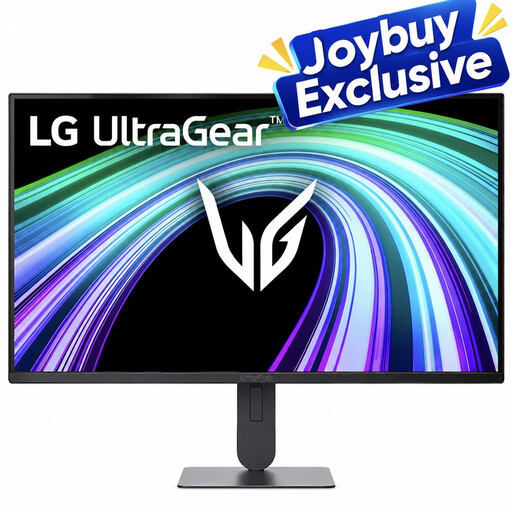 No image available
A compact option if you want one screen for both studying and gaming, with an adjustable stand.
23.8 inches; 1920 × 1080; 144 Hz; IPS; DisplayPort and headphone output. The description lists height and tilt adjustment.
 No image available
A 27-inch QHD option if you want more screen space for text and in-game information and have room for it on your desk.
27 inches; 2560 × 1440; 200 Hz; Rapid IPS.
 No image available
A 27-inch QHD option for study windows and games, as long as it fits on your desk.
2560 × 1440; 180 Hz; HDMI and DisplayPort.
 No image available
A QHD model if you’re looking for a high stated refresh rate and have enough space for a 27-inch screen.
2560 × 1440; 240 Hz; Fast IPS; HDMI and DisplayPort. The description lists a height-adjustable stand.
In Windows, check the selected refresh rate in the advanced display settings. Also check the specifications for the input you’re using: for the MAG 27CQ6F at 2560 × 1440, MSI lists a maximum of 180 Hz via DisplayPort and 144 Hz via HDMI.
That depends on your desk and viewing position. Check the stand on the exact model: Lenovo describes the Legion R27qe as having an adjustable stand, while Acer doesn’t list height adjustment for the Nitro VG240Y Gbip.
Check how text looks in your own setup and read the care and warranty terms for the specific model. Gigabyte advises that, during an automatic panel protection cycle on its OLED monitors after four hours of cumulative use, you shouldn’t unplug the monitor.
According to ACM ConsuWijzer, most ordinary online product purchases come with a cooling-off period of up to 14 days after delivery, subject to legal exceptions. Your statutory guarantee is separate from any manufacturer’s warranty; if there’s a problem, check which remedy applies to your situation.
Yes. The European Commission says that computer monitors are covered by the energy-labelling rules for electronic displays, with a scale from A to G. Check the label for the exact monitor version.