The right PC for reviewing tournament footage depends mainly on the resolution and codec of your files, and whether you’re just watching them back or editing them too. So start with your clips and software, not just the graphics card: Adobe recommends 32 GB of RAM or more and fast storage for Premiere on Windows. In a dark room, adjust your monitor settings and PC lighting separately. If you’re buying a desktop for the Dutch market, check which EU product requirements apply.
Who is this buying guide for?
Match clip analyst
You want to play existing clips back smoothly. First, check the resolution and codec of your files, and whether your playback software supports them. Adobe describes hardware-accelerated decoding for certain H.264 and HEVC files in Premiere.
Tournament highlights editor
You keep source footage and may edit it in Premiere. Adobe recommends 32 GB of RAM or more and fast storage for video editing in Premiere on Windows.
Reviewer in a dark room
You want to review footage without distracting case lighting. Your external monitor’s settings need separate consideration; Microsoft recommends using the monitor’s own controls to adjust brightness.
What should you look for when choosing?
| What to consider |
What should you check? |
Who is this important for? |
| Playing back your files |
Note the codec and resolution of sample clips. Check that the exact hardware and software can decode those files. |
If I mainly watch existing clips back, I want to know whether my own files are properly supported. Around 33% of consumers prioritise playback compatibility. |
| Storage for archiving and editing |
Estimate the space you’ll need based on your recordings, and check the SSD capacity and expansion options. Adobe recommends fast SSD or NVMe storage for video editing. |
If I keep a lot of source footage or edit videos, I want enough space for media and cache. Around 27% of consumers give storage and editing space top priority. |
| Viewing footage in a dark room |
Check whether the lighting on the PC model you’re considering can be adjusted. Set your monitor’s brightness and colour reproduction separately. |
If I review footage in a dark room, I don’t want distracting case lighting and I want control over the screen. Around 20% of consumers put distraction-free viewing first. |
| Noise and upgrade options |
Look for noise measurements for the exact configuration under relevant workloads. Also check which memory and storage upgrades are possible for that model. |
During long sessions, I want to know how noisy the PC is and whether I can upgrade the memory or storage later. Around 20% of consumers give quiet operation and upgrade options top priority. |
Buying pitfalls
-
A faster gaming GPU doesn’t mean it supports every video file
Adobe describes hardware-accelerated decoding for specific codecs and hardware platforms. A more powerful graphics card alone doesn’t prove that your clips will be supported.
Before choosing a particular GPU class, check a representative source file and confirm that the software you want to use supports it.
-
Assuming the included SSD will have enough space
Source footage and media cache take up storage space. Lenovo lists a 512 GB SSD for the Legion Tower 5i Gen 10 model 90YACTO1WWNL1.
Work out how much space your own archive needs and check how much storage you can add later.
-
Taking RGB lighting or an acoustics claim as proof that a PC is suitable
Adjustable case lighting doesn’t determine the brightness or colour reproduction of your external monitor. A manufacturer’s claim about acoustics is not an independent noise measurement of the configuration you’re considering, either.
Check the lighting settings on the exact model, adjust your monitor separately and, where possible, look for a noise measurement under load.
-
Confusing a paid warranty extension with your statutory rights
According to the Dutch government, statutory rights are separate from an additional warranty. If a product is faulty, the retailer is responsible for providing an appropriate solution.
Compare the terms of any additional cover with your existing rights as a customer of the retailer.
Relevant brands
HP OMEN
The Dutch OMEN 35L range includes models with different processors, memory capacities and storage options for gaming and editing.
- HP lists 32 GB of RAM, a 2 TB SSD and adjustable aRGB lighting for the GT16-0606nd.
- These specifications don’t tell you how noisy the PC is under load.
Lenovo Legion
Lenovo says the Legion Tower 5i Gen 10 is designed for gaming and streaming, with models that allow you to upgrade the memory and storage.
- Lenovo lists 16 GB of RAM and a 512 GB SSD for model 90YACTO1WWNL1.
- Adobe recommends 32 GB of RAM or more for Premiere on Windows. The Lenovo model listed doesn’t meet that recommendation without an upgrade.
Dell Alienware
Dell describes the Aurora as a configurable gaming desktop with adjustable AlienFX lighting.
- Adjustable lighting may be useful if you want to change the case lighting in a dark room.
- Dell claims improved acoustics, but this isn’t an independent noise measurement. Configuration choices can also change the specifications.
MSI
MSI describes its MAG Infinite desktops as gaming systems with software controls for features such as RGB lighting.
- MSI says you can control lighting effects through software on the MAG Infinite Z 8B.
- MSI warns that specifications can vary by SKU, so check the model and configuration you’re considering.
Joybuy products
These desktops are suited to watching existing footage and may also be suitable for editing, depending on the software and files you use. Compare the listed storage and memory with your own needs, and check codec support, lighting and noise levels for the exact model separately.
 No image available
Gaming desktop with Ryzen 7 7800X3D, RTX 5080 and 1 TB NVMe SSD
If you also edit in Premiere on Windows, the listed 32 GB of RAM matches Adobe’s recommendation of 32 GB or more.
Specifications: Ryzen 7 7800X3D; GeForce RTX 5080 16 GB; 32 GB DDR5; 1 TB NVMe SSD. The product name lists Windows 11 Trial.
Joybuy
 No image available
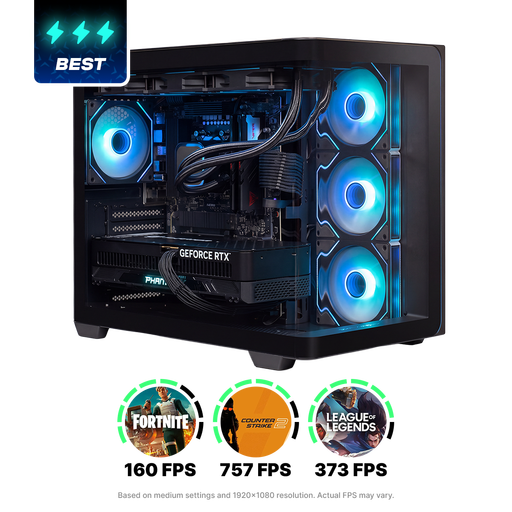
Almighty Shark R900 with GeForce RTX 5090 and 2 TB SSD
If you edit in Premiere on Windows as well as watching footage back, the listed 32 GB of RAM matches Adobe’s memory recommendation.
Specifications: Ryzen 9; GeForce RTX 5090 24 GB; 32 GB DDR5; 2 TB NVMe SSD.
Joybuy
 No image available
ASUS ROG G700TF-07265F666W, Intel Core Ultra 7 265F
For editing in Premiere on Windows, the listed 32 GB of RAM matches Adobe’s recommendation. Check codec support for playback, too.
Specifications: 32 GB DDR5; 1 TB PCIe 4.0 NVMe SSD; GeForce RTX 5070 12 GB; Windows 11 Home.
Joybuy
No image available
ASUS ROG G700TF-05225F170W, Intel Core Ultra 5 225F
For editing in Premiere on Windows, the listed 32 GB of RAM matches Adobe’s recommendation. Check codec support for playback, too.
Specifications: 32 GB DDR5; 1 TB PCIe 4.0 SSD; GeForce RTX 5070 12 GB; Windows 11 Home.
Joybuy
 No image available
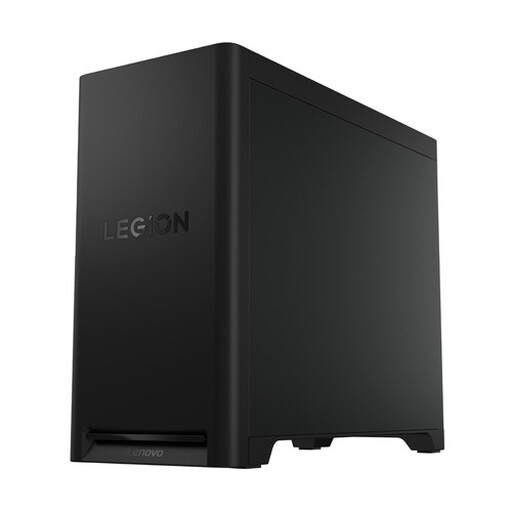
Lenovo Legion T5 30IAX10, 32 GB DDR5 and 1 TB SSD
For editing in Premiere on Windows, the listed 32 GB of RAM matches Adobe’s recommendation. Check that the storage capacity suits your archive.
Specifications: Intel Core Ultra 7; 32 GB DDR5; 1 TB PCIe 4.0 SSD; GeForce RTX 5070. Storage expansion is listed.
Joybuy
Frequently asked questions
Do you need 32 GB of RAM just to watch clips back?
Not based on Adobe’s recommendation alone: 32 GB of RAM or more is Adobe’s recommendation for Premiere on Windows. First, check which software you use and which files you open.
How can you make your existing monitor less bright in a dark room?
If you’re using an external monitor, use its own brightness controls. Microsoft recommends adjusting the monitor directly. If you’re assessing colour in Premiere, check the colour management settings too.
Where should you store recordings and media cache while editing?
Adobe recommends fast SSD or NVMe storage for video media, and preferably a separate SSD for the Premiere media cache. Adobe also says that when using two drives, media and cache can be stored together on one drive.
Do you need an extra warranty?
No, not to benefit from your statutory rights: according to the Dutch government, the retailer is responsible for providing an appropriate solution if a product is faulty. Additional cover is only worth considering if its terms genuinely offer extra protection.
What rules apply to a gaming PC bought online in the Netherlands?
A complete electrical gaming desktop intended for the Dutch market must meet the applicable European product rules, including the required CE marking and EU declaration of conformity. When a consumer buys online from a business, a 14-day cooling-off period often applies; whether it applies and any exceptions depend on the purchase.


