
Gaming and streaming at the same time
You play while analysing the match and want both the game and your OBS scene to remain usable. OBS Project explains that OBS needs GPU resources to compose scenes.


If you’ll be playing on the same PC while analysing the match, compare the complete gaming setup and the available hardware encoder. OBS Project notes that OBS also needs GPU time to compose scenes. If you’ll mainly be discussing existing footage, pay extra attention to ports, memory and storage for recordings. Always test your complete OBS scene with the game you’ve chosen, and check separately whether you’re allowed to broadcast tournament footage.
You play while analysing the match and want both the game and your OBS scene to remain usable. OBS Project explains that OBS needs GPU resources to compose scenes.
You switch between a camera, screen and clips during your analysis. YouTube Help explains how to use external audio and video equipment with an encoder, so check your preferred video setup and connections in advance.
You save your analysis locally to edit later, so alongside live streaming, consider your recording settings, storage and a file format that suits your workflow. OBS Project recommends MKV for many recording situations.
| What to consider | What should you look for? | Who is this important for? |
|---|---|---|
| Gaming and broadcasting on one PC | Compare the complete CPU and GPU configuration, and check which hardware encoder is available. Test it with your own game, resolution and OBS scene. | If I’m playing while analysing, I want both the game and my OBS scene to remain usable under the same workload. Around 36% of consumers prioritise gaming and broadcasting at the same time. |
| Multiple video sources | Check which USB and video connections you need, measure your upload speed and test the complete scene using the settings for your chosen platform. | If I want to combine a camera, clips and screen footage, my sources need to connect and my internet connection needs to handle the broadcast. Around 29% of consumers prioritise a reliable stream with multiple sources. |
| Recording and editing | Check the SSD capacity and upgrade options of the exact model. Make a test recording and check that your editing software can work with it. | If I want to save or edit analyses locally, I need enough storage and a recording workflow that suits my needs. Around 21% of consumers prioritise local recording and post-production. |
| Space and flexibility | Compare the dimensions, access to components, available connections and service terms for the specific model. | If my studio has limited space or I want to upgrade components later, I need to know whether the tower will fit my setup and remain accessible. Around 14% of consumers prioritise fitting their studio setup and upgrading. |
OBS also uses GPU time to compose the scene. So, meeting the stated system requirements or having a certain graphics card on paper doesn’t guarantee that your game and broadcast will work well together.
Compare the complete configuration and test your own game, sources and encoder settings in OBS.
Your broadcast settings need to suit your upload connection and chosen platform; the PC alone doesn’t determine whether streaming is viable.
Measure your upload speed and run a test broadcast with the complete scene before going live.
For direct console recording, OBS lists a capture device as one possible option. A gaming PC doesn’t automatically include one.
First decide how you want to bring console footage into OBS, then check what equipment and connections that setup requires.
A manufacturer’s or seller’s warranty doesn’t replace your statutory rights. ACM ConsuWijzer explains that, for a fault covered by the statutory warranty, the seller is your point of contact.
Keep your proof of purchase and, if something goes wrong, contact the seller about a solution that reflects your statutory rights.
The Legion Tower 5 is a desktop range with various configurations, making it worth comparing if you want a ready-to-use tower for gaming, streaming and potential upgrades.
The OMEN 35L range includes various ready-to-use gaming desktops. Compare the memory, storage and graphics card for each model.
The configurable Aurora desktop is worth considering if you want to choose components and service options from the manufacturer.
The ROG G700 is a large gaming tower for buyers who value space for components and easy access for maintenance.
MSI presents the Codex and Infinite ranges, among others, as distinct gaming desktop series.
These Joybuy products are gaming desktops to consider for a home studio where gaming and streaming go hand in hand. Check the encoder, connections and storage for each model, and test your complete OBS scene.
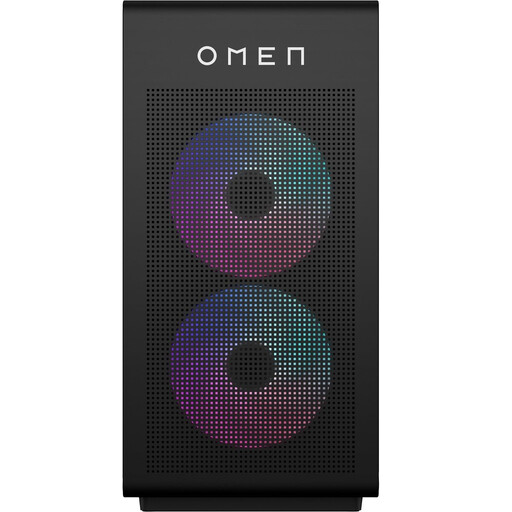 No image available
A gaming desktop to consider for a studio setup where you want to game and stream. Check the encoder and test your complete OBS scene.
Intel Core i7-14700F; NVIDIA GeForce RTX 5060; 16 GB DDR5; 1 TB SSD; HDMI 2.1, DisplayPort 2.1 and multiple USB ports.
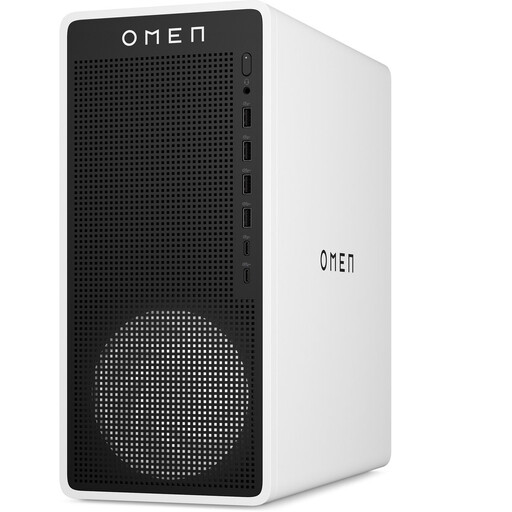 No image available
This compact gaming desktop is worth comparing for a home studio. Check that the connections and configuration suit your video sources and OBS scene.
16L case; Intel Core Ultra 7 265F; NVIDIA GeForce RTX 5050; 16 GB DDR5, expandable to 32 GB; 1 TB PCIe SSD; HDMI, DisplayPort and USB connections.
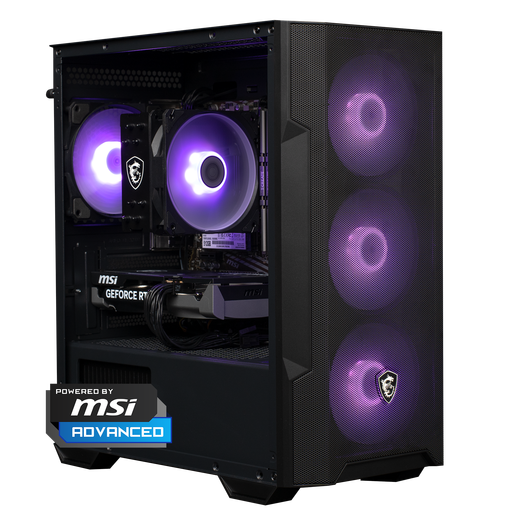 No image available
This gaming PC is worth comparing for a fixed studio setup. Check the complete configuration and test how your game and OBS work together.
AMD Ryzen 5 5500; GeForce RTX 5060; 16 GB DDR4; 500 GB NVMe SSD; MSI MAG FORGE M100R case with mesh front panel and RGB lighting.
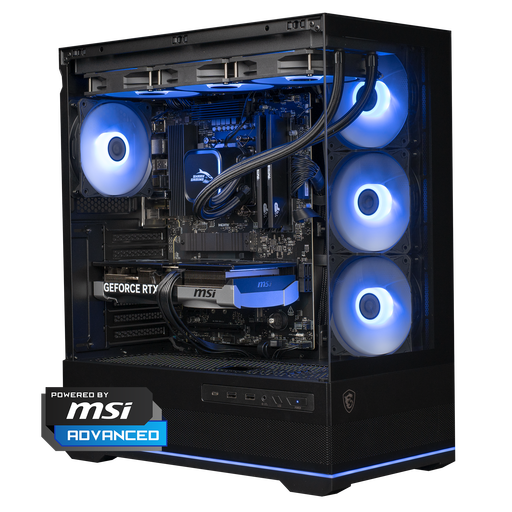 No image available
Compare this gaming desktop with your OBS scene and recording workflow. The listed components alone don’t predict how the complete broadcast will perform.
AMD Ryzen 7 7800X3D; GeForce RTX 5070; 16 GB DDR5; 1 TB NVMe SSD; 360mm liquid cooler; MSI MAG PANO 110R PZ case.
 No image available
This gaming desktop is an option to compare for a fixed PC setup. Check that the connections and encoder suit your sources, and test your broadcast in advance.
AMD Ryzen 5 5500; Palit GeForce RTX 5060 with 8 GB GDDR7; 16 GB DDR4; 480 GB M.2 PCIe 4.0 SSD; four ARGB cooling fans; USB Wi-Fi adapter.
No. A graphics card on its own doesn’t guarantee a successful broadcast. OBS also uses GPU time to compose scenes, so test your game, encoder and scene together. OBS Project warns that meeting the minimum requirements alone doesn’t guarantee a suitable streaming setup.
Connect your video and audio sources, set up the encoder for your platform, measure your upload speed and test the complete scene. OBS Project recommends running a test before going live.
No, it depends on how you route the video. OBS Project mentions a capture device for direct console input and also describes options using PS Remote Play or the Xbox app, which depend on your network connection. Check which option suits your console and setup.
OBS Project recommends MKV for many recording situations and explains how to convert it to a more compatible format. Make a test file and check that your editing software can handle it.
Not automatically. The Dutch Government states that permission is generally required to use copyright-protected films, photos and music. Check the rights for the specific tournament footage and any exceptions separately. For identifiable people shown in the footage, the Dutch Data Protection Authority also notes that professional or commercial publication needs an applicable legal basis under the GDPR. These are separate rights issues, not features of the PC.