
Gaming and commentating at the same time
You play or demonstrate a game while commentating on a tournament live. You want to know whether the PC has enough capacity for both the game and OBS.


Start with a single gaming PC if you can test the game and OBS together at the settings you want to use. If you’ll mainly be working with clips and commentary, storage, memory and connections also deserve attention. OBS uses both CPU and GPU resources, so a powerful graphics card alone won’t guarantee a stable stream. A separate streaming PC is worth considering mainly if a test shows that one PC can’t keep up and you’re able to manage the extra video and audio connections.
You play or demonstrate a game while commentating on a tournament live. You want to know whether the PC has enough capacity for both the game and OBS.
You mainly switch between clips, windows, camera and microphone. The OBS Project guides highlight how scenes, encoder choice and settings affect system load, so test your own setup.
You want a practical setup in a shared or compact space, and are weighing up connections, ventilation and networking alongside upgrade options.
A good fit if: you want to game and stream at the same time, and can test the game, encoder and OBS scenes together.
Trade-off: OBS also uses GPU resources to render scenes; hardware encoding doesn’t remove all system load.
A good fit if: you mainly use video clips, windows, camera and microphone, rather than playing a demanding game at the same time.
Trade-off: system load still depends on your encoder, output settings and scenes; check your storage and connection requirements too.
A good fit if: a test stream shows that one PC is overloaded at the settings you need, and you want to split video and audio across two systems.
Trade-off: you’ll need a second system and a suitable way to transfer video and audio; check the connections and audio routing in advance.
The percentages below give a broad indication of how the main priorities can differ when choosing a PC for this purpose. OBS Project explains that OBS uses GPU resources to render scenes, while CPU requirements depend on factors including the encoder, resolution, frame rate and scene complexity.
| What to consider | What to look for | Who this matters most to |
|---|---|---|
| Gaming and streaming at the same time | Check the CPU, GPU and available hardware encoder in the full configuration. Test your game and OBS scenes together. | If I want to play and stream at the same time, I need to know whether the game and OBS can run side by side. Around 29% of consumers make simultaneous gaming and streaming their top priority. |
| Clips and scenes | Check the RAM, SSD capacity and ports for your camera, microphone and any capture card. | If I mainly work with clips, windows and commentary, storage and connections matter to my workflow. Around 23% of consumers prioritise clips and scenes. |
| A stable connection | Check the network connection and test your upload to the platform you’ve chosen. Set the bitrate to match what your connection can handle reliably. | If I want to avoid interruptions during a stream, I also need to consider my network and upload speed. Around 18% of consumers put connection stability first. |
| Space and placement | Compare the dimensions of the exact model and leave enough clear space around the vents. If noise levels are a strict concern, ask for a measurement of that specific model. | In a compact or shared home office, I need to know whether the tower will fit and have enough room for ventilation. Around 12% of consumers start with the space available to them. |
| Configuration and upgrades | Compare the full model code, GPU, RAM and storage. Check which upgrade options are available for that exact model. | If I’m comparing configurations or may want to upgrade later, I don’t want to mistake different versions with the same series name for identical models. Around 18% of consumers prioritise the full configuration and upgrade options. |
Hardware encoding can take some of the load off the CPU, but OBS also uses GPU resources to render scenes. As a result, a game may still compete with OBS for available GPU resources.
Test the game and your complete OBS setup together. Adjust the game or output settings if needed.
Manufacturers offer different configurations within a product line. A different GPU, memory or storage configuration gives you a different basis for comparison.
Compare the full model code and chosen configuration before you weigh up different systems.
OBS lists an unstable connection to the streaming server or a bitrate your connection can’t handle as possible causes of dropped frames. These issues are separate from gaming performance.
Test your connection and set the bitrate to match your stable upload speed before assuming the PC is the cause.
A second system only helps if video and audio reach the right place. OBS can use a capture card as a video source, but the video and audio connections you need depend on your setup.
Try using one PC first. If you decide to switch, map out the connections and audio sources you’ll need in advance.
The Legion Tower 5i Gen 10 is worth considering if you want to compare desktop configurations with specified components.
The OMEN 35L range includes gaming desktops with a variety of processor, graphics card, memory and storage configurations.
The Alienware Aurora ACT1250 is worth considering if you want to choose components for a configurable gaming tower.
The MAG Infinite S3 14th is a product family worth comparing for its connections and expansion slots.
The Nitro 20 N20-101-RPL is a compact model to include in your comparison if desk space is important.
This selection includes gaming desktops for anyone looking to use a game with OBS or store clips locally. For each model, check that the connections, storage and available space suit your home office.
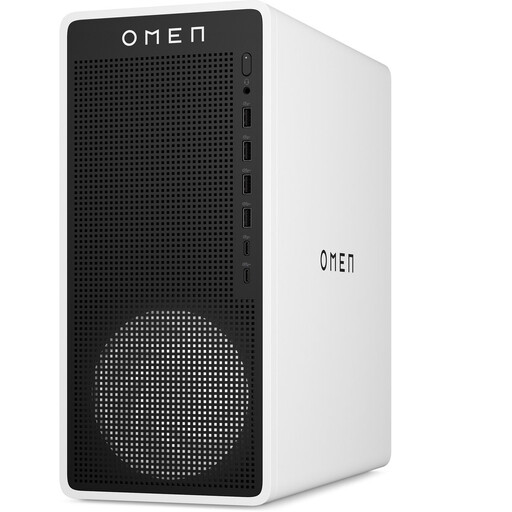 Image unavailable
For anyone looking to use a game and OBS on one PC; test the combination with your own scenes and settings.
Core Ultra 7 265F processor; RTX 5050; 16 GB DDR5; 1 TB SSD; 2.5 Gb Ethernet; Wi-Fi 6. Leave at least 10 cm of clear space around it and don’t use the desktop in an enclosed cabinet.
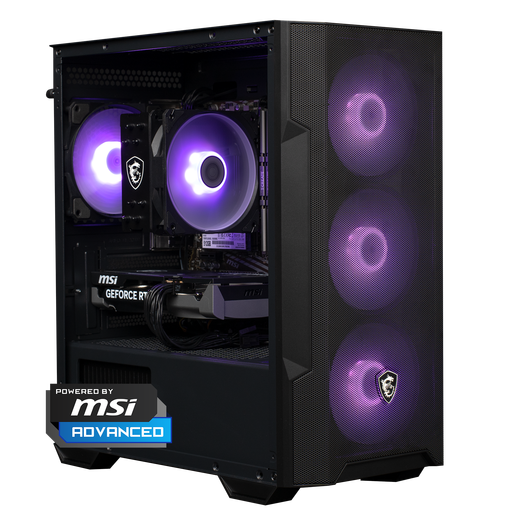 Image unavailable
A gaming desktop to compare if you want to store games and clips locally; assess your complete setup before streaming.
Ryzen 5 5500; RTX 5060; 16 GB DDR4; 500 GB NVMe SSD; MSI MAG FORGE M100R case measuring 388 × 200 × 423 mm.
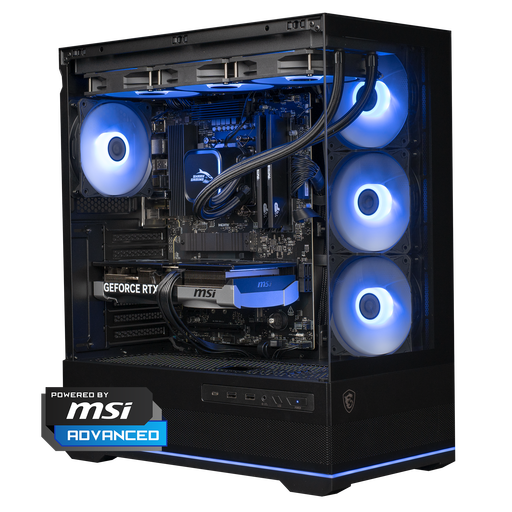 Image unavailable
For anyone looking to compare a gaming desktop with local storage for games and media files; the components alone don’t guarantee a stable stream.
Ryzen 7 7800X3D; RTX 5070; 16 GB DDR5; 1 TB NVMe SSD; case measuring 420 × 225 × 485 mm; 360 mm liquid cooler.
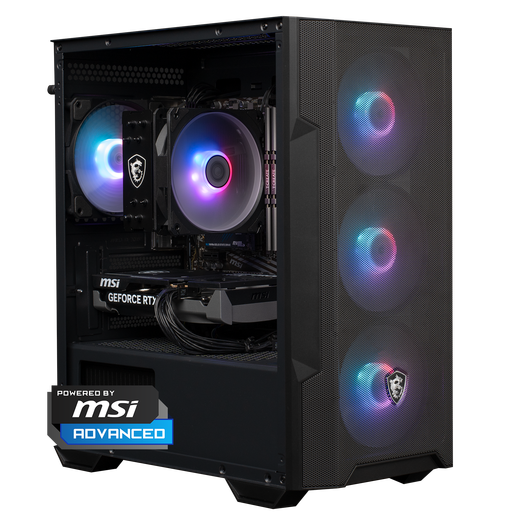 Image unavailable
An option to compare if you want to store games and clips on your desktop; test the game and OBS together before finalising your stream settings.
Ryzen 5 5500; RTX 5060; 16 GB DDR4; 1 TB NVMe SSD; MSI MAG FORGE M100R case measuring 388 × 200 × 423 mm.
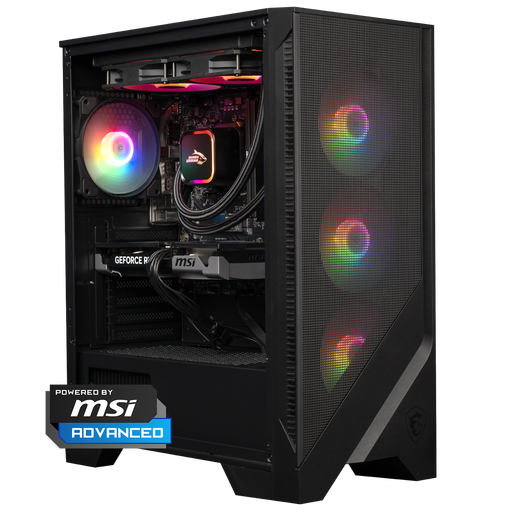 Image unavailable
For anyone comparing a gaming desktop for gaming and OBS; your streaming experience also depends on the encoder, scenes and settings.
Ryzen 5 7400; RTX 5060 Ti; 16 GB DDR5; 1 TB NVMe SSD; MSI MAG FORGE 120A AIRFLOW case measuring 411.6 × 210 × 498 mm.
Use OBS’s automatic configuration as a starting point, then add your clips, windows, camera and microphone. Check the audio meters and make a short test recording or test stream using your own scenes before you go live.
Not necessarily: first test whether one PC can handle your game and OBS scenes at the same time. A capture card can act as a video source in a separate video setup, but check that the equipment and audio connections will work with your setup first.
OBS distinguishes between factors including GPU load when rendering scenes and connection problems with the streaming server. Find out which issue you’re dealing with: for network problems, check your connection and bitrate; for GPU load, adjust the game or output settings if needed.
According to ACM ConsuWijzer, ordinary online consumer purchases generally come with a cooling-off period of up to 14 days after delivery, subject to legal exceptions. Separately, the seller must supply a product that, under normal use, meets what you could reasonably expect; Dutch statutory guarantee rights don’t have a fixed general limit of two years.
No. Don’t assume you can broadcast copyrighted material without permission. The Dutch Government states that permission from the creator is generally required to make copyrighted video and audio available to the public; check the rights for the specific clips and music you plan to use. Twitch holds the streamer responsible for the rights to streamed material.