
Gaming and streaming on one PC
You play the run while using OBS, commentary and overlays on the same computer. You want to know whether the setup can handle the combined workload.


If you’re running the speedrun on the same PC as OBS, choose a setup based on the demands of both the game and your stream; a suitable hardware encoder can take some of the load off the processor. If your footage comes from a console or second PC, first check that the capture solution and connections are compatible with that source. In either case, test your complete scene and make sure you have a stable upload connection before going live.
You play the run while using OBS, commentary and overlays on the same computer. You want to know whether the setup can handle the combined workload.
Your game runs on another device. For the streaming PC, the right capture solution and connections are the main considerations.
For example, you combine gameplay footage and commentary in OBS and want to check how your complete scene and upload connection perform during a test stream.
Choose this setup when: your speedrun and OBS are running on the same computer. Compare your game’s requirements with your encoder, resolution, frame rate and scenes.
Bear in mind: the game and stream share system resources. OBS Project says a hardware encoder can take some of the load off the processor, but compatible hardware alone doesn’t guarantee a good stream.
Choose this setup when: the game runs elsewhere and the PC captures and streams the footage. Match the capture solution to the source and check the specifications of the actual connection.
Bear in mind: you’ll need extra capture equipment and cables. For the Elgato Game Capture 4K X, Elgato specifies USB 3.2 Gen 2; the manufacturer says USB 3.2 Gen 1 works at a lower capture resolution.
| Key consideration | What to look for when buying | Who is this important for? |
|---|---|---|
| Gaming and streaming at the same time | Compare your game’s requirements with your OBS scene; check which encoder you use and test the complete setup. | If I game and stream on one PC, I want to know how the two tasks work together. Around 38% of consumers say gaming and streaming simultaneously is their top buying priority. |
| Capturing footage from an external source | Check the source, capture solution and actual USB port specification. Make sure the HDMI output and recording settings are compatible, too. | If my game runs on a console or second PC, I want to capture the footage using the right connection. Around 23% of consumers prioritise external capture. |
| A stable live stream | Test your upload speed during a test stream and check the bitrate you’ve set. Twitch’s general guideline is an upload speed 30% higher than your set bitrate. | If I want to stream live, I want to avoid my connection interrupting the stream. Around 23% of consumers give stream stability their top priority. |
| A configuration that suits your needs | Check the full model code, installed RAM, SSD capacity and upgrade options for the exact version you’re considering. | If I don’t want to choose a capacity that doesn’t suit how I use my PC, I compare the exact configuration with what I might want to upgrade later. Around 16% of consumers prioritise cost and upgradability. |
The workload also depends on your game, encoder, resolution, frame rate and scene complexity. OBS Project warns that a compatible system alone doesn’t guarantee a good stream.
Test your own game and complete streaming scene before deciding that you need a more powerful configuration.
This helps you avoid paying for a configuration that doesn’t match the demands of your setup.
The connector’s shape doesn’t tell you which USB specification the port supports. Elgato says the Game Capture 4K X works at a lower capture resolution with USB 3.2 Gen 1 than with USB 3.2 Gen 2.
Check the port specification on the exact PC and compare it with your capture device’s requirements.
OBS Project says dropped frames over the network can point to an unstable connection or a bitrate that your connection can’t handle. A more powerful PC won’t automatically fix a connection problem.
Run a test stream and check your connection and bitrate. Twitch’s general guideline is an upload speed 30% higher than your set bitrate.
In the Netherlands, statutory consumer rights already apply to purchases. The Dutch government says the seller must provide an appropriate solution if a product is faulty.
If you’re offered an additional warranty, check what cover or rights it actually adds.
The Legion Tower range includes various configurations to compare if you’re looking for a PC that combines gaming and OBS.
The OMEN 35L is a desktop range worth comparing if you’re looking for a configuration for gaming and recording.
The MAG Infinite S3 is a desktop range worth comparing if connections and differences between versions matter to you.
The ROG G700 is a larger gaming desktop range to consider if you also want to factor upgrade options into your choice.
These Joybuy desktop PCs are for anyone who wants to combine a speedrun and streaming on one computer. Check the configuration of each version and test the demands of your own game and OBS scene.
 No image available
A gaming PC to compare for a setup where you game and stream; test it with your own OBS scene.
The listed configuration has 16 GB DDR4, a 480 GB SSD and four ARGB fans. The product information describes Windows 11 as an evaluation version.
 No image available
The product information lists gaming, streaming and multitasking as intended uses; check performance with your chosen scene and settings.
The listed configuration has 16 GB DDR4 and a 480 GB NVMe SSD. The specified Windows 11 version is an evaluation version.
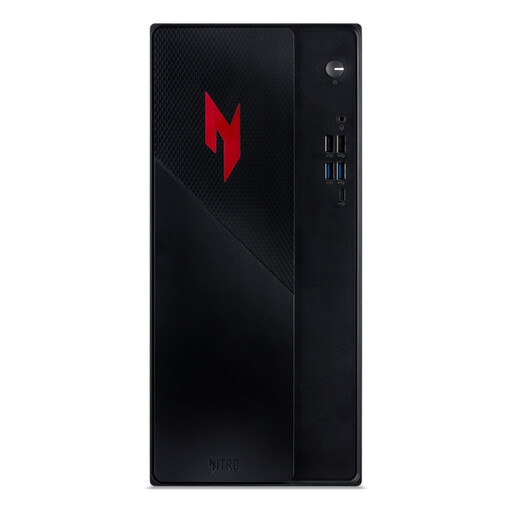 No image available
This desktop is described as suitable for gaming, content creation and multitasking; check how it performs with your own game and recording setup.
The listed configuration has an Intel Core 5 210H, RTX 5050, 16 GB DDR4 and a 1 TB SSD. The product information lists Windows 11 Home, Wi-Fi 6E and Gigabit Ethernet.
 No image available
A desktop for gaming and content creation to consider for gaming and streaming at the same time; the specifications are no substitute for testing it with your OBS scene.
This version lists a Core Ultra 7 265F, RTX 5070 12GB, 32 GB DDR5 and a 1 TB SSD. The product information lists Gigabit Ethernet and Wi-Fi.
No image available
The product information lists gaming and content creation; compare this version with the requirements of your game, recording and streaming scene.
The configuration lists a Core Ultra 5 225F, RTX 5070 12GB, 32 GB DDR5 and a 1 TB PCIe 4.0 SSD. Gigabit Ethernet and Wi-Fi are also listed.
No, not just because you use OBS. If the game runs on the same PC, there’s no external HDMI signal coming in. If you’re using a console or second PC as the source, match your capture solution and connections to that device.
No. Elgato specifies a USB 3.2 Gen 2 interface; the manufacturer says USB 3.2 Gen 1 works at a lower capture resolution. Check the port specification on the exact PC, not just the connector shape.
First, check your connection and the bitrate you’ve set. OBS links dropped frames over the network to an unstable connection or a bitrate your connection can’t sustain. OBS recommends trying a lower video bitrate before replacing your PC.
You don’t need one to get statutory consumer rights in the Netherlands: these already apply when you buy the PC. The Dutch government says the seller must provide a solution if a product is faulty. Consider an additional warranty based on the cover it actually offers.
Don’t assume that you can. The Dutch Data Protection Authority considers recognisable people in footage to be personal data and says the exception for private or household use doesn’t apply when footage is shared more widely. Check the applicable privacy rules and ask for consent where necessary.