First, decide whether you want one continuous game view across multiple monitors, or to play on one screen and use the others as separate workspaces. For a panoramic view, the game’s support, screen grouping and combined resolution matter. For separate information screens, focus on the connections and support offered by the exact PC model. Then check your game’s requirements and the configuration of the specific model: a GPU name alone doesn’t prove that it’s suitable for your set-up.
Who is this choice relevant to?
Gamer looking for a panoramic view
You want to see a simulation as one wide game view across multiple monitors. AMD Eyefinity and NVIDIA Surround can combine screens into one larger display area; also check whether your game supports your preferred set-up and resolution.
Simulation gamer with high memory requirements
You want to compare the system requirements of the game you actually play with the PC’s configuration. The stated requirements for Star Citizen apply only if you choose that game; Roberts Space Industries lists 32 GB of RAM, among other things, in its recommended configuration.
Gamer with separate information screens
You play on one main monitor and use the other screens for things such as information or communication. Microsoft explains how to set up separate displays in Windows; check in advance that the exact PC model supports all the screens you want to use at the same time.
What should you look for when choosing?
First decide how you want to use your monitors, then check the game requirements and the connections on the specific PC. AMD and NVIDIA’s screen grouping options work differently from Windows settings for separate displays.
| What to consider |
What should you check? |
Who is this important for? |
| Continuous game view |
Note the number of monitors, their resolution and refresh rate. Check whether the game and the exact GPU support the wide display you want. |
If you want your simulation to span multiple screens, the combined resolution is particularly important. Around 40% of consumers give panoramic viewing the highest priority. |
| Game requirements |
Check the official requirements for your game and compare the minimum and recommended specifications with the RAM, storage and GPU of the exact PC model. |
If you play a demanding simulation, you’ll want to know whether the configuration on offer is suitable for that particular game. Around 30% of consumers put the game’s requirements first. |
| Separate information screens |
Check how many screens the exact graphics card supports at the same time, which video outputs it has and whether you have the right cables. |
If you keep the game on one monitor and use the others separately, suitable connections matter more than a continuous game view. Around 20% of consumers give information screens like these the highest priority. |
| Future upgrades |
Check the upgrade options for the specific model, including RAM, storage and space for a different GPU. |
If you want to be able to adapt components later to suit a game or set-up, check the exact PC rather than relying on the product line name. Around 10% of consumers put upgradeability first. |
Common buying mistakes
-
Assuming an RTX model name guarantees support for any multi-screen set-up
Screen grouping also depends on the exact graphics card, monitors, connections and chosen resolution. MSI documents different GPU variants with different port layouts within one desktop range.
Make a note of your monitors and check the graphics card variant, available outputs and preferred screen set-up before choosing a PC.
-
Treating minimum requirements as the recommended configuration
For Star Citizen, the developer lists 16 GB of RAM as the minimum and 32 GB of DDR4 in the recommended configuration. These figures apply only if Star Citizen is the game you want to play.
For your chosen game, compare the official minimum and recommended specifications with the exact PC configuration.
-
Confusing a commercial guarantee with all your statutory rights
ACM ConsuWijzer distinguishes between a manufacturer’s or seller’s guarantee and your statutory rights. The latter depend on what you could reasonably expect from the product under normal use.
If something goes wrong, also consider your statutory rights against the seller. Don’t assume that a fixed commercial guarantee period defines all your rights.
Brands to consider
HP
HP describes the OMEN 35L as a ready-to-use gaming desktop range. For the GT16-0606nd, HP lists 32 GB of RAM, a 2 TB SSD and an RTX 5070 Ti with 16 GB of video memory.
- HP says this configuration offers tool-free access.
- These specifications aren’t an independent simulation benchmark; check them against the exact configuration.
Lenovo
For the Legion Tower 5 configuration 90YJ002AMH, Lenovo lists a Ryzen 7 7700X, an RTX 5070 with 12 GB of video memory, 16 GB of RAM and a 1 TB SSD.
- The model specifications let you check the GPU, memory and storage for this configuration individually.
- If you play Star Citizen, its 16 GB of RAM is below the 32 GB in Roberts Space Industries’ recommended configuration.
Acer
Acer presents the Predator Orion 5000 as a desktop range with different configurations; information about the range lists configurations with up to an RTX 5080.
- According to Acer, the range includes configurations with different GPU options.
- A top specification for the range isn’t necessarily the configuration of a particular model; check the full model details.
MSI
MSI documents several configurations of the MPG Infinite X3 AI 2nd, including GPU variants with different numbers of DisplayPort and HDMI connections.
- The model specifications can help you compare the GPU variant and port layout with your monitors.
- Check the full model code and the graphics card actually on offer; range information doesn’t automatically confirm the connections on a specific configuration.
Gaming PCs at Joybuy
These Joybuy products are ready-to-use gaming PCs. Compare their listed configurations and connections with the game, resolution and monitors you want to use.
 No image available
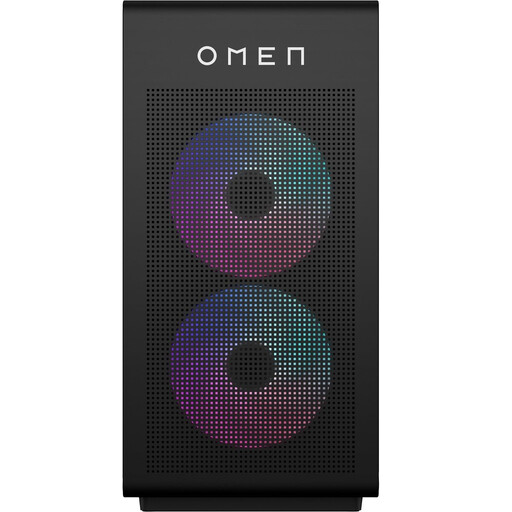
OMEN 35L GT16-0160nd C2FK7EA#ABH
A ready-to-use gaming desktop with listed connections to compare with a multi-monitor set-up.
RTX 5060; 16 GB RAM; 1 TB SSD; three DisplayPort outputs and one HDMI output.
Joybuy
 No image available
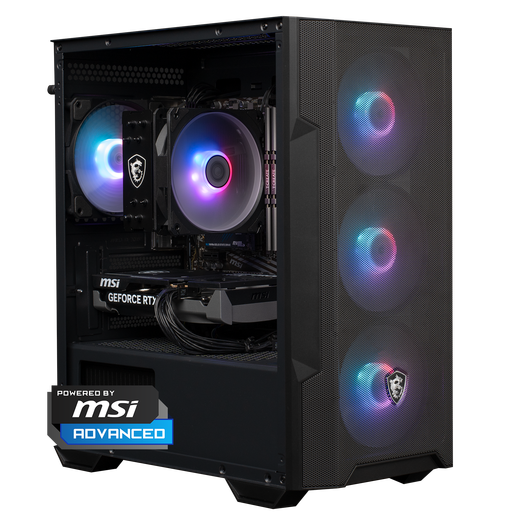
Shark Max Bite R501
A ready-to-use gaming PC with listed video outputs to compare with your screen set-up.
RTX 5060; R5 processor; 16 GB RAM; 1 TB NVMe SSD; one HDMI output and three DisplayPort outputs.
Joybuy
 No image available
Ryzen 7 7800X3D gaming desktop
A ready-to-use gaming desktop; compare its configuration with your game’s requirements and screen resolution.
Ryzen 7 7800X3D; RTX 5080 with 16 GB of video memory; 32 GB DDR5; 1 TB NVMe SSD. Windows 11 is listed as Trial.
Joybuy
 No image available
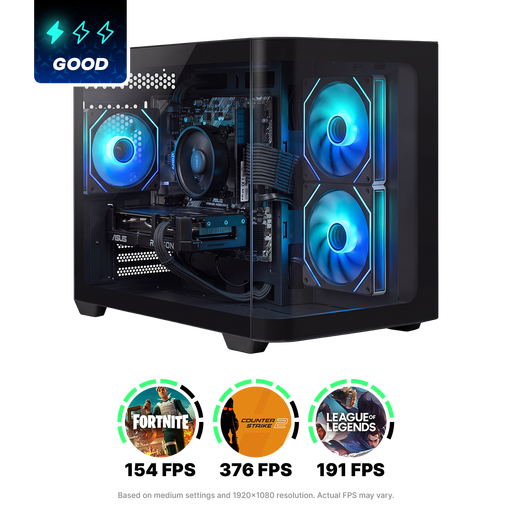
Shark Max Bite R502
A ready-to-use gaming PC; check the listed configuration and compare it with your game and monitors.
Ryzen 5 5500; Radeon RX 9060 with 8 GB of graphics memory; 16 GB DDR4; 500 GB NVMe SSD.
Joybuy
 No image available
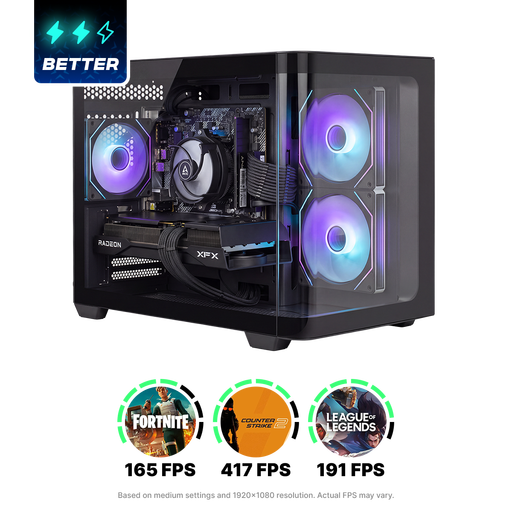
Shark Bloodlust R700
A ready-to-use gaming PC with video outputs that are worth checking if you want to connect multiple monitors.
Ryzen 7; Radeon RX 9070; 1 TB storage. The product description lists multiple DisplayPort and HDMI outputs.
Joybuy
Frequently asked questions
Do I need a special setting to play on more than one screen?
For a continuous view, you can set up NVIDIA Surround or AMD Eyefinity if your hardware and set-up support them. For separate information screens, you can identify and arrange the monitors in Windows. Also check whether your game supports the wide display you want.
Is 16 GB of RAM enough for my space simulator?
That depends on the game. If you mean Star Citizen, Roberts Space Industries lists 16 GB as the minimum and 32 GB DDR4 in the recommended configuration; don’t automatically apply that recommendation to other games.
What can I check if an extra monitor isn’t detected?
First check the connections and Windows updates. Then open the display settings to detect the screen and arrange the displays. Microsoft explains these steps for separate displays in Windows.
When I buy a gaming PC online in the Netherlands, am I always entitled to exactly two years of statutory cover?
No, statutory cover isn’t always a fixed period of exactly two years. ACM ConsuWijzer explains that the seller is responsible for providing a statutory remedy if a product doesn’t meet what you could reasonably expect from it under normal use; any commercial guarantee offered is separate.
Can I return a PC ordered online?
For qualifying distance purchases from a business, the Dutch government says you’ll often have a 14-day cooling-off period. Check who the seller is and which returns terms apply to your purchase; a purchase from a private individual doesn’t fall under the same definition of a distance purchase.


