What should you look for when choosing?
First decide which game you want to play, then compare the complete specification with the relevant requirements. For Planet Zoo, Frontier Support recommends 16 GB RAM and a GTX 1070 with 8 GB or RX 580 with 8 GB. The recommended specifications for Planet Zoo 2 include an RTX 3070 with 8 GB. These aren’t guarantees of performance in every situation.
| What to consider |
What to look for |
Who is this important for? |
| Processor and simulation |
Check the exact processor model and compare it with the requirements for the game you want to play. Also look at the memory and the rest of the specification. |
If I want to spend a long time building a large zoo, I want to match the computer to the right game rather than rely on a general processor name alone; around 29% of consumers prioritise suitability for simulation games. |
| Graphics card and monitor |
Check the exact GPU model, video memory and connections for your monitor. Compare the card with the requirements for the game you’ve chosen. |
If I want to view my zoo on the monitor I plan to use, I want to know exactly which graphics card and connections the PC has; around 23% of consumers prioritise graphics. |
| Space at your desk |
Measure the space available for the exact case and check the connections, ventilation clearance and included input devices. |
If I’m using the PC in the same room as my work equipment, I want the case and connections to suit my desk; around 18% of consumers prioritise a shared workspace. |
| Complete setup |
Check what’s included with the exact specification and which peripherals you already own, such as a monitor, keyboard and mouse. |
If I want to put together a setup that works for both gaming and working from home, I want to know in advance which items I still need; around 18% of consumers first look at how complete the setup is. |
| Upgrade options |
Check how many RAM slots and storage bays are available for each model, and which components are already installed. |
If I want to add memory or storage later, I want to know which upgrades will fit the exact case and specification; around 12% of consumers prioritise upgrade options. |
Gaming PCs at Joybuy
These PCs are for anyone comparing gaming desktops for a zoo simulation and a home office. Check the specification of the exact model against the requirements of the game you want to play.
 No image available
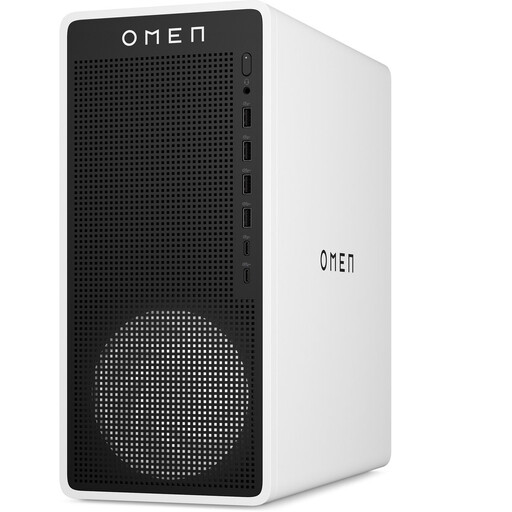
OMEN 16L Gaming Desktop TG03-0057nd C3YP0EA#ABH
A desktop specification to compare if you want to weigh up the processor, graphics card, memory and SSD together for your chosen game.
Core Ultra 7 265F; RTX 5050 with 8 GB; 16 GB DDR5; 1 TB SSD; 16L case.
View at Joybuy
 No image available
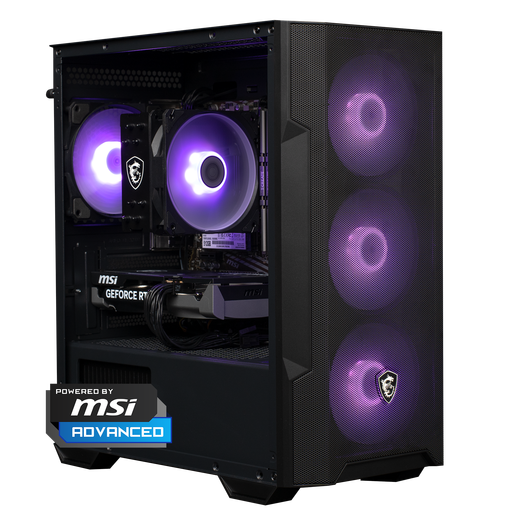
Shark Max Bite R500 Gaming PC, Powered by MSI
A desktop to compare against the requirements of your chosen zoo simulation, including its installed processor, graphics card and storage.
Ryzen 5 5500; RTX 5060 with 8 GB; 16 GB DDR4; 500 GB NVMe SSD.
View at Joybuy
 No image available
RGB Gaming PC RTX 5060 Ryzen 5, 16 GB, 480 GB SSD
A desktop option to compare the listed processor, graphics card and storage with the game’s requirements and the equipment you already have.
Ryzen 5 5500; RTX 5060 with 8 GB; 16 GB DDR4; 480 GB SSD; Wi-Fi.
View at Joybuy
 No image available
Panoramic Gaming PC Ryzen 7 5700X, RTX 5060 Ti 8 GB
Compare this desktop with the other models if you want to check the full processor, graphics card and memory specification.
Ryzen 7 5700X; RTX 5060 Ti with 8 GB; 16 GB DDR4; 480 GB NVMe PCIe SSD.
View at Joybuy
 No image available
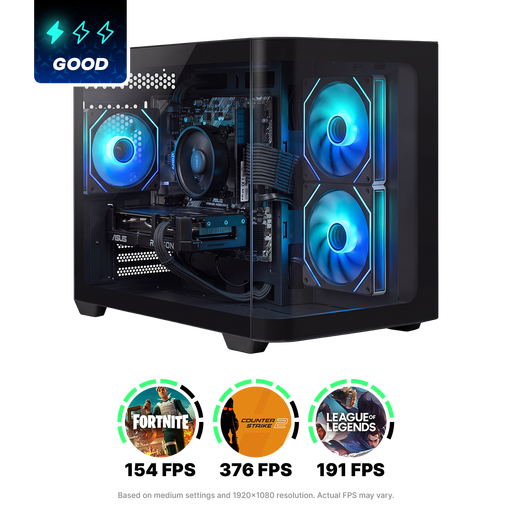
Shark Max Bite R502 Gaming PC
A desktop to compare with the separate requirements for the game you want to play, based on the exact version.
Ryzen 5 5500; Radeon RX 9060 with 8 GB; 16 GB DDR4; 500 GB NVMe SSD; Windows 11 Home.
View at Joybuy
Frequently asked questions
Should I use the system requirements for Planet Zoo or Planet Zoo 2?
Compare the PC with the requirements for the game you want to play. Frontier Support publishes separate specifications: for Planet Zoo, the recommended requirements include 16 GB RAM and 16 GB of available storage; for Planet Zoo 2, they include 16 GB RAM and 40 GB of available storage, and an SSD is recommended. If you want to play both, check both complete specification lists.
What should I check before connecting the PC to my work monitor?
Check the connections on the exact PC and monitor, the case dimensions, and whether a keyboard and mouse are included. Lenovo states that these two input devices aren’t included with product number 90YECTO1WWNL1; this doesn’t automatically apply to other desktops.
What can I try if Planet Zoo 2 won’t start or is causing problems?
First check whether the PC meets the minimum specifications. Frontier Support also describes how to check game files and graphics card drivers, so a hardware upgrade isn’t the only possible next step.
What are my rights when I buy a gaming PC online in the Netherlands?
According to ACM ConsuWijzer, online consumer purchases generally come with a 14-day cooling-off period from the date you receive the product, subject to legal exceptions. The seller is responsible for the statutory guarantee if the product doesn’t meet what you’re entitled to expect; a commercial guarantee doesn’t replace your statutory rights.
Are there any special workplace rules if the PC is in a home office?
Not simply because you use it for gaming in your own time. For employees who spend more than two hours a day working with display screen equipment, Arboportaal sets out workplace requirements, including having a monitor and keyboard that aren’t attached to each other. How these apply depends on your work situation.


