Who is this guide for?

Simulation player with extra windows

You practise manoeuvres on a main screen and want to keep maps or instructions open alongside it. So, check for usable graphics outputs and the option to arrange screens independently. Microsoft Support explains how to arrange multiple screens in Windows, while MSI lists the outputs for each PC configuration.

Player who wants a wider view of the game

You want the simulation itself to span several monitors. Check whether the game you have in mind supports this display setup, then match the PC to the combined resolution; the connections alone tell you nothing about performance.

KSP player who wants to choose carefully

You want to match the components to the version of Kerbal Space Program you actually play. Steam publishes different system requirements for the original game and Kerbal Space Program 2, so don’t automatically apply the requirements for one title to the other.

What should you consider when choosing?

Extra windows alongside the game

A good fit if: you want to keep maps, instructions or other windows on separate screens while the simulation runs on one main screen.

Trade-off: extra outputs give you more connection options, but they don’t guarantee better gaming performance.

Game spread across several monitors

A good fit if: the specific game supports the wide display setup you want and you know the resolution of each screen.

Trade-off: assess the total rendering resolution and performance at that setting. Historical KSP2 recommendations for one screen don’t guarantee performance across several screens.

Consideration What should you check? Who should give this more weight?
Connections and screen layout Compare the inputs on each screen with the outputs on the exact graphics card. Then check the screen layout in Windows. If I want to see maps or instructions alongside my main screen, I need to know whether I can connect my monitors properly. Around 36% of consumers prioritise connectivity and screen layout.
Components for your chosen game Note the exact game title and settings, then compare the CPU, RAM and graphics card with that title’s requirements. If I want to match the PC to the simulation I actually play, I don’t want to use the requirements for another game. Around 29% of consumers prioritise the components for their chosen simulation.
Performance across a wide game view Check game support, the combined screen resolution and the performance available at similar settings. If I want to spread the simulation across several monitors, I want to know whether my game can handle that display setup. Around 21% of consumers prioritise performance across a wide game view.
Purchase and upgrade options Check the exact memory configuration, available room for upgrades and the warranty terms for the configuration you’ve chosen. When weighing up the purchase and possible upgrades, I want to know what scope for expansion I’ll actually get. Around 14% of consumers prioritise purchase and upgrade options.

Common buying mistakes

  • Assuming four video ports guarantee smooth gaming across four screens

    Ports tell you which screens you can connect, not what frame rate the PC can achieve at the combined rendering resolution.

    First decide whether the extra screens will show supporting windows or parts of the game. Then check game support and performance at your preferred resolution.

  • Using KSP2 requirements for every orbital simulation

    The published recommendations for the original Kerbal Space Program differ from the historical recommendations for Kerbal Space Program 2. The KSP2 recommendation was aimed at 1440p with high settings; it doesn’t tell you how a game will perform across several monitors.

    Note the exact title and your preferred settings before comparing PC components.

  • Assuming there are free RAM slots

    MSI’s specification for the MAG Infinite S3 14NVM5-2873EU lists 16 GB as two 8 GB modules and two memory slots. Check the configuration of the exact model before planning an upgrade.

    Ask for confirmation of the slot configuration before letting upgrade options influence your choice.

    A memory upgrade may mean replacing existing modules.

Brands to compare

MSI

The MAG Infinite S3 14NVM5-2873EU is worth considering if you’re looking for a pre-built PC with specified video outputs. Always compare the full configuration code.

  • For this configuration, MSI lists a Core i5-14400F, RTX 5060 Ti 8 GB, 16 GB RAM, three DisplayPort outputs and one HDMI output. These are manufacturer specifications, not independent performance measurements.
  • According to MSI, the memory comprises two modules in a system with two RAM slots. Check the slot configuration of the model you’re buying before counting on an easy upgrade.

HP

The OMEN 35L GT16-0606nd shows which components HP lists for this specific desktop configuration.

  • For the GT16-0606nd, HP specifies a Core Ultra 7 265F, 32 GB RAM, a 2 TB SSD and an RTX 5070 Ti 16 GB.
  • HP’s claims about cooling and upgrade options are manufacturer claims. This configuration alone doesn’t indicate performance in a specific orbital simulation across several monitors.

Lenovo

The Legion Tower 5i range offers configurations to compare if you’re looking for a tower PC.

  • Lenovo lists several possible processors and graphics cards in the Legion T5 30IAS10 family.
  • Lenovo notes that configurations vary by region. So don’t infer the connections or components of a UK configuration from the family name alone.

ASUS

The Dutch ROG G700 range is worth comparing if you’re also considering higher-performance gaming configurations.

  • ASUS lists several individual configuration codes for the ROG G700.
  • Check the exact code before attributing specifications such as the graphics card, memory or connections to a PC listing. The family name doesn’t demonstrate performance in orbital simulations.

Gaming PCs at Joybuy

Joybuy’s selection of gaming PCs for orbital simulations using several monitors.
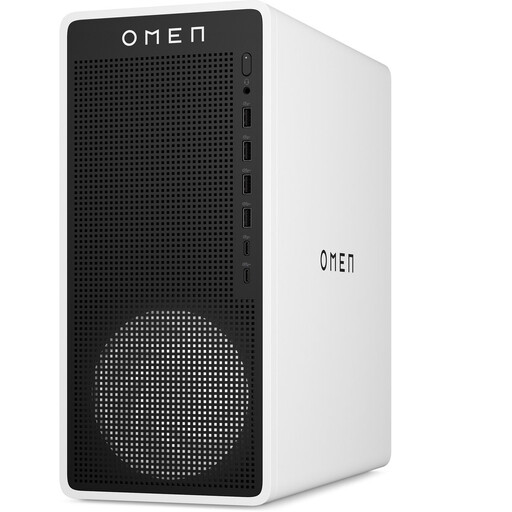
OMEN 16L Gaming Desktop TG03-0057nd C3YP0EA#ABH

OMEN 16L Gaming Desktop TG03-0057nd C3YP0EA#ABH

For a multi-screen setup, check the connections and specifications for this exact configuration before deciding whether it’s right for your simulation.

View at Joybuy
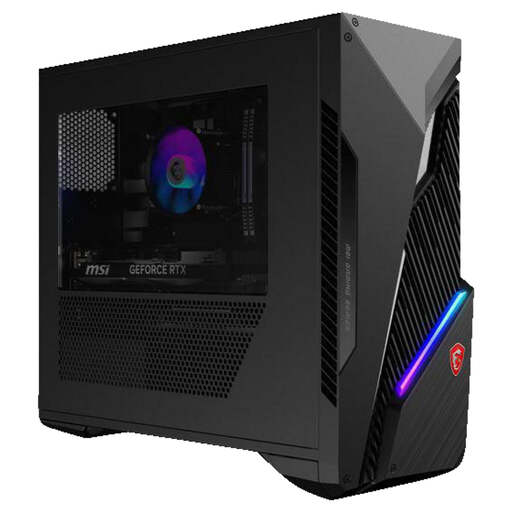
MSI MAG Infinite S3 14NVM7-3002EU

MSI MAG Infinite S3 14NVM7-3002EU

If you’re comparing pre-built gaming PCs, check that the video outputs on this specific configuration suit your monitors.

The product name lists an Intel Core i7 and RTX 5060 Ti.

View at Joybuy
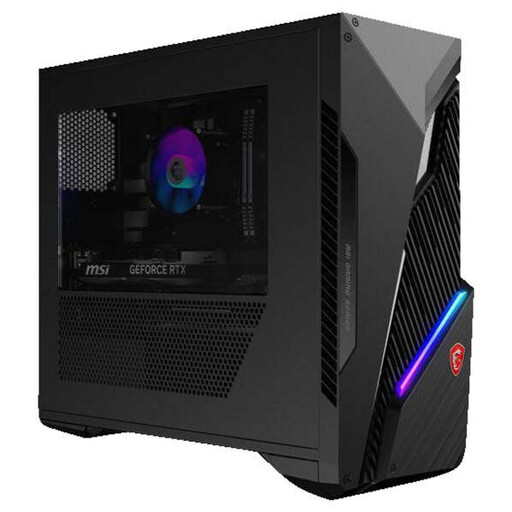
MSI MAG Infinite S3 14NVM5-2873EU

MSI MAG Infinite S3 14NVM5-2873EU

This configuration is worth comparing if you’re looking for a gaming PC with specified video outputs. Also check the screen layout and gaming performance you need.

MSI lists a Core i5-14400F, RTX 5060 Ti 8 GB, 16 GB DDR5 as 2 × 8 GB, a 1 TB SSD, three DisplayPort outputs and one HDMI output. If you’re planning a memory upgrade, ask for confirmation of the slot configuration for the exact model.

View at Joybuy
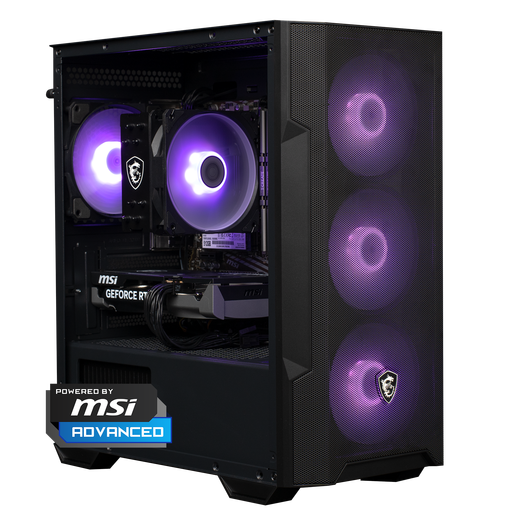
Shark Max Bite R500 Gaming PC

Shark Max Bite R500 Gaming PC

Compare this configuration with the requirements of your chosen simulation and check that the connections suit the number of screens you want to use.

The product name lists RTX 5060, R5, 16 GB and 500 GB.

View at Joybuy
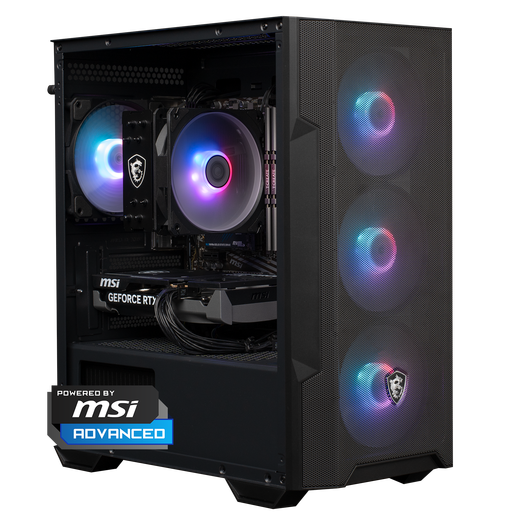
Shark Max Bite R501 Gaming PC

Shark Max Bite R501 Gaming PC

For this configuration, check that it suits your chosen game, screen resolutions and storage plans.

The product name lists RTX 5060, R5, 16 GB and 1 TB.

View at Joybuy

Frequently asked questions

How do you set up several monitors for a simulation with supporting tools alongside it?

Connect the screens to compatible outputs and set them up in Settings > System > Display in Windows. Use Identify and the screen layout to position them to match their physical locations. In Advanced display, check the available resolution and refresh rate for each screen too. Microsoft Support explains these display settings.

Do you need the same PC for the original Kerbal Space Program as for KSP2?

No, the published recommendations differ. Steam lists 8 GB RAM among the requirements for the original Kerbal Space Program; the developers’ historical recommendation for KSP2 was aimed at 1440p with high settings. Neither is a test of your chosen game across several monitors.

What do statutory rights and paid extended warranties mean when buying in the Netherlands?

According to the Dutch government, if a product is faulty, you’re entitled to a solution from the seller. The Netherlands has no fixed statutory warranty period, so assess a paid extended warranty based on the rights it actually adds.

Which CE check is relevant for a gaming PC?

Applicable EU product regulations apply to electrical and electronic equipment. Where those regulations require CE marking, the complete product must comply. A CE marking on just one component doesn’t show that the complete desktop meets the applicable requirements.

How much time do you usually have to change your mind after buying online from a business?

The Dutch government states that a 14-day cancellation period applies in many cases when buying from a business at a distance. Check the terms that apply to your purchase; a purchase from a private seller isn’t covered by the same rules.
