Who is this choice relevant to?

Panoramic cockpit gamer

You want the game view to span multiple screens. So check the combined resolution, suitable video outputs and game support. AMD and NVIDIA describe ways to set up screens as a single display area; how well this works depends on your chosen configuration and game.

Gamer with additional screens

You fly on one screen and use the others for separate windows. Check that the exact PC model has enough suitable outputs and that you can configure the screens individually.

Player of a demanding space game

You want to compare the requirements of your specific game with your screen setup. Roberts Space Industries recommends 32 GB of RAM and requires SSD storage for Star Citizen; don’t automatically apply these requirements to other space games.

What should you look for?

One gaming screen with additional screens

Choose this if: you fly on the main screen and use the others for separate windows.

Bear in mind: connecting several screens won’t automatically create one panoramic game view, and it doesn’t tell you anything about the frame rate.

Panoramic game view

Choose this if: you want to spread the cockpit across multiple screens and your chosen game can display the combined resolution effectively.

Bear in mind: the total resolution will be higher. AMD gives 5760 × 1080 as an example for three 1920 × 1080 screens in a 3×1 setup. Also check your preferred refresh rate and how your game displays at that resolution.

What to consider What should you check? Who is this important for?
Game view and total resolution Decide how many screens will display the game and what total resolution you want to use. Check that the game supports that resolution and refresh rate. If I want to spread the cockpit across multiple screens, I’ll check the total resolution and support in my game. Around 31% of consumers put a panoramic game view first.
Suitable screen outputs Compare the number and type of outputs on the exact graphics card with the inputs on your monitors. Don’t assume that the motherboard has outputs without checking. I want to connect my existing monitors directly and set the screen mode I need. Around 31% of consumers give connections and screen compatibility top priority.
Game requirements Check the requirements for the game you actually play. For Star Citizen, Roberts Space Industries recommends 32 GB of RAM and requires at least 150 GB of SSD storage. If I want to focus on the requirements and installation space for my chosen space game, I’ll start with the developer’s information. Around 23% of consumers put game requirements first.
Overall setup and upgrades Check which screen connections and components are included with the exact model. If you’re planning an upgrade, check that the model in question is suitable for it. I want a clear overview of my setup in advance or the option to upgrade later without replacing components straight away. Around 15% of consumers put total cost and upgrade options first.

Common buying mistakes

  • Assuming ‘suitable for multiple monitors’ guarantees a panoramic game view

    Connecting separate screens is not the same as using them as one wide gaming display. The game must also be able to display the combined resolution effectively.

    Decide in advance which screens will show the game, then check the screen mode, resolution and refresh rate you want to use with your chosen game.

  • Confusing the graphics card name with the PC’s port layout

    Connections can vary between desktop models. MSI lists three DisplayPort outputs and one HDMI output for the MPG Infinite Z3 X3D 9NVRR7-848EU; that doesn’t tell you which ports another model has.

    Compare your monitors’ inputs with the outputs listed for the exact PC model.

  • Assuming a manufacturer’s warranty replaces your full legal guarantee

    ACM ConsuWijzer distinguishes between the legal guarantee and a voluntary warranty offered by a retailer or manufacturer.

    Read the warranty terms and consider your legal rights separately. For an online purchase, also check whether an exception to the cancellation period applies.

Relevant brands to compare

MSI

The MPG Infinite Z3 X3D range is worth comparing if you’re looking for a pre-built desktop with documented GPU outputs.

  • For model 9NVRR7-848EU, MSI lists an RTX 5070 Ti, three DisplayPort outputs, one HDMI output, 32 GB RAM and a 1 TB SSD.
  • These are specifications for that model, not a measure of performance in a space game. Check the version on offer and the screen mode you want to use.

HP

The OMEN 35L is worth comparing if you’re considering storage and potential upgrades.

  • For the GT16-0606nd, HP lists 32 GB RAM, a 2 TB SSD and an RTX 5070 Ti with 16 GB of video memory.
  • HP describes this model as tool-free and upgradeable. That doesn’t confirm which future components will fit, so check compatibility for each one.

Lenovo

The Legion Tower 5 Gen 10 is worth comparing if you want to assess a specific desktop model with clearly listed key components.

  • For model 90YJ008KMH, Lenovo lists a Ryzen 7 7700X, an RTX 5070 with 12 GB of video memory, 32 GB RAM and a 1 TB SSD.
  • Check the ports on the exact model and whether the game is suitable for your screen setup.

ASUS

The ROG G700 range includes model variants that you can compare by their individual specifications.

  • ASUS lists, among others, model G700TF-07265F666W on its Dutch specifications page.
  • Don’t assume that specifications for another G700 variant also apply to this model.

PCSpecialist

A configurable option to compare if you want to factor the number of screens into your PC build.

  • PCSpecialist lists configurations for different numbers of monitors, from 2 to 12 screens.
  • A category label doesn’t confirm that a specific configuration will run your game across all screens at the performance you want. Check the components and screen mode.

Gaming PCs at Joybuy

These gaming desktops are options to compare for space games. Check the video outputs and support for your screen setup for each model.
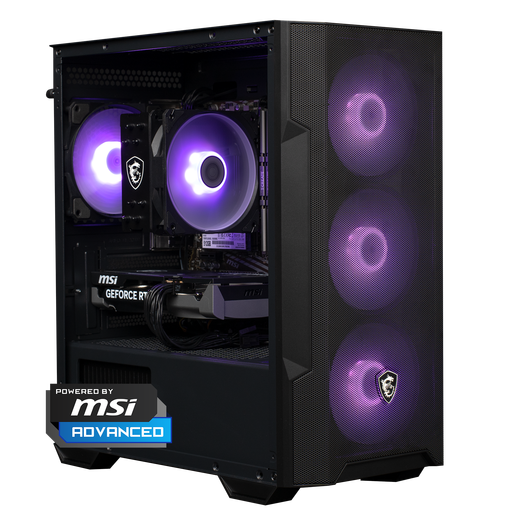
Shark Max Bite R500 Gaming PC with RTX 5060 and Ryzen 5 5500

Shark Max Bite R500 Gaming PC, RTX 5060, Ryzen 5 5500

The product description mentions gaming at 1080p and 1440p. Check separately whether this PC is suitable for the total resolution of your screen setup.

Ryzen 5 5500; GeForce RTX 5060; 16 GB DDR4; 500 GB NVMe SSD.

View at Joybuy
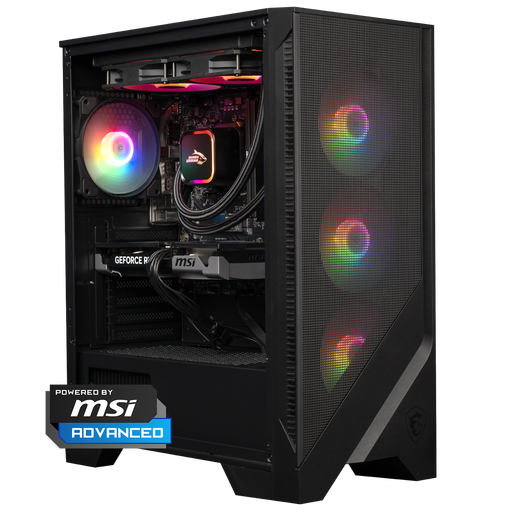
Shark Bloodlust R500 Gaming PC with RTX 5060 Ti and Ryzen 5 7400

Shark Bloodlust R500 Gaming PC, RTX 5060 Ti, Ryzen 5 7400

The product description mentions gaming at 1080p and 1440p. Compare this guidance with the resolution you want to use on your screens.

Ryzen 5 7400; GeForce RTX 5060 Ti; 16 GB DDR5; 1 TB NVMe SSD.

View at Joybuy

Panoramic Gaming PC with Ryzen 7 5700X and RTX 5060 Ti

Panoramic Gaming PC, Ryzen 7 5700X, RTX 5060 Ti

The product description mentions gaming at 1080p and 1440p; this doesn’t confirm performance at a combined resolution across multiple screens.

Ryzen 7 5700X; GeForce RTX 5060 Ti with 8 GB; 16 GB DDR4; 480 GB NVMe SSD.

View at Joybuy

Gaming Desktop PC with Ryzen 7 7800X3D and RTX 5080

Gaming Desktop PC, Ryzen 7 7800X3D, RTX 5080

The product description mentions gaming at 1440p and 4K. Check that the game and chosen multi-screen mode are suitable for the resolution you have in mind.

Ryzen 7 7800X3D; GeForce RTX 5080; 32 GB DDR5; 1 TB NVMe SSD. Windows 11 is listed as Evaluation Version.

View at Joybuy
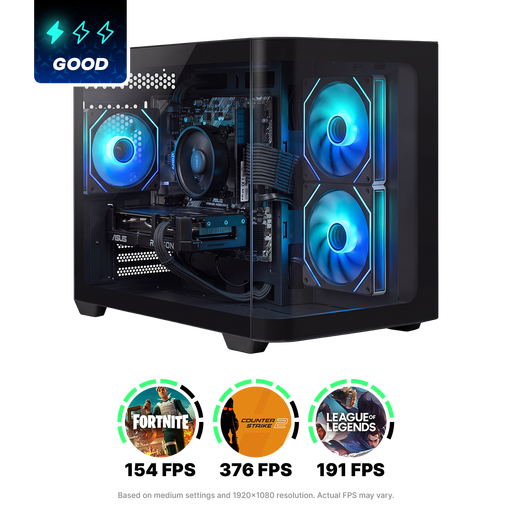
SHARK Max Bite R502 Gaming PC with Ryzen 5 5500 and RX 9060

SHARK Max Bite R502 Gaming PC, Ryzen 5 5500, RX 9060

The product description mentions gaming at 1080p; compare this with the resolution you actually want to use.

Ryzen 5 5500; Radeon RX 9060 with 8 GB; 16 GB DDR4; 500 GB NVMe SSD; Windows 11 Home.

View at Joybuy

Frequently asked questions

How do you set up screens for one wide cockpit view?

You can do this with a suitable setup using NVIDIA Surround or AMD Eyefinity. NVIDIA explains how to set the screen layout, resolution and refresh rate in the control panel. AMD recommends first setting Windows to extend the display, then using Eyefinity Quick Setup. After that, check that your game displays the combined resolution and interface correctly.

Is 32 GB RAM essential for every space game?

No, requirements vary from game to game. Roberts Space Industries lists 16 GB as the minimum and 32 GB as the recommended amount for Star Citizen; Frontier publishes separate requirements for Elite Dangerous and Odyssey. Use the information for the game you actually play, and don’t treat these figures as general requirements for using multiple monitors.

What should you check after installation or during maintenance?

First, check that the screens are connected to the intended graphics card and are arranged in the right order. For Star Citizen, Roberts Space Industries recommends keeping your graphics drivers up to date. For Elite Dangerous, Frontier suggests checking the game files if you’re having performance issues. Follow the instructions for your game and system.

What guarantee and cancellation period apply to an online purchase in the Netherlands?

For a consumer purchase, the legal guarantee applies alongside any voluntary warranty offered by the retailer or manufacturer. ACM ConsuWijzer states that online purchases generally come with a cancellation period of up to 14 days after delivery. Exceptions must be checked before ordering and include certain made-to-measure products.
