
Multi-screen cockpit gamer
You want the game to span several monitors. As well as checking the graphics card’s connections, make sure your chosen game and display mode support this.


First, decide whether your extra screens will display information only, or whether you want the game to span all of them. This choice determines which connections and graphics performance you need to check. Then choose based on the specific game, the total screen resolution and the PC’s full configuration; a graphics card’s name alone doesn’t tell you enough. Roberts Space Industries lists separate system requirements for Star Citizen, but these don’t guarantee performance across multiple screens.
You want the game to span several monitors. As well as checking the graphics card’s connections, make sure your chosen game and display mode support this.
You play on one main screen and want extra windows open on your other monitors. Check the available connections and your screen layout; Microsoft Support explains how to configure displays separately in Windows.
You want the whole PC configuration to meet the requirements of your chosen game. Compare the requirements for that specific game with the memory, storage and graphics card in the exact desktop configuration.
Best for: playing on one monitor while keeping information or other windows visible on the rest.
Check: make sure the exact graphics card has enough outputs you can use at the same time. The number of extra screens alone says nothing about gaming performance.
Best for: extending your cockpit across several monitors.
Check: first, confirm that the game supports your chosen display mode. Then assess the graphics workload for the combined resolution separately.
| What to consider | What should you check? | Which consumers should pay extra attention? |
|---|---|---|
| Connecting and arranging screens | Compare the outputs on the exact graphics card with your monitors’ inputs and your preferred Windows display mode. | If I want to connect and arrange each screen separately, I need to know in advance which connections my setup requires. Around 28% of consumers prioritise screen compatibility. |
| Graphics workload | Decide on the game, combined resolution, settings and display mode before comparing graphics cards. | If I want the game to span several monitors, I need to know how my chosen game and resolution affect the graphics workload. Around 22% of consumers say this is their main consideration. |
| Game requirements and other programmes | Compare the requirements for the specific game version with the installed RAM, video memory, operating system and SSD space. | If I want to run a specific space game and other programmes, I need to check whether the full configuration is suitable. Around 22% of consumers start by checking the game’s requirements and space for other programmes. |
| Cockpit controls and upgrades | Check the USB ports and, if you might upgrade later, the available memory and storage options on the exact model. | If I want to connect several control devices or upgrade later, I need to know which connections and options the chosen case offers. Around 17% of consumers prioritise controls and upgradeability. |
| Complete setup and service | Check what’s included with the PC, who the seller is and which service terms apply. | If I’m planning a complete multi-screen setup, I need to know in advance which other components I’ll need and who to contact if something goes wrong. Around 11% of consumers first consider the total purchase and after-sales support. |
The percentages shown give a broad overview of these purchasing priorities; they are not measured market shares. For Star Citizen, Roberts Space Industries lists 32 GB of memory and at least 150 GB of SSD space among the recommended specifications. Don’t treat these as general requirements for other space games. The number of connections also doesn’t prove that a game supports a continuous image or a particular frame rate.
Outputs show which connections a graphics card has, but they don’t confirm that your game supports your preferred display mode or will run smoothly with it.
First, decide whether you want separate windows or one continuous game view. Then check game support, your monitors and the chosen resolution separately.
Requirements vary from game to game and can change over time. For Star Citizen, Roberts Space Industries distinguishes between minimum and recommended specifications.
Compare the full configuration with the current requirements for the version of the game you want to play; don’t use another game’s requirements as a substitute.
A stated manufacturer’s warranty doesn’t automatically replace your statutory rights against the seller. ACM ConsuWijzer explains that, with normal use, you can expect a product to last for as long as is reasonable to expect of that product.
Keep your proof of purchase and, if something goes wrong, check both the terms of sale and your statutory rights.
The ROG G700 range includes desktop variants with separate model codes. The Dutch specifications page distinguishes between these configurations.
The OMEN 35L GT16-1680nd is listed with a Ryzen 7 9700X, 32 GB RAM, 2 TB SSD and Radeon RX 9070 XT.
The MPG Infinite Z3 X3D 9NVRR7-848EU is a desktop variant for which the manufacturer also specifies the graphics card’s connections.
These desktops are a starting point when choosing a gaming PC for a multi-monitor setup. Before you decide, check the game’s requirements and the graphics card outputs on the exact configuration.
 No image available
Compare the connections and your preferred game display with your monitors. Also check that the listed configuration meets your game’s requirements.
32 GB DDR5 memory, 1 TB NVMe SSD and Windows 11 Trial.
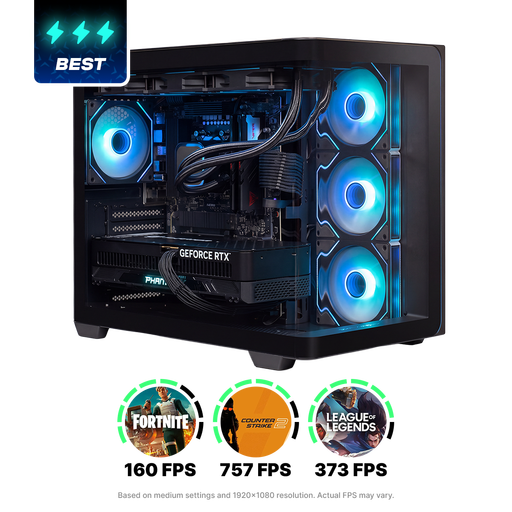 No image available
Before choosing this desktop for a multi-screen setup, check the graphics card outputs and your game’s support.
Ryzen 9 9900X3D, GeForce RTX 5090 with 24 GB, 32 GB RAM, 2 TB NVMe SSD and Windows 11 Home.
 No image available
Check that the outputs on this configuration suit your monitors and that its specifications meet your chosen game’s requirements.
Intel Core Ultra 7 265F, 32 GB DDR5, 1 TB SSD, GeForce RTX 5070 with 12 GB and Windows 11 Home.
No image available
Compare the connections on this configuration with your screen setup and check the requirements for the game you want to play.
Intel Core Ultra 5 225F, 32 GB DDR5, 1 TB PCIe 4.0 SSD, GeForce RTX 5070 with 12 GB and Windows 11 Home.
No. Physical outputs alone don’t prove that this will work. Check whether your game supports your preferred display mode and compare your monitors, resolution and settings; the number of ports doesn’t predict the frame rate.
Connect the screens, then use Windows display settings to detect and rearrange them and configure each one separately. Microsoft Support also explains how to get Windows to detect a screen it hasn’t recognised.
Roberts Space Industries lists 16 GB as the minimum and 32 GB in the recommended configuration, along with at least 150 GB of SSD space. These requirements are for Star Citizen and don’t guarantee any particular performance across multiple monitors.
No. ACM ConsuWijzer explains that statutory warranty depends on what you could reasonably expect from the product with normal use. A stated manufacturer’s warranty period doesn’t replace this right; if something goes wrong, contact the seller and check which rights apply to you.