Start by choosing your simulator and deciding whether you’ll use extra screens for separate external views or mainly for maps and instruments. Then check the ports and configuration of the exact PC model. Microsoft Flight Simulator Support and X-Plane publish system requirements as a starting point, but these don’t guarantee performance with your particular combination of screens and resolutions.
Who is this buying guide for?
Pilot using multiple external views
You want forward and side views on separate screens, so you need to consider the screen layout and graphics load. Microsoft Flight Simulator and AMD respectively describe how to use multiple screens and how graphics card specifications affect the number of supported screens.
Navigation pilot using a map screen
You want to keep the main view on screen while also seeing instruments or a map. Microsoft Flight Simulator and AMD describe support for peripherals and multiple screens; also check whether the simulator supports your preferred window layout.
Flight sim pilot choosing a PC
You want to choose a desktop before settling on a simulator or any future upgrades. Compare the requirements of your intended software with the PC’s configuration; Microsoft Flight Simulator Support and X-Plane publish separate sets of requirements.
What should you look for in a gaming PC for navigation flying?
Multiple external views
Choose this setup if: side views on separate screens are important to you. Decide how many screens you’ll use and what their resolutions will be.
Bear in mind: rendering additional scenes can increase the graphics load. Microsoft Flight Simulator Support and X-Plane don’t guarantee performance for your specific setup.
Main view with a map or instruments
Choose this setup if: you mainly want to see navigation data or cockpit instruments alongside the main view while flying. Check whether the simulator supports this screen layout.
Bear in mind: an extra screen for a map or instruments isn’t the same as an extra fully rendered external view. AMD states that the number of supported screens depends on the graphics card specifications.
First, decide what each screen needs to show. Then compare your simulator’s requirements and the ports on the exact PC model with your planned setup.
| What to consider |
What to look for when buying |
Who should consider this? |
| Graphics load |
Note the number of screens, their resolutions and how many external views you want; ask about performance with your specific simulator and setup. |
If I want multiple side views, I want the graphics load assessed for my screen layout. Around 40% of consumers put multiple external views first. |
| Maps and instruments |
Decide what you want to display on each screen and check whether the simulator supports your preferred window layout. |
I want to combine the main view with a map or instruments during a navigation flight. Around 30% of consumers give this combination top priority. |
| Connections |
Compare the video outputs on the exact model with the inputs and resolutions of your monitors. |
If I want to connect my existing screens, the outputs on the supplied graphics card need to be compatible. For around 20% of consumers, this is the main priority. |
| Simulator and upgrades |
Compare the processor, memory, graphics card and storage with your chosen simulator’s requirements; check the upgrade options for each model. |
If I haven’t chosen my simulator or future upgrades yet, I want to assess the configuration and upgrade potential separately. Around 10% of consumers put this first. |
Common buying mistakes
-
Assuming general system requirements cover multiple external views
Published system requirements don’t provide measured results for your number of screens and resolutions.
Plan your screen layout before buying and ask for comparable tests with the simulator you want to use.
-
Assuming all models in a GPU family have the same ports
A product range may include different graphics card models. The connections on one model don’t necessarily tell you which card will be supplied in another PC.
Check the outputs on the exact model and compare them with the inputs on your monitors.
-
Assuming you can return any custom-built PC
The statutory cooling-off period in the Netherlands has exceptions, including certain made-to-order products. ACM ConsuWijzer explains the cooling-off period for online purchases.
Before ordering, check whether the model falls under an applicable exception.
Brands to compare
MSI
The MPG Infinite Z3 X3D range is worth considering if you want to compare configurations with different processors, graphics cards and storage options.
- For the graphics card variants listed, MSI specifies three DisplayPort outputs and one HDMI output.
- This is a specification for the listed variant, not a performance test for a multi-screen simulator setup. Check the connections on the exact PC model.
ASUS
The ROG G700 range includes the G700TF-05225F170W, a pre-built desktop you can compare with other configurations.
- ASUS ROG Netherlands lists a Core Ultra 5 225F, RTX 5070 and 1 TB SSD for this model. The Dutch Joybuy product listing specifies 32 GB RAM.
- These configuration details don’t guarantee performance with a specific multi-screen setup. Check the connections on the model you’re considering.
HP
The OMEN 35L GT16-0606nd is an example of a model with 32 GB RAM, a 2 TB SSD and an RTX 5070 Ti with 16 GB of video memory.
- HP Store Netherlands lists these specifications for the GT16-0606nd model.
- These specifications apply to this model and don’t, by themselves, indicate performance with a particular simulator or screen resolution.
Lenovo
The Legion Tower 5a Gen 10 is worth considering if you want to compare models and upgrade options.
- Lenovo describes upgradeable memory and storage options for this range.
- Information about the range doesn’t confirm which graphics card or monitor outputs a specific model has; check these details separately.
Gaming PCs at Joybuy
These Joybuy PCs are gaming desktops you can compare with your simulator’s requirements and preferred screen layout. Check the connections and configuration for each model; a product name alone doesn’t guarantee performance across multiple screens.
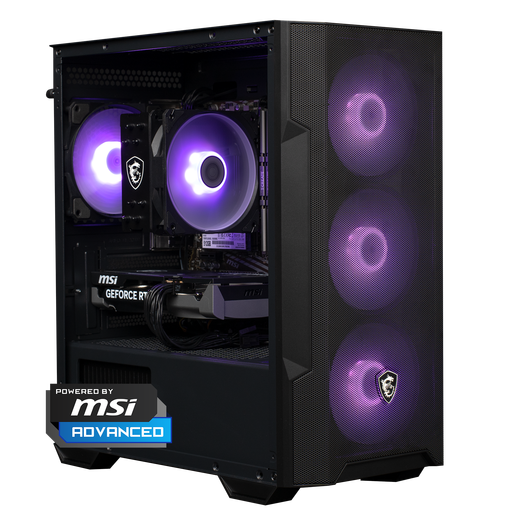 No image available
Shark Max Bite R500 gaming PC
Compare this gaming PC with your simulator’s requirements and the resolution of each screen; the listed configuration doesn’t guarantee a particular frame rate.
RTX 5060, Ryzen 5, 16 GB RAM and 500 GB storage.
Joybuy
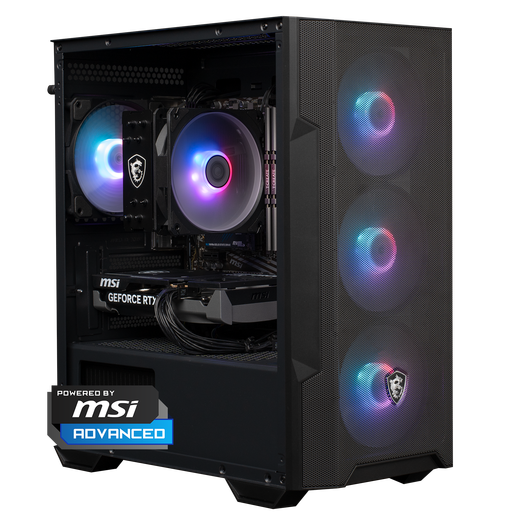 No image available
Shark Max Bite R501 gaming PC
Compare the configuration with your chosen simulator’s requirements and check that the connections are right for your screens.
RTX 5060, Ryzen 5, 16 GB RAM and 1 TB storage.
Joybuy
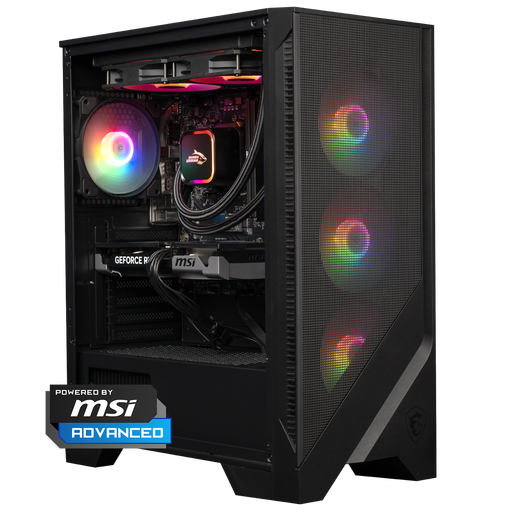 No image available
Shark Bloodlust R500 gaming PC
For your screen layout, check your simulator’s system requirements and the connections on the exact model.
RTX 5060 Ti, Ryzen 5, 16 GB RAM and 1 TB storage.
Joybuy
 No image available
RGB gaming PC with RTX 5060
Use this configuration as a benchmark and compare it with the software requirements and your preferred screen setup.
Ryzen 5, 16 GB, 480 GB SSD and Wi-Fi.
Joybuy
 No image available
Panoramic gaming PC with Ryzen 7 5700X
Compare this gaming desktop with your simulator’s requirements; the listed components aren’t a performance test for multiple screens.
RTX 5060 Ti with 8 GB, 16 GB DDR4 RAM, 480 GB NVMe PCIe SSD and Windows 11 Home pre-installed, not activated.
Joybuy
Frequently asked questions
Do the recommended system requirements for Microsoft Flight Simulator 2024 prove that three external views will run smoothly?
No. Microsoft publishes general minimum, recommended and ideal PC specifications, but these don’t establish how your specific multi-screen setup will perform. Compare your screen resolutions and look for a test using a similar configuration.
How do I get started with setting up multiple screens?
First, decide which screen will show an external view and which ones you’ll use for a map or instruments. Then use the simulator’s display settings. For AMD Eyefinity, AMD says Windows must first be set to extended display mode; Eyefinity is an option, not a requirement for every setup.
What should I check if I want to upgrade the desktop later?
Check the upgrade options for the exact model and keep the ventilation openings clear during use. The ASUS product information we reviewed also advises disconnecting the PC from the power supply before cleaning it.
Do I have a cooling-off period in the Netherlands, and what about the warranty on a PC bought online?
For online purchases, a statutory 14-day cooling-off period generally applies from the date of delivery; check whether a legal exception applies to your order. ACM ConsuWijzer states that there’s no fixed statutory warranty period in the Netherlands: what you can expect from a product depends, among other things, on the type of product, its price and the information provided.


