First, decide whether you want one main screen with separate information windows or a single wide gaming view across multiple monitors. This choice determines which connections and settings you need to check. Microsoft Support explains how to arrange separate displays, while NVIDIA Surround and AMD Eyefinity can group screens into one larger display. Then check the outputs on the exact PC configuration and your game’s requirements: the number of ports alone tells you nothing about the frame rate.
Who is this relevant to?
Pilot with a panoramic cockpit
You want the flight view to span multiple screens. So check both the screen grouping and the display options in the game you play. NVIDIA describes Surround and AMD Eyefinity as ways to use multiple screens as one larger display.
Pilot with extra information screens
You play on one main screen and use other monitors for separate windows. In that case, the connections and screen layout matter. Microsoft Support explains how to arrange displays in Windows.
Player of a demanding space simulator
You want to match the memory and SSD space to the game you’ve chosen. The published requirements for Star Citizen show why you should check the requirements for your specific game; Roberts Space Industries lists them for Star Citizen.
What should you look for?
Separate desktops
Choose this if: you want to play the game on one screen and use others for maps, communication or windows.
Bear in mind: separate screens won’t automatically create one panoramic gaming view. Check that the game and apps you want to use work on those screens.
One wide gaming view
Choose this if: you want the game to span multiple monitors and it supports the wide display you’re after.
Bear in mind: the display and performance depend on the monitors, settings and game. A grouping feature doesn’t guarantee a particular frame rate.
| What to consider |
What should you check? |
Who is this important for? |
| Connections and screen layout |
Compare the video outputs on the exact PC configuration with the inputs and cables on your monitors. Also decide whether you want separate desktops or one grouped display. |
If I want to use multiple screens, I want to know in advance whether they’ll work with the connections and layout I need. Around 36% of consumers prioritise connections and screen layout when buying. |
| Gaming performance |
Check the requirements for your game and look for performance at the total resolution you want to play at; don’t infer the frame rate from the number of ports. |
Anyone who wants a panoramic cockpit view needs to know whether their game displays it properly. Around 29% of consumers prioritise gaming performance for their chosen display setup. |
| Complete configuration |
Compare the full model number and configuration. If you’re reusing monitors, make sure the connections and cables are suitable too. |
If I want to reuse existing monitors, I want to understand in advance which configuration and any connection accessories I’ll need. Around 21% of consumers prioritise the cost of the complete setup. |
| Memory and storage |
Check the memory and SSD space against the requirements of the game you play. Roberts Space Industries lists a minimum of 16 GB of memory and more than 150 GB of SSD space for Star Citizen; the developer recommends 32 GB of memory. |
Anyone planning to install a specific game and additional software should check how much memory and storage they’ll need for the combination. Around 14% of consumers prioritise memory and storage for their game. |
Common pitfalls
Check the full PC configuration and how you plan to use the screens. A product range name or number of ports doesn’t tell the whole story.
-
Assuming every model in a product range has the same ports
A range may include configurations with different graphics cards and connections. So you can’t assume that the ports on another variant will also be available on your PC.
Check the full model number and the video outputs on the specific configuration against the inputs on your monitors.
Depending on the connection, you may need a different cable or configuration.
-
Assuming that connecting multiple screens means a smooth panoramic view
An extended desktop and a game grouped across multiple screens use different settings. Connections alone don’t show how the game will display or perform.
Before buying, decide which screens the game itself should use and check that the setting you want works in your specific game.
-
Assuming all space simulators have the same memory requirements
Requirements vary by game. The figures published by Roberts Space Industries for Star Citizen don’t automatically apply to other space simulators.
Check the current system requirements for the game you actually want to play.
Brands to compare
ASUS ROG
The G700 range includes various configurations. For model G700TF-07265F200W, ASUS lists an RTX 5070 PRIME with three DisplayPort outputs and one HDMI output.
- The port details for this specific model give you a useful starting point for comparing your screens and cables.
- The connections and configuration listed apply only to this model, not automatically to other G700 versions, and don’t indicate how it will perform in your game.
Lenovo Legion
For the Legion Tower 5 Gen 10, model 90YJ008KMH, Lenovo lists a Ryzen 7 7700X, RTX 5070, 32 GB of memory and a 1 TB SSD.
- The configuration gives you specific details to compare with your game’s system requirements.
- Check the video outputs on this exact version before pairing it with your monitors.
HP OMEN
HP’s listing for the HyperX OMEN 35L GT18-0611nd specifies 32 GB of memory, a 1 TB SSD and an RTX 5070 Ti with 16 GB of video memory.
- This exact variant gives you a specific configuration to compare with your game’s requirements.
- The listing doesn’t confirm which video outputs the supplied card has or how the PC will perform in your game.
MSI
The specifications for the MPG Infinite X3 AI 2nd cover various configurations. DisplayPort and HDMI connections are listed for the graphics cards mentioned.
- The configuration-specific details show why you need to check the exact graphics card and version.
- The range information doesn’t confirm that every version has the same card or port layout.
Acer Predator
Acer describes the Predator Orion 3000 as a 28-litre desktop range, with versions available up to an RTX 5070.
- The stated size may be useful if you plan to place the desktop alongside a multi-monitor setup.
- ‘Up to RTX 5070’ describes the maximum available in the range, not the graphics card or ports on a specific version.
Gaming PCs at Joybuy
These PCs are options for a multi-monitor gaming setup. For each exact version, check that the video outputs, screen layout and system requirements are suitable for your monitors and game.
 No image available
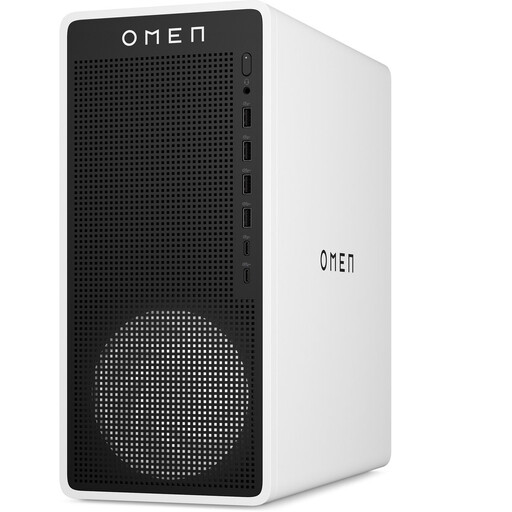
OMEN 16L Gaming Desktop TG03-0057nd C3YP0EA#ABH
The listed outputs may suit a multi-screen setup; compare them with the inputs on your monitors.
Intel Core Ultra 7 265F; RTX 5050 with 8 GB GDDR6; 16 GB DDR5, expandable to 32 GB; 1 TB SSD; 1 HDMI and 3 DisplayPort outputs.
Joybuy
 No image available
Gaming Desktop PC Ryzen 7 7800X3D, GeForce RTX 5080
Compare the listed configuration with your game’s requirements and check the video outputs for your screen setup.
Ryzen 7 7800X3D; RTX 5080 with 16 GB; 32 GB DDR5; 1 TB NVMe SSD; Windows 11 Trial, listed as Evaluation Version.
Joybuy
 No image available
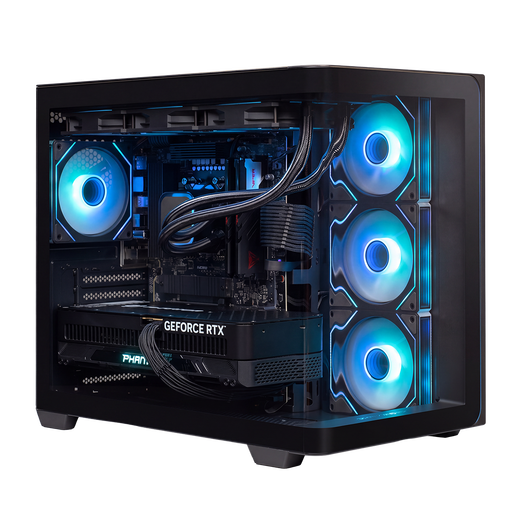
Almighty Shark R900 Gaming PC
Use the listed configuration as a benchmark for your game’s requirements, and check the monitor outputs separately.
Ryzen 9 9900X3D; RTX 5090 with 24 GB; 32 GB DDR5; 2 TB NVMe SSD.
Joybuy
 No image available
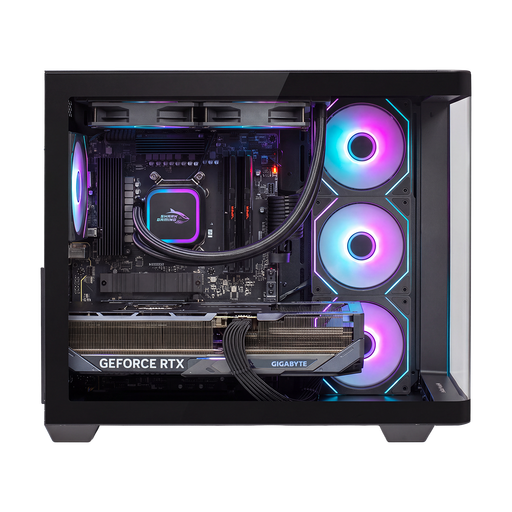
AlmightyShark R700 Gaming PC
Compare the configuration with the requirements of your chosen game; check the connections on the exact PC version before choosing your monitors.
Ryzen 7 9800X3D; RTX 5090 with 24 GB; 32 GB DDR5; 2 TB NVMe SSD.
Joybuy
 No image available
ASUS ROG G700TF-07265F666W Gaming Desktop PC
The listed configuration gives you a starting point for comparison with your game’s requirements. Check the video outputs on this exact model for your screen setup.
Intel Core Ultra 7 265F; RTX 5070 with 12 GB; 32 GB DDR5; 1 TB NVMe SSD; Windows 11 Home.
Joybuy
Frequently asked questions
Can I connect three monitors if a PC has three DisplayPort outputs?
That also depends on the exact PC version, as well as the inputs and cables on your monitors. ASUS lists three DisplayPort outputs and one HDMI output for the ASUS ROG G700TF-07265F200W; these details don’t automatically apply to other G700 models. On their own, they don’t prove a specific resolution, refresh rate or gaming performance.
How do I set up separate information screens?
Use the display settings in Windows to identify the screens and arrange them according to their physical positions. If a screen isn’t recognised, check the connection and use the Windows detection feature.
Is using a second monitor the same as playing a game across multiple monitors?
No. An extended desktop gives each screen its own workspace; NVIDIA Surround and AMD Eyefinity can group multiple screens into one larger display. Also check that your specific game supports the panoramic view you want in a usable way.
How much memory and SSD space do I need?
Start with the system requirements for the game you want to play. For Star Citizen, Roberts Space Industries lists a minimum of 16 GB of memory and more than 150 GB of SSD space, and recommends 32 GB of memory. These requirements may change and don’t automatically apply to other games.
What rights do I have when buying a gaming PC online in the Netherlands?
According to the Netherlands Authority for Consumers and Markets, the seller is responsible for the legal guarantee if a consumer product doesn’t meet what you’re entitled to expect. With online sales, consumers usually have a cooling-off period of up to and including 14 days after delivery; the ACM lists some exceptions. These rights don’t guarantee performance in a specific game.


