If you have only one spare socket and no screen yet, first check whether a gaming laptop with a built-in screen suits your game and settings. A desktop will usually also need a separately powered monitor. If you already have a screen you can connect safely, compare desktops based on performance in your game, connectivity and upgrade options – not just the graphics card name or power supply wattage. For any setup, count the plugs you’ll need and check the load and condition of the socket, as advised by the Netherlands Fire Service.
Who is this buying guide for?
Competitive player practising
You want to practise moves repeatedly and judge a PC by how responsive it feels in your game, with your settings and screen setup. A high-end GPU model name alone won’t tell you what results to expect. NVIDIA Research highlights latency and refresh rate as factors to consider for competitive gaming tasks.
Player with one spare socket
You want to know whether a laptop’s built-in screen can save you from needing a separately powered monitor, or how to connect an existing desktop setup safely to the available socket. The Netherlands Fire Service advises using approved, undamaged extension blocks and not connecting extension leads to one another.
Player with limited space to practise
You’re comparing the case and room for cables without assuming that a more compact desktop uses less power or performs better. Check the dimensions of the exact model and allow for your screen’s connections and placement.
What should you consider when choosing?
Start with what your setup needs to solve first: responsiveness, available sockets, space or electricity costs. The percentages show how often each of these considerations is a priority for shoppers asking this question.
| What to consider |
What to look for when buying |
Who is this more important for? |
| Responsiveness while practising |
Check performance in your game and at your resolution, as well as the screen’s refresh rate and the connections available on the exact model. |
I want to follow and assess moves in my own game accurately. Around 34% of shoppers asking this question prioritise responsiveness. |
| Plugs and safe connections |
Count the PC or laptop, monitor and any other powered devices; check the socket’s permitted load and condition. Don’t connect extension leads to one another. |
With limited sockets, I want to know whether I can connect my whole practice setup. Around 33% of shoppers say available sockets are their main concern. |
| Space for the PC and cables |
Check the dimensions of the exact case and leave room for cables and ventilation, as instructed by the manufacturer. |
If my practice space is limited, the case needs to fit alongside my screen and cables. Around 20% of shoppers asking this question prioritise the physical setup. |
| Electricity costs when practising regularly |
Where possible, compare power consumption measurements taken under similar loads, including the screen. Calculate the cost using your own hours of use and energy tariff. |
I want to estimate the electricity costs of regular practice based on my complete setup. Around 13% of shoppers prioritise running costs. |
Common buying mistakes
-
Assuming you can use a laptop without connecting its power supply
A built-in screen means you don’t need a separate monitor plug, but it doesn’t tell you how long the laptop will perform without mains power during a practice session.
Check the included power adapter and the performance of the exact model in the conditions you’ll be playing in.
-
Thinking an extension block gives you more electrical capacity
An extension block gives you more sockets, but it doesn’t increase the permitted load on the socket.
Count the powered devices, check the socket and don’t use an extension block or lead that’s damaged. Don’t connect extension leads to one another.
-
Assuming the power supply’s wattage is the same as gaming power consumption
A PC power supply’s rated output isn’t a measurement of how much electricity it uses during your gaming session.
To compare costs, use consumption measurements for the complete setup under similar loads. Then calculate the cost using your own hours of use and energy tariff.
Brands to consider
HP
The OMEN 35L is a range of gaming desktops designed for a fixed setup. Compare the full model number and configuration.
- HP Netherlands lists tool-free upgrade options for the OMEN 35L GT16-1689nd.
- This manufacturer description doesn’t prove the gaming performance or power consumption of every OMEN model.
Lenovo
The Legion Tower 5 Gen 10 is a desktop range worth comparing if you’ll be using a separate screen.
- For model 90YJCTO1WWNL2, Lenovo lists a Ryzen 5 7600, RTX 5060, 32 GB of memory and a 1 TB SSD.
- The exact configuration is what matters; the range name alone doesn’t specify these components.
ASUS
TUF Gaming A16 includes gaming laptops with a built-in screen – an option if you don’t want to connect a separately powered monitor.
- For model FA608UHI-TU183WE, ASUS lists an RTX 5050 Laptop GPU and a 16-inch, 144 Hz screen.
- A16 models differ in GPU, screen and storage, among other things; the specifications listed apply to this particular model.
MSI
The MPG Trident AS 14th is a compact desktop range designed for use with a separate screen.
- For the published Trident AS 14th specification, MSI lists dimensions of 396,57 × 137,06 × 410,39 mm.
- The listed 500 W power supply rating is its power output, not a measurement of consumption during use. Check the specifications of the exact model.
Acer
The Predator Orion 3000 is a desktop range to compare if you’re looking for a case with a more modest footprint.
- Acer Netherlands describes the Orion 3000 as a 28-litre case, with models available up to an RTX 5070.
- ‘Up to’ describes the maximum available in the range, not the configuration or performance of every model.
Gaming laptops at Joybuy
This Joybuy selection consists of gaming laptops with built-in screens. That could save you from needing a separate monitor plug, but the laptop and its required power supply still need to be included in your socket planning.
 No image available
ASUS ROG Strix G18 G814PM-S9012W
The built-in screen could save you from needing a separately powered monitor; check how it performs in your game and with your settings. The product description lists an 18-inch screen with a 2560 × 1600 resolution and 240 Hz refresh rate, a Ryzen 9 8940HX, RTX 5060 Laptop GPU, 16 GB of memory and a 1 TB SSD. The power adapter must be purchased separately.
Joybuy
 No image available
MSI Titan 18 HX AI A2XWJG-492NL
The built-in screen could save you from needing a separately powered monitor; check that it suits your game and settings. This model lists an 18-inch UHD+ Mini LED screen with a 120 Hz refresh rate, a Core Ultra 9 285HX, RTX 5090 24 GB, 64 GB DDR5 and a 6 TB SSD.
Joybuy
 No image available
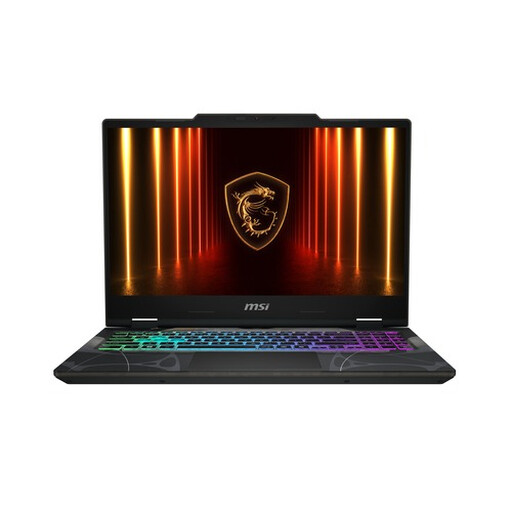
MSI Cyborg 15 B2RWFKG-1217NL
The built-in screen could save you from needing a separate monitor plug; check this model’s gaming performance with your settings. The product description lists a 15,6-inch Full HD screen with a 144 Hz refresh rate, an Intel Core 9 270H, GeForce RTX 5060 8 GB, 16 GB DDR5 and a 512 GB SSD.
Joybuy
 No image available
MSI Cyborg A15 AI B2HWGKG-248NL
The built-in screen could save you from needing a separately powered monitor; check how it performs in your game and with your settings. This model lists a 15,6-inch Full HD screen with a 144 Hz refresh rate, a Ryzen 9 270, RTX 5070 Laptop GPU 8 GB GDDR7, 16 GB DDR5 and a 512 GB SSD.
Joybuy
 No image available
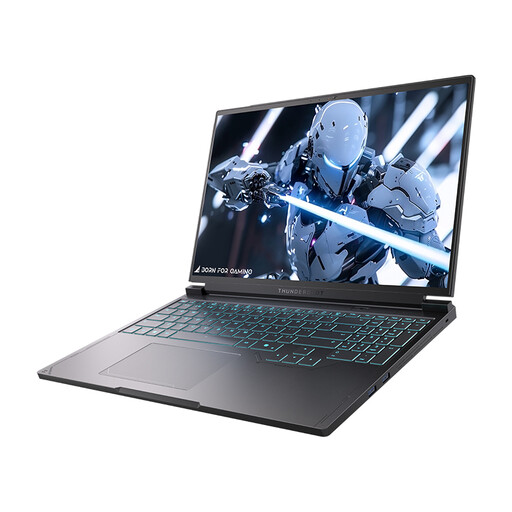
Thunderobot Radiant S16 5060
The built-in screen could save you from needing a separate monitor plug; assess how this model suits your game and settings. The product title lists a 16-inch QHD+ screen with a 240 Hz refresh rate, a Core i7-13650HX, RTX 5060, 16 GB DDR5 and a 1 TB SSD.
Joybuy
Frequently asked questions
Do you need two spare sockets for a gaming desktop and monitor?
Count a desktop and separate monitor as individually powered devices, along with any peripherals. A suitable extension block can provide extra sockets, but check its permitted load and condition; don’t connect extension leads to one another.
Can you use the power supply’s wattage to calculate your electricity costs?
No. The power supply’s rated output isn’t a measurement of consumption while you’re gaming. To estimate costs, use an appropriate measurement of the complete setup and calculate them using your own hours of use and energy tariff.
What should you consider when positioning a compact PC?
Check that the exact case will fit and leave room for cables and ventilation, as instructed by the manufacturer. Connect the whole setup safely; a compact case doesn’t change the safety advice for extension blocks.
What rights do you have when buying a gaming PC online in the Netherlands?
For online consumer purchases, you’ll generally have a statutory 14-day cooling-off period after delivery; check which exceptions apply to your purchase. ACM ConsuWijzer also says that the seller must offer a suitable solution if a product doesn’t perform as you could reasonably expect during normal use.
What product rules apply to gaming PCs sold in the Netherlands?
Electrical and electronic equipment sold in the Netherlands must meet the applicable European safety requirements. Computers within scope must also comply with EU ecodesign rules. The European Commission emphasises that CE is not a quality mark; preparatory work on possible new energy labelling for computers was discussed on 4 September 2026 as work in progress.


