When sockets are scarce, a gaming laptop can be practical because its screen is built in. With a desktop, you also need to factor in the power supply for a separate monitor. Then choose based on your video files and software: for 4K and above, Adobe recommends 32 GB RAM or more for Premiere, as well as fast storage and codec support. Check the full specification, the available connection and the applicable product compliance requirements too.
Who is this choice relevant to?
Reviewer with limited access to sockets
You want to review tournament footage without plugging extension leads into one another. Count the devices that need power and check which sockets are available. The Fire Service advises against plugging extension leads into one another.
Analyst focused on editing
You work with longer or more demanding video projects and are looking for enough memory, codec support and fast storage for source files and cache. For Premiere, Adobe recommends 32 GB RAM or more for 4K and above.
Gamer who also reviews footage
You want one PC for gaming and reviewing recordings. Compare the complete specification, including the exact graphics card, memory and storage, rather than looking at the graphics card name alone.
What should you look for when choosing?
Gaming laptop with built-in screen
A good fit if: you’d rather not need a separately powered monitor, or you want to move your review setup around.
Bear in mind: the laptop still needs a suitable power connection for extended use.
Gaming desktop with separate monitor
A good fit if: you have a permanent review setup and can connect the monitor and PC together.
Bear in mind: the monitor and any other devices need power as well as the desktop.
| What to consider |
What should you check? |
Who is this important for? |
| Safe power connection |
Count the devices that use power and check the permitted load for the socket and extension lead. Don’t plug extension leads into one another, and keep equipment clear of heat build-up. This is in line with the Fire Service’s safety advice. |
If I have few sockets, I want to know whether my complete setup can be connected safely. Power connections are the main concern for around 33% of consumers. |
| Video workload |
Note the resolution, codec and software version for your footage. For Premiere, Adobe recommends 32 GB RAM or more for 4K and above; check the requirements for other software separately. |
Anyone reviewing or editing footage wants a specification that suits their files and software. Video workload comes first for around 27% of consumers. |
| Storage for footage |
Compare the usable SSD capacity and check the options for adding internal storage or using external media. Adobe recommends fast storage for media and cache in Premiere. |
If source files, projects and cache take up space, I want to estimate how much fast storage I’ll need in advance. Storage is the main purchase concern for around 20% of consumers. |
| Gaming as well as reviewing |
Compare the exact CPU, GPU, video memory, RAM and storage configuration. Don’t treat claims about gaming performance as test results for the games you play. |
Anyone mainly interested in gaming who also reviews recordings will want to consider both uses when choosing a configuration. Gaming comes first for around 20% of consumers. |
Pitfalls to avoid
-
Assuming the PC power supply’s wattage is the power consumption of the whole setup
The wattage shown on the power supply doesn’t automatically tell you the combined power consumption of the PC, monitor and other connected devices.
Include the whole setup in your calculations and check the permitted load for the socket. Don’t work out a safe maximum from the product title alone.
-
Assuming every version in a product range has the same specifications
The versions reviewed differ in areas including RAM and storage. The product range name alone won’t tell you which configuration you’ll get.
Check the full model code and the supplied configuration. For 4K in Premiere, also compare the RAM included with Adobe’s recommendation.
-
Using all the SSD space for games
Source files and media cache take up space too. Adobe recommends fast storage for media and cache in Premiere.
Estimate your needs based on your own tournament footage and check whether the exact PC supports additional storage.
Brands to consider
Lenovo
Legion Tower desktops are worth considering for a permanent gaming and review setup.
- Lenovo Netherlands lists 32 GB RAM and a 1 TB SSD for the Tower 5 Gen 10 configuration 90YJCTO1WWNL2.
- These are configuration details, not a test of video performance or power consumption.
HP
The OMEN 35L range includes gaming desktops for a permanent setup.
- HP Netherlands lists 32 GB RAM, a 2 TB SSD and an RTX 5080 with 16 GB of video memory for configuration GT16-1689nd.
- A larger SSD or a different GPU specification doesn’t prove better performance with your footage without a like-for-like test.
MSI
The MAG Infinite S3 14th range includes several CPU and GPU configurations.
- For model code 14NVM7-3002EU, MSI lists 16 GB RAM and a 1 TB SSD.
- The listed 16 GB RAM is below Adobe’s recommendation of 32 GB or more for 4K and above in Premiere. Check the version you’re considering.
Gaming laptops on Joybuy
This selection features gaming laptops with built-in screens, for anyone who would rather avoid a separately powered monitor. As well as the configuration details listed, check that the power supply, memory and storage suit your needs.
 No image available
ASUS ROG Strix G18 G814PM-S9012W, Ryzen 9 8940HX, RTX 5060, 16 GB, 1 TB SSD
The built-in 18-inch screen could suit a review setup where you don’t want to use a separately powered monitor.
The configuration lists 16 GB RAM and a 1 TB SSD. The power adapter must be purchased separately.
Joybuy
 No image available
ASUS V16 FX3607VP-RP061W, Core 7 240H, RTX 5070 8 GB, 16 GB DDR5, 1 TB SSD
The built-in 16-inch WUXGA screen makes this an option you can take with you without connecting a separate monitor.
The title lists a 144 Hz refresh rate and Windows 11 Home. Check codec support for your video files.
Joybuy
 No image available
Thunderobot 16-inch Gaming Laptop, i7-14700HX, RTX 5070, 32 GB, 1 TB SSD
The listed 32 GB RAM meets Adobe’s recommendation for 4K and above in Premiere; it’s not a guarantee of performance with your files.
The title lists a 16-inch screen with 2560 × 1600 resolution and 240 Hz. Also check that your software and hardware support your codecs.
Joybuy
 No image available
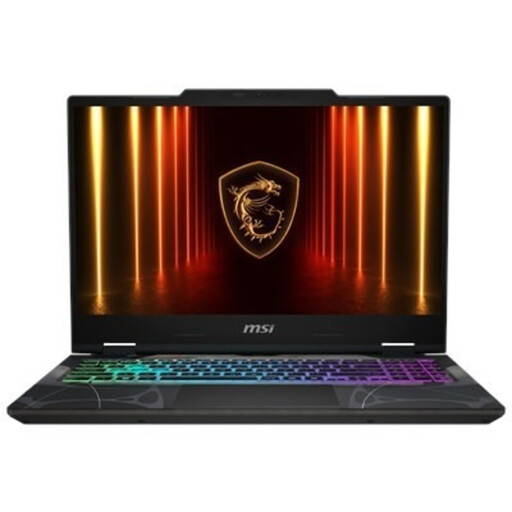
MSI Cyborg A15 AI B2HWGKG-248NL, Ryzen 9 270, RTX 5070 8 GB, 16 GB DDR5, 512 GB SSD
The built-in 15.6-inch screen could remove the need for a separately powered monitor in a compact review setup.
The title lists a 144 Hz Full HD screen and 512 GB SSD storage. Bear in mind how much space your source files and cache will take up.
Joybuy
 No image available
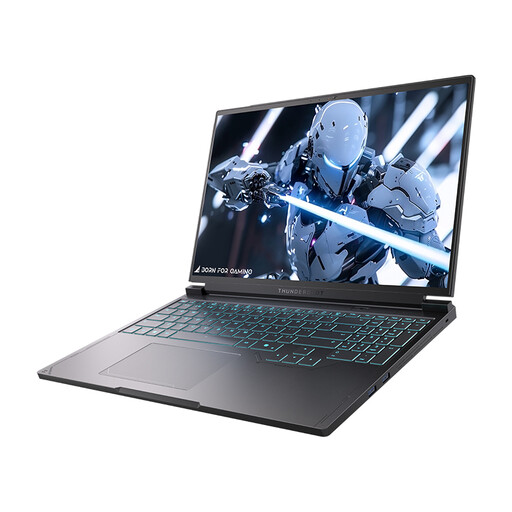
Thunderobot Radiant S16 5060, Core i7-13650HX, RTX 5060, 16 GB, 1 TB SSD
The built-in 16-inch screen can be handy if you don’t want to take a separate monitor with you or connect one.
The title lists a 240 Hz QHD+ screen, 16 GB RAM and a 1 TB SSD. Compare the memory with the requirements of your video editing software.
Joybuy
Frequently asked questions
Do you always need 32 GB RAM for 4K tournament footage?
No, it’s not a universal minimum requirement. For Premiere, Adobe recommends 32 GB RAM or more for 4K and above; check the requirements for your software version and files separately.
How should you set up your equipment if there’s only one wall socket?
First, count the PC, monitor and all other devices that need power. Check the permitted load for the socket and any extension lead. The Fire Service advises against plugging extension leads into one another and recommends keeping equipment well ventilated.
Is a faster graphics card enough to review footage more effectively?
Not on its own. Adobe also highlights memory and GPU memory, while Blackmagic Design notes that GPU-accelerated codec processing depends on hardware support. So check the codec, software version, RAM and storage too.
What product compliance should you check for an electric gaming PC?
Electrical devices placed on the market in the Netherlands are subject to the applicable European rules. The Dutch government’s Ondernemersplein states that the manufacturer must affix the applicable CE marking and draw up an EU Declaration of Conformity. Check the documentation for the exact configuration you want to buy.


