Who is this PC buying guide for?

PC gamer who records at the same time

You play the game on the same PC that runs OBS. OBS Project points out that running a game and recording at the same time uses system resources, so consider how the game and recording work together, rather than looking only at how the game runs on its own.

Console gamer with a recording PC

You play on a console and use your PC for OBS, your camera and your voice. OBS Project describes a capture device as one way to record console footage, so decide in advance how the video will reach your PC.

Creator of spoken tutorials

You want to record clear instructions and edit the footage later. As well as the PC, think about where to position your microphone, the noise from your complete setup and which audio formats your editing software can use.

What should you look for when buying?

PC gameplay and recording on one system

Choose this if: you play the game on your PC and record your commentary at the same time.

Bear in mind: a hardware encoder can take some of the encoding work off the processor, but a graphics card under heavy load can still affect your recording.

Recording console footage on your PC

Choose this if: you play on a console and use your PC for your camera, voice and recording.

Bear in mind: a capture device is an additional purchase; using remote-play software means your console and PC need a suitable connection.

Spoken commentary and editing

Choose this if: clear commentary and editable footage matter more to you than maximising game settings.

Bear in mind: noise suppression is designed for light background noise and can distort your voice; it won’t solve the problem in a very noisy room.

What to consider What should you check? Who is this important for?
Game and recording at the same time Check encoder support and test the game, resolution, frame rate and complete OBS scene together. If I use the same PC for gaming and OBS, I want to know whether both will run as intended at the same time. Around 33% of consumers give simultaneous PC gaming and recording top priority.
Console and controller footage Decide how console footage will reach your PC; if you’re using a camera or capture card, check its connection and compatibility with OBS. If I want to record console footage or show my hands, I need to know how those sources connect to my PC. Around 25% of consumers give capturing console and camera footage top priority.
Clear voice audio Record your voice while the PC is running your intended game and OBS scene; consider microphone placement and PC noise together. If my commentary is central to the video, I want to hear my voice clearly without relying on a filter to solve excessive noise. Around 25% of consumers give clear spoken instructions top priority.
Storage and editing Check the SSD capacity of the exact configuration and whether your editing software supports the recording format and audio tracks. If I want to store games and recordings locally and edit them later, I need enough usable space and a file format I can work with. Around 17% of consumers give storage and post-production top priority.

Common buying mistakes

  • Focusing only on gaming performance

    A game might run well while OBS doesn’t have enough headroom to process or encode the scene. Your intended recording settings and the system load both matter.

    Test the game and complete OBS scene at the same time, using your preferred resolution and frame rate.

    A failed recording may mean having to record the footage again or adjust your settings.

  • Assuming a PC will capture console footage automatically

    A powerful PC graphics card alone won’t bring console gameplay into OBS. OBS describes options including a capture device or a route using remote-play software.

    Before buying, decide where the game will run and how the footage will reach OBS. Also check the connection for any camera you plan to use to show your hands and controller.

    A suitable capture device may be a separate purchase.

  • Thinking noise suppression will solve every audio problem

    OBS Project says its noise suppression filter is designed for light background noise. In a very noisy environment, it can distort your voice without removing the source of the noise.

    Listen to a test recording while your PC is running your intended game and OBS scene.

  • Confusing a commercial warranty with your statutory rights

    ACM ConsuWijzer distinguishes between a commercial warranty and your statutory rights against the seller.

    Check the terms of any extra warranty separately, and keep your proof of purchase and the agreed product specifications.

    Check whether paid-for extra cover offers anything beyond your statutory rights.

Brands to consider

Lenovo

The Legion Tower 5i Gen 10 is a range worth considering if you’re looking for a configurable gaming tower. The configuration reviewed lists an RTX 5060, 16 GB RAM and a 512 GB SSD.

  • Lenovo says the range has a side panel that can be opened without tools.
  • The stated 512 GB capacity applies to the configuration reviewed. Check whether there’s enough space for your games and recordings; it doesn’t indicate noise levels or recording performance.

HP

The OMEN 35L GT16-1689nd is a specific configuration with 32 GB RAM and a 2 TB SSD, for anyone who wants to store plenty of footage locally.

  • HP lists a Ryzen 7 9700X, RTX 5080 and tool-free upgrades for this model.
  • These specifications don’t prove that the system runs quietly or that you need this graphics card for tutorials. Check the exact configuration and make a test recording.

Acer

The Predator Orion 3000 is a range worth looking into if you’re after a more compact tower.

  • Acer lists a 28-litre case for the range.
  • The Core Ultra 7 265F and RTX 5070 are maximum configurations listed for the range, not features of every model. Check the connections and specifications of the model you choose.

Gaming PCs on Joybuy

This Joybuy selection features gaming desktops for recording PC gameplay. Before setting up your recording equipment, check the exact configuration and test the game and OBS scene together.
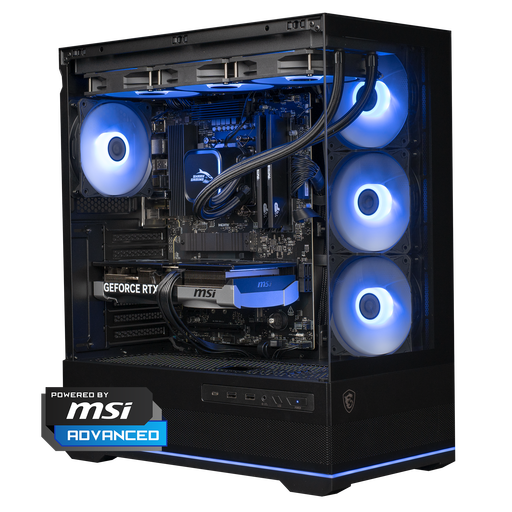
Shark Ultimator R700 gaming PC

Shark Ultimator R700 gaming PC, RTX 5070, Ryzen 7, 16 GB, 1 TB

A gaming desktop to consider if you want to combine PC gameplay and recording on one system; test your complete OBS scene alongside your game.

Ryzen 7 7800X3D, RTX 5070, 16 GB DDR5 and 1 TB NVMe storage.

Keep the vents clear and allow plenty of airflow during use.

Joybuy
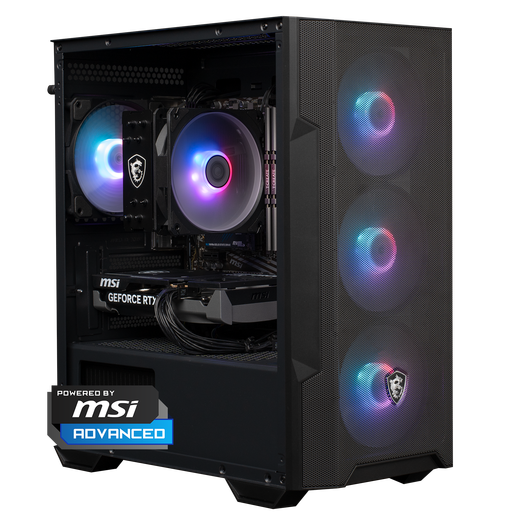
Shark Max Bite R501 gaming PC

Shark Max Bite R501 gaming PC, RTX 5060, Ryzen 5, 16 GB, 1 TB

This gaming desktop could suit PC gameplay with simultaneous recording; check encoder support and test your preferred settings in OBS.

Ryzen 5 5500, RTX 5060, 16 GB DDR4 and 1 TB NVMe storage.

Allow plenty of airflow and don’t block the vents.

Joybuy

Gaming desktop with Ryzen 7 7800X3D and RTX 5080

Gaming desktop Ryzen 7 7800X3D, RTX 5080, 32 GB, 1 TB

A gaming desktop to consider if you want to try gaming and recording on one system; even with this configuration, you’ll still need to test-record with the complete scene.

Ryzen 7 7800X3D, GeForce RTX 5080, 32 GB DDR5 and 1 TB NVMe SSD.

Listed with Windows 11 Trial. Use the system in a well-ventilated area and keep the vents clear.

Joybuy
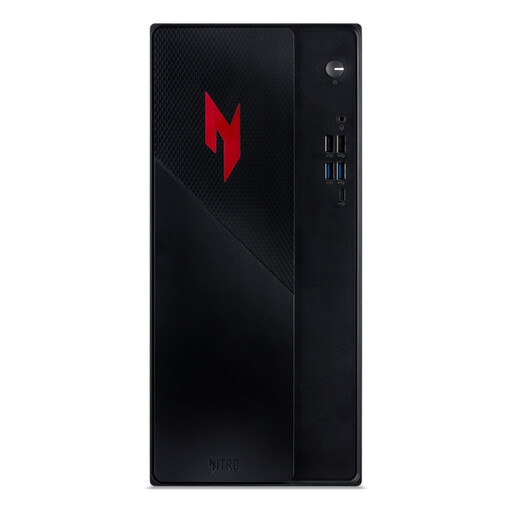
Acer Nitro 20 N20-101 gaming desktop

Acer Nitro 20 N20-101 gaming desktop, Core 5 210H, RTX 5050, 16 GB, 1 TB

This gaming desktop is an option to compare for PC gameplay in a recording setup; check that the exact configuration can handle your game and OBS scene.

Intel Core 5 210H, RTX 5050, 16 GB DDR4 and 1 TB PCIe NVMe SSD.

Listed with Windows 11 Home. Don’t block the vents and allow plenty of airflow.

Joybuy
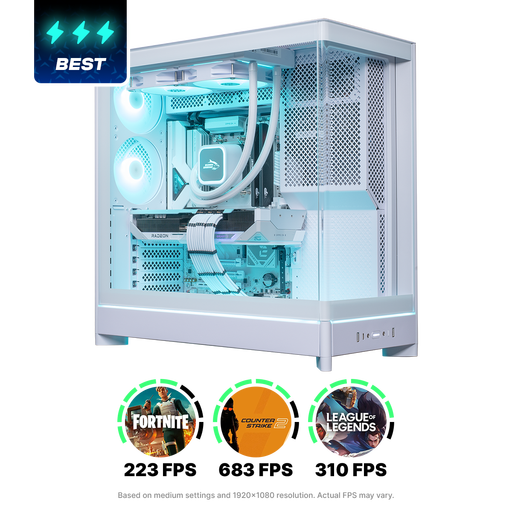
Shark Gaming White Shark R700 SGWR700-22-9070XT gaming desktop

Shark Gaming White Shark R700 SGWR700-22-9070XT, Ryzen 7 9800X3D

A gaming desktop to consider for recording PC gameplay; assess how it records while your game and complete OBS scene are running.

AMD Ryzen 7 9800X3D, Radeon RX 9070 XT 16 GB, 16 GB DDR5 and 1 TB NVMe SSD.

Listed with 240 mm liquid cooling and Windows 11 Home. Use the computer in a well-ventilated area and keep the vents clear.

Joybuy

Frequently asked questions

Is every PC that can run OBS suitable for recording my game and controller tutorial at the same time?

No. OBS Project says that meeting the system requirements doesn’t guarantee a successful recording; the encoder, resolution, frame rate and complexity of the scene all affect system load. Test the complete setup you intend to use.

How do I add a camera to show my hands and controller?

In OBS, add a Video Capture Device source for a supported webcam or capture card. Check the compatibility of the specific device and the available connections; a gaming PC doesn’t automatically come with a suitable camera for filming your hands.

How can I keep commentary and game audio separate for editing?

OBS can record separate audio tracks using its advanced audio properties. Check that your recording format supports multiple tracks and that your editing software can use them. OBS recommends MKV as a suitable option and describes remuxing if you need a different format.

What warranty and cooling-off period apply to an online purchase in the Netherlands?

According to ACM ConsuWijzer, you have statutory rights in addition to any commercial warranty if a product doesn’t perform as you could reasonably expect under normal use; the seller is responsible. The Dutch government says that a 14-day cooling-off period applies in many cases to qualifying distance sales. Check the terms of your specific purchase, and don’t confuse a manufacturer’s warranty with your statutory rights.

Can I publish recognisable people in my tutorial?

It depends on the footage and how you use it. According to the Dutch Data Protection Authority, the exception for personal or household use only applies if the footage stays private or is shared with a very limited group. Publishing footage of recognisable people more widely or for business purposes may require a lawful basis under the GDPR; this isn’t blanket permission or a ban on every tutorial.
