What should you look for when buying?
Start by considering the combined load from your game and OBS. Then look at voice recording and editing, so you can match the PC’s capabilities to the way you work rather than relying on the ‘gaming PC’ label alone.
| What to consider |
What to look for |
Who should prioritise this? |
| Playing and recording at the same time |
Compare the CPU, GPU and available hardware encoder with your game’s requirements. Test OBS during a typical gaming session, and leave some GPU headroom if the recording stutters. |
If I play a strategy game and record with OBS at the same time, I want both tasks to remain usable; around 33% of consumers give playing and recording simultaneously top priority. |
| Clear commentary |
Check the cooling system in the exact PC you’re considering, think about where the case will sit in relation to your microphone, and test your voice with the PC in that position. |
When I record commentary in the same room, I want to be able to separate my voice clearly from the game audio afterwards; around 27% of consumers put clear commentary first. |
| Storage and editing |
Compare the installed SSD in each configuration. Choose a recording format your editor can handle; OBS recommends MKV for many use cases and explains how to convert it to a more widely compatible format. |
If I save long recordings locally and edit them later, I need enough storage space and a workable file format; around 20% of consumers name storage and editing as their top priority. |
| Configuration and upgrades |
Check the full model number, installed RAM and storage for the exact configuration you’re considering. Also check which upgrades are compatible with that model and what’s included. |
I want to choose the capacity I need and be able to upgrade later where the PC allows it; around 20% of consumers prioritise upgradability and spending. |
Gaming PCs at Joybuy
These Joybuy models are gaming desktops to compare for playing and recording at the same time, with the listed configuration and local storage in mind. The product names give the specifications for each model; test your combination with your game and OBS before relying on a particular recording quality.
 No image available
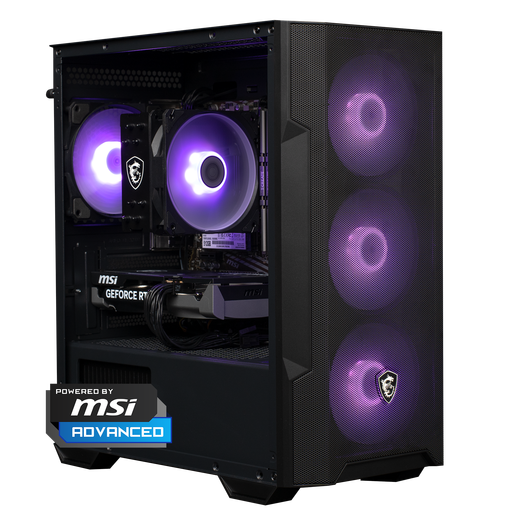
Shark Max Bite R500 Gaming PC (Powered by MSI)
A configuration to compare if you want to play and record at the same time; assess how it works with your own game and OBS.
Specifications listed in the product name: RTX 5060, R5, 16 GB and 500 GB. The product description also says that the charger must be purchased separately.
View at Joybuy
 No image available
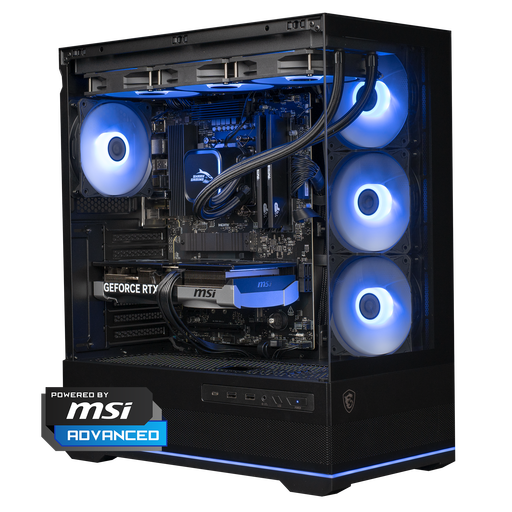
Shark Ultimator R700 Gaming PC (Powered by MSI)
This configuration is worth considering if you want to weigh the listed specifications against your gaming, recording and editing needs.
Specifications listed in the product name: RTX 5070, R7, 16 GB and 1 TB. The product description also says that the charger must be purchased separately.
View at Joybuy
 No image available
RGB Gaming PC, RTX 5060
A gaming desktop to include in your comparison if you want to store recordings locally; match the storage to your own workflow.
Specifications listed in the product name: Ryzen 5, 16 GB RGB, 480 GB SSD and Wi-Fi.
View at Joybuy
 No image available
Panoramic Gaming PC, Ryzen 7 5700X
This configuration is worth comparing for gaming and streaming; a suitable configuration doesn’t guarantee a particular recording performance in OBS.
Specifications listed in the product name: RTX 5060 Ti 8 GB, 16 GB DDR4 and 480 GB NVMe PCIe SSD. Windows 11 is listed as an evaluation version.
View at Joybuy
 No image available
Gaming Desktop PC, Ryzen 7 7800X3D
A higher-spec configuration to compare if you want to do more than just game; use your own settings to work out how much capacity you need.
Specifications listed in the product name: RTX 5080, 32 GB DDR5, 1 TB NVMe SSD and Windows 11 Trial.
View at Joybuy
Frequently asked questions
Should I only look at the graphics card for OBS?
No. The encoder, resolution, frame rate and scene complexity also play a part. OBS Project warns that having a compatible system alone doesn’t guarantee a successful recording. Use the automatic configuration as a starting point and test it with your game.
How can I keep game audio and spoken commentary separate for editing?
Set up separate audio tracks in OBS and check that your editing software supports the format and codecs you’ve chosen. OBS Project recommends MKV for many use cases; if needed, you can convert the file to a more widely compatible format later.
What if the recording stutters while the game seems to run smoothly?
Check whether OBS has enough GPU headroom to render scenes. OBS Project lists GPU overload or another bottleneck as possible causes. Test under normal gaming conditions and adjust your game settings if needed; a hardware encoder won’t prevent every stutter.
What warranty and cooling-off period apply when buying a PC online in the Netherlands?
According to ACM ConsuWijzer, in addition to any manufacturer’s warranty, you have a legal guarantee from the seller if a product doesn’t meet reasonable expectations under normal use; there isn’t one fixed statutory warranty period for every PC. For online consumer purchases, you can generally change your mind within 14 days of delivery, subject to legal exceptions that you should check for your specific order.
Can I publish a guide recorded at home that includes other people’s images or audio without permission?
First, consider the applicable copyright laws, privacy rules and the game’s terms of use. The Dutch government notes that copyrighted music cannot simply be made available to the public. The Dutch Data Protection Authority also distinguishes between private use and broader publication of footage in which other people can be recognised; this doesn’t mean that making a game guide is prohibited in itself.


