What should you look for?
First, check that the mouse suits your hand and grip. Then decide how many in-game commands you really want to control with mouse buttons, and choose a connection that works for your desk.
| What to consider |
What should you check? |
Who is this important for? |
| Fit and grip |
Shape, hand preference and whether the buttons are within reach with your grip. |
If I use the same mouse for work and tower defence, I want a grip that suits my hand. Around 25% of consumers put fit first. |
| In-game commands |
Which buttons you can programme and whether the software works with your computer. |
If I want to control recurring in-game actions with my thumb, I look at the layout and software. Around 25% of consumers prioritise programmable commands. |
| Connection and desk space |
For wireless: receiver or Bluetooth support, and the battery or charging method. |
If I share my desk between work and play, I don’t want a cable to restrict my movement. Around 19% of consumers prioritise the connection and desk space. |
| Cursor control |
Whether the sensitivity can be adjusted to suit your screen and available movement space. |
If I point and click often, I want to adjust the cursor without having to move my hand too far each time. Around 19% of consumers prioritise predictable cursor control. |
| Purchase and use |
Whether you’ll use the extra buttons and how the wireless mouse is powered. |
If I don’t want to pay for features I won’t use, I count the commands I need first and factor in battery maintenance. Around 12% of consumers prioritise cost. |
Gaming mice at Joybuy
These product picks cater to different needs for wired or wireless control and programmable buttons for work and tower defence games.
 No image available
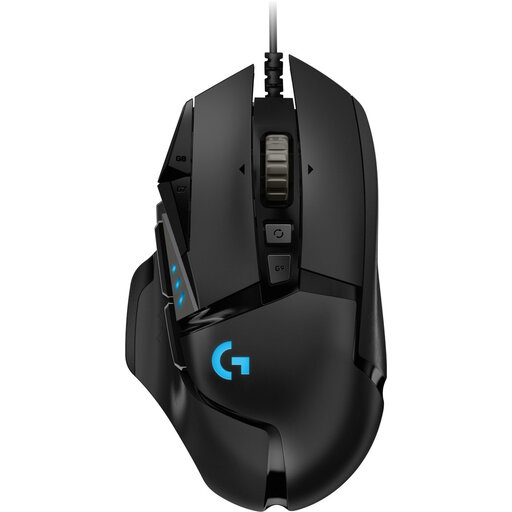
Logitech G502 HERO wired gaming mouse
Suited to a fixed desk setup if you want to control in-game actions with programmable buttons and don’t want to maintain a battery.
Wired; 25,600 DPI; for right-handed use. Logitech G lists 11 programmable buttons and G HUB support for this model.
View at Joybuy
 No image available
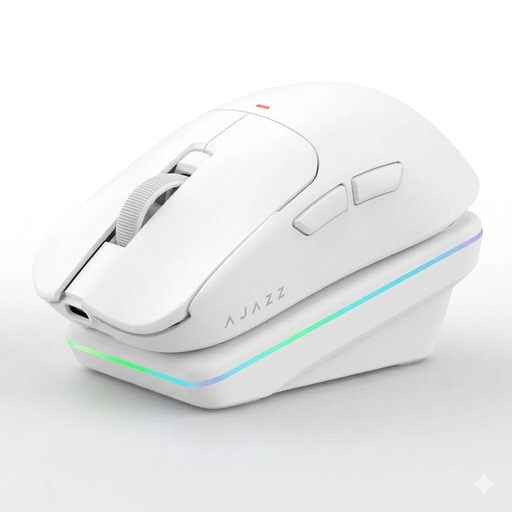
AJAZZ AJ200 AI MC wireless gaming mouse
Suited to anyone who wants to combine different connection options with customisable buttons for work and play.
Bluetooth, 2.4G and USB-C; the product name lists a charging dock and a PAW3311 sensor.
View at Joybuy
 No image available
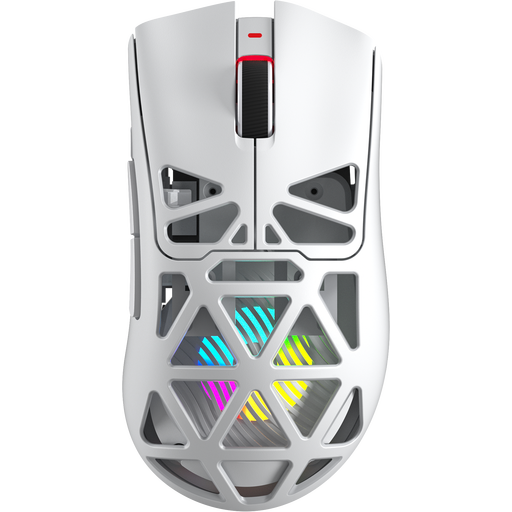
AULA SC620 wireless gaming mouse
Suited to anyone who wants to assign multiple in-game actions and choose between wireless and wired connections.
The product name lists seven programmable buttons, Bluetooth, 2.4G and USB-C.
View at Joybuy
 No image available
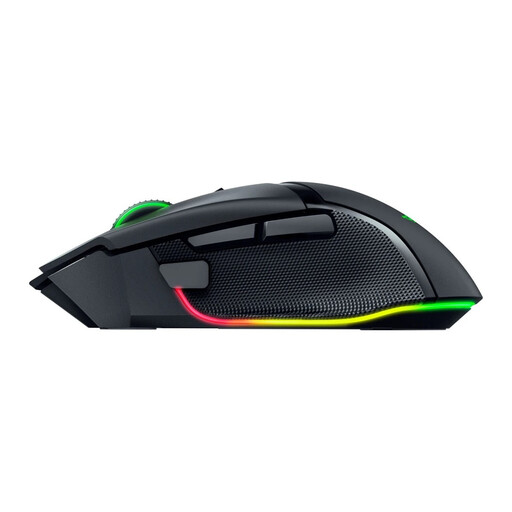
Razer Basilisk V3 Pro 35K wireless gaming mouse
The product name indicates a wireless gaming mouse. Before buying, check that the sensor information matches the full model name.
View at Joybuy
 No image available
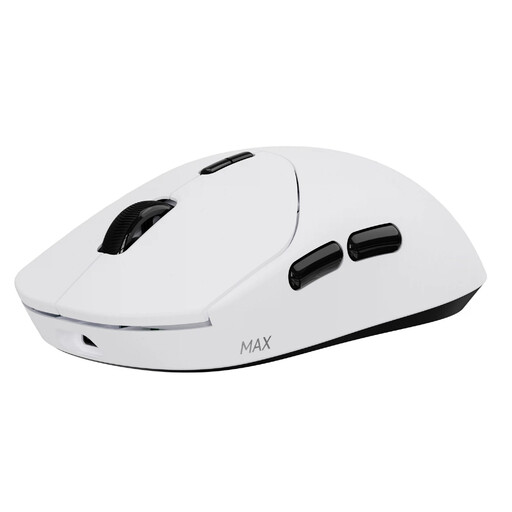
RAPOO VT2 MAX wireless gaming mouse
Suited to anyone who wants to play wirelessly and use ten programmable buttons for commands.
The product name lists 10 programmable buttons and macro support.
View at Joybuy
Frequently asked questions
How do you set up buttons for recurring in-game actions?
First, decide which actions you use often, then check the software for the exact model. Logitech G names G HUB for the G502 HERO’s 11 programmable buttons; Corsair names iCUE for the Scimitar RGB Elite. Check in advance that the software works with your computer and game.
How do you clean a mouse you also use for work?
Disconnect a wired mouse and switch the device off before cleaning it. Logitech’s care instructions advise against applying cleaning fluid directly; gently wipe the mouse with a slightly damp, lint-free cloth. For other brands, follow the manufacturer’s instructions.
What are your rights if a mouse bought online isn’t suitable or stops working?
For online consumer purchases in the Netherlands, there is generally a statutory 14-day cooling-off period after delivery, subject to legal exceptions. If a product is faulty, ACM ConsuWijzer says you’re entitled to a remedy from the seller under Dutch statutory guarantee rules; this right isn’t automatically limited to a two-year manufacturer’s warranty.
Does a gaming mouse replace the rules for working at a screen at home?
No. Arboportaal states that employers must ensure screen-based work is alternated with other work or a break at regular intervals. These employment rules are relevant when you work at a screen as an employee; buying a different mouse doesn’t replace the way your workstation is set up or your work is organised.


