Start with the actions you perform most often. Extra mouse buttons are most useful when you can assign them to commands supported by your game and reach them comfortably. A shape that fits your hand still matters when clicking and dragging. Choose a wired mouse if the cable won’t get in your way, or go wireless if you want to free up desk space and are happy to manage the battery and receiver.
Who is this for?
A builder who uses lots of shortcuts
You want frequently used editing commands close to hand. Check that your game and the mouse software support the assignments you want. Trainz Simulator Documentation describes both mouse actions and keyboard shortcuts for Surveyor 2.0.
A builder who spends long hours at their desk
You switch between working from home and building routes, and want a shape that suits your hand. Also think about having enough room to support your arms and change position regularly. Arboportaal describes repetitive hand movements and static strain associated with screen work; simply changing your mouse shape won’t prevent discomfort.
A builder with a crowded home desk
You’re weighing up whether a mouse cable will get in the way, or whether managing a wireless receiver and battery would be less convenient.
What should you look for?
First, decide which commands you use most often. Then compare how easy the buttons are to reach, how well the mouse fits your hand, and how much room you have for a cable or wireless receiver.
| What to consider |
What should you check? |
Who is this important for? |
| Access to editing commands |
Note the commands you use most often, check that the game supports them and see whether the mouse buttons are easy to reach. |
If I use the same commands often while building, I want them to be easy to reach. Around 36% of consumers put access to editing commands first. |
| Hand comfort for work and play |
Try the shape with your usual grip, and check how easy the buttons are to reach and how your workspace is set up. |
If I use the same mouse for long periods at work and while building routes, the most important thing is whether it suits my hand. Around 29% of consumers prioritise hand comfort. |
| Cable space and wireless power |
Check the cable route, available USB ports, receiver and power type for the exact version. |
If a cable gets in the way on my crowded desk, I weigh the extra space against having to manage a wireless receiver and power. Around 21% of consumers put desk space first. |
| Keeping things simple and avoiding unused features |
Decide which features you’ll actually use; don’t compare only dpi or the number of buttons. |
If I mainly click, drag and use keyboard shortcuts, I don’t want to pay for extra features I don’t need. Around 14% of consumers prioritise a simple choice. |
Common buying mistakes
-
Assuming a high maximum dpi means better control
Building routes involves clicking and precise dragging. A maximum sensor specification on its own won’t tell you how easy it is to place objects.
Check the adjustable sensitivity, but also judge the mouse by how well it fits your hand and the tasks you actually perform.
-
Assuming every wireless mouse has Bluetooth
Connectivity can vary by model. For the Logitech G305 LIGHTSPEED, Logitech G lists one AA battery and a quoted battery life of up to 250 hours. Don’t assume it has Bluetooth unless this is confirmed for the exact version.
Before buying, check the connectivity specifications and whether you can use the receiver you need.
A wireless mouse may need a spare USB port for its receiver. If it uses an AA battery, you’ll also need to factor in replacements.
-
Treating different Basilisk V3 versions as the same model
The wired Razer Basilisk V3 and wireless Basilisk V3 Pro are different versions. A Joybuy listing for the V3 Pro 35K also gives different sensor descriptions.
Check the full model name and connectivity, and make sure the specifications on the product page match the same version.
Brands to compare
Logitech G
The wired G502 HERO is worth considering if you want to assign commands to buttons. The wireless G305 LIGHTSPEED is a different option if you want a desk without a mouse cable.
- Logitech G says the G502 HERO has 11 programmable buttons and adjustable sensitivity.
- For the G305 LIGHTSPEED, Logitech G lists one AA battery and a quoted battery life of up to 250 hours.
- These features apply to the models mentioned; they don’t tell you how comfortable the mouse will be for your hand or how long the battery will last with your usage.
Razer
The wired Basilisk V3 is an option if you want several buttons and different scroll modes. The Basilisk V3 Pro is a separate wireless version.
- Razer specifies 10+1 programmable buttons and a scroll wheel with tactile or free-spinning scrolling for the wired Basilisk V3.
- This doesn’t prove that the extra controls will work as you want in your railway game. Check the full version, and don’t confuse the V3 with the V3 Pro or V3 Pro 35K.
SteelSeries
The wired Rival 5 has several buttons, while the wired Aerox 3 mentioned here is designed to be lighter.
- SteelSeries specifies 9 programmable buttons and a weight of 85 g for the Rival 5, compared with 59 g for the wired Aerox 3 mentioned here.
- These are manufacturer specifications for the models mentioned, not independent evidence of comfort during long building sessions.
Corsair
The wired Scimitar RGB Elite is worth comparing if you want to assign lots of individual commands to your mouse.
- Corsair specifies 17 programmable buttons, including 12 on an adjustable side panel, and lists iCUE for assignments.
- Lots of buttons are only practical if you use them and can reach them with your thumb.
Joybuy products for this use case
These Joybuy products include wired and wireless gaming mice for route-building commands, and options for desks where cable space may be a consideration.
 No image available
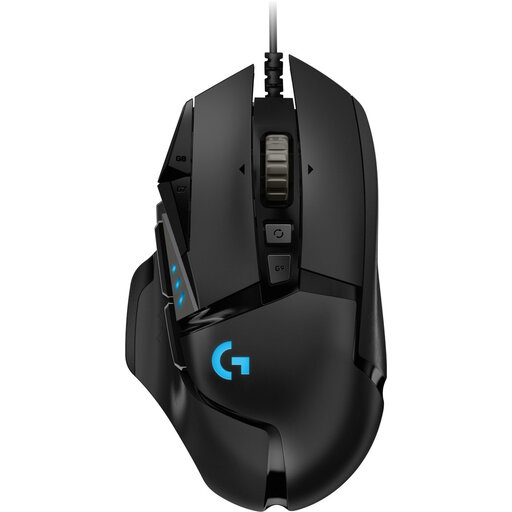
Logitech G502 HERO wired gaming mouse
Ideal for route builders who want to assign frequently used commands to mouse buttons and don’t want to manage wireless power.
Logitech G specifies 11 programmable buttons; software is required for assignments. Check which software works with this version.
Wired version; the product name specifies a right-handed variant.
View at Joybuy
 No image available
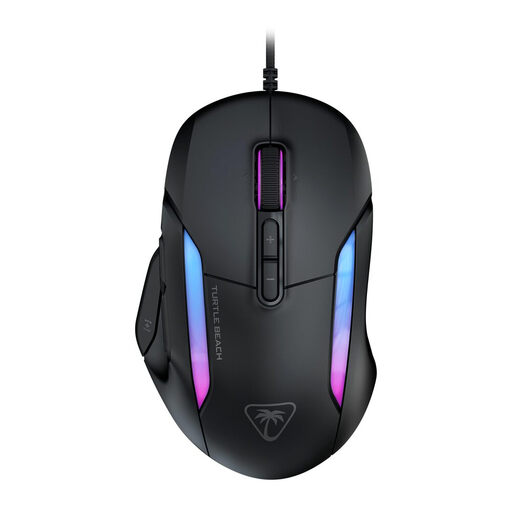
Turtle Beach Kone II wired gaming mouse
A wired option to compare if you want customisable controls and have room for a cable on your desk.
The product name lists 23 buttons. The product information mentions Swarm II software for customisation; check that it suits your computer and how you plan to use it.
View at Joybuy
 No image available
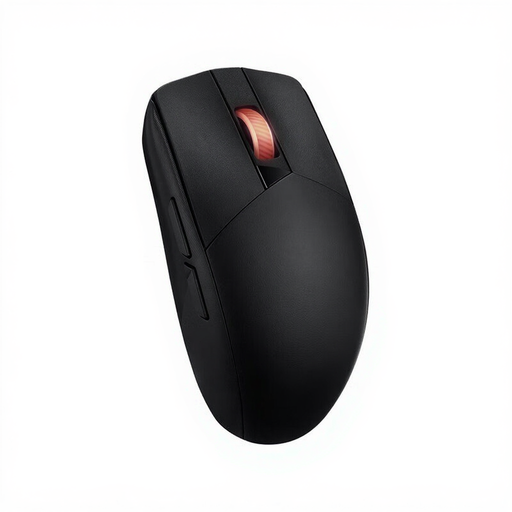
ASUS ROG Strix Impact III Wireless
A good option if you want to avoid a mouse cable and compare RF wireless and Bluetooth for your set-up.
The product name specifies a symmetrical design, RF wireless and Bluetooth connectivity. Check which connection you want and confirm the exact version.
View at Joybuy
 No image available
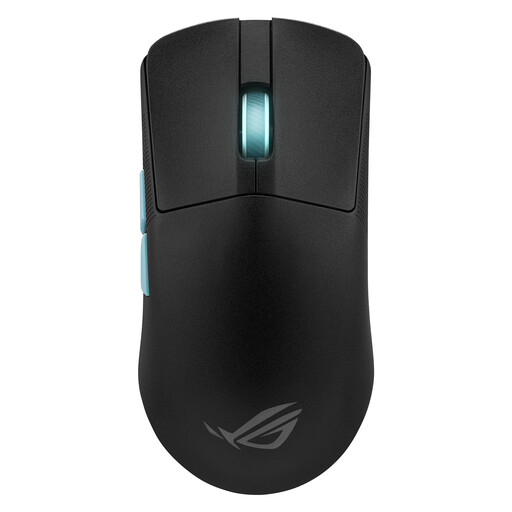
ASUS ROG Harpe Ace Aim Lab Edition
A wireless version to consider if you want a cable-free desk and customisable features for your needs.
The product name specifies RF wireless, Bluetooth and USB Type-A. Check which connection and port you need.
View at Joybuy
 No image available
AJAZZ AJ159 PRO wireless gaming mouse
A wireless option if you don’t want a mouse cable on your desk and are considering a charging option for your workspace.
The product name specifies 2.4 GHz, USB-C and Bluetooth, a 400 mAh battery and a weight of 56 g. Keep the magnetic charging dock away from pacemakers, medical implants and credit cards.
View at Joybuy
Frequently asked questions
Do I need a mouse with lots of buttons for building virtual railways?
No, you don’t. Trainz Simulator Documentation describes clicking, dragging and keyboard shortcuts for Surveyor 2.0. Extra mouse buttons are most useful when your game supports the commands you want and you can reach the buttons easily.
How do I set up extra mouse buttons?
First, check which shortcuts your game supports and which software works with your mouse. Logitech G lists G HUB for the G502 HERO, while Corsair lists iCUE for the Scimitar RGB Elite. Settings vary by model and software.
Do I need to charge the Logitech G305 LIGHTSPEED?
According to Logitech G, the G305 LIGHTSPEED uses one AA battery, so you’ll need to replace it. Logitech G quotes a battery life of up to 250 hours; actual battery life can vary, so check the details for the exact version too.
What are my rights if a mouse I bought online doesn’t suit me or is faulty?
For online purchases by consumers, there is generally a 14-day cooling-off period from delivery, subject to legal exceptions. ACM ConsuWijzer explains this period. In addition, under Dutch statutory consumer guarantees, the seller must offer an appropriate solution if the product does not meet what you can reasonably expect from it. Rijksoverheid explains that there is no fixed statutory guarantee period of two years.
Do screen-work rules also apply when I’m building railways at home?
The employer’s obligations described by Arboportaal apply to employees and their workplace; they are not automatically rules for gaming in your own time. If you work from home as an employee and spend long periods using a screen, Arboportaal describes alternating this with other work or taking a break as part of the workplace rules.


