
Players who navigate the screen a lot
You often switch between menus or camera angles and want a scroll wheel and buttons that are easy to reach.


Choose based on what you want to control with the mouse in your simulator: do you spend a lot of time scrolling and navigating menus, or would you rather assign driving functions to buttons? An easily accessible scroll wheel and configurable buttons may be more useful than a high DPI value. Also check that the grip, software and wired or wireless connection suit your setup. A large screen does not, in itself, call for a specific mouse model.
You often switch between menus or camera angles and want a scroll wheel and buttons that are easy to reach.
You want to assign simulator functions to mouse buttons and check whether the layout, such as a side panel, suits your thumb.
You want to be less reliant on a cable, so you pay attention to the connection type, power supply and where any receiver needs to go.
First, decide which actions you perform most often. Then compare the button layout, and finally check that the connection and software suit your setup.
| What to consider | What to look for | Who is this important for? |
|---|---|---|
| Scrolling and on-screen controls | Check the scroll modes, wheel tilt and how easy the buttons are to reach. See whether your game supports the inputs you want. | If you often navigate menus or control camera angles, a suitable scroll wheel can make all the difference. Around 33% of consumers say this type of control is their top priority. |
| Individual commands | Count the functions you actually want to assign, and check that you can reach the buttons without pressing the wrong one. | If you want several simulator commands close at hand, compare both the number of buttons and their layout. Around 25% of consumers put these shortcuts first. |
| Freedom of movement and power | Check which connections, receiver and power supply the model uses. | If a cable restricts your setup, a wireless connection may be more comfortable. Just remember to check the model's power requirements. Around 25% of consumers prioritise a cable-free setup. |
| Grip and configuration | Check the hand orientation, thumb reach and software compatibility with your operating system. If possible, try the grip for yourself. | If easy access and a comfortable grip matter most to you, check which software is needed to configure the buttons. Around 17% of consumers prioritise fit and configuration over other considerations. |
A sensor specification won't tell you whether the scroll wheel, buttons and grip suit the actions you perform in your simulator.
Compare the controls and fit first. Then consider the DPI settings in the context of how you use the mouse.
According to ROCCAT, the Kone XP Air has 15 physical buttons; the stated maximum of 29 functions includes EasyShift.
Compare the physical buttons separately from the functions available through a shift mode.
According to its product instructions, the Razer Basilisk V3 X HyperSpeed uses an AA battery. Corsair says the Scimitar Elite Wireless EU can be used with a wired connection while charging.
Check the power supply and connection options for the exact version.
The Government of the Netherlands distinguishes between a manufacturer's warranty and your right to a product that works properly. If there is a fault, contact the seller.
Keep your proof of purchase and check who the seller is. Don't assume there is a fixed statutory warranty period of two years.
The wired G502 X is worth considering if you want different scroll modes and configurable controls.
The wired Basilisk V3 35K and wireless Basilisk V3 X HyperSpeed cater to different preferences for scrolling and cable-free use.
The Aerox 9 Wireless is an option if you want a mouse with plenty of individual buttons.
With its adjustable side panel, the Scimitar Elite Wireless EU is designed for players who want to configure lots of button bindings.
The Kone XP Air has a tilting scroll wheel and several connection options.
This selection includes wired mice with scroll and button settings, as well as wireless models for setups where cable-free use is important.
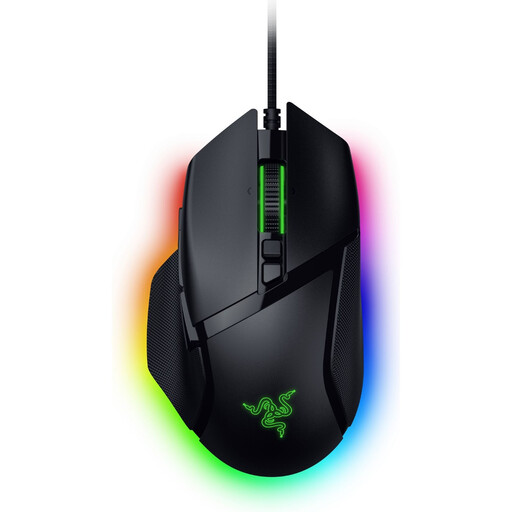 No image available
Suitable for players who want different scroll modes and can accommodate a wired connection in their setup.
Razer describes three scroll modes. The product title lists 11 buttons and a wired design.
 No image available
Suitable for anyone who wants to configure scroll modes and extra controls, and can use a USB cable.
Logitech describes a switchable scroll wheel and tilt controls. The Joybuy product description lists 13 buttons and a wired USB Type-A connection.
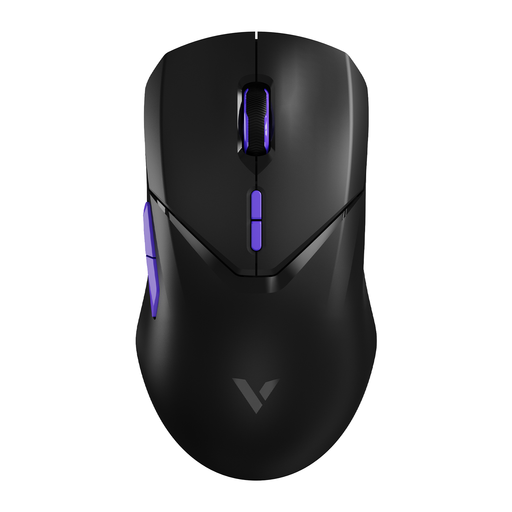 No image available
Suitable for anyone who wants to play wirelessly and assign several chosen functions to the mouse buttons.
The product title lists 10 programmable buttons and wireless use.
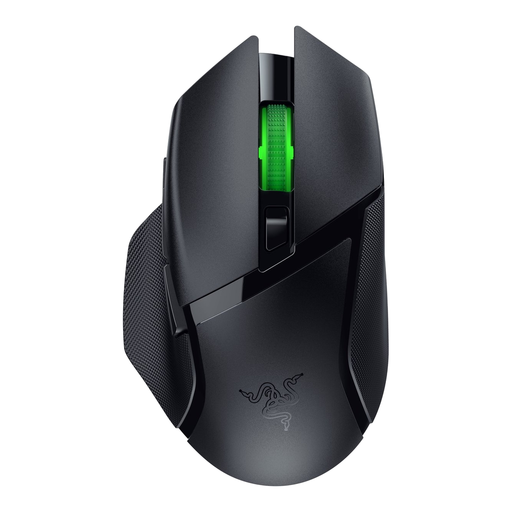 No image available
Suitable for anyone who wants to play without a cable and configure a handful of extra controls.
Razer lists nine programmable controls and wireless connection via HyperSpeed or Bluetooth. The product instructions specify a USB receiver and AA battery.
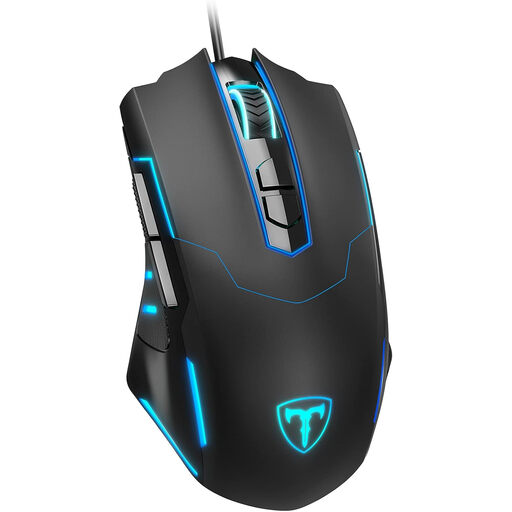 No image available
Suitable for a permanent setup if you want to assign functions to seven mouse buttons.
The product description says software is needed to configure the buttons for the first time.
No, a gaming mouse isn't essential: SCS Software also describes how to play with a controller. First decide which actions you want to assign to the mouse.
Not without configuring them and checking them in the game. You'll need to set up the buttons and see which bindings the simulator accepts. Logitech describes configuration for the G502 X through G HUB.
Check the power supply and allow for any receiver you may need. The product instructions for the Razer Basilisk V3 X HyperSpeed specify an AA battery and USB receiver; other models may work differently.
According to the Government of the Netherlands, online distance purchases from a business often come with a 14-day cooling-off period, although exceptions apply. You also have the right to a product that works properly. A manufacturer's warranty is in addition to your statutory rights, and if there is a fault, the seller is your point of contact.