Start with the tasks you actually want to control with your mouse in a transport simulation: a versatile scroll wheel and a few easy-to-reach buttons are quite different from a large thumb panel for lots of shortcuts. Then compare the shape, lighting options and, for wireless models, the connection and charging method. Specifications alone won’t tell you whether a mouse suits your hand and setup.
Who is a gaming mouse for transport simulators suited to?
Simulation player with lots of shortcuts
You want to assign actions to easy-to-reach mouse buttons and decide whether a few extra buttons will do or a large thumb panel better suits the way you play. Logitech G, Corsair and SteelSeries describe models with programmable buttons in different layouts.
Map and menu navigator
You often use your mouse to navigate maps or menus and are mainly looking for controls that feel comfortable to use, without unnecessary buttons. Razer and Turtle Beach describe mice with multiple scroll options.
Night-time player with a preferred lighting setup
You want to adjust the lighting to suit you, dim it or turn it off. Corsair describes RGB settings for the Scimitar RGB Elite; check each model to see whether its lighting controls suit what you find comfortable in a dark room.
Which mouse controls and lighting should you consider?
| What to consider |
What to look for |
Who this matters to |
| Shortcuts |
Count the actions you genuinely want to assign, then check the button layout and whether you can reach the buttons comfortably with your grip. |
I want recurring actions at my fingertips and am happy to learn to use a panel with extra buttons. Around 26% of consumers cite shortcuts as their main reason for choosing a mouse. |
| Scrolling and navigation |
Check the scroll modes and any tilt function, and find out which actions your game can assign to them. |
If I often navigate maps or menus, I want a wheel that feels intuitive to use. Around 21% of consumers prioritise scroll and navigation controls. |
| Lighting |
Check which zones can be adjusted, whether the lighting can be turned off and whether your settings are retained when the software isn’t running. |
In a dark room, I want to be able to adjust the mouse lighting without assuming that this will make the button labels easier to read. Around 21% of consumers give lighting controls top priority. |
| Fit and weight |
Compare the dimensions and weight without accessories, and check whether you can reach the buttons with your hand position and grip. |
For long gaming sessions, I want the mouse to fit my hand, even if that means choosing fewer buttons. Around 16% of consumers prioritise fit. |
| Wired or wireless |
Check the available connections, receiver and charging method. Compare battery life only when the connection mode and lighting settings are the same. |
I want to know whether a cable will work with my setup or whether I’d rather play wirelessly and plan when to recharge. Around 16% of consumers prioritise connection and charging. |
Common pitfalls when choosing a gaming mouse for use in the dark
-
Assuming RGB means the buttons are illuminated and easy to read
Adjustable RGB zones don’t necessarily mean the button labels will be easy to read in the dark.
Check which parts are illuminated on the exact model and how you can adjust the lighting. Choose based on easy-to-reach controls and the lighting settings you want to use.
-
Confusing programmable functions with the number of physical buttons
Turtle Beach describes the Kone XP Air as having 29 programmable inputs via Easy-Shift, but specifies 15 buttons. A second function layer is not the same as having the same number of separate physical buttons.
Compare the physical button positions separately from functions available through a second layer. Also consider whether you want to use that extra layer.
-
Comparing battery life without checking the conditions
The stated battery life of the Turtle Beach Kone XP Air varies by connection mode and assumes RGB is switched off. You can’t simply compare a different setting against the same figure.
Compare figures only when the connection mode and lighting settings match, and make sure you can charge the mouse with your setup.
If you use the mouse wirelessly, you’ll need to plan when to charge it. If the battery runs out while you’re playing, your session may be interrupted.
Brands to compare for transport simulators
Logitech G
The G502 HERO is a wired option with programmable controls and adjustable lighting.
- Logitech G lists 11 programmable buttons, profiles, adjustable weights and LIGHTSYNC RGB for the G502 HERO.
- Check whether the shape and G HUB settings suit your setup.
Razer
According to Razer, the wired Basilisk V3 combines programmable buttons, a multi-mode scroll wheel and Chroma RGB.
- Razer lists 10+1 programmable buttons and a multi-mode scroll wheel.
- These features don’t prove that the controls will work better for a particular transport simulation. Check whether the wheel and buttons suit the way you play.
Corsair
The wired Scimitar RGB Elite is designed for assigning lots of actions and has an adjustable side panel.
- Corsair lists 17 programmable buttons, 12 of them on a sliding side panel, and lighting that you can adjust using iCUE.
- Corsair lists a weight of 122 g without the cable and accessories. Check whether you can comfortably reach the side panel with your grip.
SteelSeries
The Aerox 9 Wireless is a wireless option with a side panel for assigning lots of actions.
- SteelSeries lists 18 programmable buttons, including a 12-button side panel, and a weight of 89 g.
- Wireless use means you’ll need to consider connectivity and charging. The stated specifications aren’t a real-world test of how long it will last for you.
Turtle Beach
According to Turtle Beach, the Kone XP Air combines multiple connection options with a 4D scroll wheel and charging dock.
- Turtle Beach describes 29 programmable inputs with Easy-Shift.
- That doesn’t mean 29 separate physical buttons. The stated battery life also varies by connection mode and usage settings.
Joybuy gaming mice for transport simulators
This selection includes wired and wireless gaming mice with different options for buttons, scrolling and lighting.
 No image available
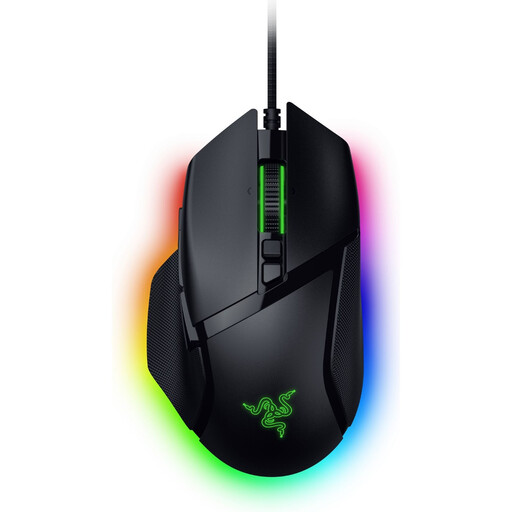
Razer Basilisk V3 35K wired gaming mouse, black
An option to compare if you’re looking for a wired mouse with multiple controls.
The product title lists 11 buttons and 35,000 DPI.
View at Joybuy
 No image available
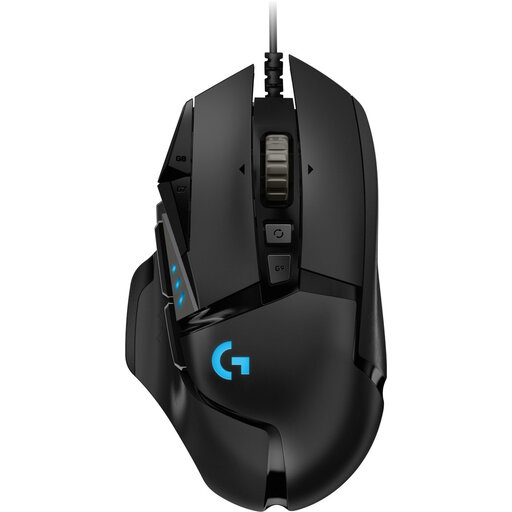
Logitech G502 HERO wired gaming mouse, right-handed, black
A good option to compare if you want a wired mouse with programmable buttons and adjustable lighting; Logitech G describes these features for the G502 HERO.
Logitech G lists 11 programmable buttons. The product title specifies 25,600 DPI and a right-handed design.
View at Joybuy
 No image available
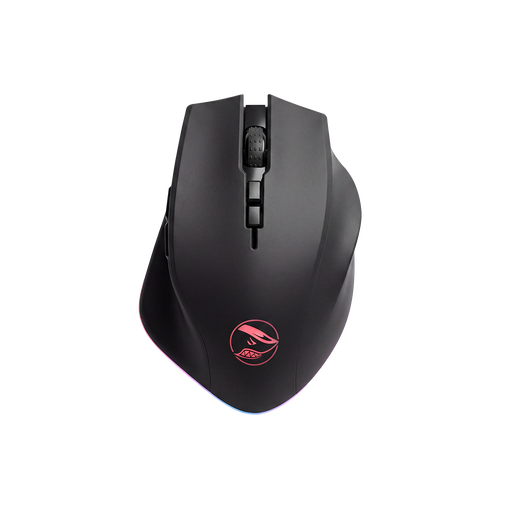
Shark Velocity M71 wireless gaming mouse, black
An option to consider if you want to play wirelessly and need buttons for custom actions.
The product title lists eight programmable buttons and 16,000 DPI.
View at Joybuy
 No image available
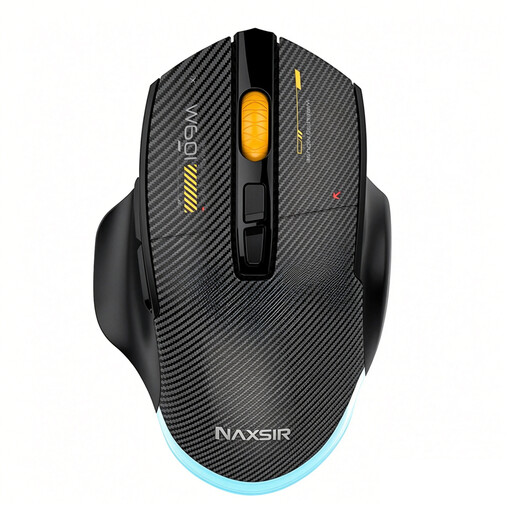
NAXSIR 3-in-1 gaming mouse with macro buttons, black
Worth comparing if you’re looking for multiple connection options and macro buttons.
The product title lists a wired connection, 2.4G wireless and Bluetooth, seven programmable macro buttons and RGB lighting. It also specifies 12,800 DPI.
View at Joybuy
 No image available
AJAZZ AJ159 PRO wireless gaming mouse, white
An option to compare if you’re looking for a wireless mouse with a charging base.
The product title lists a PAW3395 sensor, 26K DPI, 2.4G, USB-C and BT support, a 400 mAh battery, a weight of 56 g and RGB lighting.
View at Joybuy
Frequently asked questions
How do you set up mouse buttons and lighting for your simulation?
Start with the game’s key bindings, then assign actions using the software for your particular model. Corsair describes separate button and lighting settings in iCUE; check whether your device can save settings without the software running.
What should you look for in a wireless gaming mouse?
Check the receiver, charging options and the conditions attached to the stated battery life. Turtle Beach lists more than 75 hours for the Kone XP Air at 2.4 GHz, 1000 Hz and with RGB off, compared with more than 100 hours via Bluetooth with RGB off. Your actual battery life can’t be guaranteed based on those figures alone.
What rights do you have when shopping online in the Netherlands?
According to ACM ConsuWijzer, online purchases generally come with a 14-day cooling-off period from the day after delivery, subject to legal exceptions. You’re also entitled to a product that performs as you’d reasonably expect under normal use; the statutory guarantee isn’t simply a fixed two-year period for every mouse.
What requirements must a wireless gaming mouse meet in the Netherlands?
Wireless equipment must meet the applicable European requirements for radio equipment. The Dutch Authority for Digital Infrastructure states that manufacturers affix the CE marking to equipment that meets all the requirements; this general rule does not, by itself, tell you anything about a specific product.


