
Player with limited connectivity
Wants to play without using an extra mains socket and is comparing a USB cable, USB receiver and Bluetooth.


A wired USB mouse, a mouse with a replaceable battery and a rechargeable mouse can all be suitable when you have few spare sockets. First, check how many USB ports are free and which connection the model you’re considering needs. Then decide whether extra programmable buttons would be useful for your tower defence game.
Wants to play without using an extra mains socket and is comparing a USB cable, USB receiver and Bluetooth.
Wants to find out whether extra accessible buttons could make it easier to control their tower defence game.
Wants to know in advance whether the battery needs replacing or whether they can keep playing while the mouse charges.
First, check how many USB ports are free and which connection the model uses. Then choose between replacing the battery and recharging it, and only after that consider whether the button layout suits your game.
| What to consider | What to look for | Who should consider this? |
|---|---|---|
| Connecting without an extra mains socket | Count the free USB ports and check whether the exact model uses a cable, USB receiver or Bluetooth. | If I have limited connectivity, I want to know which port the mouse needs; around 36% of consumers put connectivity first. |
| Buttons for in-game commands | Check whether the game supports key bindings and whether the buttons you want are easy to reach. | If I often use the same commands, I only want to assign them to extra mouse buttons if my game allows it; around 29% of consumers prioritise these in-game commands. |
| Battery or recharging | Check the battery type or charging connection, and whether the manufacturer says you can keep playing while the mouse charges. | If I don’t want a flat mouse to interrupt my game, I want to choose between keeping a spare battery and recharging in advance; around 21% of consumers prioritise the power supply. |
| Shape and comfort in the hand | Check the dimensions, shape and button placement; try the grip if possible. | If I play for long periods, I want a shape that suits my hand and grip; around 14% of consumers make hand comfort their main consideration. |
A receiver uses a USB port on your computer. Logitech describes the G305 as connecting via the included LIGHTSPEED receiver.
Check the number of free computer ports separately from the number of free mains sockets.
Connectivity varies by model. Logitech says the G305 uses a USB receiver, while Razer lists both Bluetooth and a 2.4 GHz receiver for the Orochi V2.
Check the connection options for the exact model with the manufacturer before you order.
Claimed battery life can depend on the connection mode and battery. Razer gives different figures for the Orochi V2’s Bluetooth and HyperSpeed modes, measured using a lithium AA battery.
Only compare battery life when the stated battery and usage conditions match your situation.
The G305 is an option if you want to use an AA battery and a LIGHTSPEED USB receiver rather than recharge the mouse.
According to Razer, the Orochi V2 lets you choose between Bluetooth and a 2.4 GHz receiver.
The GXT 110 Felox is rechargeable, while the GXT 931 Ybar also offers a choice of Bluetooth or a USB receiver, according to Trust.
The Aerox 5 Wireless is worth considering if you want to assign more commands to mouse buttons.
These models are suited to wireless or multi-connection gaming, with options for recharging, choosing your connection and assigning functions to buttons.
 No image available
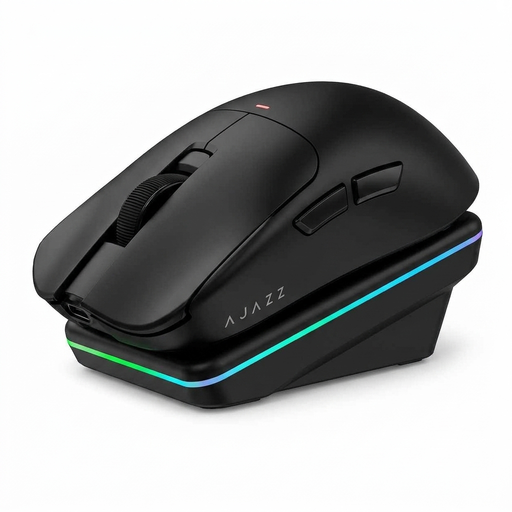
An option if you want to play wirelessly and charge using the stated magnetic base.
The product name lists a PAW3395 sensor, 26K DPI, 2.4G, USB-C and Bluetooth, a 400 mAh battery and a weight of 56 g.
The product information warns you to keep the magnetic base away from pacemakers, medical implants, and payment or identity cards.
 No image available
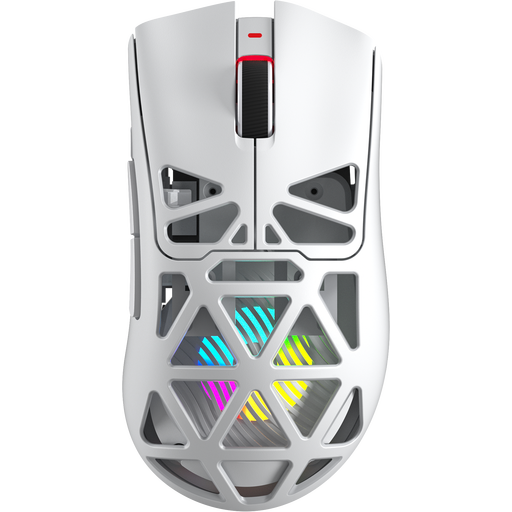
An option if you want to choose between wired and wireless connections and use a magnetic charging dock.
The product name lists a PAW3311 sensor, 24,000 DPI, Bluetooth, 2.4G and USB-C, with a weight of 63 g.
 No image available
An option if you want to assign in-game commands to programmable mouse buttons.
The product name lists seven programmable buttons, Bluetooth 5.0, 2.4G and USB-C, a PixArt PAW3311 sensor, 12,000 DPI, 8 kHz, a 400 mAh battery and a weight of 67 g.
 No image available
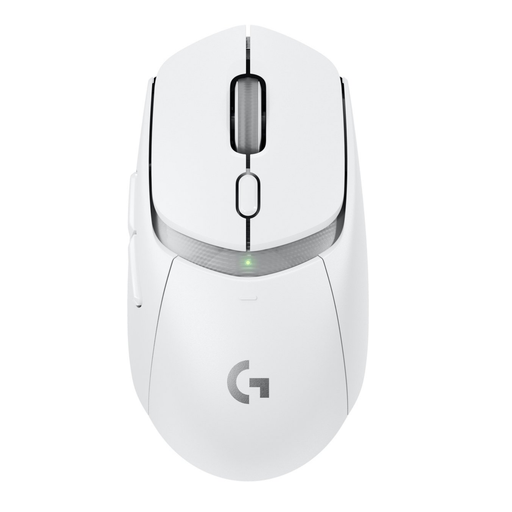
A wireless option if you’re looking for a gaming mouse for a setup with few spare mains sockets. Check the connection and power options for this model before you order.
 No image available
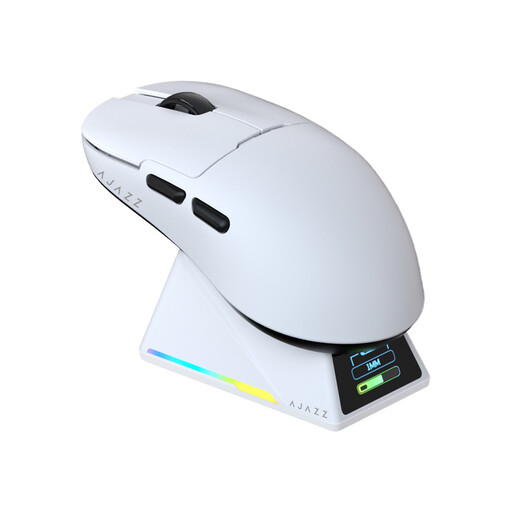
An option if you want a choice of connection modes and a magnetic charging base.
The product name lists a PAW3950 sensor, 2.4 GHz, Bluetooth, wired USB-C, an 8 kHz polling rate and up to 42,000 DPI. The model is described as symmetrical and suitable for small to medium-sized hands.
No. A wired USB mouse could also work if you have a suitable USB port free. For a wireless model, check whether it works via Bluetooth or needs a USB receiver.
According to Logitech, the G305 uses an AA battery and the included LIGHTSPEED USB receiver. So you’ll need a free USB port; Logitech describes the connection as receiver-based.
It depends on the model. Trust says you can keep playing while the GXT 110 Felox is charging; check separately whether this is possible with other models.
In the Netherlands, you’re entitled to a legal guarantee, but there’s no fixed statutory guarantee period. According to the Dutch Government, the seller must offer an appropriate solution for a faulty product; normal wear and tear or damage caused by you isn’t necessarily covered.
According to the Dutch Authority for Digital Infrastructure, radio equipment must meet the relevant European requirements before it can be placed on the market in the EU. Equipment that meets those requirements carries a CE mark; that mark is not a separate inspection of a specific product sold in a shop.