
Support player with lots of shortcuts
You want to control several frequently used actions with your thumb, so you’re looking at how easy the side buttons are to reach, not just how many there are.


First, decide how many actions you really want to control with your thumb and whether the mouse feels comfortable in your hand. A side panel with plenty of buttons can put many actions within easy reach, but it isn’t automatically a better choice than a simpler, lighter or wired model. Also consider battery use and the space available on your desk. The button counts and weights given are model specifications; they don’t prove that a mouse will improve your gaming performance.
You want to control several frequently used actions with your thumb, so you’re looking at how easy the side buttons are to reach, not just how many there are.
You’re looking for a mouse whose shape, weight and connection work for both practice sessions and everyday computer use.
You’re weighing up the button functions you need against any extra running costs. If you choose a wireless model, you’re also considering its power supply.
Start with the actions you really want to control while practising. Then compare the button layout, shape and connection with your hand and the space available on your desk.
| What to consider | What should you check before buying? | Which consumers should pay particular attention? |
|---|---|---|
| Easy-to-reach buttons | Count the actions you want to assign and check whether you can easily distinguish between the buttons with your thumb. | If I want to control lots of support actions with my thumb, I focus on reach and layout. Around 33% of consumers give easy-to-reach buttons top priority. |
| Fit and handling | Consider your grip, hand position and how easily you can reach the buttons; the stated weight alone won’t predict your personal comfort. | If the mouse needs to feel comfortable during longer study and gaming sessions, my grip matters more than having lots of buttons. Around 27% of consumers prioritise fit and handling. |
| How it connects to your desk setup | Check that a wired or wireless connection suits your ports and the space available on your desk. | If I want to reduce cables around my study and gaming area, I also check how the wireless model is powered. Around 20% of consumers give a suitable connection top priority. |
| Features and running costs | Compare the buttons you actually need and check how the exact model is powered. | As a student, I don’t want to pay for controls I won’t use, and I factor in the cost of replacement batteries. Around 20% of consumers prioritise the features they need and running costs. |
Button layouts vary between models. Extra buttons are only helpful if you can reach them easily and they suit the actions you want to assign.
Write down your most important actions, then compare the layout with your hand and your game.
A maximum figure alone doesn’t tell you which sensitivity setting will suit the way you play.
Check which settings you actually want to use and judge the mouse by its handling and fit, not just its highest rating.
According to Logitech, the Logitech G305 uses one AA battery. Its stated battery life of up to 250 hours isn’t a measure of how long it will last with your usage.
Before buying, check how the exact model is powered and factor in any battery replacement or charging it requires.
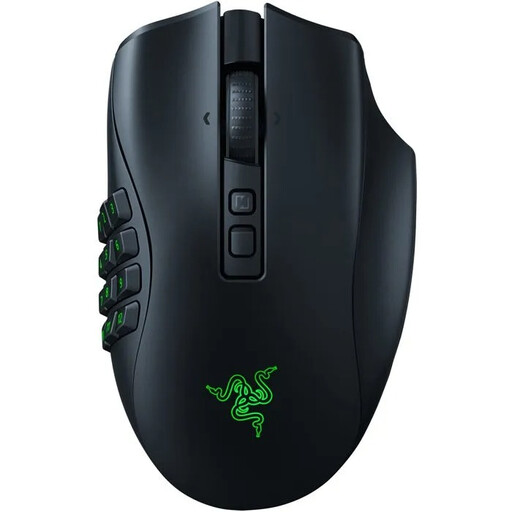
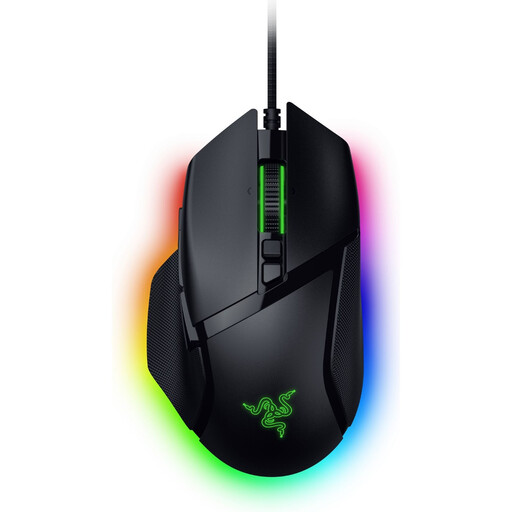
The Naga V3 Pro is worth considering if you want to compare different side-button layouts; the Basilisk V3 has a different button layout.
The Aerox 9 Wireless is worth looking at if you want plenty of side buttons and are also considering the mouse’s weight.
The wired Scimitar RGB Elite is worth considering if you want plenty of customisable buttons and don’t need a wireless connection.
The G305 is a simpler wireless model to consider if a large side-button panel isn’t your main priority.
Browse these mice to compare extra gaming buttons and wired or wireless connections for your gaming and study setup.
 No image available
A wireless option to consider if you’re looking for different connection options for your gaming and study setup.
The product name lists a PAW3395 sensor, 26K DPI, 2.4 GHz, USB-C and Bluetooth, a 400 mAh battery and a stated weight of 56 g.
 No image available
A model to consider if you want to control lots of actions with your thumb and would rather not use a mouse cable.
The product information lists interchangeable side plates, including a 12-button layout, and programmable buttons. HyperSpeed Wireless and Bluetooth are also listed.
 No image available
A wired option to consider if you don’t mind having a cable on your desk and want to assign buttons to in-game actions.
The product name lists 11 buttons and 35,000 DPI; the product information mentions customisable controls, a USB cable and a weight of 101 g.
 No image available
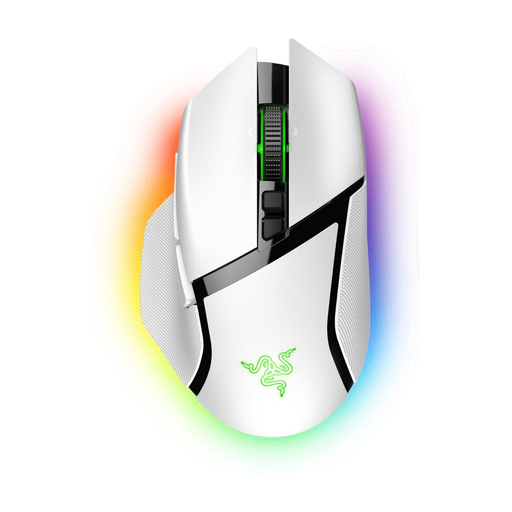
A wireless option to consider if you want programmable buttons and don’t need a cable on your desk.
The product information lists 11 programmable buttons, HyperSpeed and Bluetooth.
 No image available
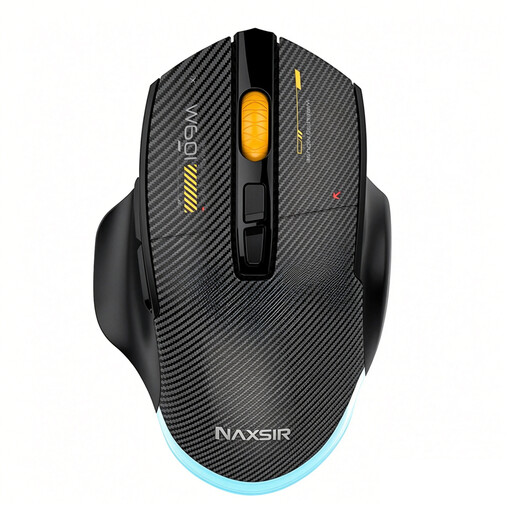
An option to consider if you want to compare programmable macro keys and different connection options.
The product name lists 7 programmable macro keys, 12,800 DPI, wired, 2.4 GHz and Bluetooth.
No. First decide which actions you really want to perform with your thumb. Razer offers 2-, 6- or 12-button side panels for the Naga V3 Pro; a simpler layout may suit you better if you only want to control a few actions that way.
Start with just the game actions you use most often, and check that you won’t press the assigned buttons by accident. Razer names Synapse as the software for setting up the Basilisk V3; Corsair lists iCUE for the Scimitar RGB Elite. Check which software is required for the exact model.
That depends on how the model is powered. According to Logitech, the Logitech G305 uses one AA battery, which will eventually need replacing. Don’t assume that all wireless mice use the same power supply.
According to ACM ConsuWijzer, a product should work as you can reasonably expect it to under normal use. If it breaks too soon, the seller is responsible for providing an appropriate solution free of charge, such as a repair, replacement or refund. In the Netherlands, the statutory guarantee period isn’t limited to a fixed two years.
Dutch government information states that electrical and electronic equipment must comply with the applicable EU rules. The Radio Equipment Directive is also relevant to devices with Bluetooth or a radio-frequency module. A general rule or CE marking doesn’t, on its own, establish that every unit of a named model meets all requirements.