What should you look for in a gaming mouse for grand strategy?
Versatile controls and scroll modes
Best for: anyone who wants to navigate maps and menus, as well as control commands using a few extra buttons.
Consider: a cable can get in the way on your desk; also check that the shape and buttons suit your hand.
Lots of commands at your thumb
Best for: anyone who wants to assign several frequently used commands to a thumb grid.
Consider: extra buttons are only useful if you can reach them comfortably and are happy to learn the layout.
First compare the fit and the controls you actually need; then choose between a wired and wireless connection.
| What to consider |
What should you check? |
Who is this most important for? |
| Fit and grip |
Consider the shape and whether you can comfortably reach the buttons with your grip. |
If I use the same mouse for work and gaming for long periods, I want controls that suit my hand. Around 33% of consumers put fit first when using the same desk. |
| Assignable commands |
Check how many buttons you want to use, whether the software is compatible with your computer and whether your game supports the inputs you need. |
If you use lots of custom shortcuts, you’ll want to control commands without keeping them all on the keyboard. Around 27% of consumers give assigning commands top priority. |
| Scroll controls |
Check whether the wheel can scroll freely and in steps, and which mode suits the way you use it. |
When navigating lots of maps and menus, I want to move through large sections as well as make small adjustments. Around 20% of consumers put scroll control first for this. |
| Cable and connection |
Check your computer’s connection options and which wireless mode you want to use. |
If I want to keep my desk free of mouse cables, I compare the connection options and power supply for the exact version. Around 20% of consumers prioritise these features and a tidy desk. |
Joybuy products for your desk and gaming setup
This selection includes wired and wireless gaming mice with different numbers of buttons and connection options. For each model, compare the listed controls with your grip, game settings and computer connections.
 No image available
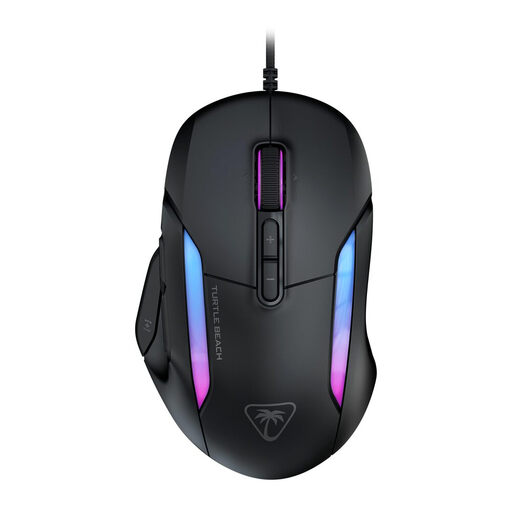
Turtle Beach Kone II Wired Gaming Mouse
The 4D scroll controls and extra assignable functions may be useful if you want to combine scrolling with custom commands.
Wired version. The 4D wheel supports vertical scrolling and tilt; the product information lists 23 customisable functions using the 7 buttons and wheel.
The ergonomic shape described is designed for medium and large hands; consider whether it suits your hand and grip.
View at Joybuy
 No image available
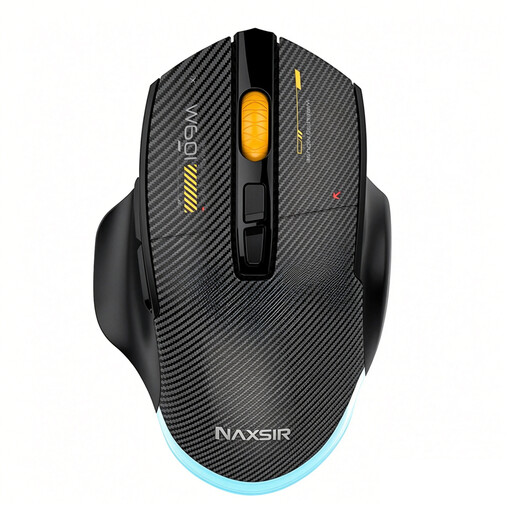
NAXSIR 3-in-1 Gaming Mouse
The connection options described may be useful if you want to switch between wired, 2.4 GHz and Bluetooth use.
The product information lists 7 programmable buttons and macros. Check that the controls and software support the commands you want to use in your game.
The listed connection modes are USB-C, 2.4 GHz and Bluetooth.
View at Joybuy
 No image available
AJAZZ AJ159 PRO Wireless Gaming Mouse
The product information mentions customisable buttons and macro recording via driver software; check that the controls suit the commands you want to use.
The title lists a PAW3395 sensor and tri-mode connectivity: 2.4 GHz, USB-C and Bluetooth.
The product description mentions an ergonomic shape for medium to large hands. Consider whether it suits your own grip.
View at Joybuy
 No image available
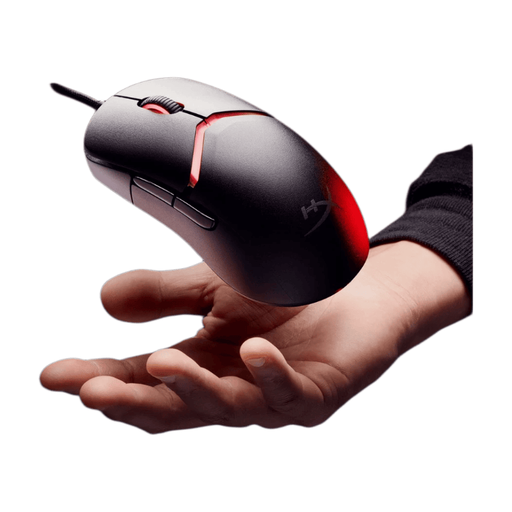
HyperX Pulsefire Saga Wired Gaming Mouse
The product description mentions interchangeable grip parts, which may be useful if you want to try different grip shapes.
Wired version. The product information lists 16 combinations of grip parts and customisable assignments for up to 5 mouse buttons.
View at Joybuy
 No image available
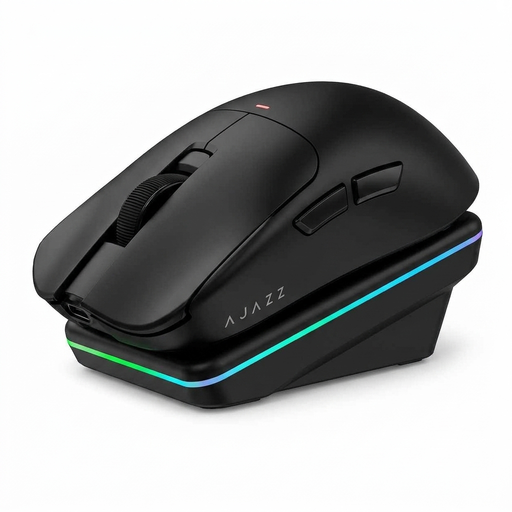
AJAZZ AJ200 AI MC Wireless Gaming Mouse
This mouse may suit you if you want to go wireless and customise button functions using driver software.
The product information lists USB, 2.4 GHz and Bluetooth connection modes, as well as a charging dock.
The title lists a PAW3311 sensor and a weight of 63 g.
View at Joybuy
Frequently asked questions about gaming mice for grand strategy
Do I always need twelve side buttons for grand strategy?
No, only if you genuinely want to assign lots of commands to the mouse and can reach the buttons comfortably. A 12-button layout isn’t essential for every strategy player.
How do I set up a gaming mouse for my games?
Start with the basic controls, then assign only the commands you use frequently. Logitech G lists G HUB for macros and game profiles on the G502 X LIGHTSPEED; Razer lists Synapse for additional assignments on the Naga V2 HyperSpeed. These software details apply to those models, not automatically to every mouse from the same brand.
Will a mouse described as ergonomic prevent discomfort during long sessions?
You can’t tell from the product name alone. According to the Dutch Arboportaal, repetitive movements and static strain during screen-based work can contribute to discomfort; it’s also worth paying attention to your posture and changing position regularly.
What are my rights if a mouse I bought online doesn’t work properly?
When buying as a consumer in the Netherlands, you’re entitled to a product that conforms to the agreement; if it’s faulty, the seller must provide an appropriate solution. The Dutch government states that there is no fixed statutory warranty period in the Netherlands. Online purchases from a business also generally come with a 14-day cooling-off period, subject to applicable conditions and exceptions.
Do rules on screen-based work also apply when I game at home in my own time?
The obligations described by the Arboportaal apply to employers and employees doing screen-based work; they don’t create a legal obligation for gaming in your own time. However, the guidance on screen-based work may offer useful points to consider if you share a space for work and gaming.


