
Strategy gamer with lots of commands
You want to keep frequently used in-game actions within thumb’s reach, and you’re happy to configure the buttons and software.


Start with a shape and controls that suit your hand, grip and the commands you want to use in your game. An easy-to-reach scroll wheel and a few useful extra buttons may matter more than a higher maximum DPI. Choose a mouse with lots of buttons only if you can and want to customise them. A wired mouse means no battery to manage, while a wireless one gives you more freedom of movement.
You want to keep frequently used in-game actions within thumb’s reach, and you’re happy to configure the buttons and software.
You’re looking for a mouse that suits your hand and feels comfortable to use during work and gaming sessions at the same desk. A shape described as ergonomic won’t necessarily suit every hand.
You use few extra buttons and are weighing up the freedom of wireless against managing the battery and receiver.
First, compare the shape and button placement with your hand and the controls in your game. Then decide whether you need extra buttons or a wireless connection.
| What to consider | What to look for | Who is this important for? |
|---|---|---|
| Shape and extended use | Compare the shape, weight and reach of the scroll wheel and buttons with your hand and grip; don’t rely on the ‘ergonomic’ label alone. | If I play for a long time after work, I want a mouse that suits my hand and grip. Around 40% of consumers prioritise shape and comfort when making this choice. |
| Buttons for commands | Compare the button placement and customisation options. Check that your game and the available software support the assignments you want. | I want to assign frequently used actions without choosing buttons I can’t reach or configure. Around 30% of consumers prioritise easy access to useful commands. |
| Wireless or wired | Check the connection type of the exact version, the receiver included and the type of battery or power supply. | If I want a cable-free desk, I weigh that against keeping track of the battery and receiver. Around 20% of consumers prioritise freedom of movement without a cable. |
| Simple controls | Decide how many extra buttons you’ll actually use, and check the full model name and version. | I don’t want to choose features I won’t configure or use. Around 10% of consumers prioritise simplicity over extra features. |
A stated sensor range alone doesn’t prove that it will benefit you in your game; shape, grip and controls matter too.
Start with a shape and controls that suit you, then compare the sensor settings.
Extra buttons are only useful if you can reach them and your game and software support the assignments you want.
Make a note of the commands you actually want to assign and compare them with the button layout. Also allow time to configure the settings and get used to them.
The Razer Basilisk V3 Pro and Basilisk V3 Pro 35K are separate models; features of one version don’t automatically apply to the other.
Check the full model name and compare the relevant manufacturer information before choosing a version.
The Dutch government explains that a manufacturer’s warranty is additional. In the Netherlands, there is no fixed general statutory warranty period for products.
Check what any additional warranty covers, and contact the seller if a product is faulty.
Compare the wireless G305 LIGHTSPEED with the wired G502 X if you’re choosing between simple controls and extra buttons.
The wired Aerox 5 is worth comparing if you want several programmable buttons without a crowded thumb grid.
The Scimitar RGB Elite is worth comparing if you want to assign lots of functions to buttons.
Compare the Naga V2 HyperSpeed if you’re considering a thumb grid. The Basilisk V3 Pro and Basilisk V3 Pro 35K are separate models with different controls.
This selection includes wired gaming mice and one model whose product title lists wired, 2.4G wireless and Bluetooth connectivity. Compare the connection and controls with your desk set-up and game.
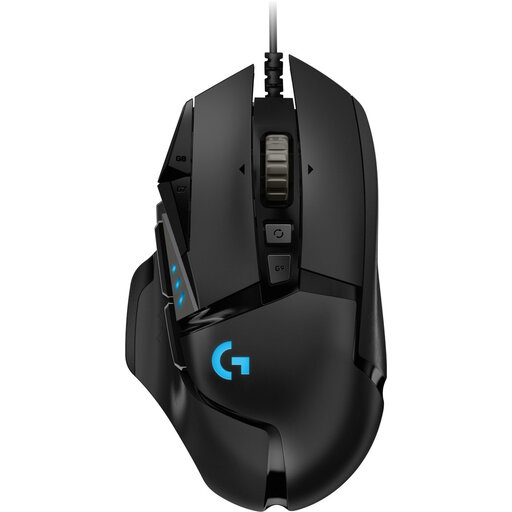 No image available
A wired gaming mouse to compare if you’re looking for a fixed connection and programmable controls.
The product title lists 25,600 DPI and a version designed for right-handed use. Logitech Gaming Software is required to programme the buttons.
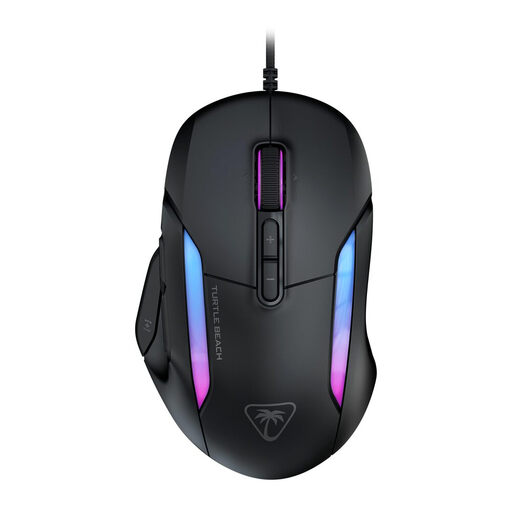 No image available
A wired option to compare if you want to combine gaming and desk use with extra customisable features.
The product title lists 26,000 DPI and 23 buttons. The product information mentions Swarm II software for customising the functions.
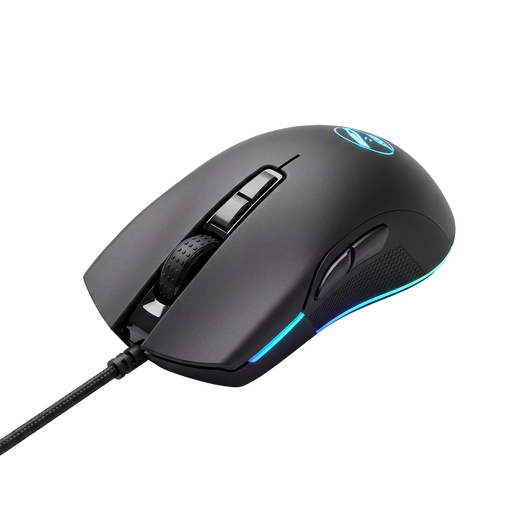 No image available
A wired gaming mouse to compare if you’re looking for one to use in a fixed desk set-up.
Check the product information for the connection type and controls that suit your computer and game.
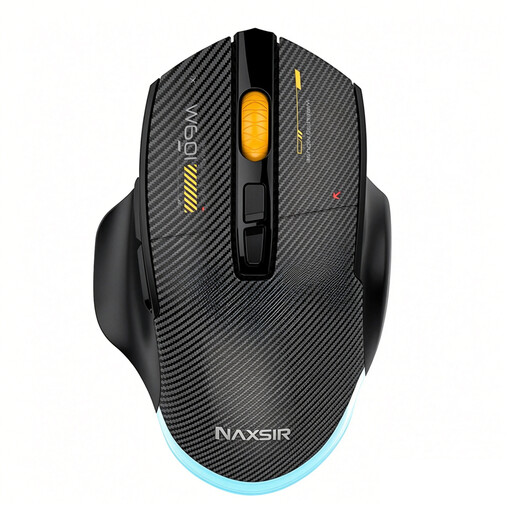 No image available
Compare this version if you want to choose between several connection types.
The product title lists wired, 2.4G wireless and Bluetooth connectivity, as well as seven programmable macro keys and 12,800 DPI. The product information mentions software for customising buttons and macros.
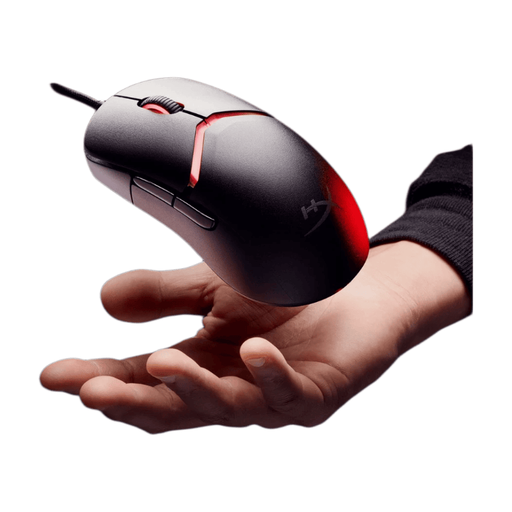 No image available
A wired gaming mouse to compare if you want to assess its shape and controls for use with a desktop computer.
The product title lists a wired version and 26,000 DPI. The product information mentions HyperX NGENUITY software for customising DPI, lighting and buttons.
Start with the actions you use most often in your game. Age of Empires Support describes remappable hotkeys for Age of Empires IV, but that doesn’t mean every historical war game supports the same mouse assignments. Also check whether the software for your chosen mouse lets you assign the actions you want.
Check the connection type of the exact version and plug in any USB receiver. Then configure only the buttons you want to use and test the assignments in your game. For example, Corsair explains how to configure button assignments for the Scimitar RGB Elite using iCUE.
If a product is faulty, contact the seller about your statutory rights; the Dutch government states that there is no fixed general statutory warranty period for products in the Netherlands. For eligible distance purchases, a 14-day cooling-off period often applies. Check the terms that apply to your specific purchase.
No, treat them as two separate models. Razer lists an adjustable scroll wheel for the Basilisk V3 Pro 35K; check the full model name and the relevant information before choosing a version.