
Player who uses lots of shortcuts
Wants frequently used game commands close at hand, so compares the position and reach of programmable buttons.


If you often want to assign commands during economic simulation games or navigate long menus, start by looking at how easy it is to reach the programmable buttons and how the scroll wheel works. If you don’t need these features as much, a simpler mouse might suit you better. Also consider the fit and whether a wired or wireless connection works best for your setup. Specifications show you what a mouse can do, but they don’t tell you whether its shape will feel comfortable in your hand or whether every feature will work in your game.
Wants frequently used game commands close at hand, so compares the position and reach of programmable buttons.
Uses the same setup for work and gaming and wants a mouse shape and controls that suit their hand. Arboportaal notes that working at a screen involves repetitive hand movements and static strain; a mouse alone won’t prevent this strain.
Wants to keep the desk clear or switch between devices, so compares the cable, receiver and Bluetooth connection of the mouse they’re considering.
Start with the controls you actually use in your simulation games: frequently assigned commands and long menus may call for different buttons or a different scroll wheel from simple clicking and selecting. Then consider the fit and connection for your shared work and gaming setup.
| What to consider | What should you check? | Who might this matter more to? |
|---|---|---|
| Easy-to-reach buttons | Check which buttons you can reach with your grip and whether the required software and game support the assignments you want to make. | If I want to control recurring game commands directly from my mouse, I focus on where the extra buttons are placed. Around 33% of consumers prioritise easy-to-reach buttons for game commands. |
| Comfort for extended use | Consider the shape, your grip and how easy the buttons are to reach; take breaks from extended screen use. | When I use the same mouse for work and gaming, I want its shape and controls to suit my hand. An estimated 27% of consumers prioritise a comfortable fit for extended use. |
| Scrolling and navigation | Compare the available scroll modes and tilt functions, and see whether they work well for your menus and documents. | If I often move through long menus or documents, the way the wheel works matters to me. Around 20% of consumers prioritise scrolling and precise menu navigation. |
| Connection on a shared desk | Check the available USB ports, receiver or Bluetooth support, and the charging or battery requirements of the exact model. | For me, a suitable connection or fewer cables matters more than extra controls, for example when I switch between compatible devices. Around 20% of consumers prioritise connectivity and a flexible desk setup. |
A sensor’s maximum rating doesn’t tell you whether its buttons, shape and scroll controls suit the actions you perform during a simulation game.
Compare the adjustable controls with how you’ll use the mouse, rather than judging models solely by their maximum DPI.
The Razer Basilisk V3, Basilisk V3 Pro and Basilisk V3 Pro 35K are not necessarily the same version. A different model name may mean the specifications don’t match exactly.
Before comparing models, check the full model name and make sure the specifications listed apply to that particular version.
Arboportaal describes repetitive hand movements and static strain when working at a screen. A product description doesn’t prove that a mouse will suit your hand or reduce this strain.
Check the fit for yourself and take breaks from extended screen use; don’t treat an ergonomic label as a medical guarantee.
The G502 X is worth considering if you’re looking for a wired mouse with multiple scroll options and customisable controls. The G305 LIGHTSPEED is a separate wireless model.
The Basilisk range is worth comparing if you’re looking for extra button and scroll controls. Make sure you note the differences between the V3, V3 Pro and 35K versions.
Aerox models vary in their number of buttons, so it’s worth deciding first how many separate commands you want to use.
The GXT 922 Ybar is a wired option with a straightforward button layout, while the GXT 122 Felox+ gives you a model to compare wireless connections with.
This selection includes gaming mice for anyone who wants to assign game commands, is looking for different control features or wants to compare connections for a shared work and gaming desk.
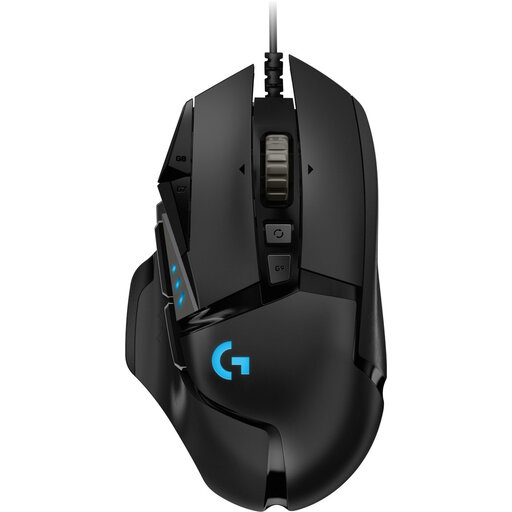 No image available
Worth considering if you want to assign lots of game commands and use a fixed connection at your desk.
The product description lists 11 programmable buttons and macros; Logitech Gaming Software is required for programming.
The product name specifies 25.600 DPI and a right-handed design.
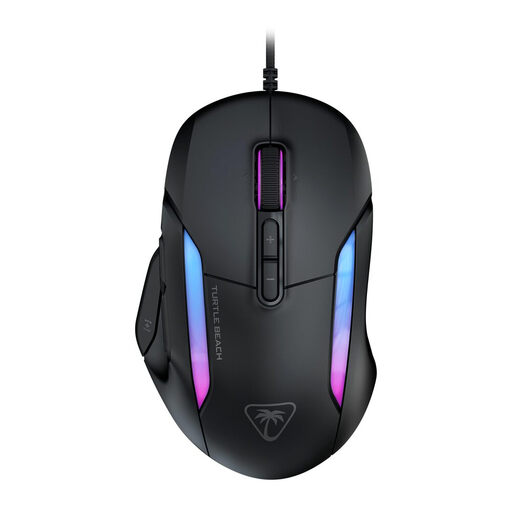 No image available
Worth comparing if you want to assign lots of commands and are looking for scroll wheel features; check that the controls suit your hand and the games you play.
The product name specifies 26.000 DPI and 23 buttons.
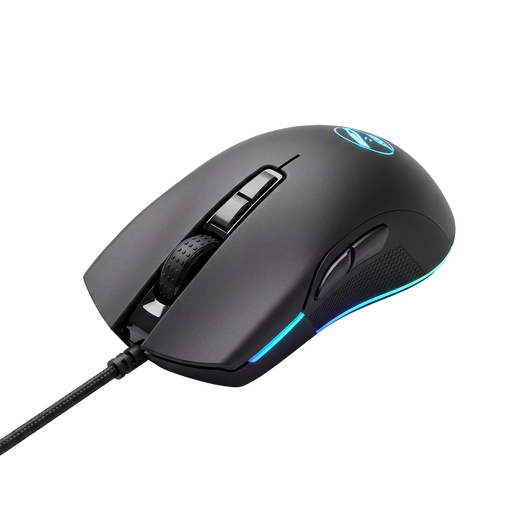 No image available
Consider this model if you want to set up shortcuts and macros. Check which features you can use with the necessary settings and in your games.
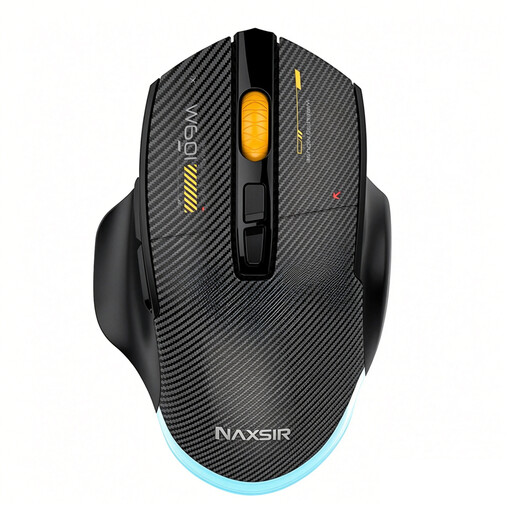 No image available
Worth considering if you’re looking for programmable macro keys and want to compare connections for compatible devices.
The product name specifies wired, 2,4G Wireless and Bluetooth connections, 7 programmable macro keys, 12.800 DPI and RGB lighting. Check which connections your devices support.
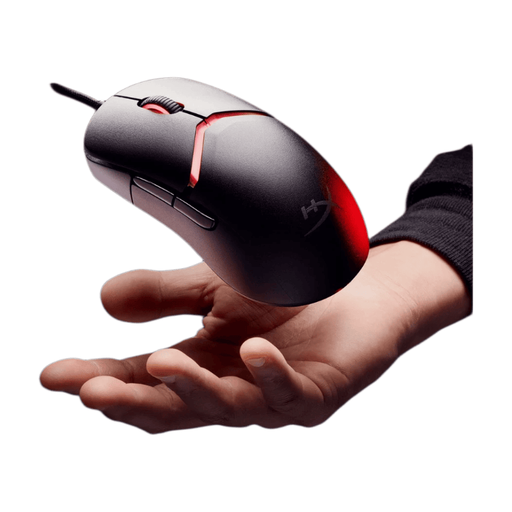 No image available
Worth considering if you want to adjust the mouse shape to suit your grip and customise button assignments.
The product name specifies a wired gaming mouse with RGB lighting and 26.000 DPI. According to the product description, you can customise up to five mouse buttons using the software.
It depends on which commands you actually want to control with the mouse. Start with the actions you use most often and see whether a few side buttons are enough; a larger array of buttons is only practical if you can reach them easily and the game supports the assignments you want.
Adjust the controls to suit how you use the mouse and take breaks from extended screen work. Arboportaal highlights repetitive actions and static strain when working at a screen; a mouse described as ergonomic won’t automatically remove this strain. Rules on taking breaks from screen work apply to employees and aren’t necessarily guidance for gaming at home.
Not for every mouse or connection. Trust lists both 2,4GHz and Bluetooth for the GXT 122 Felox+. Check which connections your computer supports and what you need for the mode you choose.
When you buy as a consumer, you’re entitled to a product that meets the terms of the agreement. According to the Dutch government, the Netherlands has no fixed statutory guarantee period of exactly two years; if a product is faulty, the seller must offer an appropriate solution. Normal wear and tear or damage caused by your own actions isn’t automatically covered by free repairs.
No, the CE mark isn’t an approval from the EU. The European Commission describes it as a manufacturer’s declaration of conformity. Radio equipment placed on the EU market must meet the requirements of the Radio Equipment Directive; don’t assume a specific model complies based on its product name alone.