For sandbox building, a mouse that feels comfortable to hold and easy to use is a good place to start. Extra programmable buttons are most useful if you want to assign your own in-game actions. Minecraft Help says that the default controls in Minecraft: Java Edition use the left, right and middle mouse buttons for different actions. If the cursor stutters on glass or a reflective surface, Logitech recommends using a mouse mat. RGB lighting or a high maximum DPI, on its own, is no proof that a mouse will work better in a bright room.
Who is this advice for?
Frequent builder who uses shortcuts
You build often and want in-game actions close to hand. Minecraft Help describes different default actions for the left, right and middle mouse buttons in Minecraft: Java Edition. Whether extra assignments are useful depends on your game and settings.
Player at a bright desk
You play in a bright room and mainly want the cursor to track reliably. If you have tracking problems, the surface is a practical place to start: Logitech recommends using a mouse mat and advises against using a mouse on glass or reflective surfaces.
Player who builds for long stretches
You prioritise a shape that suits your hand, buttons you can reach easily and the weight of the version you’ll actually use.
What should you look for when choosing?
| What to consider |
What should you check? |
Who is this important to? |
| Shape and controls |
Consider whether the mouse suits your handedness and grip, and whether you can reach the buttons easily. Compare weights only when the mice use the same power source. |
If I build for long stretches, I want a shape that suits my hand and buttons I can reach without changing my grip awkwardly. Around 31% of consumers prioritise fit and button reach. |
| Buttons for building actions |
Check which actions you want to assign, whether the buttons suit your grip and whether the configuration software is available for your computer. |
If I want to change actions often, I look for buttons that are easy to use while building. Around 25% of consumers prioritise configurable building actions. |
| Tracking on your desk |
Check the surface you play on. Logitech recommends using a mouse mat if you have tracking problems and advises against glass or reflective surfaces. |
If my cursor stutters on the desk, I want to find out first whether the surface is the cause. Around 19% of consumers prioritise tracking on their own desk. |
| Wired or wireless |
For wireless models, check the supported connection modes, receiver and power source; these can also affect the stated weight. |
If I don’t want a mouse cable on my desk, I weigh that up against the connection and power source the mouse needs. Around 13% of consumers prioritise the type of connection. |
| Essential features and connections |
Decide how many buttons you’ll actually use and check that the connection and any software suit your setup. |
If I only need the usual controls, I don’t want to choose features I won’t use. Around 12% of consumers prioritise having all the essential controls they need. |
Common buying mistakes
-
Assuming RGB lighting or maximum DPI means better tracking in daylight
Logitech’s advice for tracking problems specifically concerns glass and reflective surfaces. It doesn’t prove that a particular model works better in daylight.
Check the desk surface first and try a mouse mat if the cursor stutters. Treat lighting and maximum DPI as separate preferences.
-
Comparing weights without checking the power source
Logitech lists the G309 at 86 grams with an AA battery and 68 grams when using POWERPLAY instead of the battery. These weights are based on different power setups.
Compare weights alongside the corresponding version and power source.
-
Choosing lots of buttons without checking how to configure them
Corsair describes button assignments for the Scimitar RGB Elite through iCUE. The number of buttons alone doesn’t tell you whether you can set up the actions you want or reach the buttons comfortably.
Decide which actions you want to move, then check the button layout and configuration software.
Setting them up takes time; some features depend on software and on how easily you can reach the buttons.
-
Confusing the manufacturer’s warranty with your statutory rights
According to the Dutch government, there is no fixed statutory warranty period in the Netherlands. If a product is faulty, the seller must resolve the problem.
Keep your proof of purchase and consider what any extra warranty offers beyond your statutory rights.
Brands to consider
Logitech G
The G309 LIGHTSPEED is a wireless option with six programmable buttons and a choice of supported connection modes.
- Logitech lists the weight as 86 grams with an AA battery; the stated weight of 68 grams assumes POWERPLAY.
- These weights apply to different power setups, so they aren’t directly comparable without taking that into account.
Razer
The wired Basilisk V3 is designed for players who want extensive button customisation and scroll-wheel controls.
- Razer lists 10+1 programmable buttons for the Basilisk V3.
- Check that the button layout suits your grip and the actions you want to use.
SteelSeries
The wired Aerox 5 combines a stated weight of 66 grams with several controls.
- SteelSeries lists nine programmable buttons for the Aerox 5 range.
- Check the exact version: wired and wireless models don’t have the same specifications.
Trust
The GXT 113 Felox is a wired option with essential controls and configurable features.
- Trust lists six buttons, configurable using the included software, and a 1.5-metre USB-A cable.
- Check that the software works on your computer and that the cable is long enough for your desk setup.
Corsair
The wired Scimitar RGB Elite is an option for players who want to assign actions to lots of separate buttons.
- Corsair lists 17 programmable buttons and describes assignments through iCUE.
- Not every sandbox player needs lots of buttons; check that you can reach them comfortably and will actually use them.
Gaming mice at Joybuy
This selection includes Joybuy gaming mice for extra configurable in-game actions, wired or wireless connections and different grip preferences.
 No image available
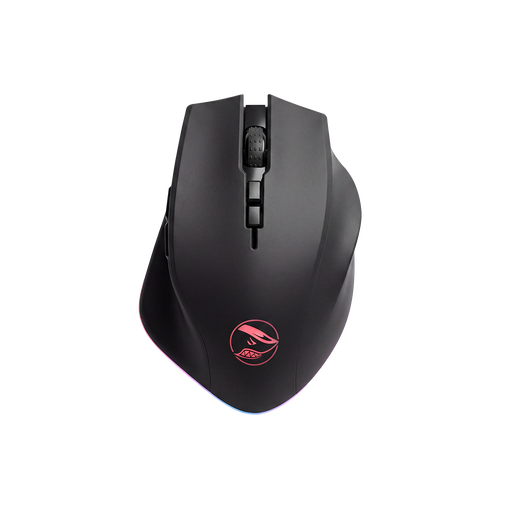
Shark Velocity M71 wireless gaming mouse, 16,000 DPI, black
A good fit if you want to play wirelessly and configure several in-game actions.
The product name lists a PAW3335 sensor, adjustable DPI up to 16,000 and eight programmable buttons.
View at Joybuy
 No image available
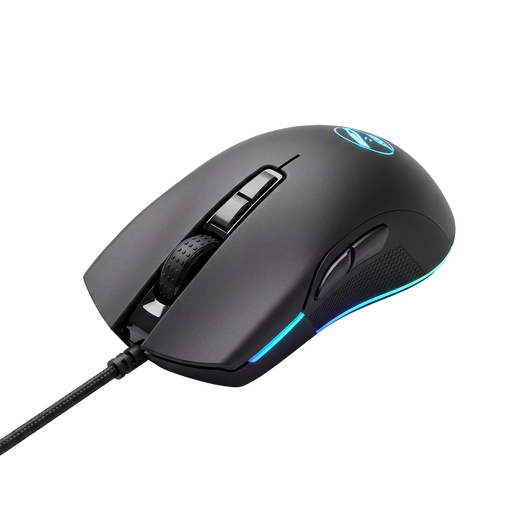
Shark Gaming Velocity M70 wired gaming mouse
An option if you’re happy to use a cable and want to customise in-game actions; the wired connection is less suitable if you specifically want to play wirelessly.
View at Joybuy
 No image available
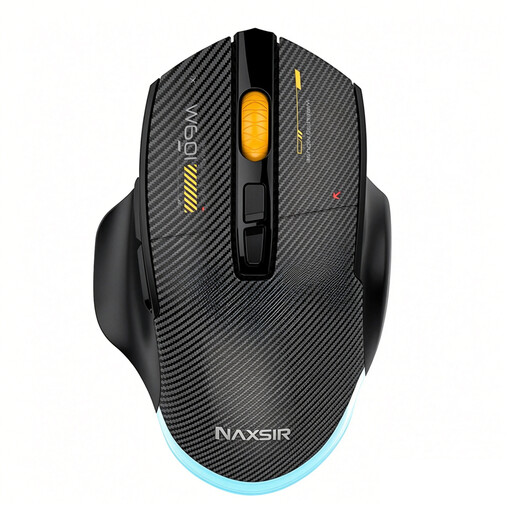
NAXSIR 3-in-1 gaming mouse, 12,800 DPI, black
A good fit if you want to assign your own in-game actions and choose between different connection types.
The product name lists a wired connection, 2.4G wireless and Bluetooth, plus seven programmable macro buttons.
View at Joybuy
 No image available
AJAZZ AJ159 PRO wireless gaming mouse, 56 g, white
An option if a lightweight model and a choice of connection types are important to you.
The product name lists a weight of 56 g and 2.4G, USB-C and Bluetooth support; it also mentions a PAW3395 sensor and 26K DPI.
View at Joybuy
 No image available
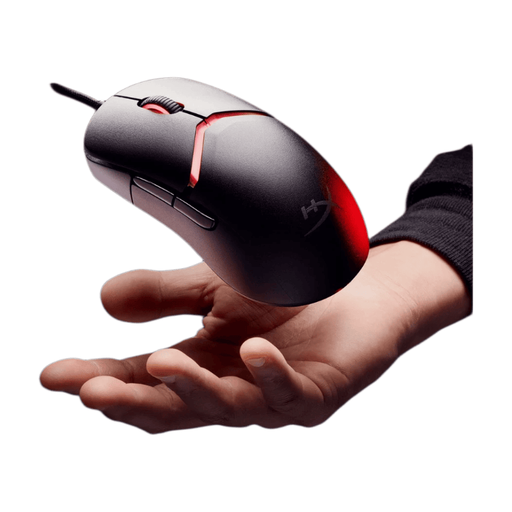
HyperX Pulsefire Saga wired gaming mouse, black
A good fit if you want a wired mouse and the option to adjust the grip; less suitable if you specifically want to play wirelessly.
The product name lists RGB lighting and 26,000 DPI.
View at Joybuy
Frequently asked questions
Do I need lots of extra mouse buttons to build with blocks in Minecraft?
No, not necessarily. Minecraft Help says that, by default, Minecraft: Java Edition uses the left button to attack or break blocks, the right button to use or place items, and the middle button for ‘Pick Block’. Extra programmable buttons are most useful if you want to assign your own actions; check the controls for your game version.
What can I do if my cursor stutters on my desk?
Try using a mouse mat first. Logitech advises against using a mouse on glass or reflective surfaces if you have tracking problems. This advice doesn’t guarantee that every mouse will work well on every surface.
What should I look for when setting up extra buttons?
Check that the configuration software is available for your mouse and computer, and that you can reach the buttons you want to use. Corsair describes assignments for the Scimitar RGB Elite through iCUE; this information doesn’t automatically apply to mice from other brands.
What if a mouse I bought online is faulty or doesn’t feel comfortable?
If a product is faulty, the seller must resolve the problem. For distance purchases from a business, you’ll often have a 14-day cooling-off period, as the Dutch government explains. The Netherlands has no fixed statutory warranty period; check the terms that apply to your purchase.


