What should you look for?
Start by assessing the grip and controls you’ll use repeatedly while building and navigating. Then consider whether extra buttons or wireless use would be useful for you.
| What to consider |
What should you check? |
Who is this important for? |
| Hand shape and strain |
Try the grip, thumb position and button reach. Vary your posture and take breaks during long sessions. |
If I’m building for a long time, I want a grip that suits my hand and buttons I can reach without stretching uncomfortably. Around 36% of consumers give hand shape and strain during long sessions top priority. |
| Scroll wheel and camera |
Test the wheel resistance and the middle and right buttons in your own game. |
If I often zoom, rotate or move the camera, I want to be able to do so precisely. Around 29% of consumers prioritise scrolling and camera controls. |
| Programmable buttons |
Check whether your game supports the commands you want, which software you need and whether the buttons are easy to reach. |
If I want to perform recurring in-game commands more quickly, I’ll assign them to mouse buttons only if my game and settings allow it. Around 21% of consumers give shortcuts top priority. |
| Wired or wireless |
Check the connection and power supply. With a wired mouse, consider the cable; with a wireless one, consider battery management. |
If I don’t want a mouse cable on my desk, I’ll choose wireless; if I don’t want to replace or charge a battery, wired is the more obvious choice. Around 14% of consumers prioritise going cable-free. |
Gaming mice at Joybuy
These product picks focus on wired and wireless gaming mice with options for configurable buttons and scroll controls when building and navigating.
 No image available
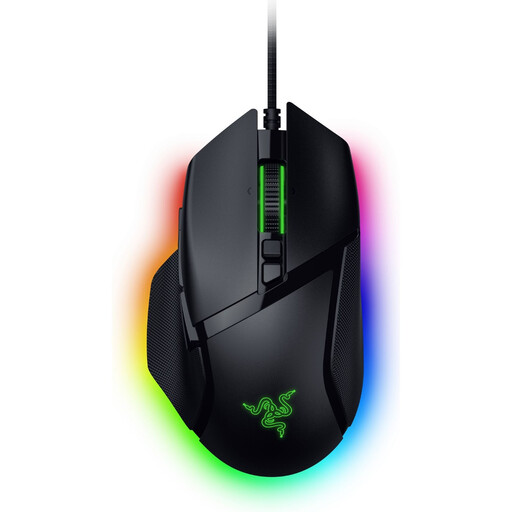
Razer Basilisk V3 35K wired
A wired option for anyone who wants configurable buttons and different scrolling options without battery management.
The product name specifies 35,000 DPI and 11 buttons. The product information lists three scroll modes and a tilt-enabled HyperScroll wheel; Razer Synapse is mentioned for customising the buttons.
View at Joybuy
 No image available
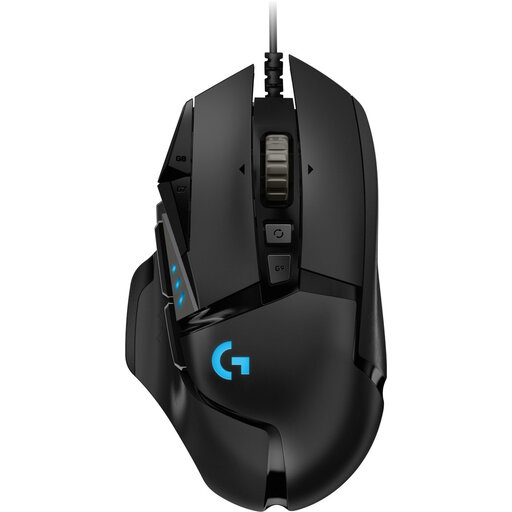
Logitech G502 HERO wired, black
A wired, right-handed option if you want configurable buttons and don’t want to manage a battery.
The product name specifies 25,600 DPI; the product information lists 11 programmable buttons and an adjustable weight system. Logitech software is mentioned for programming the buttons.
View at Joybuy
 No image available
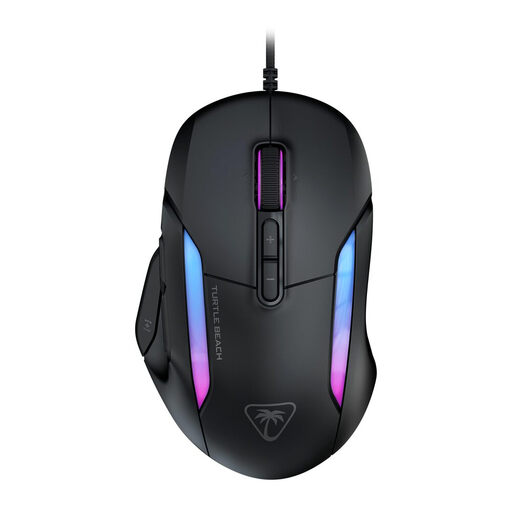
Turtle Beach Kone II wired, black
A wired option if you want to assign several functions to the buttons and scroll wheel.
The product name specifies 26,000 DPI. The product information lists a wheel that scrolls vertically and tilts, seven buttons and 23 functions with Easy-Shift[+]. Swarm II is mentioned for customising assignments.
View at Joybuy
 No image available
Logitech G G502 X wired
A wired option if you want to customise commands and don’t need to manage a battery.
The product name specifies an optical sensor, USB Type-A and 25,600 DPI. The product information lists 13 programmable buttons; according to the description, driver installation may be required.
View at Joybuy
 No image available
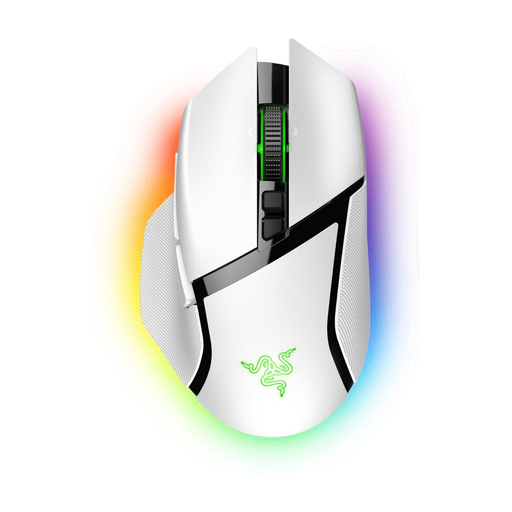
Razer Basilisk V3 Pro wireless, white
A wireless option if you want to go cable-free while enjoying several scrolling options and configurable buttons.
The product information lists a HyperScroll tilt wheel and 11 programmable buttons. Battery life is stated as up to 90 hours; Razer Synapse 3 is mentioned for customisation.
View at Joybuy
Frequently asked questions
Do I need a mouse with lots of buttons for building railways?
Not necessarily. According to the official game manual, you can control the camera in Transport Fever 2 using your mouse and keyboard, and customise the key bindings. Choose a mouse with extra buttons if you want to assign commands and your game supports those controls.
How do I set up a new mouse for camera work?
First, check the mouse and key settings in your game. You can change these in Transport Fever 2. Then try zooming with the wheel, rotating with the middle button and dragging with the right button before adding shortcuts.
Will an ergonomic mouse prevent discomfort during long sessions?
This hasn’t been proven for your individual circumstances. Choose a grip that suits your hand and vary your posture. Arboportaal recommends microbreaks and notes that the effects of prolonged screen use may also be relevant outside working hours.
What do the cooling-off period and warranty mean when buying online in the Netherlands?
For online distance purchases from a business, you’re entitled to a 14-day cooling-off period in many cases, according to the Dutch Government. You’re also entitled to a product that is fit for purpose; the Netherlands has no fixed statutory warranty period of two years. A manufacturer’s warranty is in addition to your statutory rights, and if a product is faulty, the seller is your point of contact.


