
Players checking whether mouse controls are supported
You’re not sure whether your platform game supports mouse input on your device. Xbox Support points out that mouse and keyboard controls aren’t available in every game.


A different gaming mouse is only worth considering if your platform game supports mouse input on your device. If tracking stutters on a reflective desk, try a non-reflective mouse mat first. Screen glare, on the other hand, calls for adjustments to the light or screen position. Then decide between wired and wireless, and consider the shape and how easy the buttons are to reach.
You’re not sure whether your platform game supports mouse input on your device. Xbox Support points out that mouse and keyboard controls aren’t available in every game.
You want to know whether you’re dealing with screen glare or tracking stutters on a reflective desk. Logitech Support and the Occupational Safety and Health Administration describe these as different problems, each requiring a different approach.
Your game supports mouse input, but you might be looking for easier-to-reach buttons, a different shape or more freedom of movement without a cable. Features vary by model, so check the specific version you’re considering.
| What to consider | What should you check? | Who is this important to? |
|---|---|---|
| Mouse input in the game | Check the input options for the specific game on your device. Don’t assume mouse support just because you can connect a mouse. | You want to know whether a mouse will actually work in your platform game. Around 33% of consumers prioritise mouse input support. |
| Glare or tracking | Work out where the problem occurs. If tracking stutters on a reflective surface, try a flat, plain, non-reflective mouse mat. | You want to tell the difference between distracting screen reflections and a pointer that stutters on your desk. Around 27% of consumers prioritise this distinction. |
| Grip and buttons | Compare the shape, stated weight and button positions of the exact model. Also check whether you can customise the buttons you want to use. | You want a shape that suits your grip and buttons you can reach while playing. Around 20% of consumers prioritise grip and controls. |
| Wired or wireless | For a wireless model, check the battery type and receiver. For a wired mouse, consider whether the cable will sit neatly on your desk. | You may want more freedom of movement without a cable, or prefer not to manage a battery and receiver. Around 20% of consumers give connection and power the highest priority. |
Being able to connect a mouse to a device doesn’t mean that every game supports mouse input. Xbox Support says the game publisher must enable this feature for the game in question.
Check the input options for your specific game on the device you play on.
Screen glare and tracking stutters on a reflective desk are different problems. The Occupational Safety and Health Administration explains how bright light can make the screen harder to see, while Logitech Support recommends a non-reflective surface for tracking problems.
If you’re dealing with screen glare, adjust the light or screen position. If you’re having tracking problems, try a non-reflective mouse mat first.
The Joybuy listing for the wired Razer Cobra states both 58 g and 83.5 g, and also mentions an AA battery. These details don’t provide a clear basis for confirming the weight or power source of this version.
Check the exact model version and compare the relevant details with Razer’s specifications before making your choice.
The G305 LIGHTSPEED is a wireless option if an AA battery and USB receiver suit your setup.
The wired Cobra is a compact option to compare if you’re happy with a cable and adjustable sensitivity.
The wired Pulsefire Haste 2 is worth comparing if stated weight and programmable buttons matter to you.
The KATAR PRO XT EU is a compact, symmetrical wired mouse to compare with your preferred grip.
The Aerox 3 Wireless Onyx offers wireless connectivity via 2.4 GHz and Bluetooth.
This selection includes wired and wireless gaming mice with a range of connection types and controls. Check each model to see which features suit your game and setup.
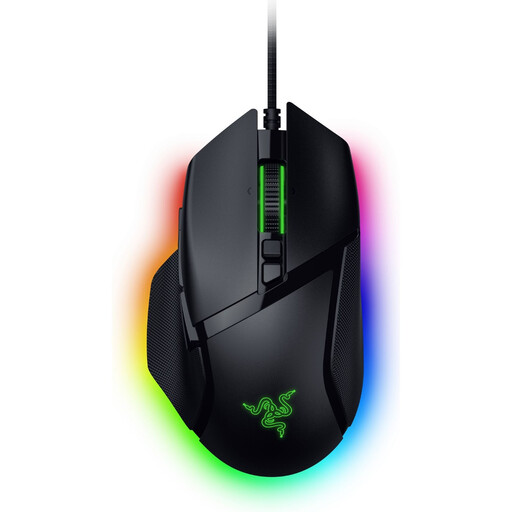 No image available
A wired option if you don’t need a wireless connection and want customisable controls.
The product name states 35,000 DPI and 11 buttons. The description mentions 13 customisable controls; check which controls are included with the exact version.
The description also mentions a Speedflex cable and an optical sensor.
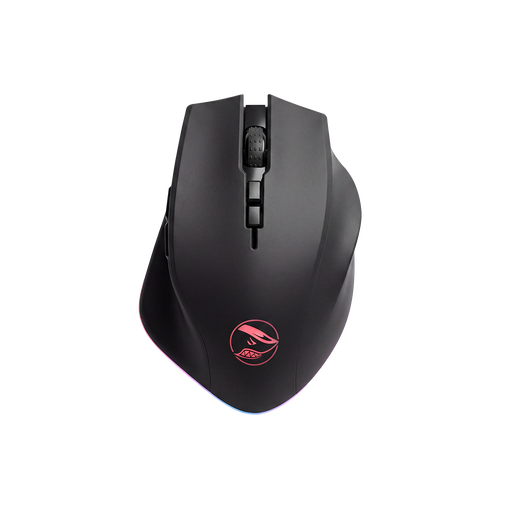 No image available
An option if you want a wireless connection but would also like the option of using the stated wired USB connection.
The description lists 2.4 GHz wireless and wired USB use, eight programmable buttons and a PAW3335 sensor.
The product name states 16,000 DPI. Check which connection type you want to use with your setup.
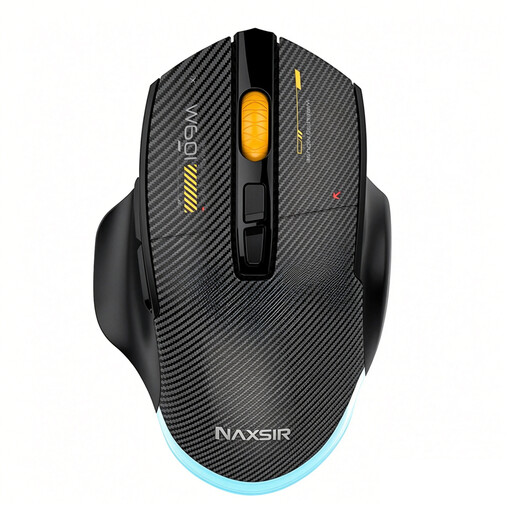 No image available
An option to compare if you want to choose between wired use and several wireless connections.
The product name lists wired, 2.4 GHz wireless and Bluetooth connections. The description mentions USB-C for wired use.
The description lists 12,800 DPI, seven programmable buttons and an adjustable polling rate.
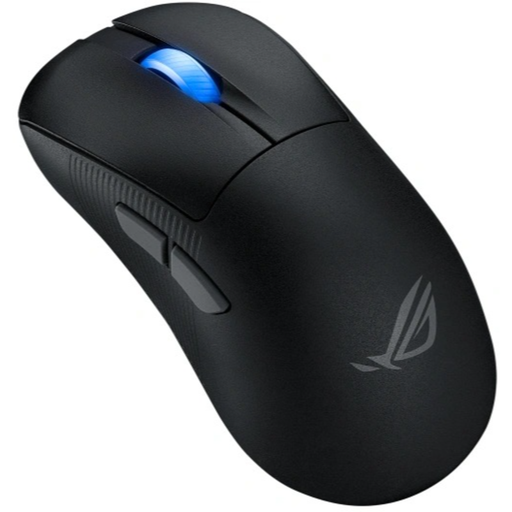 No image available
A wireless option if you want to use RF or Bluetooth; check which connection is compatible with your device.
The product name lists RF wireless, Bluetooth, USB Type-A and 42,000 DPI. The description mentions an optical sensor and an ambidextrous shape.
The description lists six programmable buttons.
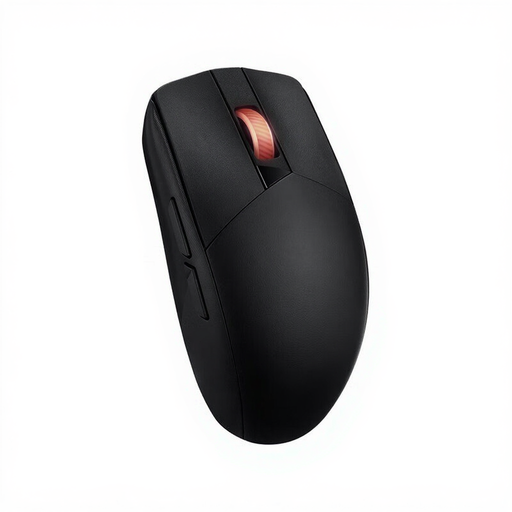 No image available
A wireless option to compare if you want RF or Bluetooth connectivity and a shape designed for either hand.
The product name lists RF wireless, Bluetooth and 36,000 DPI. The description mentions an ambidextrous shape and an optical sensor.
The description lists five programmable buttons.
No, not automatically. Xbox Support says that mouse and keyboard controls don’t work in every game, and the publisher must enable this feature for each game. Check that your game and device support the input you want to use.
RGB lighting on a mouse isn’t a proven solution for screen glare. Adjust the light or screen position. If tracking stutters on a reflective desk, try a flat, non-reflective mouse mat.
If you have a wireless mouse, check the battery and receiver. Logitech Support also recommends cleaning the sensor and mouse feet, and trying a flat, non-reflective mouse mat. Separately, check whether your game supports the mouse input you want to use.
According to ACM ConsuWijzer, online purchases generally come with a 14-day cooling-off period after delivery, subject to legal exceptions. If a product is faulty, you’re also entitled to a remedy from the seller. Your statutory rights are separate from any manufacturer’s warranty.