What should you look for when buying?
First compare the available space and the controls you use in your editor. Then consider whether the mouse’s shape, connection and power supply suit your hand and workspace.
| What to consider |
What should you check? |
Who is this important for? |
| Movement space and cable management |
Measure the available space and check where the mouse, any cable and the receiver can go. |
If I draw and navigate on a small desk, I don’t want a cable to restrict my movement. Around 33% of consumers prioritise movement space and cable management. |
| Editor controls |
Check the scroll wheel and middle click, and whether the editor lets you assign the actions you want to extra buttons. |
If I often zoom, pan or switch tools, I want to be able to do those things easily. Around 27% of consumers prioritise navigation and assignable editor controls. |
| Fit for longer sessions |
Assess the shape and button placement with your own hand; also consider your posture and varying your activities. |
If I work on a map for a long time, I want a mouse I can use without stretching uncomfortably. Around 27% of consumers prioritise hand fit and varying their activities. |
| Battery, charging and service |
Compare the battery or charging system and read the seller’s information about service. |
If I don’t want to replace disposable batteries, or would rather plan when to charge, I want to know in advance how my chosen model is powered. Around 13% of consumers prioritise battery management and service terms. |
Wireless gaming mice at Joybuy
This selection features wireless gaming mice for anyone looking for cable-free movement. Compare the connection, button layout, weight and power supply with your map editor and workspace.
 No image available
Shark Velocity M71 Wireless Gaming Mouse
The wireless connection may suit you if a mouse cable gets in the way on a small desk; check that the button layout works with your editor.
The product information lists 2.4 GHz wireless, a wired USB option, 8 programmable buttons and a weight of 117 g.
Consider whether the stated weight suits your preference for longer mouse movements.
View at Joybuy
 No image available
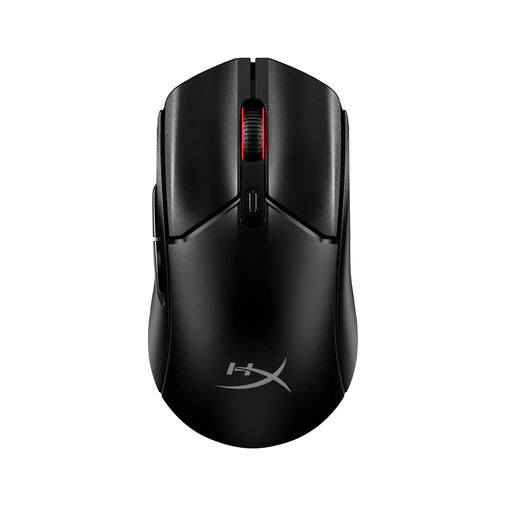
HyperX Pulsefire Haste 2 Core Wireless Gaming Mouse
This wireless model may suit you if you’re looking for cable-free movement and customisable buttons; check that its shape feels comfortable in your hand.
The product information lists 2.4 GHz and Bluetooth, six programmable buttons and a weight of approximately 70 g.
According to the product information, the model runs on one AAA battery.
View at Joybuy
 No image available
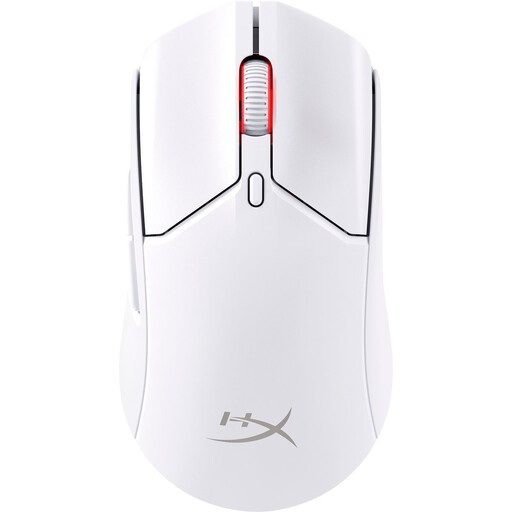
HyperX Pulsefire Haste 2 Wireless Gaming Mouse
The wireless connection gives you the option of using the mouse without a cable; check that the button layout suits the actions you use in your editor.
The product information lists six customisable buttons, a stated weight of 61 g and wireless connection via 2.4 GHz or Bluetooth.
The product information also lists a cable option, so you can use the mouse while it charges.
View at Joybuy
 No image available
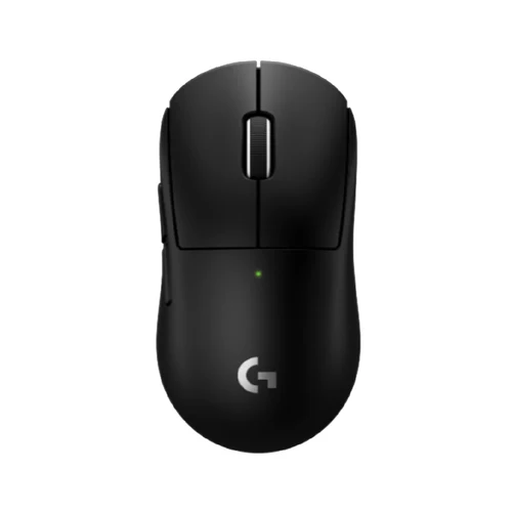
Logitech G PRO X Superlight 2c Wireless Gaming Mouse
The product information describes this as a compact wireless mouse, intended for smaller hands or a more compact grip.
Its stated weight is 53 g; the product information also lists programmable buttons.
View at Joybuy
 No image available
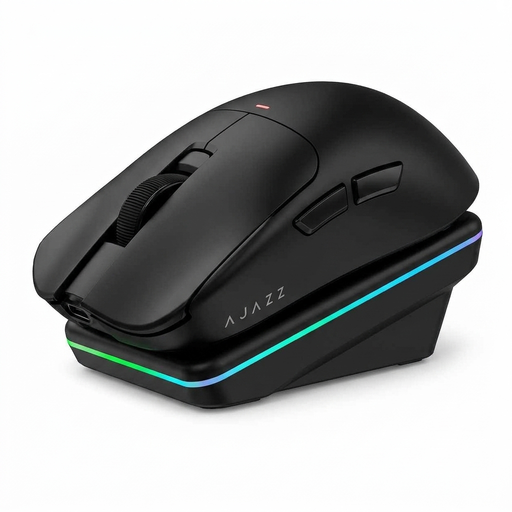
AJAZZ AJ200 AI MC Wireless Gaming Mouse
The product information lists Bluetooth and 2.4 GHz as wireless options; check which connection suits your computer and workspace.
The title lists a PAW3311 sensor and a weight of 63 g. The product information mentions customisable buttons, a charging dock and a shape designed for medium to large hands.
The listed connection options are Bluetooth, 2.4G and USB-C.
View at Joybuy
Frequently asked questions
Do I need a mouse with lots of side buttons to make game maps?
Not necessarily: first check which controls your editor supports. Tiled documents zooming with Ctrl and the mouse wheel, and panning with the middle mouse button or space bar. Extra buttons are most useful when you can assign actions you use frequently to them.
How do I set up a mouse for map editing?
Try the scroll wheel, middle click and sensitivity in your own editor to see if they feel comfortable for drawing and navigating. Tiled documents using Ctrl plus the mouse wheel to zoom, and the middle click or space bar to pan; controls may vary between editors.
Where can I dispose of flat batteries or an old mouse?
According to the Dutch government, flat batteries must not go in general waste; you can take them to shops that sell batteries, among other places. When buying a similar new appliance, you may be able to hand in an old electrical item, subject to certain conditions.
What are my rights if a mouse I bought online doesn’t fit or is faulty?
For an online consumer purchase, you generally have a statutory cooling-off period of up to 14 days from delivery; ACM ConsuWijzer explains the conditions and exceptions. A faulty product is a different matter: according to the Dutch government, you can contact the seller about a defect, and there is no fixed statutory warranty period in the Netherlands that applies to all products.
Do Dutch screen-work rules also apply to my hobby desk?
The screen-work rules mentioned are aimed at employers and employees; they don’t mean that a hobbyist has to buy a particular mouse model. However, Arboportaal’s information about repetitive actions and static strain may be worth considering when you assess your workspace and longer sessions.


