Start by choosing a mouse shape that suits your hand and a sensitivity level you can adjust to your liking; a high maximum DPI alone is no reason to choose a mouse. Extra buttons are most useful when the game and mouse software support the assignments you want. Choose a wired mouse if the cable route works for you, or go wireless if you need more freedom to position it. Minecraft describes customisable controls, and Minecraft Help explains how sensitivity affects camera movement.
Who is this choice relevant to?
Builder who switches quickly between actions
You build often and want to assign recurring actions to easily reached mouse buttons, provided the game and software support this. Minecraft describes customisable controls; also check which assignments are available for your mouse model and game.
Player with a spacious setup
You play on a large screen and your computer isn’t right next to your mouse. In that case, cable length or the connection type of a wireless mouse may be important. For example, Trust lists a 1.5-metre cable for the GXT 109 Felox.
Player who builds for long periods
You prioritise a shape that suits your hand, a comfortable weight and controlled camera movement, rather than focusing only on a high DPI figure. Minecraft Help explains how the sensitivity setting affects how quickly the camera responds.
What should you look for?
Start with fit and sensitivity, then consider which extra buttons or connection options you actually need for your setup.
| What to consider |
What should you check? |
Who is this important for? |
| Easy-to-reach buttons |
Check the button positions, supported assignments and setup software for your game and computer. |
If I perform the same actions often while building, I want buttons that are easy to reach and can be assigned to those actions. Around 33% of consumers say easy-to-reach building actions are their main concern when buying. |
| Comfort and camera movement |
Consider the shape and grip, weight, and the options for adjusting mouse and in-game sensitivity. |
For longer building sessions, I want a mouse that feels comfortable in my hand and lets me move the camera smoothly. Around 25% of consumers prioritise comfort and control. |
| Reach and freedom of movement |
Measure the cable route to your computer, or check the connection type and power requirements of the exact wireless model. |
If my computer is further away from where I use the mouse, I want to know whether the cable will reach or whether a wireless mouse would suit my setup better. Around 25% of consumers choose mainly for the space and freedom of movement they need. |
| Simple connection |
Compare only the features you’ll use, and check the connection and software support for your computer. |
If I only want to set up a few actions, I’d rather have a straightforward connection and controls than extra features I don’t need. Around 17% of consumers give ease of use top priority. |
Common pitfalls
-
Assuming a higher maximum DPI means better building control
The sensitivity that works best also depends on your settings and preferences. A higher maximum DPI figure alone doesn’t tell you how easy you’ll find it to control camera movement.
Compare the adjustment options and try setting the sensitivity in the game, rather than judging a mouse by its highest DPI figure alone. Minecraft Help explains how the sensitivity setting affects camera movement.
-
Choosing lots of side buttons without checking their position
The number of buttons doesn’t tell you whether they’re easy to reach or can be assigned to actions you actually use.
First decide which actions you want to assign, then check the shape and software of the exact model.
-
Choosing a wired mouse without measuring the cable route
Even if the stated cable length seems sufficient, your setup may make the cable awkward to position.
Measure the route from your mouse to your computer. Trust lists a 1.5-metre cable for the GXT 109 Felox; this specification doesn’t automatically apply to other models.
-
Confusing the manufacturer’s warranty with your legal rights
A manufacturer’s warranty isn’t the same as your legal rights if a product doesn’t conform to the contract. The Dutch government states that there is no fixed two-year statutory warranty period for all products in the Netherlands.
If there’s a problem, ask the seller about your legal rights and check separately what any manufacturer’s warranty covers.
Brands to compare by model
Razer
The Basilisk models offer both wired and wireless options with programmable controls. Always compare the full model number.
- According to Razer, the wired Basilisk V3 has 10+1 programmable buttons and an adjustable scroll wheel; the wireless Basilisk V3 X HyperSpeed has nine programmable controls.
- The Basilisk V3 specifications don’t automatically apply to the Basilisk V3 X HyperSpeed.
Trust
The wired GXT 109 Felox is one model to compare if you’re looking for a mouse with a few adjustable buttons.
- Trust specifies six buttons and a 1.5-metre cable for the GXT 109 Felox.
- Check whether that cable length suits your setup; these features don’t tell you anything about other Trust models.
SteelSeries
The wired Aerox 5 may be worth comparing if you want a relatively lightweight mouse with several buttons.
- SteelSeries specifies a weight of 66 g and nine buttons for the Aerox 5.
- These figures don’t tell you whether the shape will suit your hand; the Aerox 5 Wireless has different specifications.
Logitech G
The G502 X LIGHTSPEED is a wireless option for anyone looking for plenty of customisable controls.
- Logitech G lists thirteen customisable controls for the G502 X LIGHTSPEED.
- Check the variant: the wired G502 X and wireless G502 X LIGHTSPEED are different products.
Corsair
The Scimitar Elite Wireless is worth a look if you want plenty of buttons within easy reach.
- Corsair specifies sixteen programmable buttons, including an adjustable side panel with twelve buttons.
- Check the version and terms for the Netherlands; the product page mentioned is for a US version.
Gaming mice at Joybuy
This selection includes wired and wireless gaming mice with a range of button layouts and connection options for a spacious gaming setup.
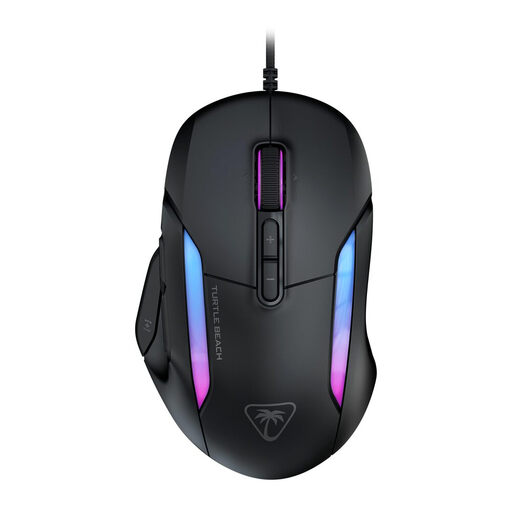 Image unavailable
Turtle Beach Kone II Wired, 23 buttons, black
A wired option to compare if you’re looking for plenty of buttons for building actions.
The product name lists 23 buttons and 26,000 DPI.
Joybuy
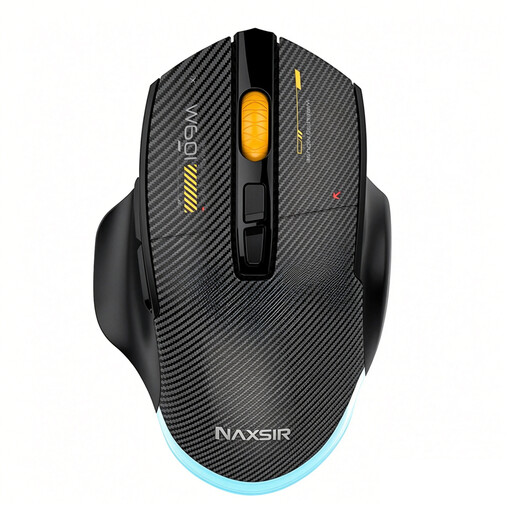 Image unavailable
NAXSIR 3-in-1 gaming mouse, 7 macro buttons
An option to compare if you’re looking for programmable macro buttons and a choice of connection types.
The product name lists wired, 2.4G wireless and Bluetooth connections, seven programmable macro buttons and 12,800 DPI.
Joybuy
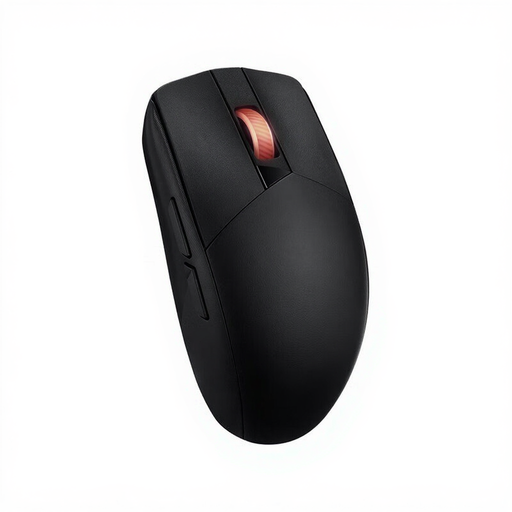 Image unavailable
ASUS ROG Strix Impact III Wireless
A wireless option to compare if you want more freedom of movement around your screen setup.
The product name lists RF wireless, Bluetooth, an optical sensor and 36,000 DPI.
Joybuy
 Image unavailable
AJAZZ AJ159 PRO, white
An option if you want to play wirelessly and choose a connection that suits your setup.
The product name lists a weight of 56 g, 26K DPI and support for 2.4G, USB-C and Bluetooth. The product description warns that the magnetic base should be kept away from pacemakers and medical implants.
Joybuy
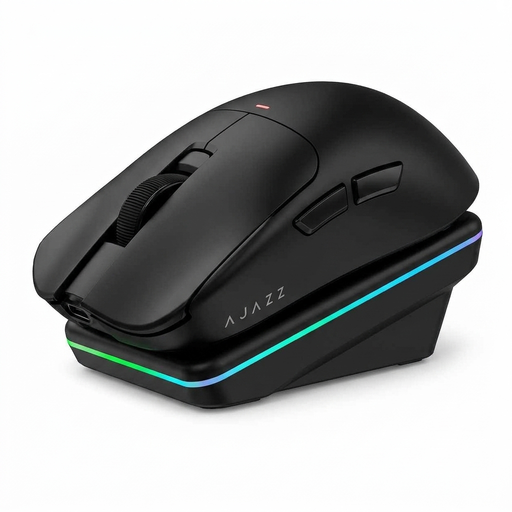 Image unavailable
AJAZZ AJ200 AI MC, with charging dock
A wireless option to compare if you want a choice of connection types.
The product name lists a weight of 63 g, a PAW3311 sensor, 24,000 DPI and Bluetooth, 2.4G and USB-C connections.
Joybuy
Frequently asked questions
Should I choose the highest DPI for a large screen?
No. Choose an adjustable sensitivity that feels right for camera movement and precise building. Minecraft Help explains that the sensitivity setting determines how quickly the camera responds to your movements, so maximum DPI alone doesn’t determine how the controls feel.
How do I set up a mouse for building in Minecraft?
Start by adjusting the mouse sensitivity, then check the controls in the settings menu. Minecraft describes customisable controls; also check which button assignments your mouse software supports.
What should I do if my gaming mouse breaks?
For a consumer purchase in the Netherlands, contact the seller about your legal rights. The Dutch government states that there is no fixed two-year statutory warranty period for all products; what you can expect depends on the product and the circumstances. A manufacturer’s warranty is in addition to your legal rights.
Does a gaming mouse sold in the Netherlands need to have a CE mark?
The Dutch government states that electronic devices sold in the EU must have a CE mark. Check the product information and marking on the version you’re buying; a product listing alone doesn’t establish whether a specific mouse is correctly marked.


