Who is this advice for?

Builder who spends long sessions at the desk

You build or manage your zoo at a desk for long periods and want a shape and grip that suit your hand. A mouse’s specifications won’t predict how comfortable it will feel to you. Arboportaal identifies repetitive hand movements and a static posture as aspects of working with a screen.

Zoo builder who relies on shortcuts

You select, navigate and place lots of objects, so you want a useful scroll wheel and buttons you can reach easily. How many extra buttons are useful depends on the actions you can and want to assign in your game.

Home worker with a shared desk

You use the same space or several devices for work and play, and would rather avoid a permanently attached mouse cable. If so, check the connection and power source for the specific model too.

What should you look for when choosing?

Wired with customisable controls

Best for: a fixed desk setup where you don’t mind a cable and often carry out building or navigation actions.

Consider: you won’t need to manage a mouse battery, but you will need to accommodate a cable and have a suitable connection. Logitech G describes the G502 X as having free-spin and ratcheted scroll-wheel modes.

Wireless with receiver and Bluetooth

Best for: a desk or devices you want to switch between without a permanently attached mouse cable.

Consider: check the connection and power source for each model. Logitech G lists the G309 LIGHTSPEED as weighing 86 grams with one AA battery; SteelSeries lists the Aerox 3 Wireless as offering 2.4 GHz and Bluetooth.

Plenty of thumb buttons

Best for: if you already know you want to control several assignable actions with your thumb.

Consider: Corsair lists the Scimitar Elite Wireless as having an adjustable panel with twelve side buttons. There’s no evidence that you need that many for zoo building, so consider how easy they are to reach and how the mouse feels in your hand.

What to consider What should you look for? Who is this important for?
Shape and grip Check the shape, whether it suits your handedness and where the buttons are. If possible, try the mouse for yourself. If you spend a long time building or managing your zoo at a desk, look for a shape that suits your hand and lets you reach the buttons easily. Around 36% of consumers in this situation prioritise grip and long-term use.
Scroll wheel and buttons Compare the scroll-wheel modes and button positions, and check that the software works with your computer and game. If you do a lot of selecting, navigating and placing, a scroll wheel or assignable buttons can be useful, provided you can customise the controls. Around 29% of consumers give these controls top priority.
Switching wirelessly Check for Bluetooth or the required receiver, and find out what power source the model uses. If you share a desk or devices, being able to switch between them without a fixed cable may influence your choice. Around 21% of consumers in this situation prioritise wireless flexibility.
Connection and power Check which port your computer needs and, for wireless use, what power source and receiver are included. If you’d rather not replace or recharge a battery, check whether a wired model is suitable for your computer. Around 14% of consumers give straightforward connection and power top priority.

Common buying mistakes

  • Assuming a high DPI means a mouse is better for building a zoo

    DPI is a product specification. On its own, it doesn’t tell you whether a mouse suits your grip or the controls you use in a game.

    Compare the shape, scroll wheel and how easy the buttons are to reach first. Choose a sensitivity that works for you and your game.

  • Assuming lots of buttons automatically make useful shortcuts

    Extra buttons are only helpful if you can reach them and assign actions you’ll actually use.

    Before you buy, make a short list of the actions you want to assign and check that the software works with your computer and game.

    Setting them up takes time, and buttons you don’t use add no practical functionality.

  • Reading a product listing that mentions a two-year legal guarantee as a general rule in the Netherlands

    The Dutch government states that the Netherlands has no fixed statutory guarantee period. A statement on a product page is therefore not the same as a general legal time limit.

    Distinguish between your statutory rights and a manufacturer’s or seller’s guarantee. If a product is faulty, contact the seller.

Brands to compare

Logitech G

The wired G502 X is worth considering if you want to compare scroll-wheel modes and customisable controls. The wireless G309 LIGHTSPEED is another option if you’re weighing up a receiver and Bluetooth.

  • Logitech G lists the G502 X as having a two-mode scroll wheel and weighing 89 grams.
  • Logitech G lists the G309 LIGHTSPEED as weighing 86 grams with an AA battery.
  • The G502 X is wired; without a separate POWERPLAY system, the G309 requires battery management. Its weight or shape doesn’t prove that it will suit every hand.

Razer

The Basilisk V3 is a wired option to compare if you want customisable buttons and different scroll-wheel behaviour for frequent building and navigation.

  • According to Razer, the Basilisk V3 has 10+1 programmable buttons and can automatically switch scroll-wheel mode using Synapse.
  • The automatic scroll-wheel mode described requires the accompanying software. Check that the features work with your game and computer.

SteelSeries

The Aerox 3 Wireless is a wireless alternative to compare if you use the same desk for work and play.

  • SteelSeries lists the model reviewed as weighing 68 grams and connecting via 2.4 GHz or Bluetooth 5.0.
  • Its weight or wireless connection won’t tell you how many buttons you need. Check the exact model and the features you want to use.

Corsair

The Scimitar Elite Wireless is a specialist option to compare if you want plenty of thumb buttons.

  • Corsair lists sixteen programmable buttons and an adjustable panel with twelve side buttons.
  • There’s no evidence that you need that many buttons for zoo building. Check whether you can reach them and assign useful actions to them.

Gaming mice at Joybuy

This selection includes wired gaming mice and one wireless model, so you can compare connections, controls and the features listed in each product title.
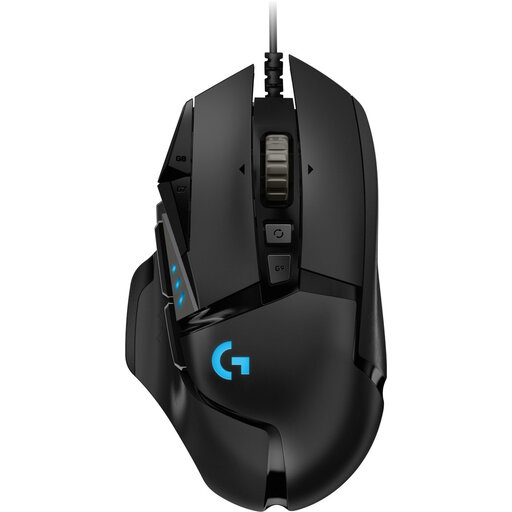
Logitech G502 HERO wired gaming mouse, right-handed model

Logitech G502 HERO wired gaming mouse, right-handed, black

A wired model to consider if you don’t need a wireless connection. The product title lists 25,600 DPI and a right-handed design.

Joybuy
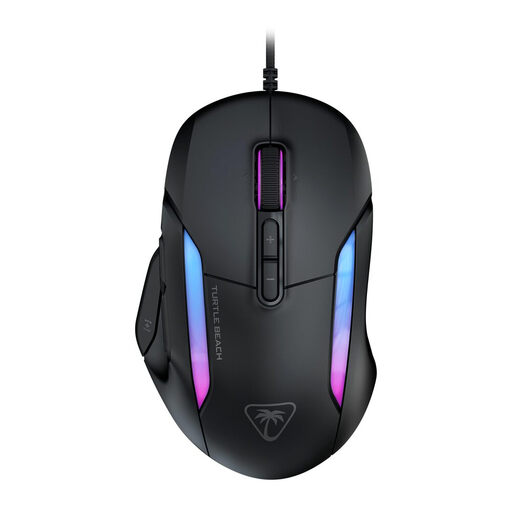
Turtle Beach Kone II wired gaming mouse

Turtle Beach Kone II wired gaming mouse

A wired option to compare if you use a fixed desk setup. The product title lists 26,000 DPI and 23 buttons.

Joybuy
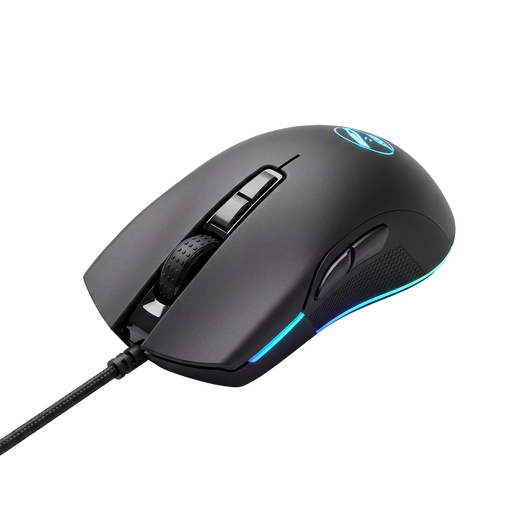
SharkGaming Velocity M70 gaming mouse

SharkGaming Velocity M70 gaming mouse

A wired gaming mouse to include in your comparison if you don’t need a wireless connection.

Joybuy
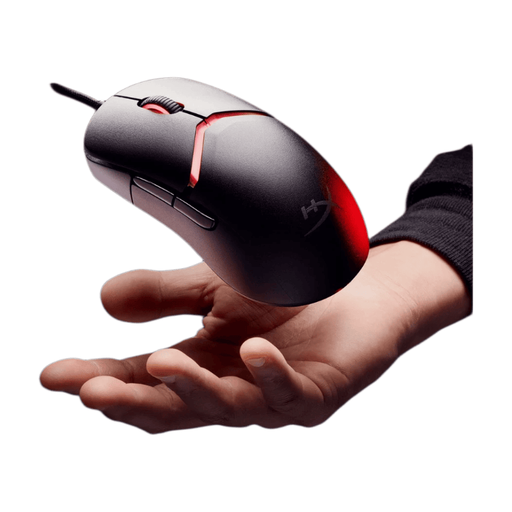
HyperX Pulsefire Saga wired gaming mouse

HyperX Pulsefire Saga wired gaming mouse, black

A wired model for a fixed desk setup. The product title lists 26,000 DPI and RGB lighting.

Joybuy
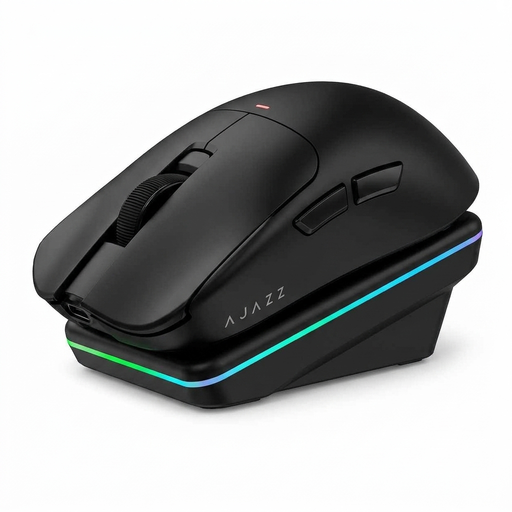
AJAZZ AJ200 AI MC wireless gaming mouse with charging dock

AJAZZ AJ200 AI MC wireless gaming mouse with charging dock

A wireless option to compare if you want to switch between devices. The product title lists three connection modes: BT, 2.4G and USB-C. It also lists 24,000 DPI and a weight of 63 grams.

Joybuy

Frequently asked questions

Do I need a mouse with lots of side buttons to build a virtual zoo?

Not necessarily. In Planet Zoo 2, the controls described include camera, selection and placement actions, among others. Frontier Developments says keyboard and mouse controls can be customised. First, decide which actions you want to control with your thumb. A panel with twelve buttons is a specialist option, not a requirement for this scenario.

How do I set up a mouse with extra buttons?

First, check which controls and assignments your game supports and what software your exact mouse requires. For example, Razer says the Basilisk V3’s automatic scroll-wheel mode works through Synapse. Follow the mouse’s instructions for maintenance and check the power source if you have a wireless model.

What are my rights in the Netherlands if a mouse I bought online doesn’t suit me or develops a fault?

For consumer purchases made online, you usually have a 14-day cooling-off period, although conditions and exceptions may apply. Faulty products are also covered by statutory rights. The Dutch government says there is no fixed two-year statutory guarantee period in the Netherlands. If you have a problem, contact the seller.

Do screen-work rules apply to my home office too?

The obligations described by Arboportaal apply to employers and employees in relevant work situations; they are not a general requirement for every private buyer or gaming mouse. Whether the rules apply to your home office depends on your work situation. Even when they don’t apply, you can take regular breaks from sitting at your desk for long periods.
