
Map navigator
You often move the pointer across the map and want to navigate quickly while selecting precisely. Microsoft Support explains how to adjust pointer speed and the cursor’s size and colour.


For grand strategy games on a large screen, choose a mouse that lets you navigate precisely and whose shape and controls suit your setup. Start by adjusting pointer speed and cursor visibility; Microsoft Support explains how to change these settings in Windows. Only choose extra mouse buttons if your game supports the commands you want, then consider the grip, wired or wireless connection and battery management.
You often move the pointer across the map and want to navigate quickly while selecting precisely. Microsoft Support explains how to adjust pointer speed and the cursor’s size and colour.
You want to use mouse buttons for frequently used commands, provided your game lets you assign those commands. Consider whether a few easy-to-reach buttons will do, or whether a thumb-button grid suits the way you play.
You’re looking for a shape and button layout that suit your hand and grip. A large number of extra buttons isn’t automatically useful if they’re hard to reach or easy to press by mistake.
Start with the pointer settings you need for navigating the map, then decide which in-game commands you actually want to control with the mouse. Next, compare the shape and connection with your gaming setup.
| What to consider | What to look for | Who might prioritise this? |
|---|---|---|
| Pointer control on a large screen | Adjust pointer speed and cursor visibility; assess the DPI setting in your own game. | When I’m navigating a large map, I want to move quickly without making precise selections difficult. Around 30% of consumers put pointer control first. |
| Buttons for in-game commands | Check the position of the programmable buttons, the software required and whether your game supports the commands. | I want frequently used commands within easy reach, but I don’t want buttons I can’t assign or find hard to distinguish. Around 30% of consumers prioritise easy-to-reach in-game commands. |
| Comfort during long sessions | Consider how the mouse sits in your hand, your grip and the reach of the extra buttons; assess the shape for your own hand. | When I play for longer, I want to hold the mouse comfortably without the button layout getting in the way of my grip. Around 20% of consumers put comfort first. |
| Connection to your gaming setup | Weigh up a cable against the freedom of movement you want; for wireless models, check the available connection options and battery management. | I want the mouse to suit the distance from my PC and the way I sit, without an awkward cable or unexpected battery management. Around 20% of consumers choose mainly for freedom of movement and connectivity. |
A sensor’s maximum rating alone doesn’t tell you whether the pointer will move comfortably and precisely on your screen. Pointer speed and cursor visibility matter too.
Adjust the pointer settings first and try them in your game before choosing a mouse based on its maximum DPI.
Extra buttons are only useful if you can reach them and your game supports the commands you want.
Make a note of the commands you use often, then compare them with the button layout and the options available in your game.
Versions within the same product range can differ in their connection and controls. A model name with an extra suffix may refer to a different version.
Before you buy, check the full model name, connection and specifications of the exact version.
A manufacturer’s warranty doesn’t replace your statutory rights if a product doesn’t conform to the contract. The Dutch government states that the Netherlands has no fixed statutory warranty period.
Keep your proof of purchase and contact the seller if there’s a fault. Assess any additional warranty based on what it adds to your existing rights.
The wired G502 X is a useful reference if you’re looking for programmable scroll controls and an adjustable DPI shift button.
The Basilisk V3 and Naga V2 HyperSpeed offer examples of different button layouts and scroll controls.
The Aerox 9 Wireless is a useful reference if you’re looking for a wireless mouse with plenty of individually assignable buttons.
The SCIMITAR ELITE WIRELESS is a useful reference if you want to compare the position of an extended thumb-button panel.
These products include wired and wireless gaming mice with a range of adjustable control options. Check which buttons and connection suit your game and gaming setup.
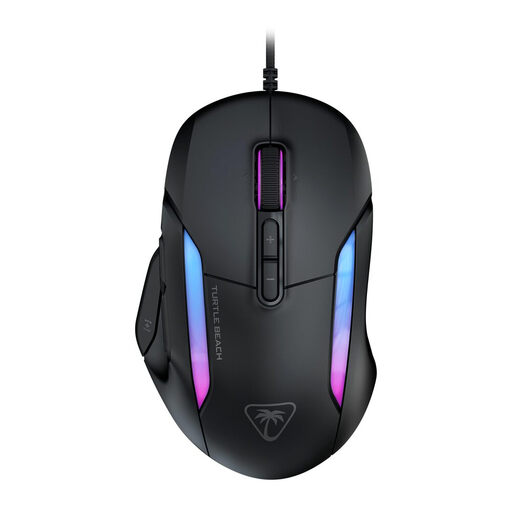 No image available
Suited to anyone looking for a wired mouse with adjustable controls and scroll actions.
The product information lists Easy-Shift[+] and a 4D scroll wheel; check that the associated features work with your game.
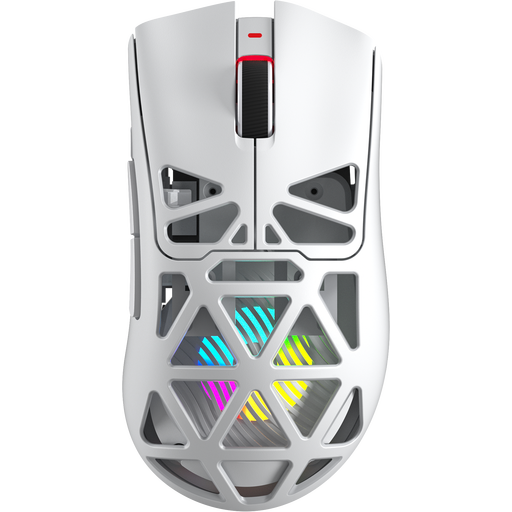 No image available
Suited to anyone who wants to play wirelessly and customise the mouse buttons, as long as the game supports the desired assignments.
The product name lists Bluetooth 5.0, 2.4G and USB-C, as well as 7 programmable buttons and a PAW3311 sensor.
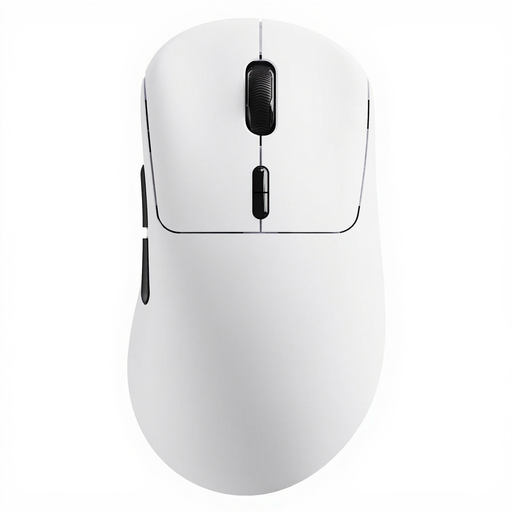
 No image available
Suited to anyone looking for a wired, right-handed mouse with extra controls.
The product name lists USB Type-A, an optical sensor and 25600 DPI. Joybuy Netherlands lists 13 buttons and a scroll wheel for the G502 X.
 No image available
Suited to anyone looking for a wireless mouse with programmable buttons, provided the desired commands can be assigned in the game.
The product name lists 10 programmable buttons and macro support.
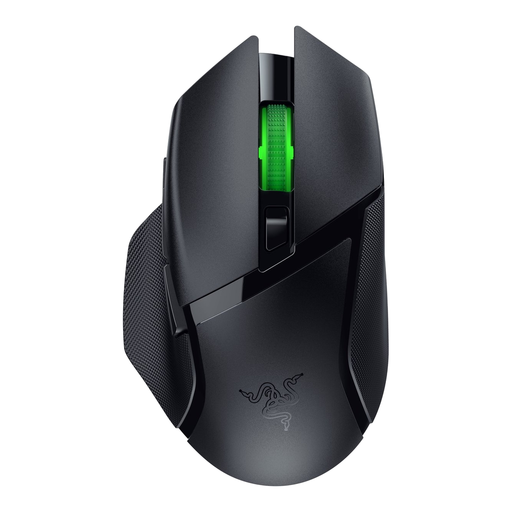 No image available
A wireless option for anyone who wants to customise extra mouse controls without choosing a wired version.
Before you buy, check which features are available on this exact version and whether your game supports the commands you need.
No, don’t choose based only on the sensor’s maximum rating. Microsoft Support explains how to adjust pointer speed in Windows and make the cursor larger or change its colour. Then try it in your game to see whether the pointer navigates comfortably and lets you select precisely.
Start with commands you use often and that your game lets you assign to keys. Then check which buttons on the exact mouse are programmable and whether the required software works on your PC.
According to Microsoft Support, you can change the pointer’s size and colour in Windows. Check your display’s scaling setting too, before assuming the mouse is the problem.
Check which connection modes the exact version supports and whether its battery management suits the way you use it. The stated battery life for the Razer Naga V2 HyperSpeed varies by connection mode and is based on information from Razer.
According to the Dutch government, when you buy from a business online at a distance, you often have a 14-day cooling-off period; exceptions and the type of seller matter. If a product is faulty, contact the seller about your statutory rights. The Dutch government states that the Netherlands has no fixed statutory warranty period.